SSL link encryption
This topic describes the procedure for enabling SSL connection encryption.
Background information
OceanBase supports Secure Sockets Layer (SSL) encryption for database connections to improve security. SSL encrypts network connections at the transport layer. This protects your data in transit. After you enable SSL, you can require all clients to use SSL for access.
After SSL connection encryption is enabled, it cannot be disabled. This may cause a slight decrease in instance performance because certificate encryption and decryption consume computing resources. Enable SSL connection encryption for an instance only when you need to connect over the internet or require encryption in transit.
ApsaraDB for OceanBase V2.2.76 and later support SSL connection encryption.
SSL connection encryption is not supported for Standard Edition (Key-Value) clusters.
SSL connection encryption does not apply to endpoints in direct connection mode.
TLS version guide
Transport Layer Security (TLS) is a widely used transport-layer security protocol. It ensures privacy and data security for communications over the internet. The TLS protocol has many versions. The following table describes TLS support for different combinations of JDK and MySQL Connector/J versions.
JDK version | MySQL Connector/J version | TLSv1.0 | TLSv1.1 | TLSv1.2 | TLSv1.3 | |
JDK 8 | < 8u291 | - | Support | Support | Support | Not supported |
8u291 ~ 8u333 | - | Not supported | Not supported | Support | Not supported | |
>= 8u341 | < 8.0.19 | Not supported | Not supported | Support | Not supported | |
>= 8.0.19 | Not supported | Not supported | Supported | Support | ||
JDK 9 | - | - | Support | Support | Support | Not supported |
JDK 11 | < 11.0.11 | < 8.0.19 | Support | Support | Support | Not supported |
>= 8.0.19 | Supported | Supported | Support | Support | ||
>= 11.0.11 | < 8.0.19 | Not supported | Not supported | Support | Not supported | |
>= 8.0.19 | Not supported | Not supported | Support | Support | ||
Procedure
Log on to the OceanBase Management Console .
In the navigation pane on the left, click Instance List.
In the instance list, find the target cluster instance and click its name to go to the Cluster Instance Workspace page.
In the navigation pane on the left, click Security Settings.
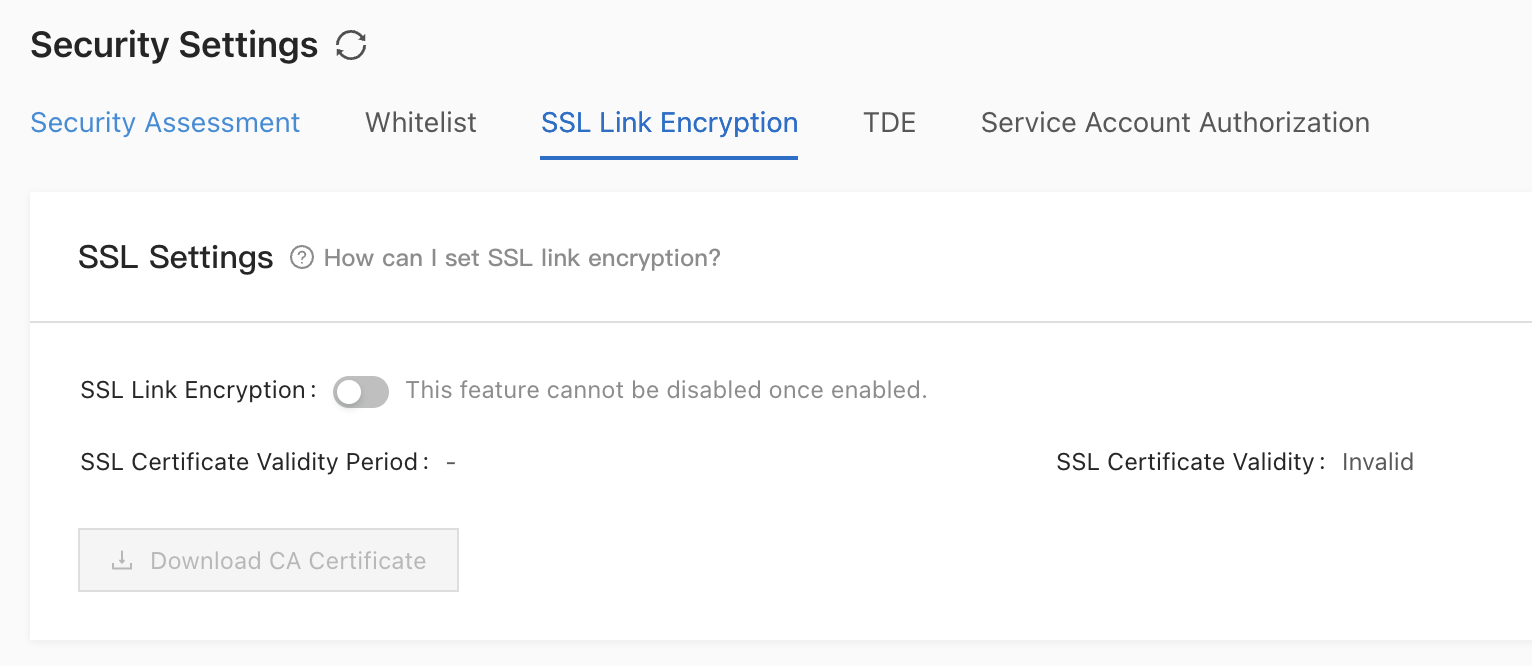
Click the SSL Connection Encryption tab. You can perform the following operations.
Turn on the SSL Connection Encryption switch to enable SSL connection encryption. The process takes about 3 to 5 minutes. After SSL connection encryption is enabled, some versions allow you to enable Force SSL Connection. If the Force SSL Connection option is not displayed, the current version does not support this feature.
 Note
NoteEnabling Force SSL Connection blocks non-SSL connections. Existing non-SSL connections will become invalid. Make sure to switch your connection method.
Click Download CA Certificate to download the certificate.
The downloaded file is a compressed package that contains the following three files:
p7b file: Used to import the CA certificate on Windows systems.
PEM file: Used to import the CA certificate on other systems or for other applications.
JKS file: A Java KeyStore (JKS) file. The password is `OceanBase`. This file is used to import the CA certificate chain in Java programs.
NoteTo use the JKS certificate file in Java with JDK 7 or JDK 8, you must modify the default security configuration. On the application host, edit the
jre/lib/security/java.securityfile and change the following two settings:jdk.tls.disabledAlgorithms=SSLv3, RC4, DH keySize < 224 jdk.certpath.disabledAlgorithms=MD2, RSA keySize < 1024If you do not modify the JDK security configuration, the following error is reported. Other similar errors are also typically caused by the Java security configuration.
javax.net.ssl.SSLHandshakeException: DHPublicKey does not comply to algorithm constraintsClick Update Validity Period to refresh the SSL Certificate Validity Period.
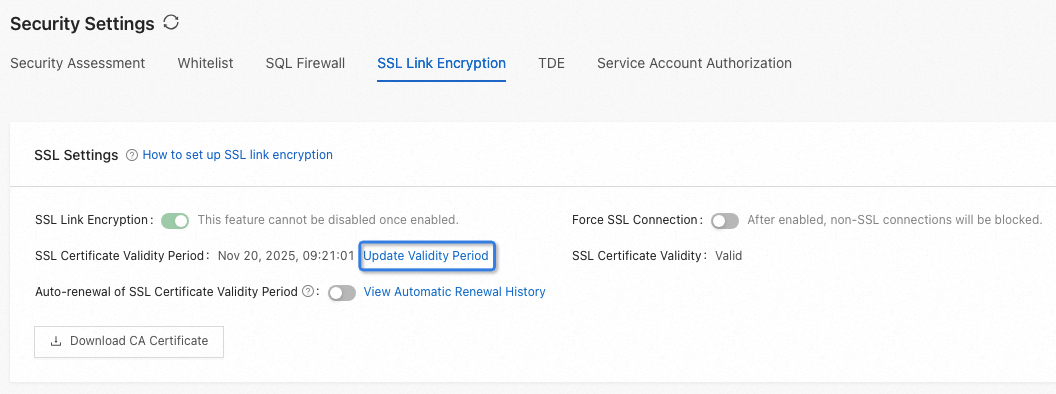
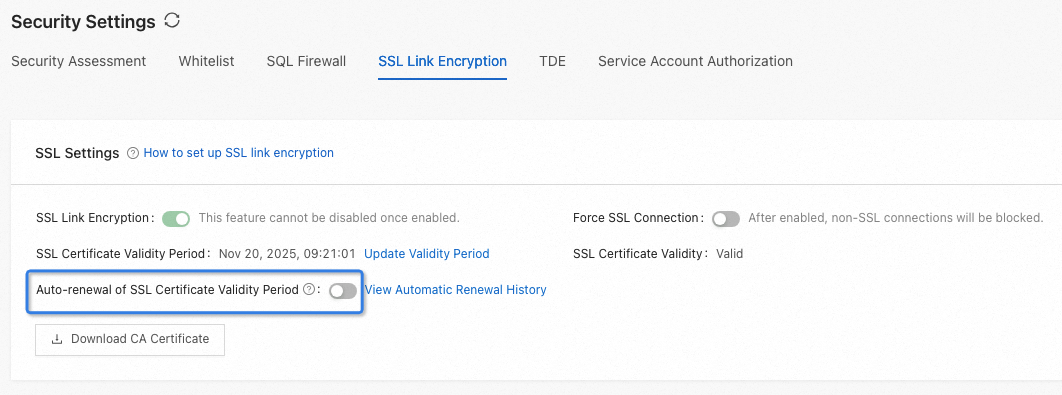
Turn on the Auto-update SSL Certificate Validity Period switch. When this feature is enabled, the certificate automatically renews 7 days before it expires. Each renewal is valid for 360 days.
FAQ
If your Java program fails to connect and reports the error javax.net.ssl.SSLHandshakeException: No appropriate protocol (protocol is disabled or cipher suites are inappropriate), you can resolve the issue in one of the following ways:
Specify the TLS version in the URL parameters of the JDBC connection string. For example, specify `enabledTLSProtocols=TLSv1.2`.
Downgrade the JDK version to one earlier than 1.8.0_291.