This topic describes how to view the modification history of a parameter within the specified time range. For example, you can view the names of modified parameters, parameter values before and after modifications, whether the new value has taken effect, and the time when a parameter was modified and took effect.
Procedure
In the instance list, click the name of the target cluster instance to go to the Cluster Instance Workspace page.
Click Tenant Management. In the tenant list, click the target tenant to go to the Tenant Workspace page.
Click Parameter Management to go to the Parameters tab. Then, click the Change History tab.
Specify the time range in the upper-right corner. For example, you can set the time range to the last three months. Then, click OK.
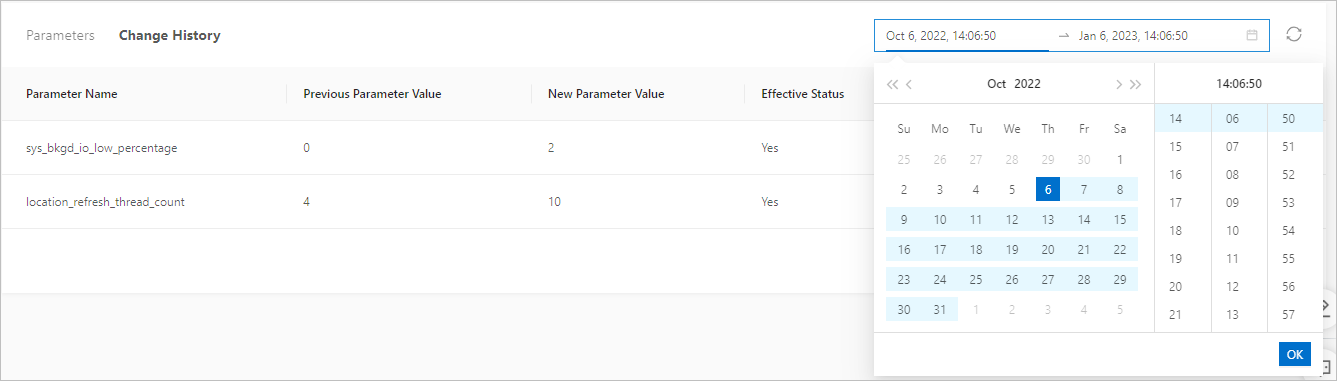
The change history list contains the following columns: Parameter Name, Previous Parameter Value, New Parameter Value, Effective Status, Modified At, and Effective From. The valid values for the Status column include Effective, Taking Effect, and Waiting for Scheduling.
