You can create marketing campaigns, which include main campaigns and sub-campaigns. For definitions of main and sub-campaigns, see Marketing Campaigns Overview.
The creator must be an administrator or have a custom role with the "User Insights-Marketing Campaign-Create Campaign" permission.
There are two ways to create marketing campaigns:
Create a campaign from the upper-right corner of the page and fill in all configuration items.
Quickly create a marketing campaign from the campaign calendar and fill in simplified configuration items.
Create a campaign from the upper-right corner of the page
Procedure:
Go to Workspace > User Marketing > Marketing Management > Campaign Management.
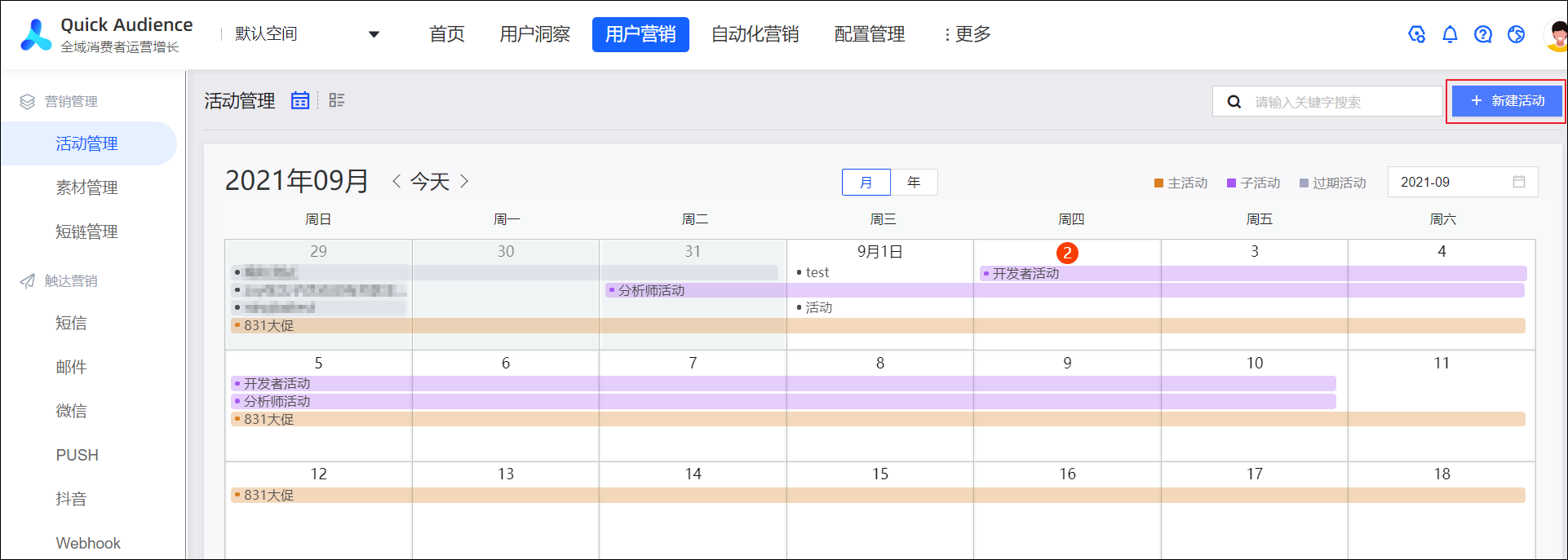
In the upper-right corner, click Create Campaign.
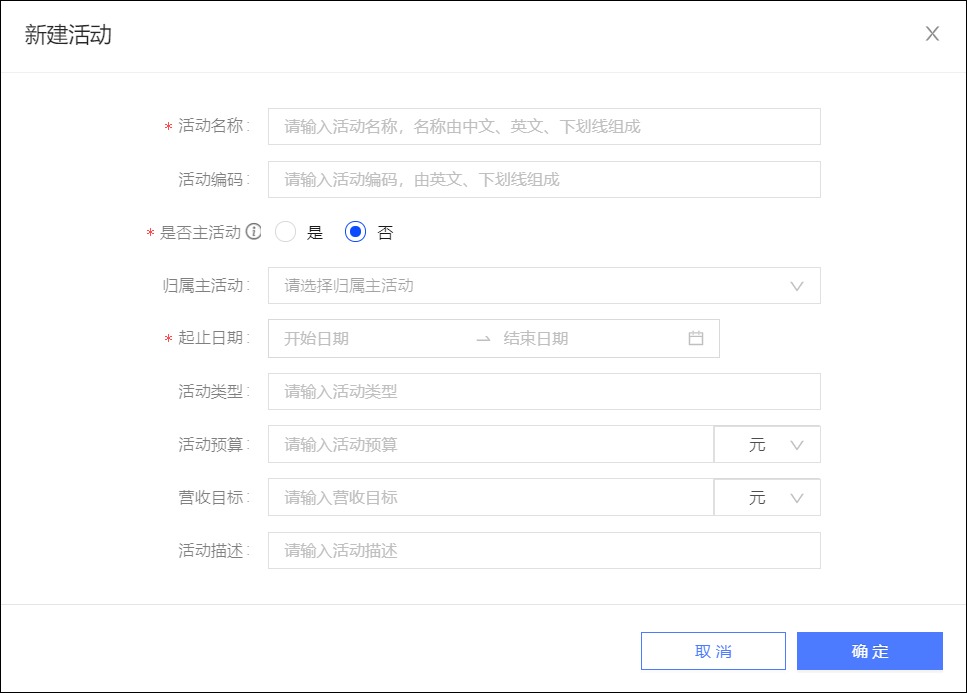
In the dialog box that appears, configure the parameters as described in the following table.
Parameter
Description
Campaign Name
Enter a name for the campaign.
Campaign Code
Enter a code for the campaign.
Is it the main activity?
Select whether to create a main campaign:
Select Yes to create a main campaign.
Select No to create a sub-campaign.
Parent Main Campaign
If you set Is Main Campaign to No, the Parent Main Campaign configuration item appears. You can:
Select a main campaign to attach the new sub-campaign to.
Leave this unselected to create an independent sub-campaign.
To deselect a main campaign, move the mouse pointer over the selected campaign. An
 icon appears on the right. Click the icon to deselect the campaign.
Start and End Dates
Select the start and end dates for the campaign.
NoteThe start and end dates of a sub-campaign must be within the date range of its main campaign.
Campaign Type
Enter or select a campaign type from the drop-down list, such as Holiday Campaign, Offline Campaign, or Major Campaign.
Description
Enter a description for the activity.
Campaign Budget
Enter the campaign budget. The default currency is CNY. You can switch to USD, GBP, EUR, or HKD.
Revenue Target
Enter the revenue target. The default currency is CNY. You can switch to USD, GBP, EUR, or HKD.
Click OK to complete the process.
Quickly create a marketing campaign from the campaign calendar
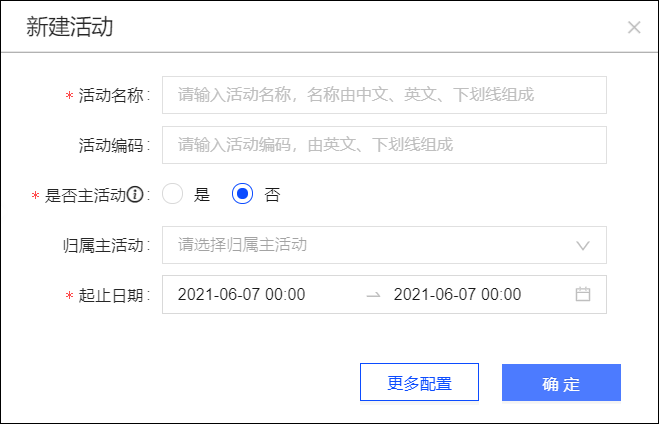
When you quickly create a marketing campaign from the campaign calendar, the configuration items are simplified to Campaign Name, Campaign Code, Is Main Campaign, Parent Main Campaign, and Start and End Dates. By default, the selected calendar date is used as the start and end date for the campaign, but you can change it.
Procedure:
Go to Workspace > User Marketing > Marketing Management > Campaign Management.
Click the
 icon to open the campaign calendar. Then, select Month or Year to switch to the monthly or yearly view, as shown in the following figure.
In the monthly or yearly view, click the desired date cell. A configuration window appears, as shown in the following figure. The selected date is used as the default start and end date.

In the dialog box, configure the parameters. For parameter descriptions, see the table above.
(Optional) To configure all the parameters listed in the table above, click More Configurations. The dialog box expands to show all configuration items.
Click OK.