Communication configuration
mPaaS alerts you when iOS push certificates are about to expire. You can receive notifications through DingTalk and email.
Prerequisites
Prepare the email addresses of the recipients and carbon copy contacts.
Procedure
-
Log on to the mPaaS console, select the target application, and in the left navigation pane, go to the Message Push Service > Settings page.
-
On the right side of the page, click the Communication Management tab.
-
In the upper-right corner of the Communication Management area, click Configure. The configuration options appear.
|
Field |
Required |
Description |
|
Status |
Yes |
Specifies whether to enable email alerts. |
|
Mail Receiving Address Collection |
Yes |
Up to 10 email addresses, separated by commas. |
|
Mail CC Address Collection |
No |
Up to 10 email addresses, separated by commas. |
-
Click OK to save the configuration.
DingTalk
Custom DingTalk robots are supported only in internal groups.
Prerequisites
Before you begin, create a DingTalk group and add a custom robot to it:
-
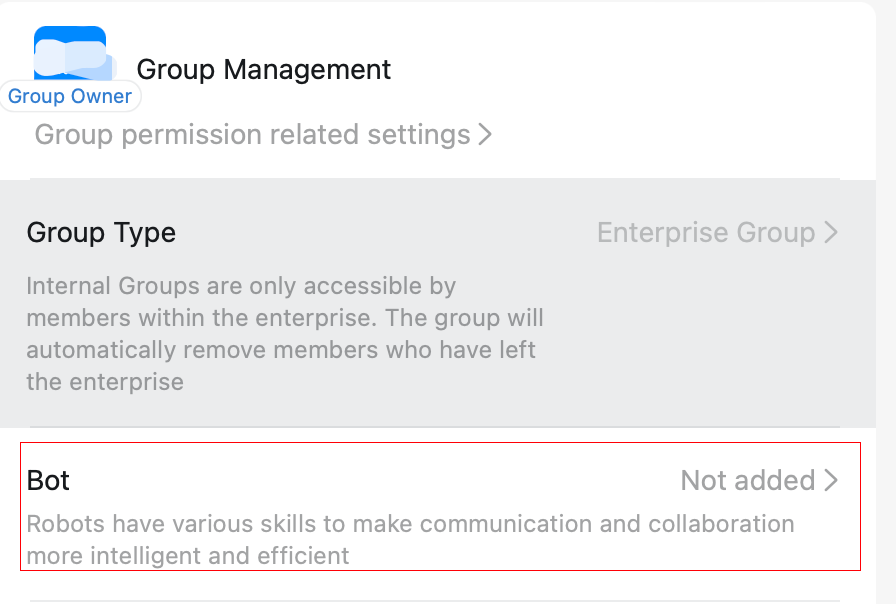
Create an internal group.
-
Go to Group Settings > Group Assistant.
-
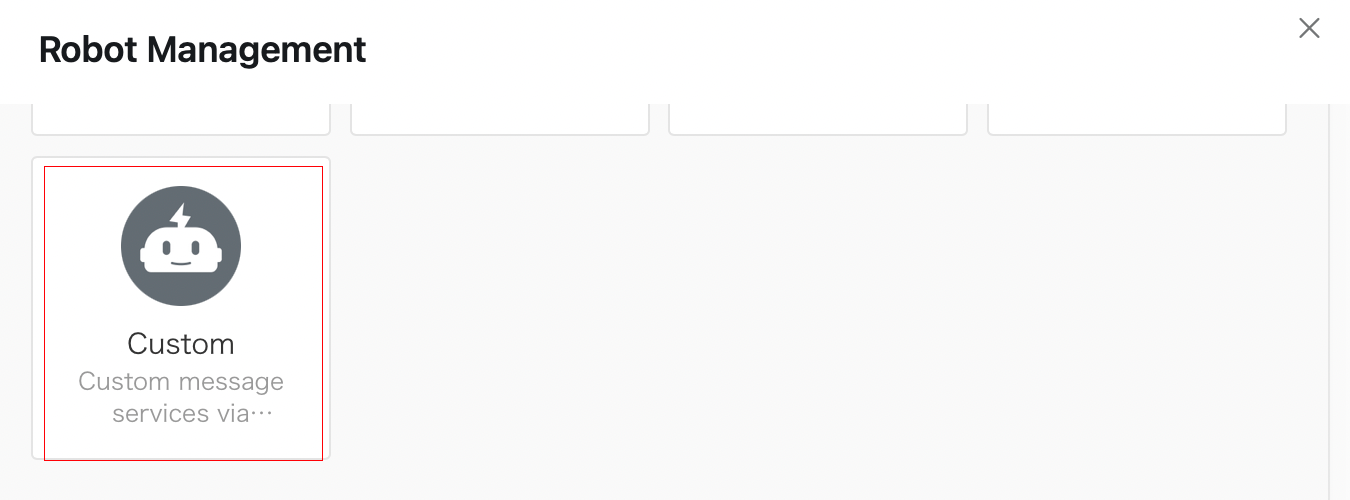
Choose Add Robot > Custom.
-
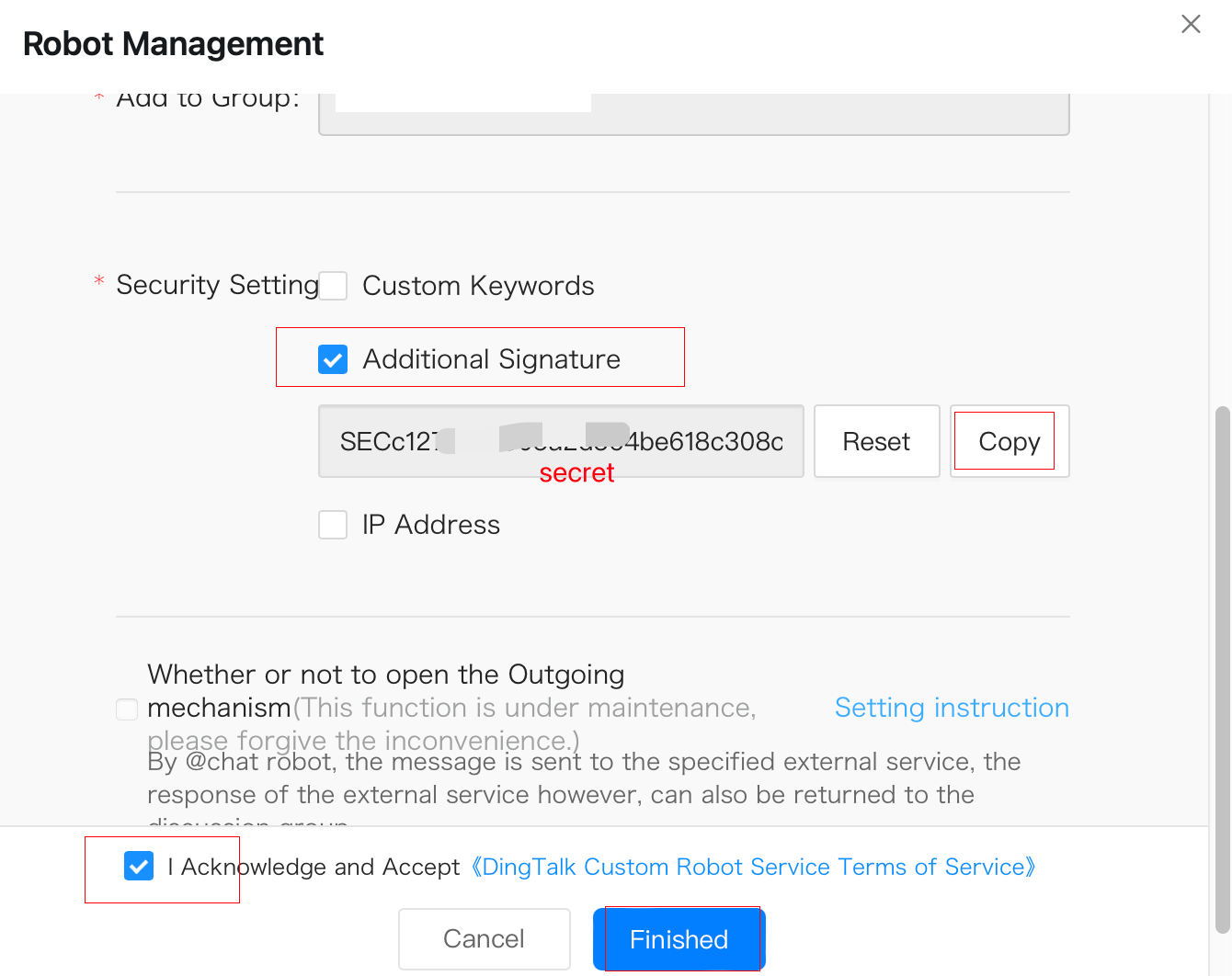
Click Add and configure the robot settings.

Procedure
-
Log on to the mPaaS console, select the target application, and in the left navigation pane, go to the Message Push Service > Settings page.
-
On the right side of the page, click the Communication Management tab.
-
In the upper-right corner of the Communication Management area, click Configure. The configuration options appear.
|
Field |
Required |
Description |
|
Status |
Yes |
Specifies whether to enable DingTalk alerts. |
|
Authentication key |
Yes |
The authentication key of the DingTalk robot. |
|
WebhookUrl |
Yes |
The webhook URL of the DingTalk robot. |
-
Click OK to save the configuration.