Set up an authenticator app
Attach an authenticator app as a virtual MFA device to verify your identity when you log on to Alibaba Mail.
Supported authenticator apps (virtual MFA): Alibaba Cloud App (recommended), Microsoft Authenticator, Google Authenticator, and Authy. Scan the QR code or search your phone's app store to download one.
Microsoft Authenticator and Google Authenticator:
Download an app by scanning the QR code or searching your phone's app store.
Alibaba Cloud App (virtual MFA):
Others:
Attach an authenticator
1. The mailbox administrator has enabled two-factor authentication and selected Authenticator App as the authentication method. What is Multi-Factor Authentication?
a. Accounts without a secure phone see the Method 1 interface at logon.
b. Accounts with a secure phone are not prompted at logon. Use Method 2 to attach an authenticator in Settings.
2. If both a secure phone and an authenticator are attached, only one verification method is required at logon.
3. Third-party client logon does not require phone or authenticator verification. Use a third-party client security password instead. How employees can enable and use a third-party client security password.
Method 1: Set up during logon. (Prerequisites: Two-factor authentication is enabled with Authenticator App selected, and no secure phone is attached.)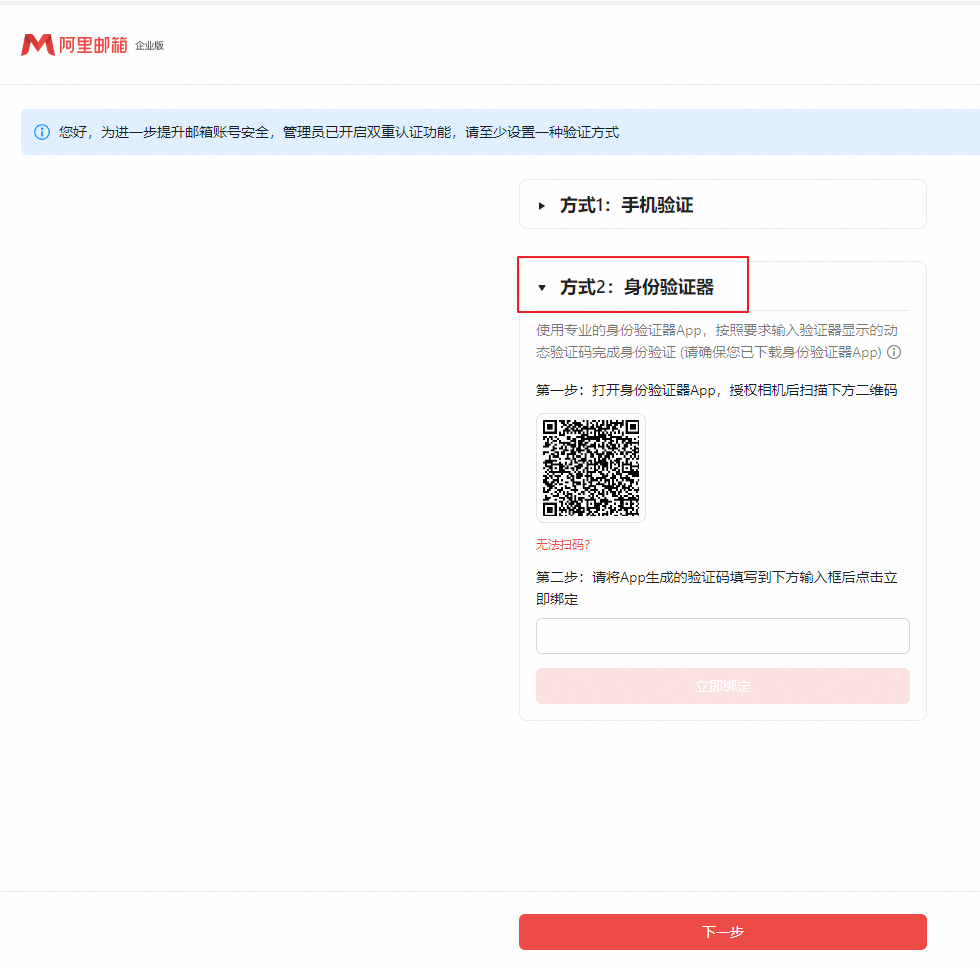 Method 2: Go to Settings > Account and Security > Account Security and select Attach Authenticator.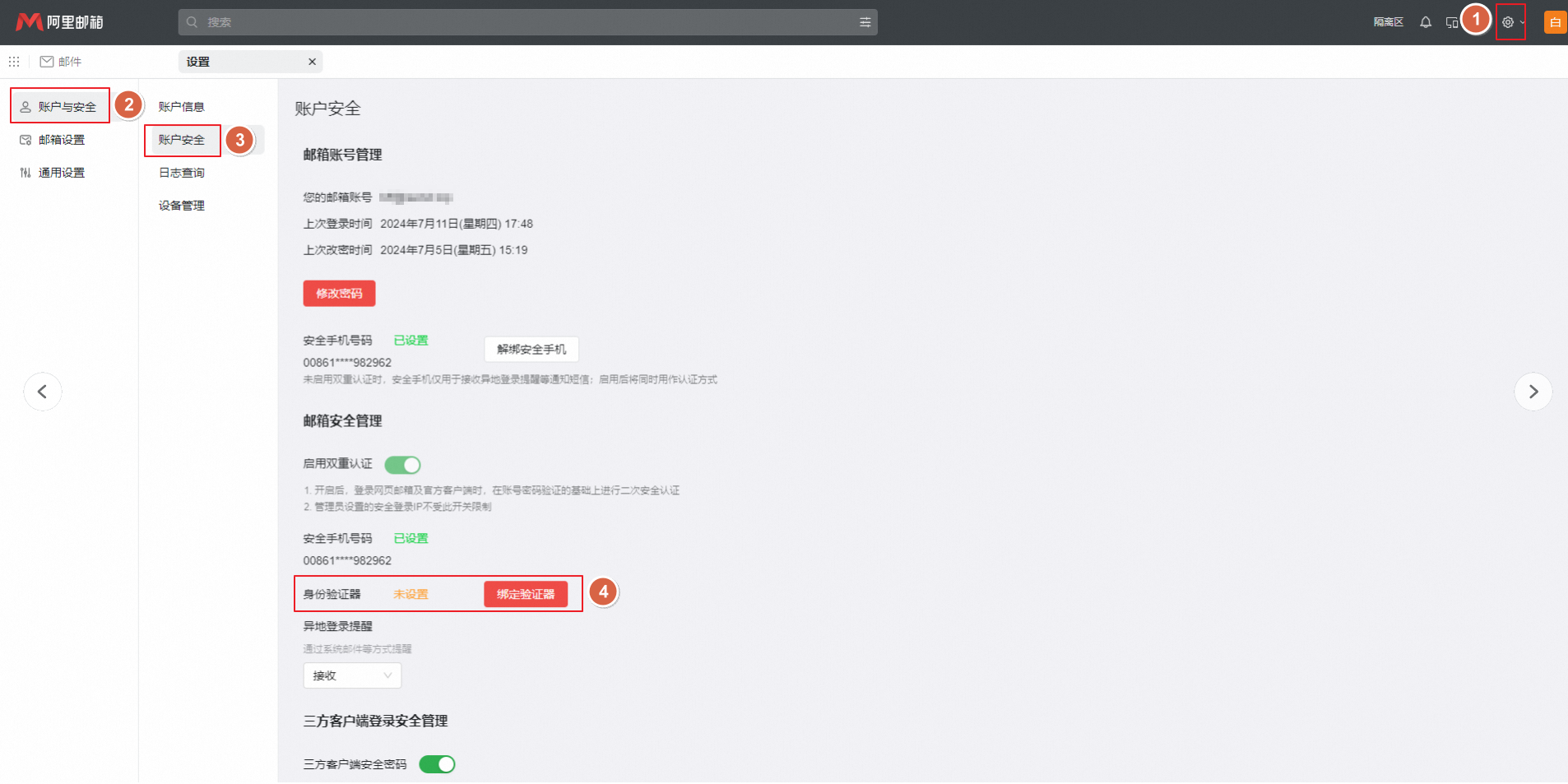
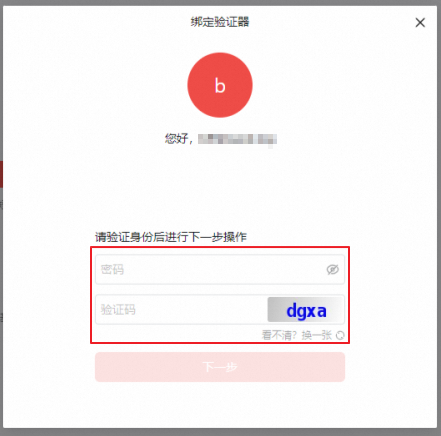
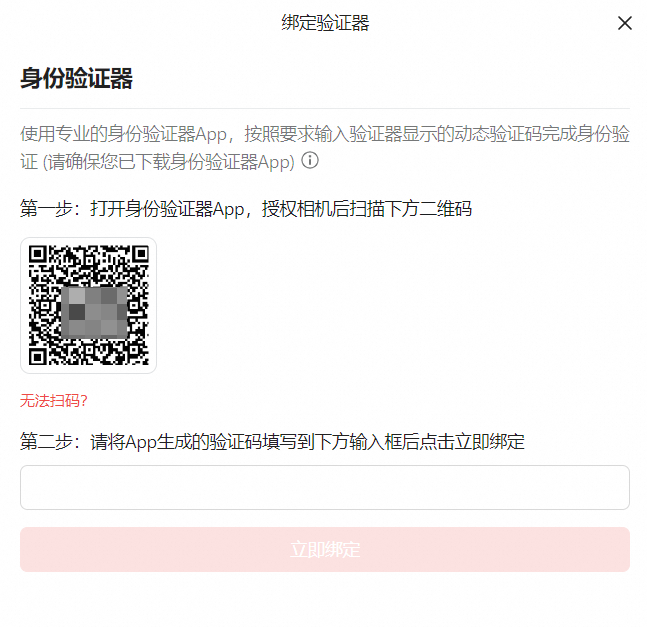
Example 1: Alibaba Cloud App (virtual MFA)
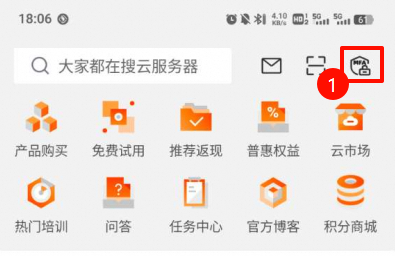
1. Open the Alibaba Cloud App, tap the MFA icon in the upper-right corner, and scan the QR code on the mailbox page.
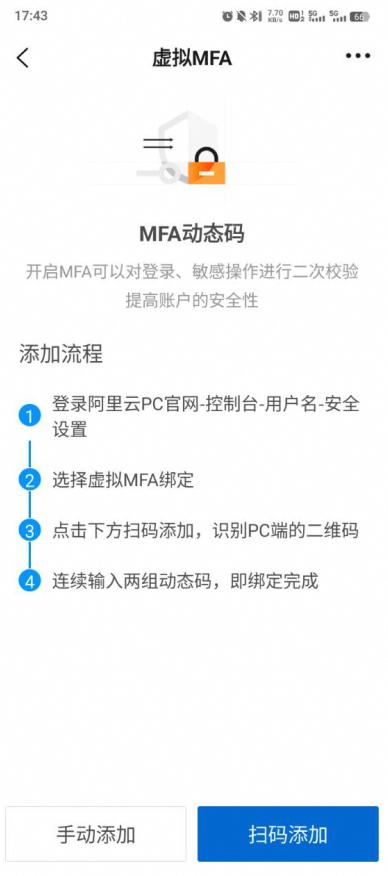
2. Tap Scan to Add.
If the message 'Invalid QR code format. Please retry.' appears, scan the QR code again.
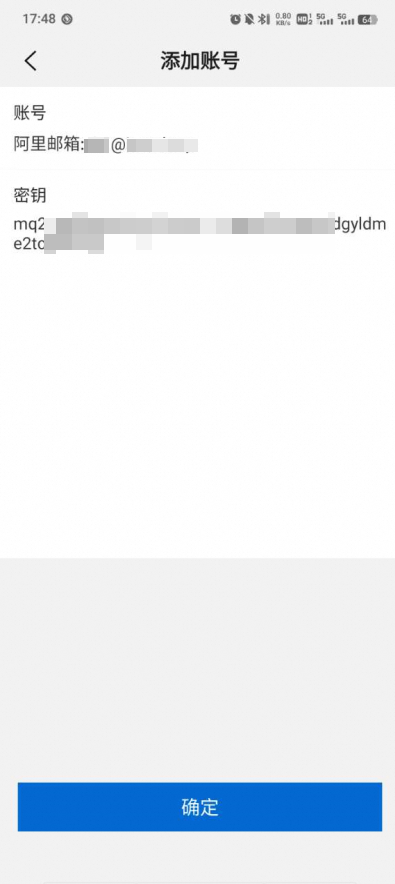
3. After you scan the code, tap OK.
4. A backup prompt appears with a verification code.
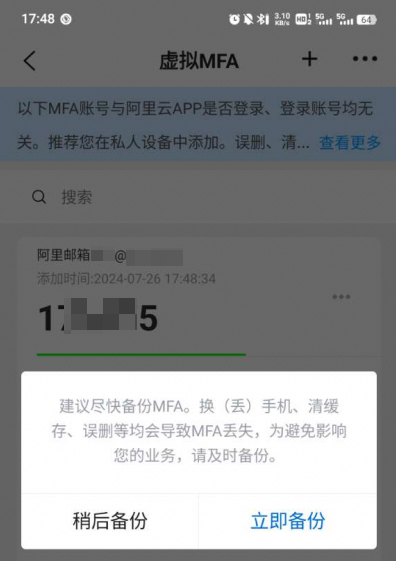
Example 2: Microsoft Authenticator
1. Open the authenticator app and scan the QR code on the mailbox page. This example uses Microsoft Authenticator.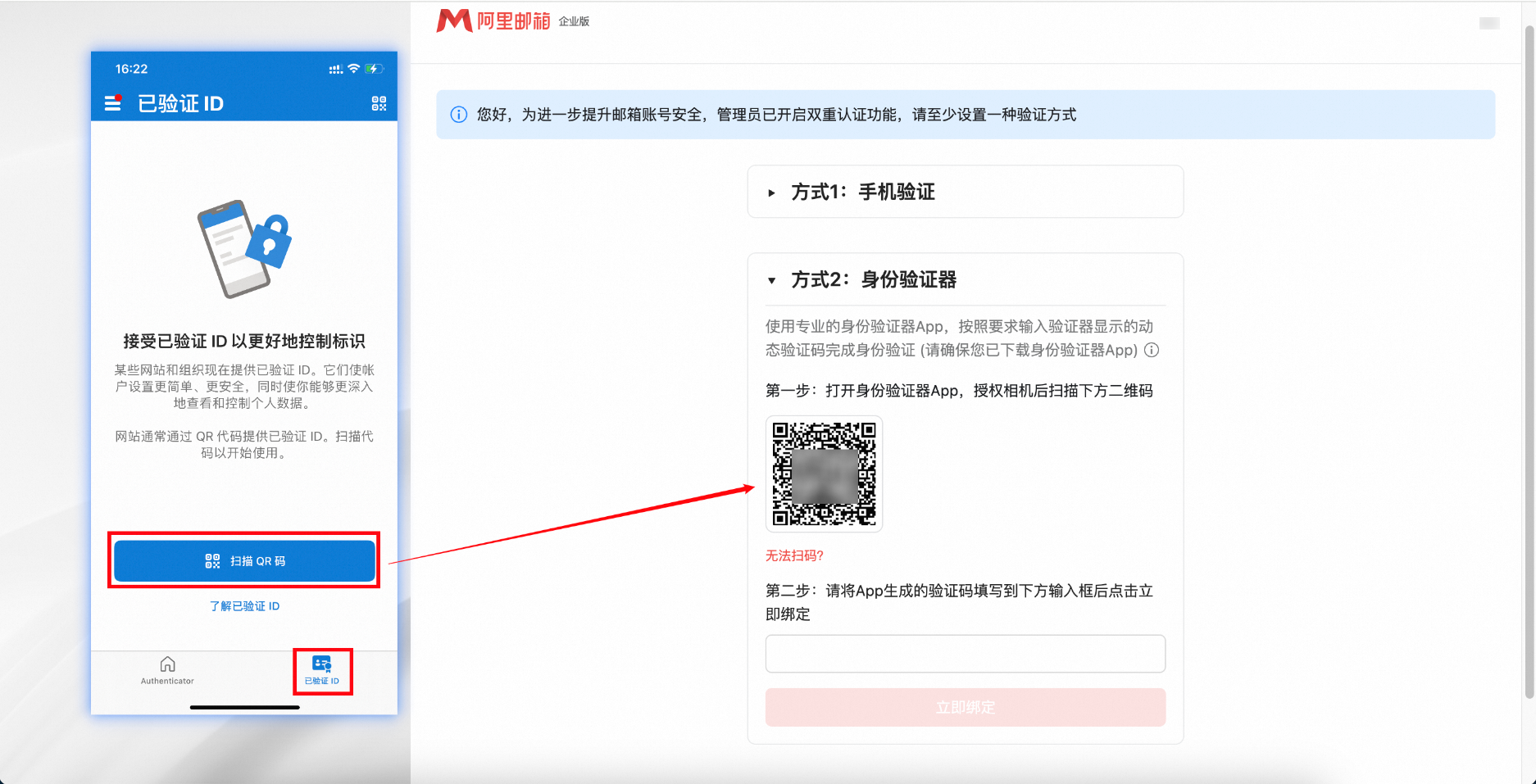
2. Enter the verification code generated by the app into the input box and click Attach Now.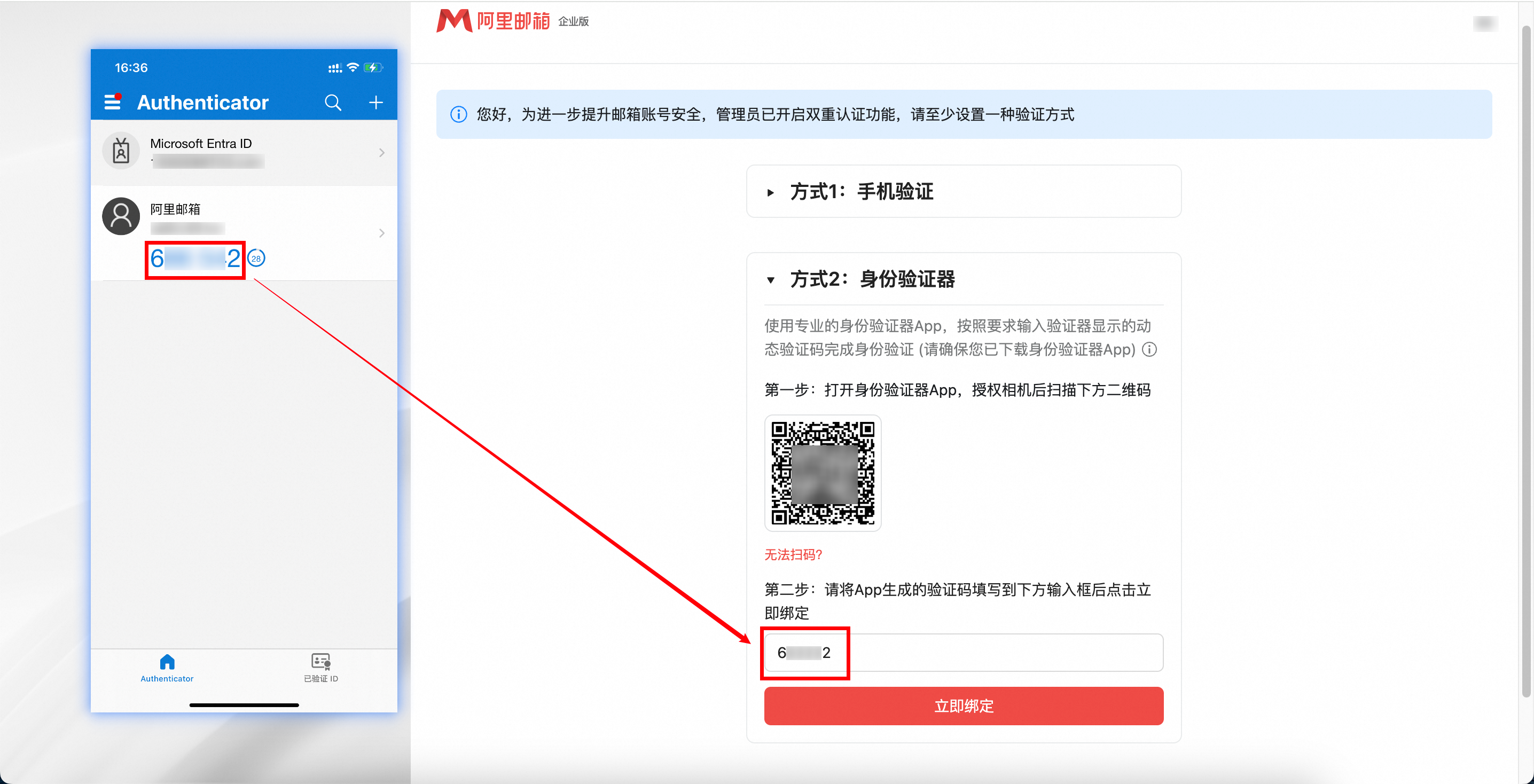
Attachment successful
A success message confirms the authenticator is attached.
Logon verification
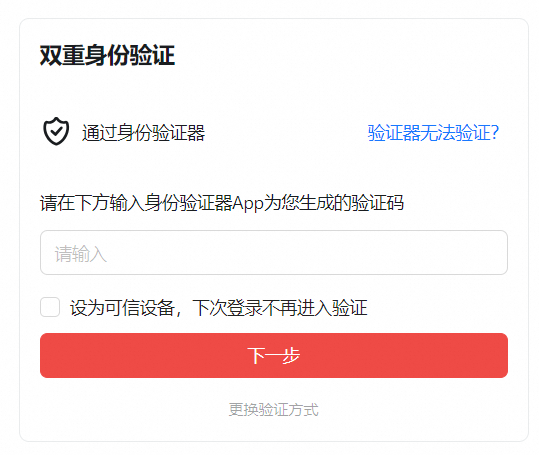
After attaching an authenticator, enter the app-generated verification code at each logon. Select the 'Set as trusted device' checkbox to skip verification on future logons from that device.
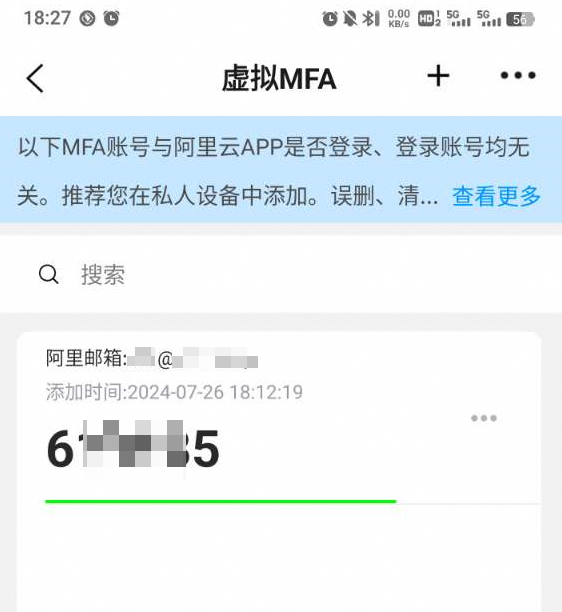
Delete an authenticator
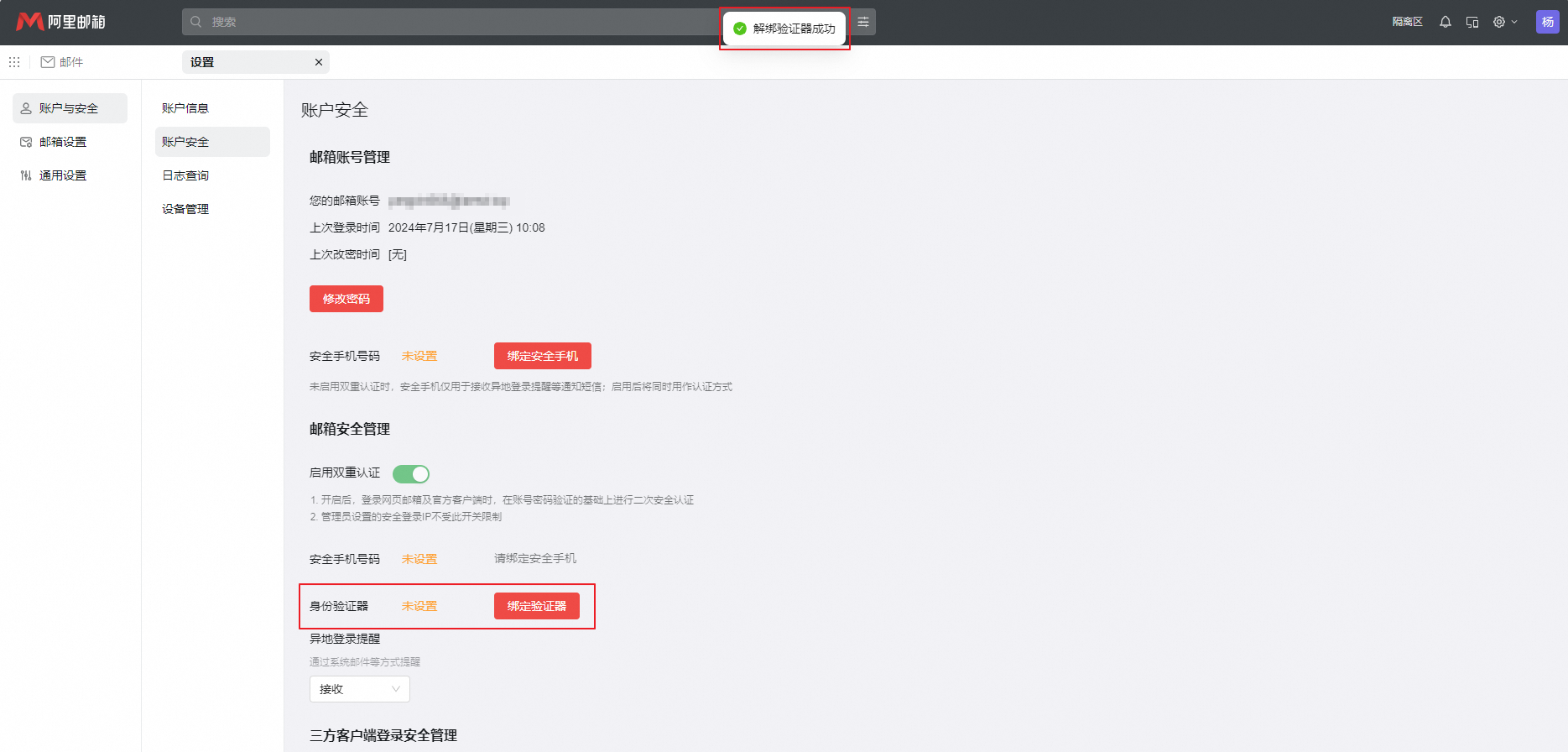
1. Go to Settings > Account and Security > Account Security and select Delete Authenticator.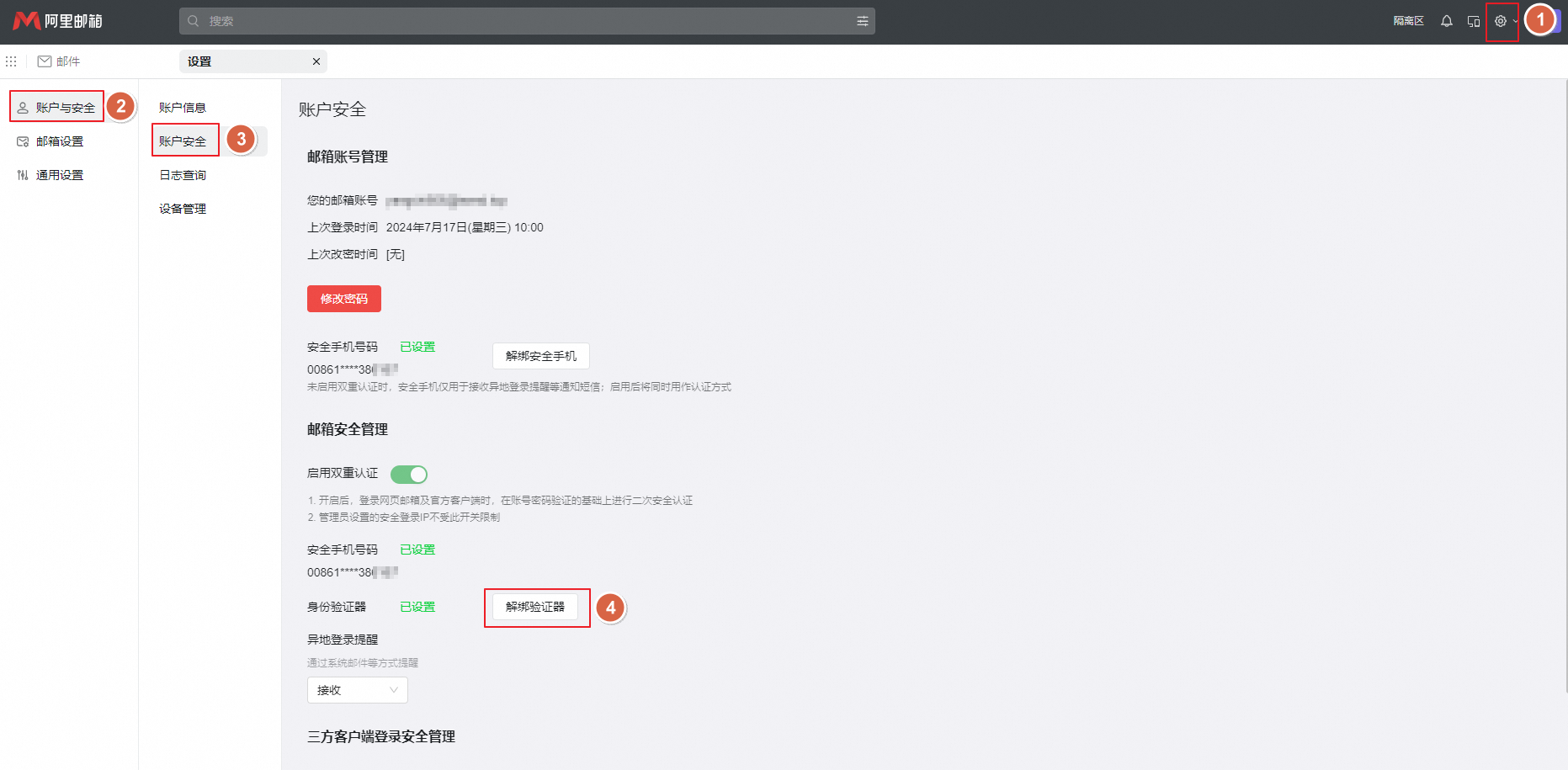
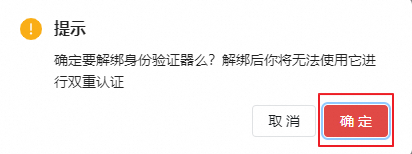
2. Enter the verification code generated by the authenticator app and click Next.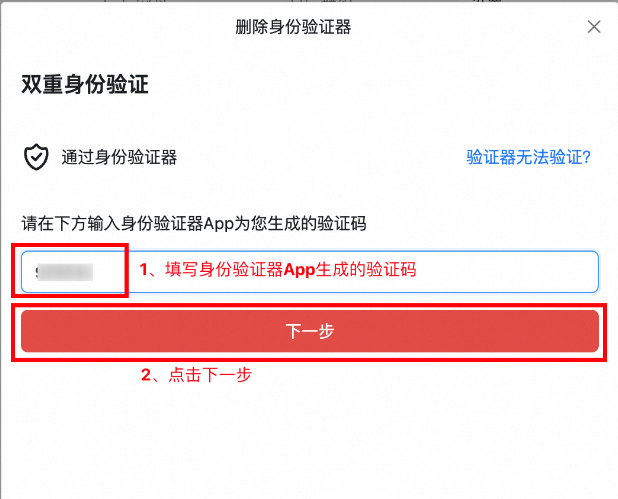
3. The authenticator is deleted.