Synchronize data from an OceanBase database MySQL tenant to AnalyticDB for MySQL
This topic describes how to synchronize data from an OceanBase database MySQL tenant to AnalyticDB for MySQL.
Background information
For more information about the basic data types of AnalyticDB for MySQL, see Basic data types.
For more information about how to create tables, partitioned tables, and distributed tables in AnalyticDB for MySQL, see CREATE TABLE.
Prerequisites
Data Transmission Service requires access permissions for cloud resources. For more information, see Authorize the migration role for Data Transmission Service.
You must create a database user for the data synchronization task in the source OceanBase database and grant the required permissions to the user. For more information, see Create a database user.
Limits
Data Transmission Service supports AnalyticDB for MySQL V3.0.
Data Transmission Service can synchronize only objects whose database, table, and column names contain ASCII characters. The names cannot contain special characters, such as line breaks, spaces, and .|"'`()=;/&\.
Notes
If the OceanBase database version is between V4.0.0 and V4.3.x (excluding V4.2.5 BP1) and you select incremental synchronization, you must configure the STORED property for generated columns. Otherwise, information about the generated columns is not saved in incremental logs. This may cause data exceptions during incremental synchronization.
If the clocks are not synchronized between nodes, or between your computer and the server, the latency of incremental synchronization may be inaccurate.
For example, if a clock is ahead of the standard time, the latency may be a negative value. If a clock is behind the standard time, the reported latency may be higher than the actual latency.
When you synchronize data from an OceanBase database MySQL tenant to AnalyticDB for MySQL, indexes are handled as follows:
For tables with a primary key, all other indexes are deleted during synchronization.
For tables without a primary key but with a non-null unique key index, the first non-null unique index is used as the primary key. All other indexes are deleted.
Tables that do not have a primary key or a non-null unique key index cannot be synchronized.
If the source or destination contains the TIMESTAMP data type and the time falls within the daylight saving time (DST) period, data inconsistency may occur when data is written to the destination. This occurs because the source and destination handle the time format differently, which can result in a one-hour time difference.
For example, after you set the TIMEZONE to "+8:00" for both the source and destination, a query in the OceanBase database MySQL tenant returns a non-DST time. A query in AnalyticDB for MySQL returns a DST time. The time in AnalyticDB for MySQL is one hour ahead of the time in the OceanBase database MySQL tenant.
If you select only Incremental Synchronization when you create the data synchronization task, the local incremental logs of the source database must be retained for more than 48 hours.
If you select both Full Synchronization and Incremental Synchronization when you create the data synchronization task, the local incremental logs of the source database must be retained for at least 7 days. Otherwise, Data Transmission Service may fail to obtain the incremental logs. This can cause the data synchronization task to fail or even lead to data inconsistency between the source and destination.
If the source or destination contains table objects whose names differ only in case, the data migration result may not be as expected. This occurs if the source or destination database is case-insensitive.
Supported source and destination instance types
In the following table, OceanBase database MySQL tenant is abbreviated as OB_MySQL.
Source | Destination |
OB_MySQL (OceanBase cluster instance) | AnalyticDB for MySQL |
OB_MySQL (Serverless instance) | AnalyticDB for MySQL |
Data type mapping
OceanBase database MySQL tenant data type | AnalyticDB for MySQL V3.0 data type |
BIGINT | BIGINT |
BINARY | VARBINARY |
BIT | VARBINARY |
BLOB | VARBINARY |
CHAR | VARCHAR |
DATE | DATE |
DATETIME | DATETIME |
DECIMAL | DECIMAL(p,s) where p is from 1 to 1000, and s is less than or equal to p |
DOUBLE | DOUBLE |
ENUM | VARCHAR |
FLOAT | FLOAT |
INT | INT |
INTEGER | INT |
LONGBLOB | VARBINARY |
LONGTEXT | VARCHAR |
MEDIUMBLOB | VARBINARY |
MEDIUMTEXT | VARCHAR |
NUMERIC | DECIMAL |
SET | VARCHAR |
SMALLINT | SMALLINT |
TEXT | VARCHAR |
TIME | TIME |
TIMESTAMP | TIMESTAMP |
TINYBLOB | VARBINARY |
TINYINT | TINYINT |
TINYTEXT | VARCHAR |
VARBINARY | VARBINARY |
VARCHAR | VARCHAR |
YEAR | BIGINT |
Procedure
Log on to the OceanBase Management Console and purchase a data sync task.
For more information, see Purchase a data sync task.
In the Data Transmission Service console, navigate to the Data Synchronization page, find the new sync task, and click Configure.

If you want to reuse the configurations of an existing task, click Reuse Configuration. For more information, see Reuse and clear the configurations of a data sync task.
Configure the parameters on the Select Source and Destination page.
Parameter
Description
Synchronization Task Name
We recommend that you use a combination of Chinese characters, digits, and letters. The name cannot contain spaces and cannot exceed 64 characters in length.
Source
Select an existing OceanBase data source from the drop-down list. If no data source is available, click Create Data Source in the drop-down list to create one. For more information about the parameters, see Create an OceanBase data source.
Destination
Select an existing AnalyticDB for MySQL data source from the drop-down list. If no data source is available, click Create Data Source in the drop-down list to create one. For more information about the parameters, see Create an ADB data source.
Tags (Optional)
Click the text box and select the destination tag from the drop-down list. You can also click Manage Tags to create, modify, and delete tags. For more information, see Manage data synchronization tasks using tags.
Click Next. On the Select Synchronization Types page, select the synchronization types.
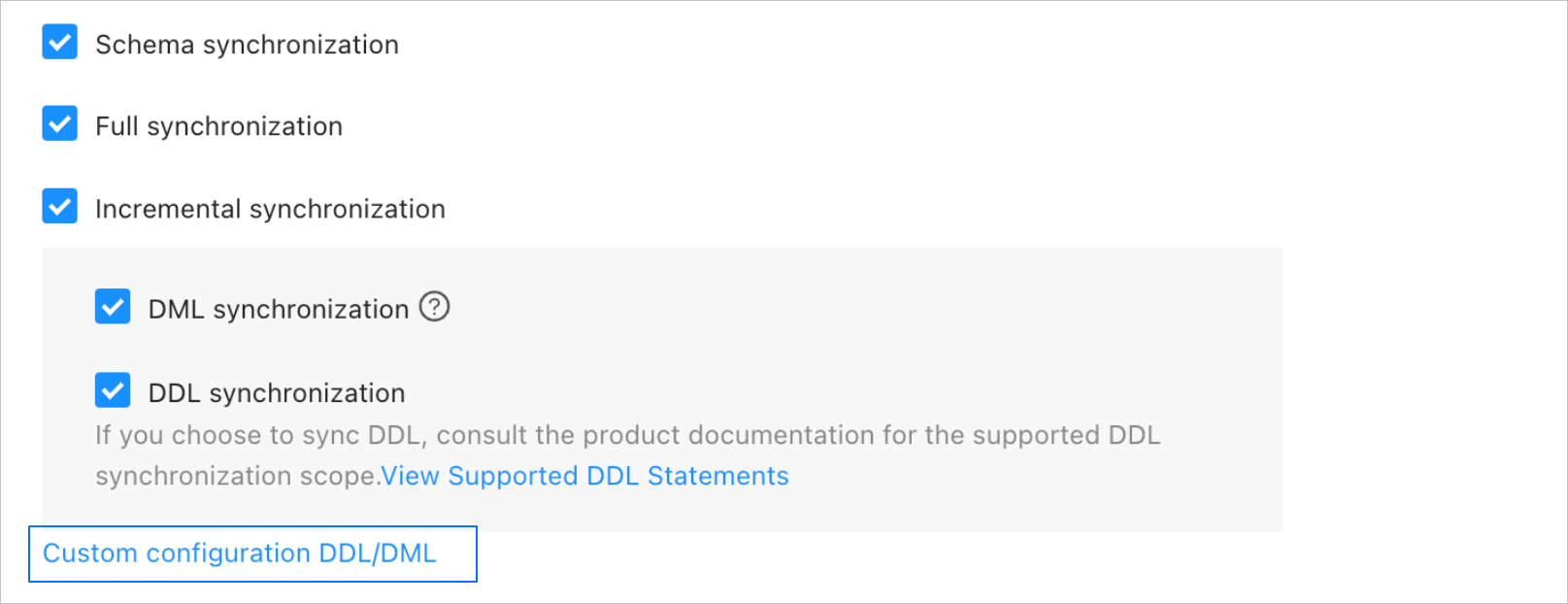
The synchronization types include Structure Synchronization, Full Synchronization, and Incremental Synchronization. Incremental Synchronization includes DML Synchronization (including INSERT, DELETE, and UPDATE) and DDL Synchronization. You can select the types as needed. For more information, see Customize DDL/DML and Scope of DDL synchronization.
Click Next. On the Select Synchronization Objects page, select which objects to synchronize.
You can select synchronization objects using the Specify Objects or Matching Rules method. This topic describes how to use the Specify Objects method. For more information about how to configure matching rules, see Configure and modify matching rules.
ImportantThe names of the tables and columns to be synchronized cannot contain Chinese characters.
If a database or table name contains "$$", the data synchronization task may fail.
If you selected DDL Synchronization in the Select Synchronization Types step, use matching rules to select synchronization objects. Using rules ensures that all new objects that meet the rules are synchronized. If you specify objects individually, new or renamed objects are not synchronized.
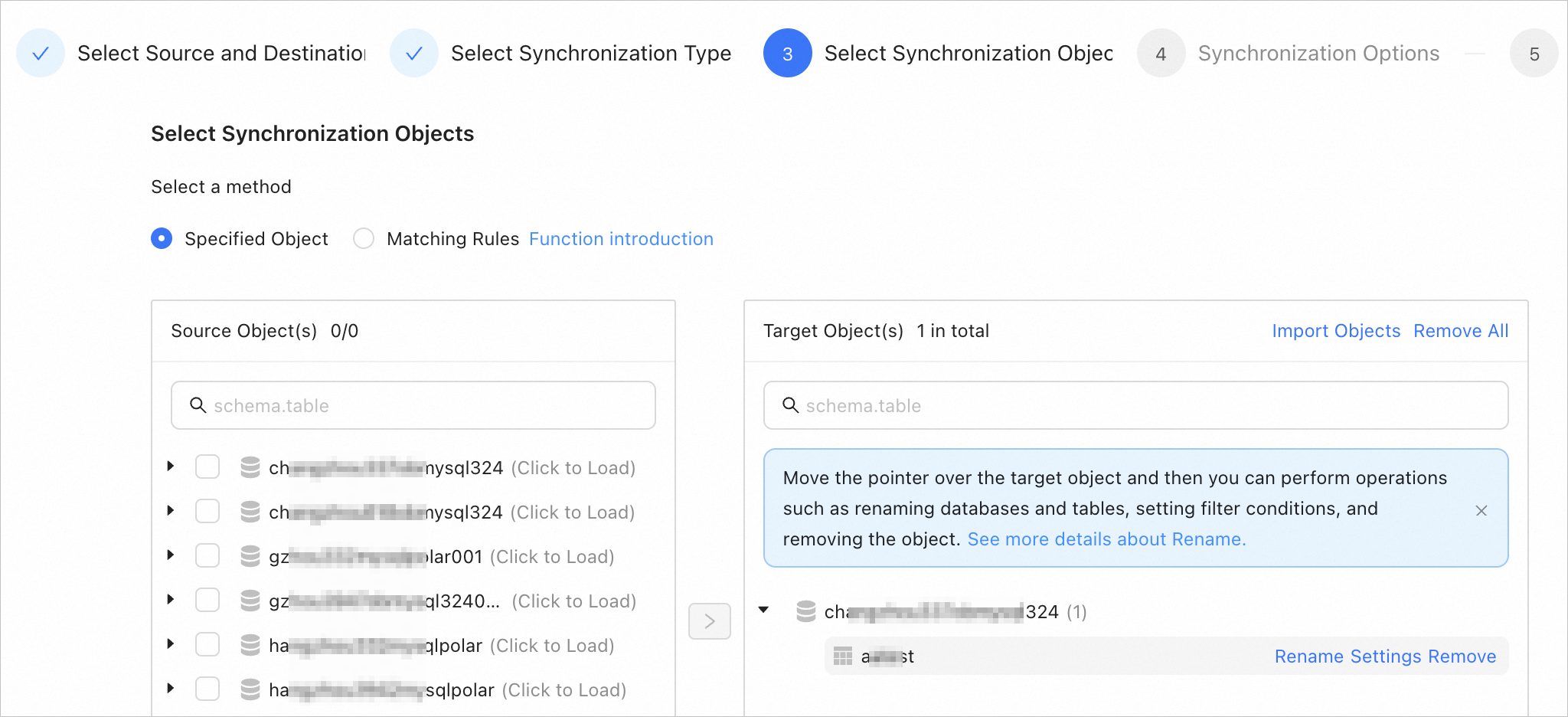
In the Select Synchronization Objects section, select Specify Objects.
In the Select Synchronization Scope section, select the objects to synchronize from the Source Objects list. You can select tables from one or more databases as synchronization objects.
Click > to add them to the Destination Objects list.
Data Transmission Service lets you import objects from a text file. You can also rename destination objects, set row filtering, and remove one or all objects.
NoteWhen you use the Matching Rules method to select synchronization objects, object renaming is handled by the matching rule syntax. You can only set filter conditions, select sharding columns, and select the columns to synchronize. For more information, see Configure and modify matching rules.
Operation
Step
Import Objects
In the list on the right side of the selection area, click Import Objects in the upper-right corner.
In the dialog box, click OK.
ImportantImporting objects overwrites previous selections. Proceed with caution.
In the Import Synchronization Objects dialog box, import the required objects.
You can import a CSV file to rename database tables, set row filtering conditions, and perform other operations. For more information, see Download and import synchronization object configurations.
Click Validate.
After you import the synchronization objects, validate them first. Column field mapping is not currently supported.
After the validation is passed, click OK.
Rename
Data Transmission Service lets you rename synchronization objects. For more information, see Rename database tables.
Settings
Data Transmission Service lets you filter rows using a
whereclause, select the columns to synchronize, and set the primary key column, distribution key, and partition key.In the list on the right side of the selection area, move the mouse pointer over the destination object.
Click the displayed Settings.
In the Settings dialog box, you can perform the following operations:
Enter a standard
WHEREclause of an SQL statement to configure row filtering. For more information, see Filter data using SQL conditions.Reset the primary key column.
By default, the primary key column of the current table is displayed. You can delete the existing primary key column and reset the primary key column by clicking the drop-down menu or searching. Multiple columns are supported.
Set the distribution key (optional).
Set the partition key. If you enable this setting, you need to:
Enter an expression in the Partition Key Expression text box. For example,
PARTITION BY VALUE('id').Set the lifecycle. The lifecycle is used for partition management. Partitions are sorted, and partitions that exceed N are filtered out.
Click OK.
Remove/Remove All
During data mapping, Data Transmission Service lets you remove one or more objects that are temporarily selected for the destination.
Remove a single synchronization object
In the list on the right side of the selection area, move the mouse pointer over the destination object and click the displayed Remove to remove the synchronization object.
Remove all synchronization objects
In the list on the right side of the selection area, click Remove All in the upper-right corner. In the dialog box that appears, click OK to remove all synchronization objects.
Click Next. On the Synchronization Options page, configure the required parameters.
Full synchronization
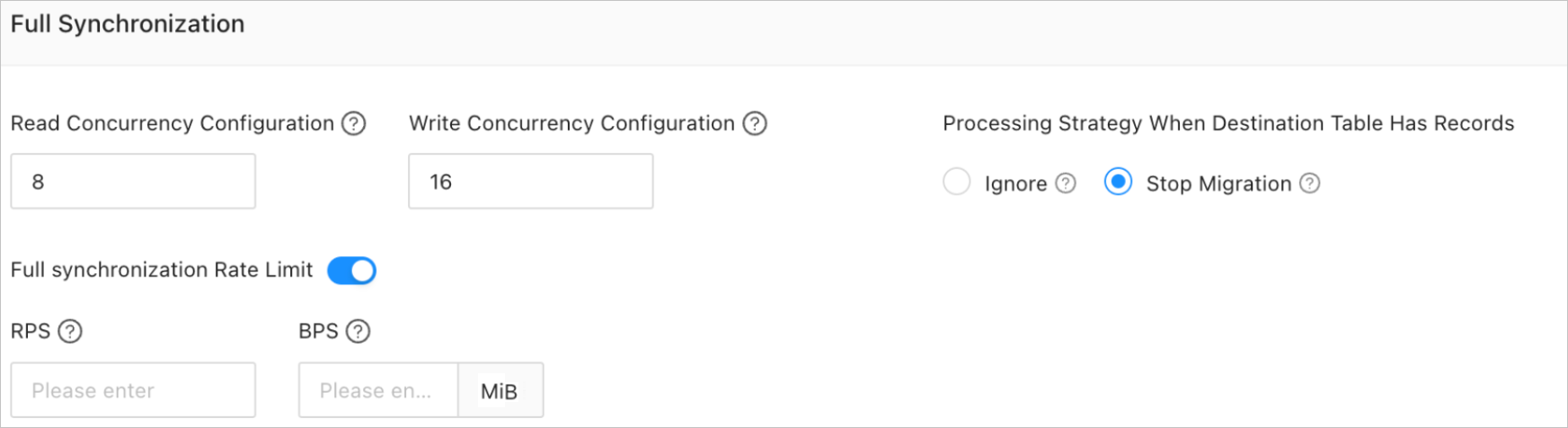
The following parameters are displayed only if you select Full Synchronization on the Choose Sync Type page.
Parameter
Description
Read Concurrency
This parameter specifies the number of concurrent threads for reading data from the source during full synchronization. The maximum value is 512. A high concurrency can increase the load on the source database and affect your business.
Write Concurrency
This parameter specifies the number of concurrent threads for writing data to the destination during full synchronization. The maximum value is 512. A high concurrency can increase the load on the destination database and affect your business.
Full Sync Rate Limit
You can enable the full synchronization rate limit as needed. If you enable it, set the RPS and BPS. RPS is the maximum number of data rows that can be synchronized to the destination per second during full synchronization. BPS is the maximum volume of data that can be synchronized to the destination per second during full synchronization.
NoteThe RPS and BPS settings only serve as a rate-limiting capability. The actual performance of full synchronization is affected by factors such as the source, the destination, and the instance specifications.
Policy for Existing Records in Destination Table
Select Ignore: If data exists in the destination table and a conflict occurs between the existing data and the data being written, Data Transmission Service logs the conflict and keeps the existing data.
ImportantIf you select Ignore, full validation pulls data in IN mode. This mode cannot validate scenarios where extra data exists in the destination, and validation performance is degraded to some extent.
Select the default value Stop Migration: If data exists in the destination table, an error is reported for the full migration. You must handle the data in the destination before you can continue the migration.
ImportantIf an error occurs and you click Resume, Data Transmission Service ignores this setting and continues to migrate table data. Proceed with caution.
Incremental synchronization
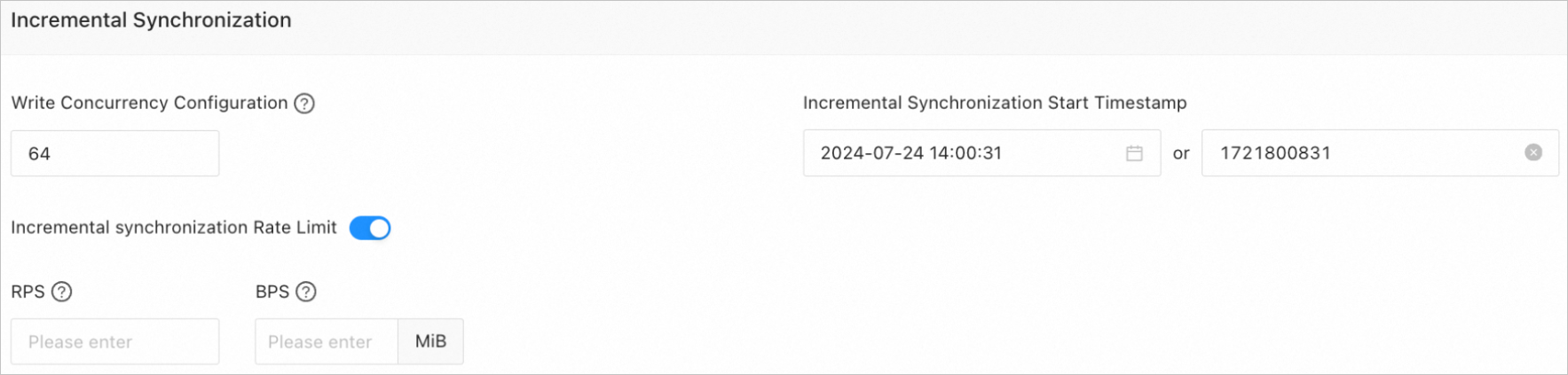
The following parameters are displayed only if you select Incremental Synchronization on the Choose Synchronization Types page.
Parameter
Description
Write Concurrency
This parameter specifies the number of concurrent threads for writing data to the destination during incremental synchronization. The maximum value is 512. A high concurrency may put excessive pressure on the destination and affect your business.
Incremental Synchronization Rate Limit
You can decide whether to enable the incremental synchronization rate limit as needed. If you enable it, set RPS (the maximum number of data rows that can be synchronized to the destination per second during incremental synchronization) and BPS (the maximum data volume that can be synchronized to the destination per second during incremental synchronization).
NoteThe RPS and BPS values set here are only for rate limiting. The actual performance of incremental synchronization is affected by factors such as the source, destination, and instance specifications.
Incremental Synchronization Start Offset
If you select Full Synchronization when you select the synchronization type, you cannot change this parameter.
If you do not select Full Synchronization but select Incremental Synchronization when you select the synchronization type, specify a point in time after which you want to synchronize data. The default value is the current system time. For more information, see Set the start offset for incremental synchronization.
Click Precheck.
In the Precheck step, Data Transmission Service verifies the connectivity between the source and the destination. If the precheck fails:
You can troubleshoot and resolve the issues, and then run the precheck again.
You can also click Skip in the Actions column for a failed precheck item. A dialog box appears and explains the specific impact of skipping this operation. To confirm skipping the item, click OK in the dialog box.
After the precheck passes, click Start Task.
If you do not need to start the task right away, click Save. You can then start the task manually on the Sync Task List page or include it in a batch operation. For more information about batch operations, see Perform batch operations on data sync tasks.
DTS lets you modify the synchronization objects while a data sync task is running. For more information, see View and modify synchronization objects and their filter conditions. After the data sync task starts, it runs based on the selected synchronization types. For more information, see View synchronization details.
If a data sync task fails, typically due to network connection issues or a slow process startup, you can click Resume on the task list or the product page.