The mixed-stream layout management feature allows you to preview system built-in and custom layouts. By reading this article, you can learn how to preview system built-in and custom layouts.
Procedure
- Log on to the Real-Time Communication RTC console.
- In the left-side navigation pane, choose .
- Optional:Preview the built-in layout of the system.
- Click the Built-in Layout tab.
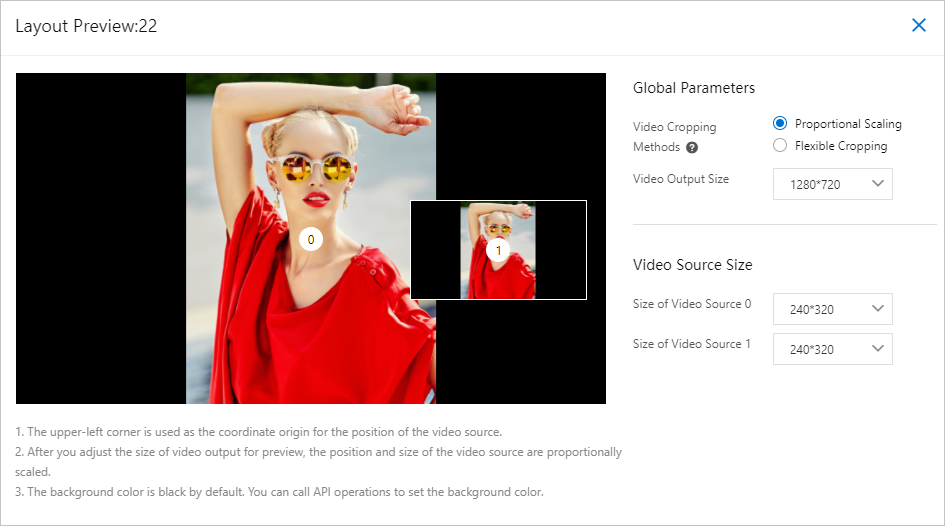
- In the system built-in layout list, click Preview in the Actions column to preview the specified layout.
 Note
Note- The video source location takes the upper-left corner as the reference point.
- After adjusting the output preview size, the video source position and size are automatically adjusted in proportion.
- The default background color is black. To adjust the background color, set it by calling the UpdateMPUTask.
- Optional:Custom layout.
- Click the Custom Layout tab.
- Click Add Layout.
- Create Custom Rule
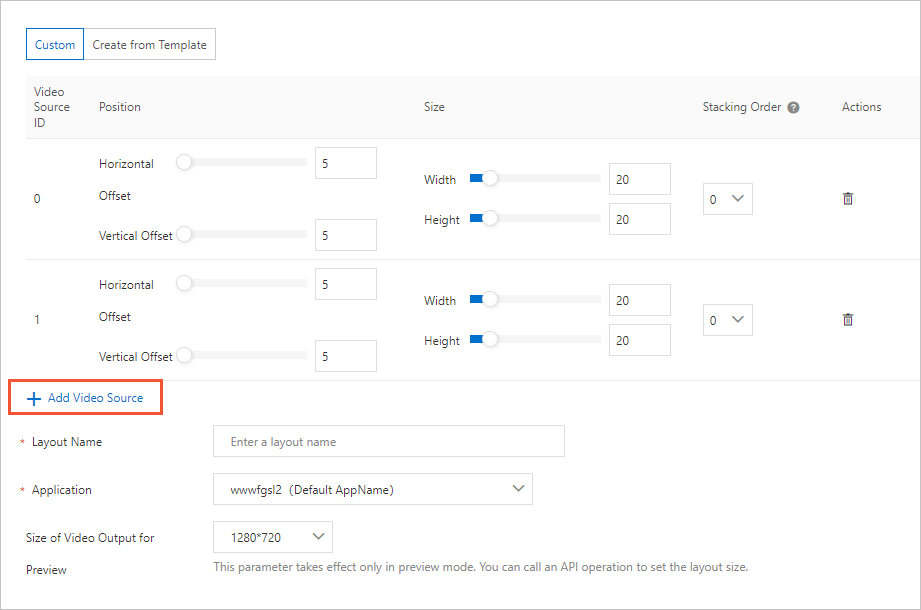
- Click Add Video Source to add video sources as needed.
- Set the location, size, and stacking order of each video source. Note The stacking order supports a maximum of three layers: 0 is the lowest layer, 1 layer is above 0 layer, and so on. If there are only two layers of overlay, select 0 and 1 respectively.
- Set Layout Name, and select Application and Output Size Preview as needed.
- Click Save.
- Create based on a template
Compared with custom, template creation can be customized based on the built-in layout of the system. This greatly reduces the time for creating a custom layout. Other operations are similar to custom and are not described here.
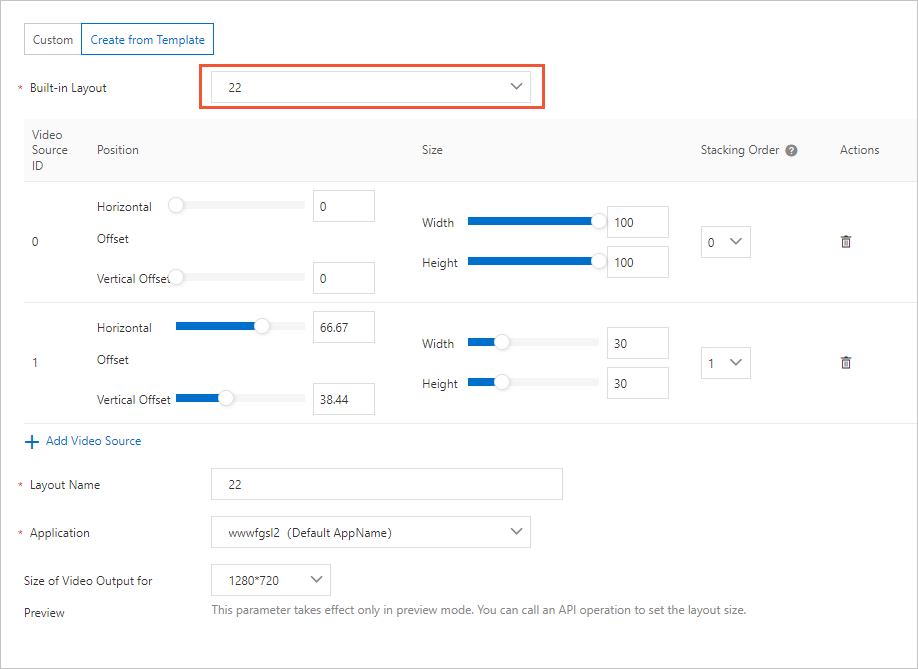
- Create Custom Rule
- View the custom layout.
You can click Preview, Edit, or Delete in the Actions column of a custom layout.
Important After the custom layout is deleted, it cannot be restored, and the bypass live broadcast that is using this layout will be interrupted.
该文章对您有帮助吗?