Feature switch
Use the feature switch to enable or disable features in your organization.
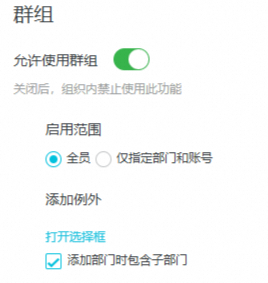
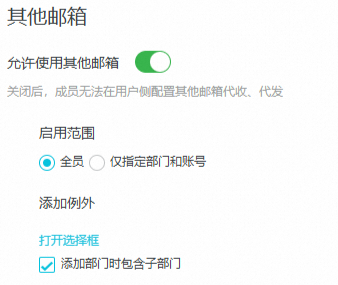
You can enable or disable the following features: group, large attachment, web drive, and adding contacts from the organization address book, AI features, and other mailboxes. You can set the access scope to all members or limit it to specific departments and accounts. You can also add exceptions and choose whether to include sub-departments. When a feature is disabled, organization members can no longer use that feature or its related services.
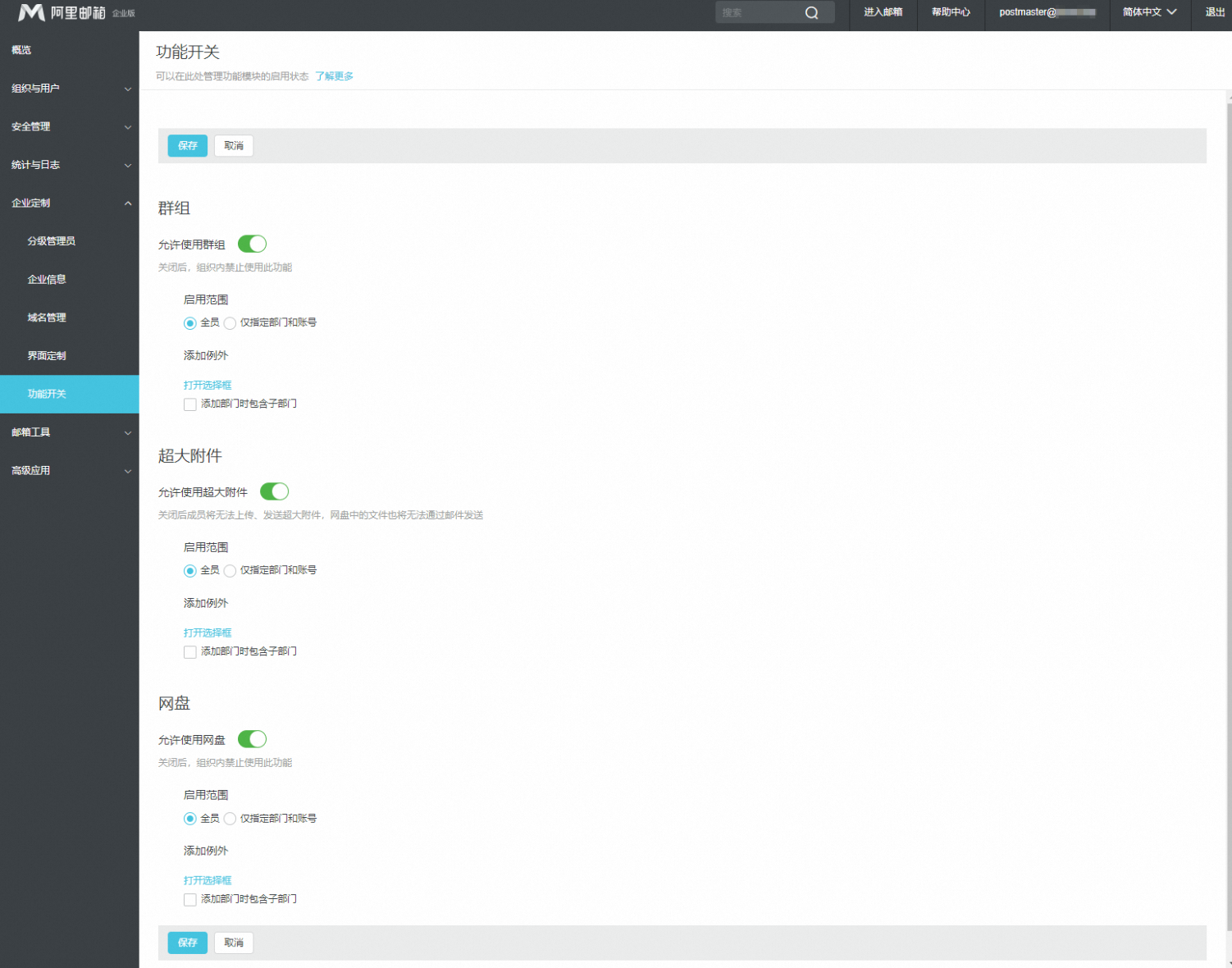
Group
This setting enables the use of groups.
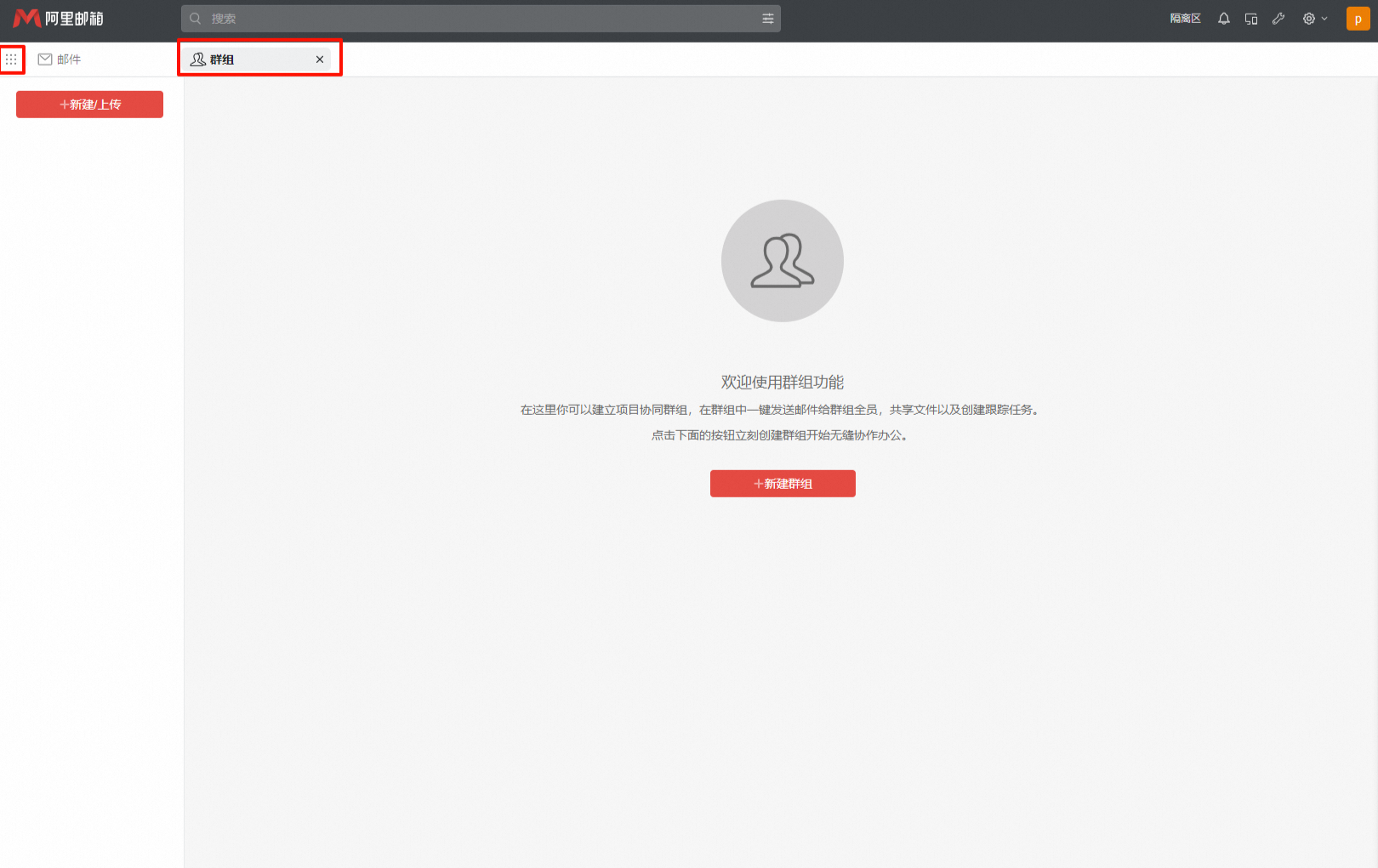
An audience group is a collaboration platform that goes beyond email distribution. Members can communicate and work together using email, web disks, and task modules — making it well-suited for project teams that need shared workspaces alongside group messaging.
Create an audience group in the web client: Web Client > Audience Group > Create/Upload > Create Audience Group.
Members are added by entering individual email addresses or by adding entire departments at once, and the member list stays relatively fixed.
Administrators can view the group and manage its members or permissions in the mail administration console.
Related topics:
What is an audience group, and how do I create and manage one?
How do I set receiving permissions for an email group or audience group?
If disabled, groups cannot be used within the organization.
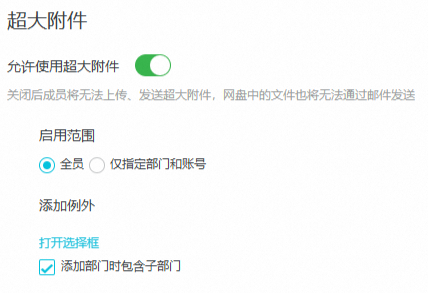
Large attachment
This setting allows users to send and receive large attachments.
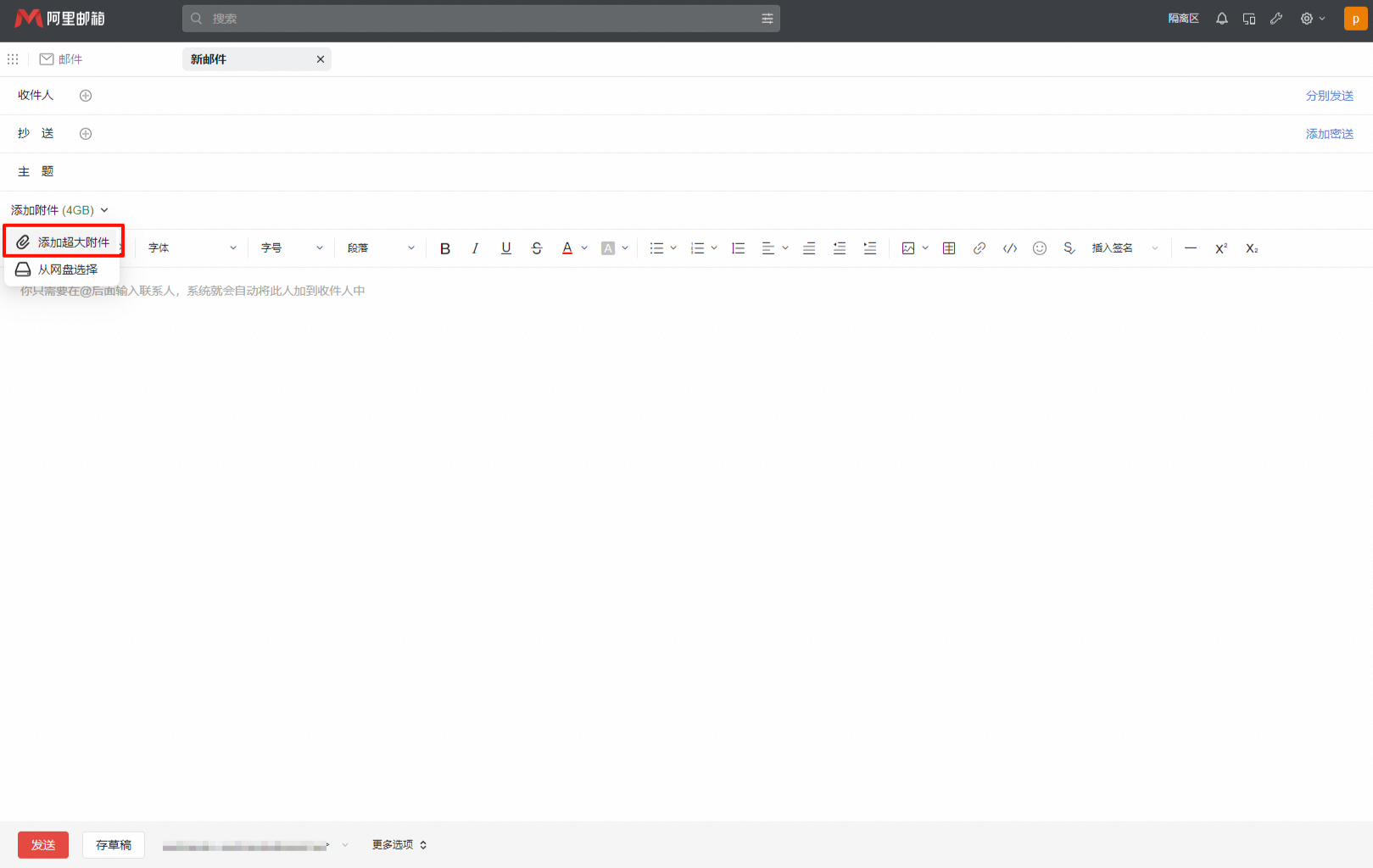
Regular attachments: The maximum size is 60 MB. Because the upload process increases the data size, keep regular attachments under 30 MB.
Large attachments: A single large attachment in an email cannot exceed 4 GB. You can upload multiple files, each under 4 GB, in a single email. However, the total size of all files cannot exceed the remaining free space in the Large Attachment Drive.
Related documentation: Differences between regular attachments and large attachments, How to download a large attachment
If disabled, members cannot upload or send large attachments, nor can they send files from the web drive by email.
Web drive
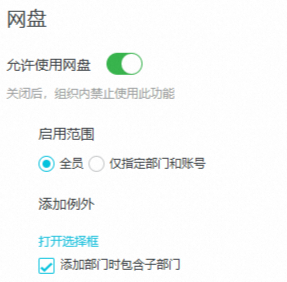
This setting allows users to use the web drive.
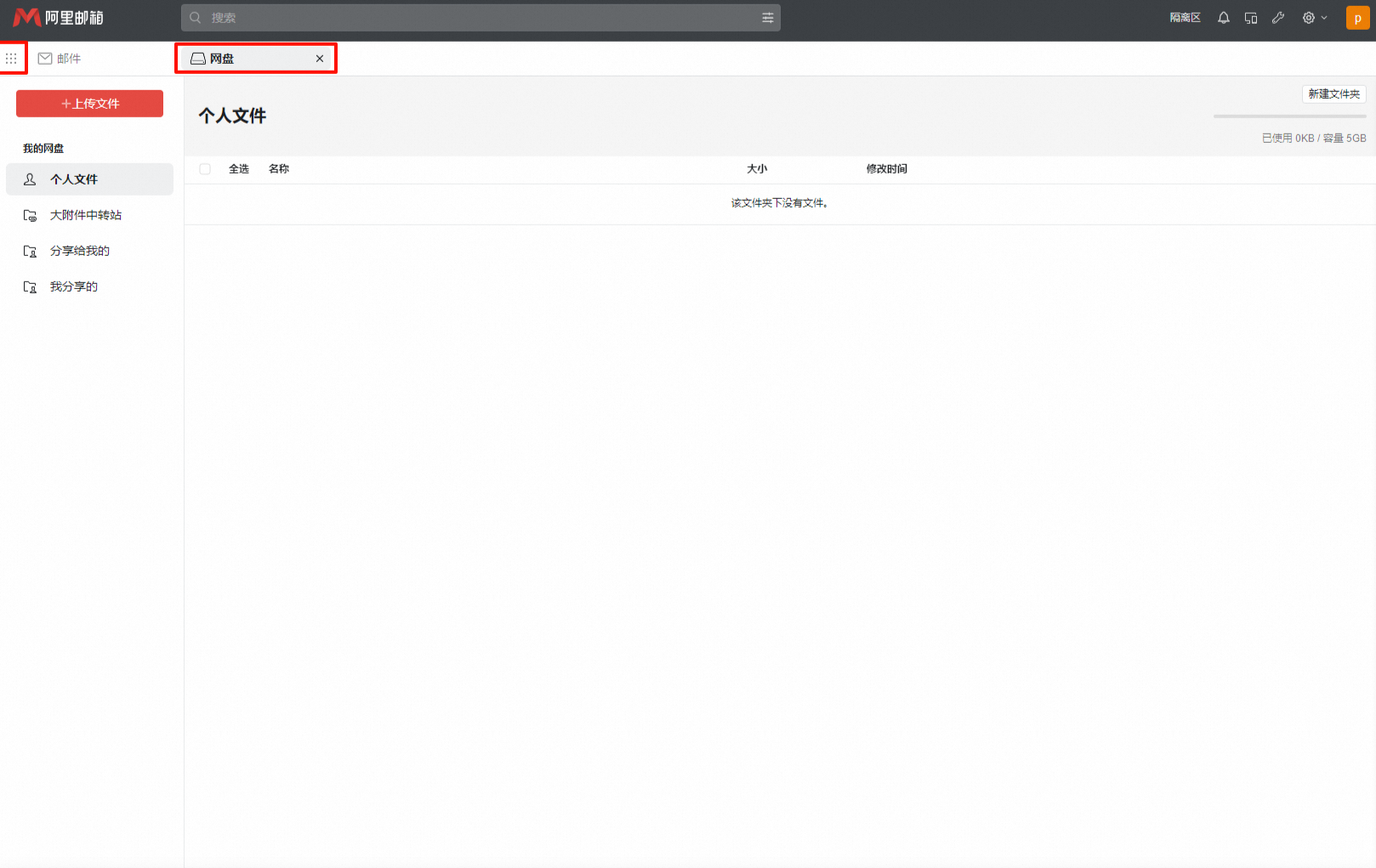
Alibaba Mail Drive provides temporary storage and sharing for large files and lets you upload oversized attachments.
If a file uploaded as an oversized attachment is deleted from the drive, the recipient cannot download it from the corresponding email.
Related documentation: Introduction to common operations in the Alibaba Mail web drive
If this feature is disabled, the web drive cannot be used within the organization.
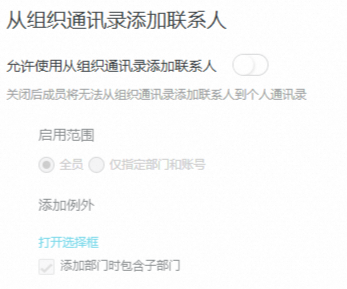
Add contacts from organization address book
When enabled, employees can add members from the organization address book to their personal contacts in the web client.
Procedure
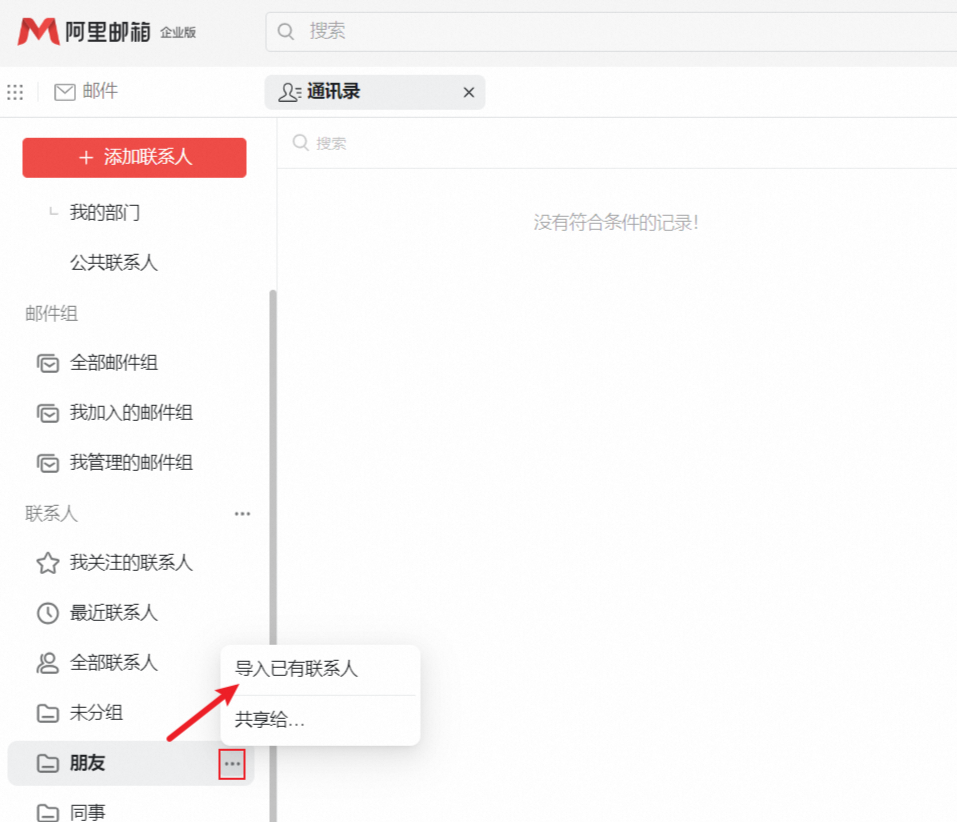
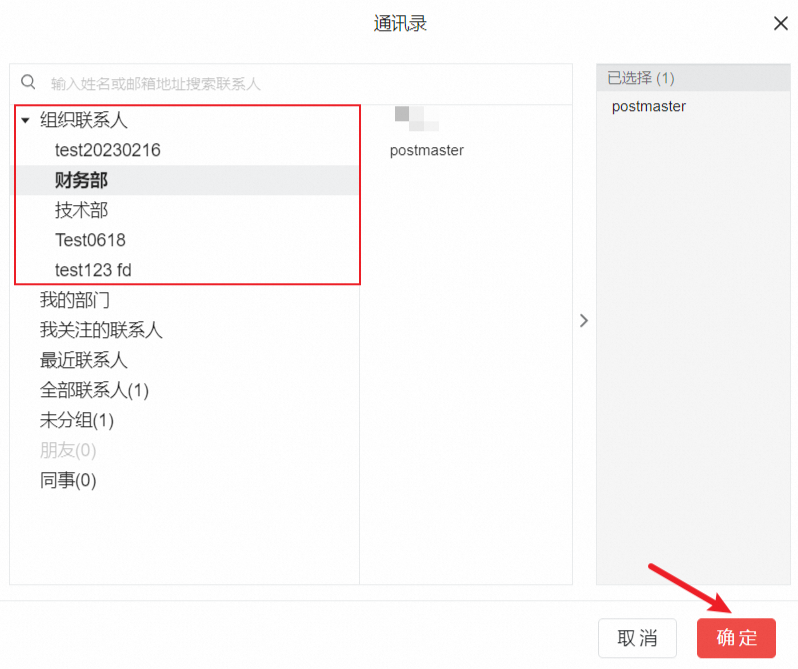
1. Log in to the web client, go to Contacts, click the More button next to the desired contact group, and select Import Existing Contacts. Select the members you want to add and click OK.
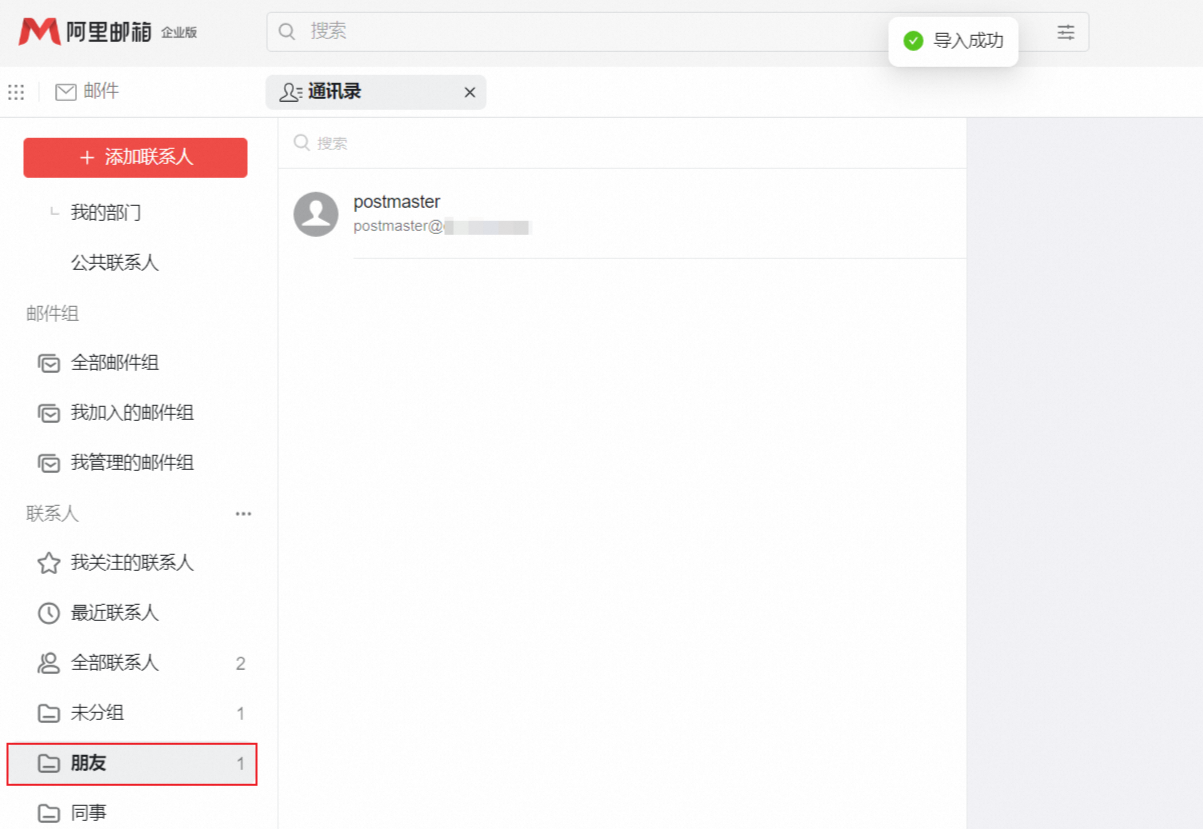
2. After the Import Successful message appears, you can view the newly added members in the contact group.
You cannot add organization contacts whose information is not shared.
If disabled, members cannot add contacts from the organization address book to their personal contacts.
AI features
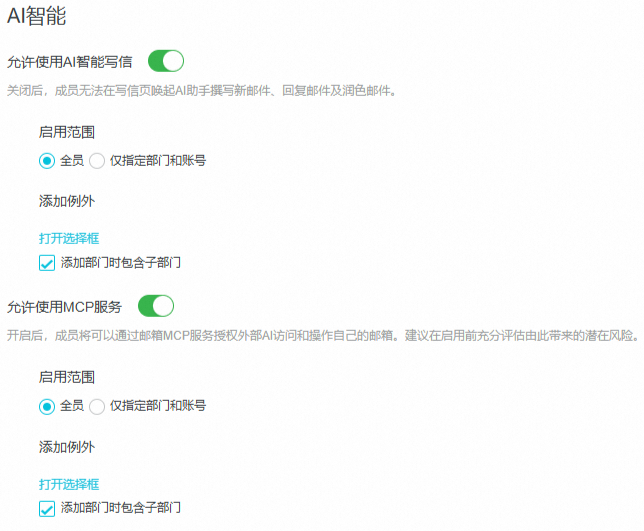
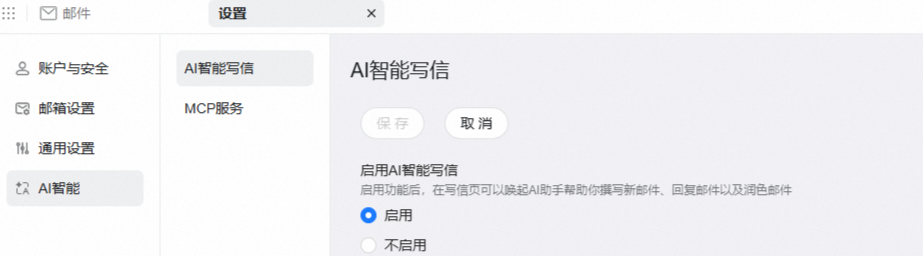
AI write
This feature is only available in the AI Premium Edition. For version differences, see Version Overview.
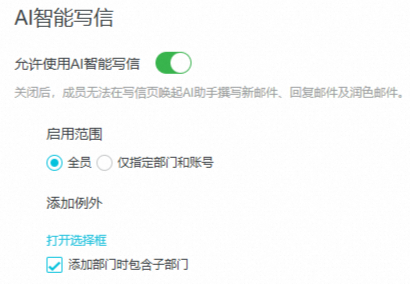
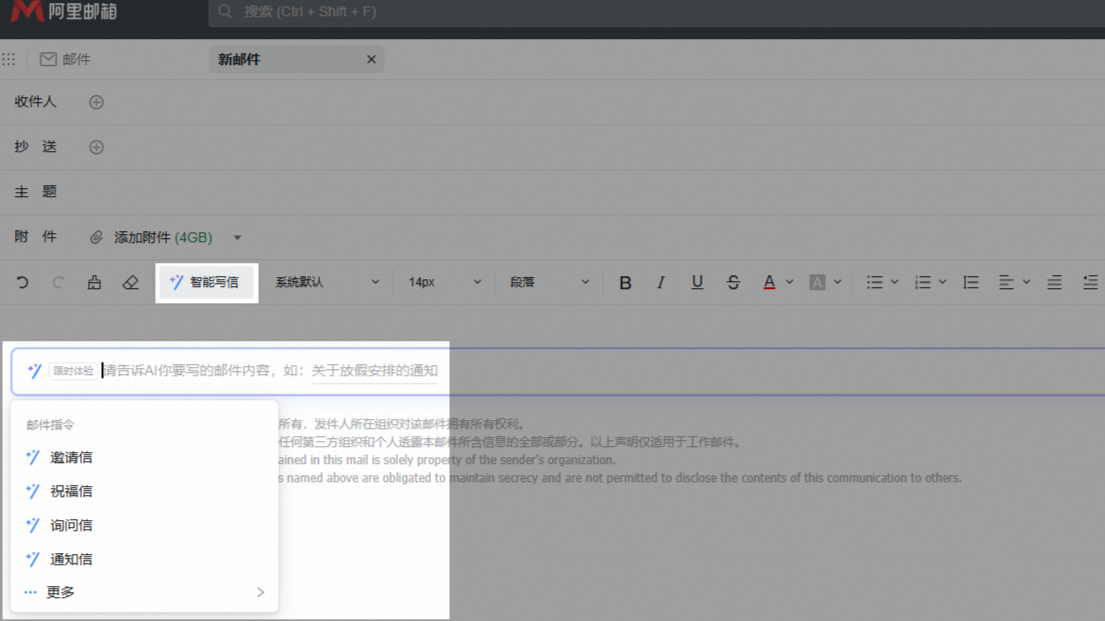
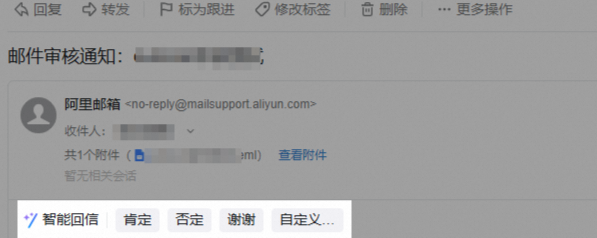
If disabled, members cannot use the AI assistant in the email composer to draft new emails, reply to emails, or refine content.
AI Smart Tag
This feature is only available in the AI Premium Edition. For version differences, see Version Overview.
Administrators can set the access scope for AI Smart Tag on the feature switch page (all members, or specific departments and accounts only). AI Smart Tag uses the tag system to automatically mark and categorize emails, and does not automatically create subfolders in the inbox.
For details, see AI Tagging.
If a subfolder unexpectedly appears in the inbox, check the mail filter rules under Settings > Mailbox settings > Mail filter rules.
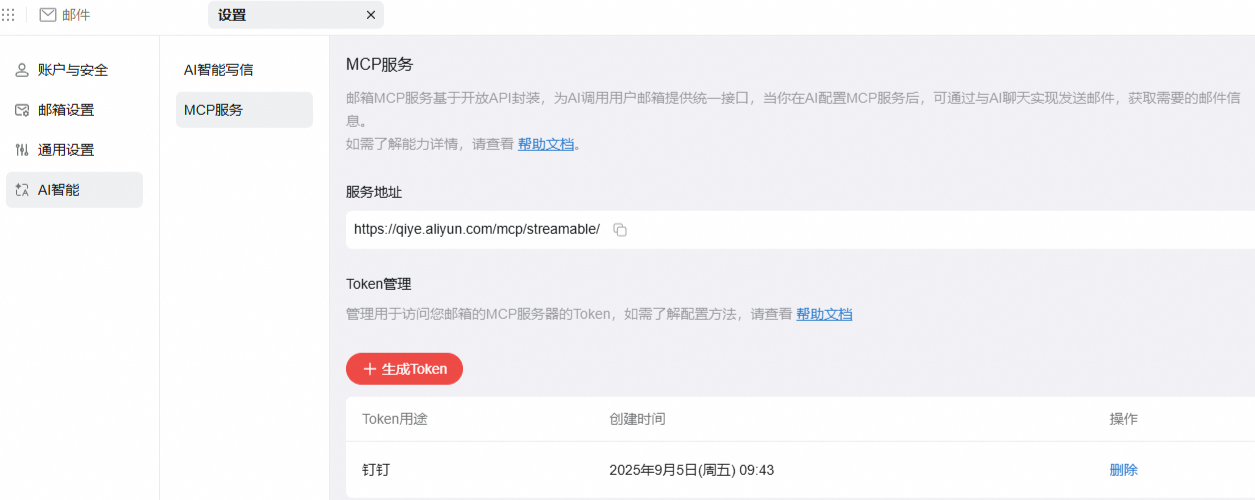
MCP service
When enabled, employees can obtain the required token from Settings to use the MCP service with an AI agent.
Alibaba Mail MCP Service Overview
Other mailboxes
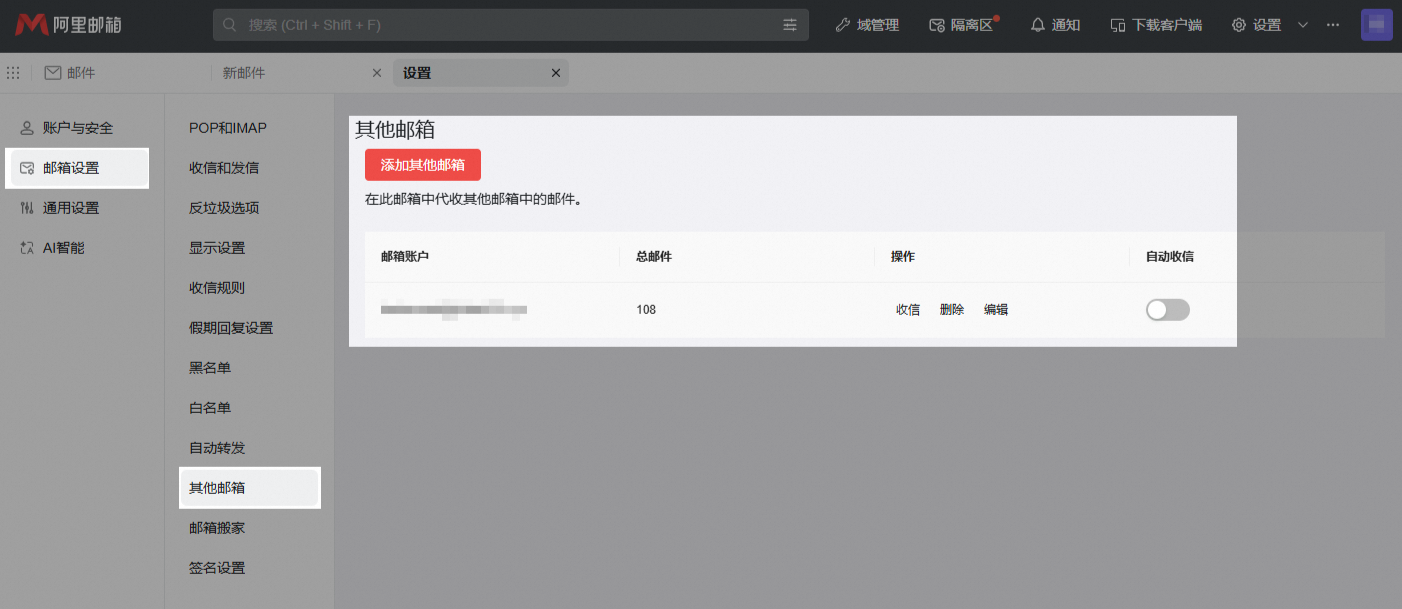
When this feature is disabled, members cannot add other mailboxes to their account to send and receive emails.
Self-service delegation
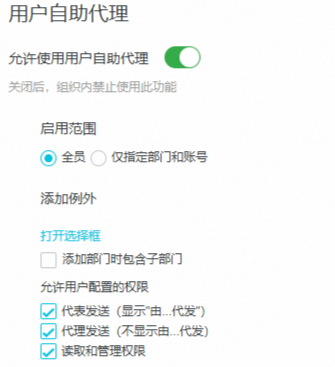
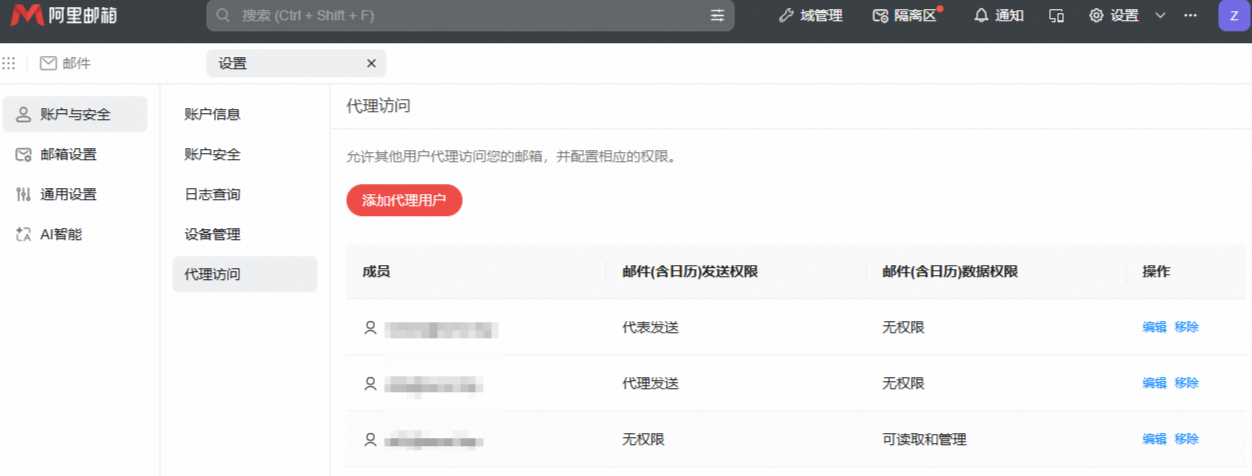
This setting controls the "delegated access" feature in user settings. Administrator-added delegation records also appear in this section.