Overview
Alert monitoring provides flexible and accurate monitoring alert function. You can specify alert plans based on your business requirements. You can specify the error type, version, effective time, and threshold-based or comparison-based rules to create alert settings that suit your collaboration habits with your colleagues.
Alert settings for JS exceptions on mini programs
Noun interpretation
Alert Trigger Condition
Alert rules that you set are composed of thresholds and comparison rules in the form of "or" or "and"
Alert Trigger Rule
In the alert trigger conditions that you set, one or more rules triggered the alert. In the same group of "and" combination, all rules must be triggered before "and" is counted as "and". If there is a combination of "or" in, a single rule under this "or" or "or" combination meets any one, and an alert is triggered.
Threshold Rule
You can select a metric (error number, error rate, number of affected users, proportion of affected users), and select "greater than" a certain value or a certain percentage 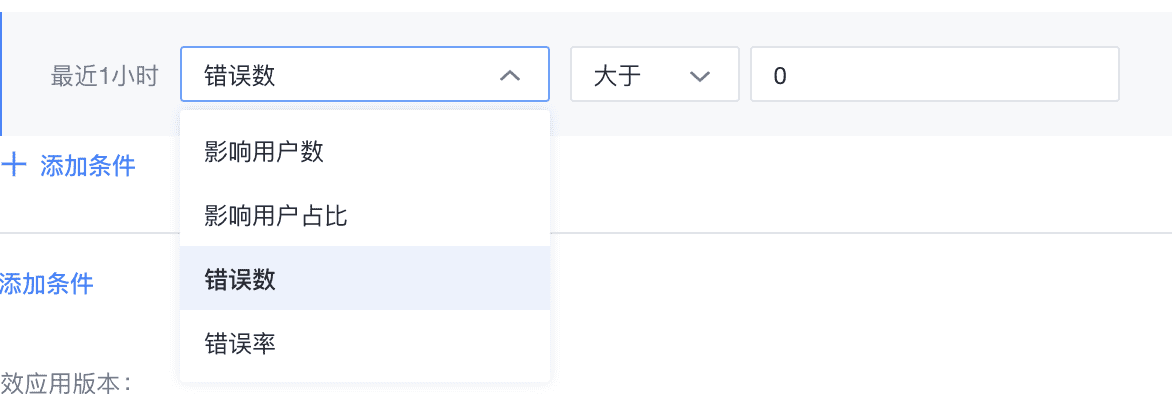
Comparison rules
You can select a metric (Error Count, Error Rate, Number of Affected Users, or Percentage of Affected Users) and select More than one day or seven days ago to increase the percentage. The calculation method is as follows: (Value in Last 1 Hour-Value in History 1 Hour) /Value in History 1 Hour. If the value is greater than or equal to the selected value, an alert is sent. 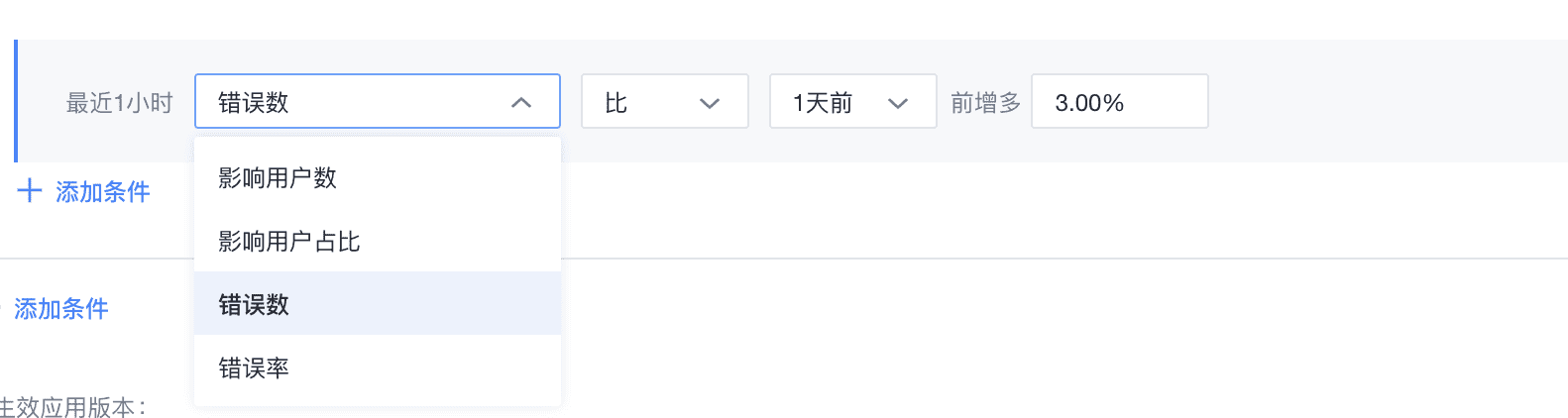
Push rules
Alert frequency: The last one-hour alert task is calculated every time. If the alert task is triggered, the notification mechanism is run.
Example: At 13:00, the system determines whether the rule that you set is triggered is triggered. The notification may be delayed by minutes. You may receive an alert notification at 13:05.
Alert List
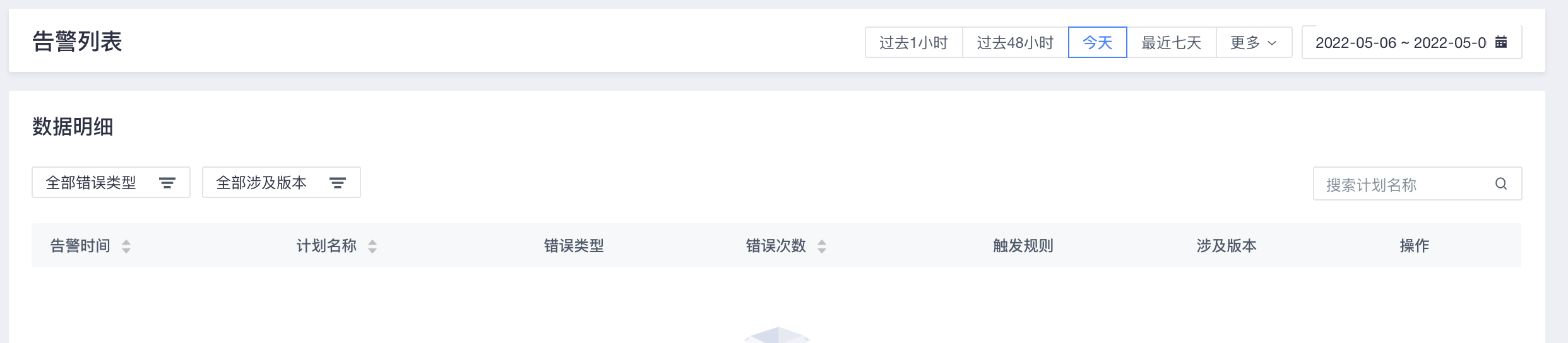
You can view alerts for up to 90 days on this page
Filter supported error types and involved models and system versions. An alert message may involve multiple involved system versions.
You can filter the time range of 「last 1 hour」, 「today」, and 「last 7 days」. You can also use the calendar to filter the time within 90 days.
Click 「View」 to view the alert details
Create an alert plan
You can click "New Alert Plan" to set alerts. You can create up to 10 alert plans for each application.
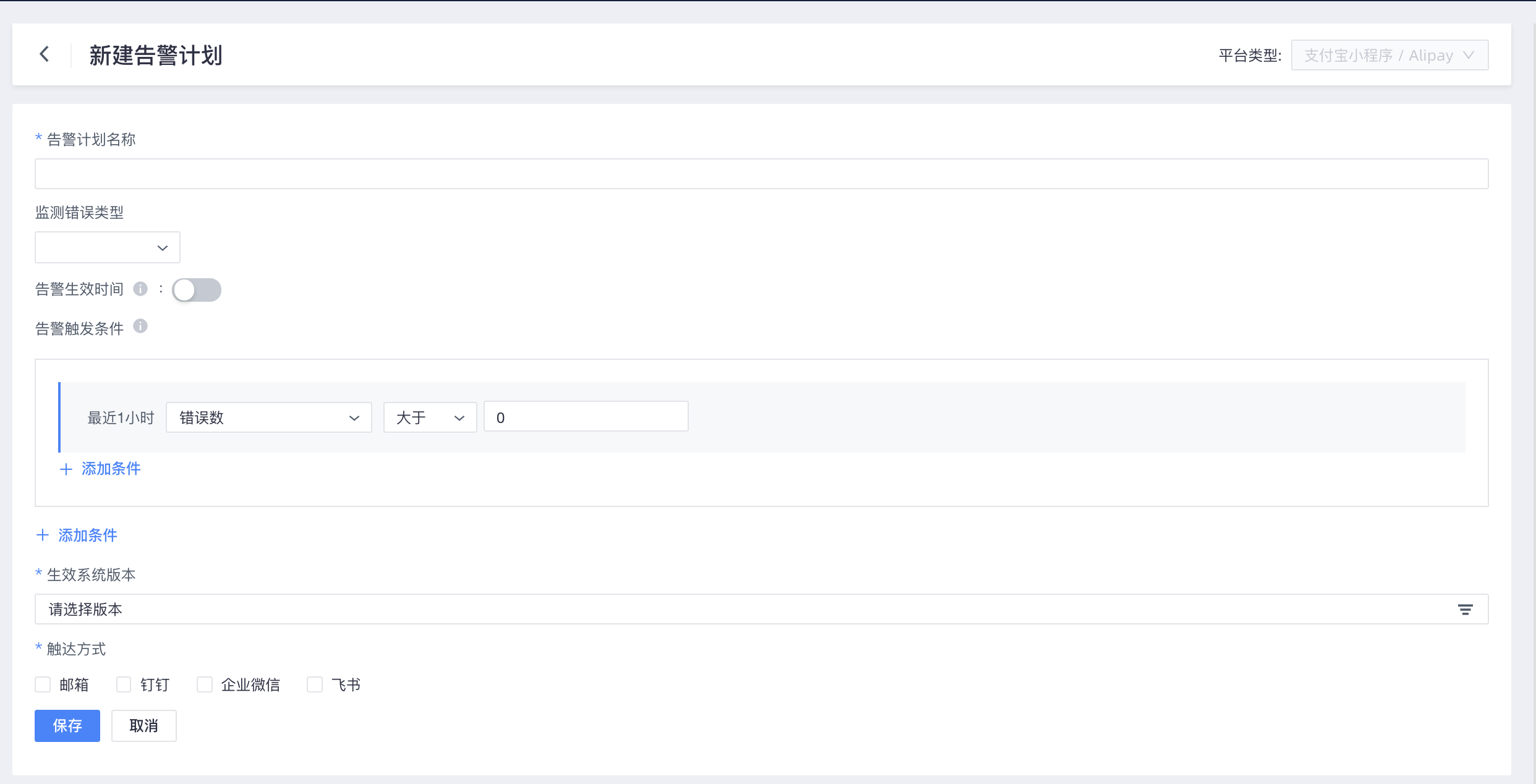
Alert Plan Name:
Cannot duplicate an existing plan
Monitoring error type:
Monitoring error type cannot be repeated
Alert Type: You can select JS Exception
The time when the alert takes effect.
When the alert is disabled, all the time points are monitored by default.
You can add a maximum of three effective time periods. The relationship between multiple effective time periods is a union. For example, if a customer enters a value from 9:00 to 19:00 every Monday, and adds a value from 12:00 to 20:00 every Monday, the value takes effect from 9:00 to 20:00 every Monday.
Alert Trigger Condition
Each time you add one, the user first selects the threshold type or the contrast type, you can use the combination of "outside or inside and" to select multiple, you can also select only one
After adding the first rule, you can choose whether to add the "and" or ". If you add the" and "condition, you can add a maximum of 4. If you add the" or "condition, you can add a group of" and "(up to 4) and add the" or "condition up to 4 times.
Effective System Version
You can select an existing system version or all versions in the alert plan
Touch Mode
Support email, DingTalk, enterprise WeChat, flying book, you can choose more than one. In DingTalk, Feishu, and Enterprise WeChat, you can obtain alert information by creating a group robot. You need to provide a webhook link. For more information about how to set a webhook, see Webhook in this topic.
To send an email, you must configure the email address in the organization list-touch channel. The same organization uses the same email address.
Note: To facilitate alert schedule settings, web-based monitoring alerts are not controlled by webhook settings at the organization level. Therefore, the webhook settings in the organization-touch channel settings will not be synchronized to the monitoring alert on the web side. We will send the webhook based on the webhook you entered in the new alert plan. Only the sending mailbox is consolidated in the organization. 
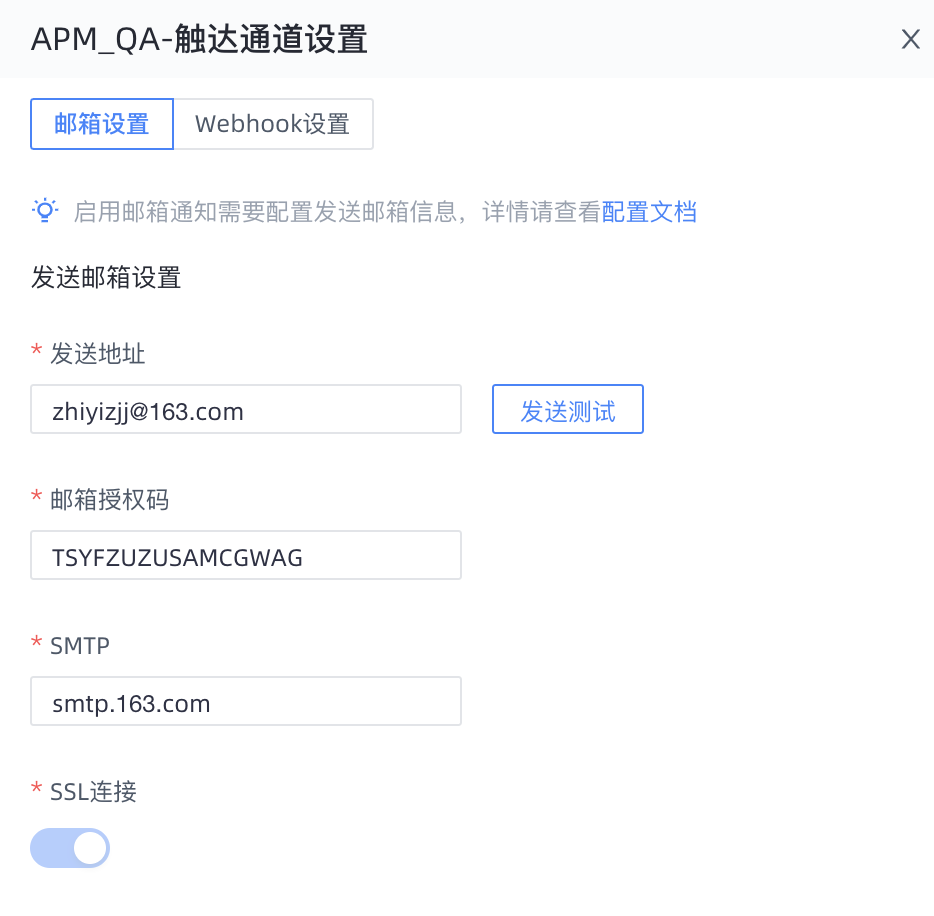
Sending address: the email address to which the email is sent, such as "ce****@163.com".
Email authorization code and SMTP (Outbox server address) get:
Take QQ email as an example. In "Settings-Account-POP3/IMAP/SMTP/Exchange/CardDAV/CalDAV Service" of the mailbox, click "Open" of POP3/SMTP service and generate an authorization code through mobile phone SMS.


Take 163 NetEase email as an example, you can click "Open" of IMAP/SMTP service on the "Settings-POP3/SMTP/IMAP" page, and generate an authorization code through SMS.

Alert Plan List
After you create an alert, the alert is displayed in the alert schedule list. The alert that you create for a single error in the error list is also displayed in this list. A maximum of 10 alert plans can be displayed in the alert plan list
Alert Details
Click Message List of an alert schedule to view the alert details. The list of errors that triggered the alert and the corresponding time period are recorded.
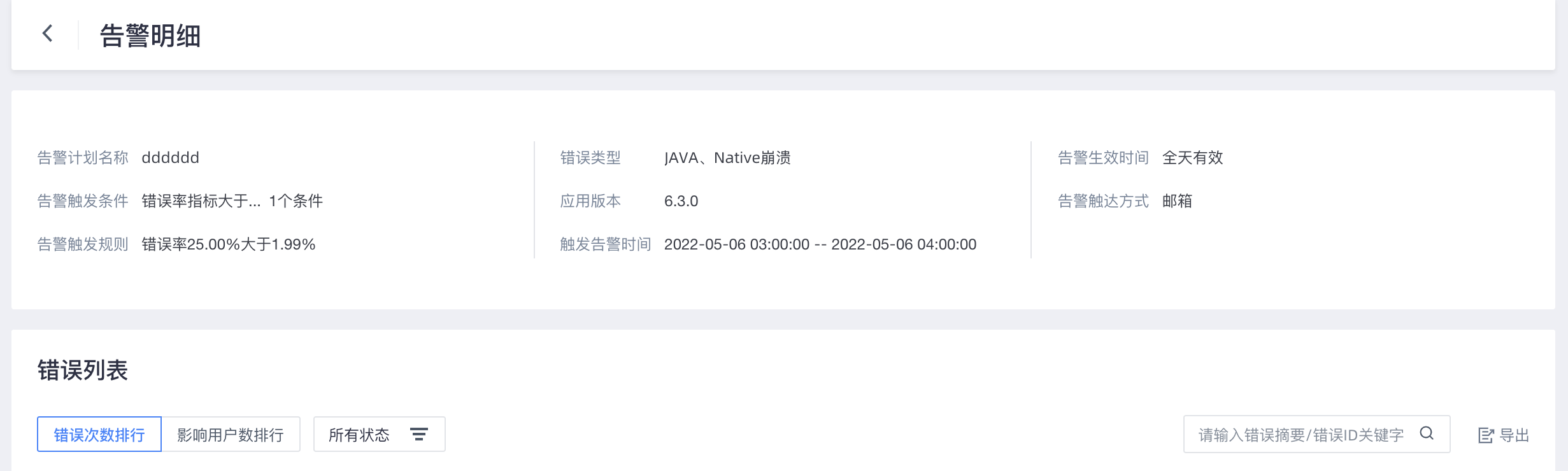
Single error alert
You can click Alert in the error list to generate alerts for this error summary, which corresponds to the error ID. The following modules are supported: Overview, Crash Analysis, ANR Analysis, Custom Exceptions, Catton Analysis, Startup Crash Analysis, and OOM Exceptions
Click to edit the alert schedule on the Alert Settings page

Set an alert webhook
For more information, see Monitoring Alert Configuration Guide.