Deploy a Qwen3 inference service in PAI-PPU
1. Introduction
Qwen3 is the latest generation of the Qwen large language model (LLM) family, offering a series of dense and Mixture of Experts (MoE) models. Backed by extensive training, Qwen3 delivers significant advancements in reasoning, instruction following, agent capabilities, and multilingual support.
PAI-PPU now supports the Qwen3 model series and provides one-click inference deployment templates in the Model Gallery. This topic describes how to use these templates.
2. Prerequisites
First, make sure you are in a region where PAI-PPU is available. Supported regions include China (Ulanqab), China (Beijing), China (Shanghai), and China (Hangzhou).
Next, activate PAI and purchase PPU resources, and purchase Lingjun intelligent computing resources with the ml.gp7vf.16.40xlarge specification in PAI.
To purchase the resource quota for the ml.gp7vf.16.40xlarge specification, you must request separate activation. Contact your account manager or a PAI Product and Technology Solutions Architect (PDSA) for assistance.
3. Deploy the model
Go to the Model Gallery and find the model card for the Qwen3 series.
Click the model card to go to its details page. In the upper-right corner, click Deploy to open the deployment configuration pane.
For Deployment Method, select vLLM as the inference engine. For Deployment Template, select Single Node-GP7V Instance Type.
In the Resource Information section, for Resource Type, select Resource Quota. Then, select a resource quota that contains Zhenwu 810E resources and specify the number of instances and deployment resources.
Click Deploy and wait for the service status to change to Running.
4. Supported deployment modes and recommended resources
Model type | Model version | Recommended resources | vLLM | SGLang |
MoE inference model | Qwen3-235B-A22B | 8 GPUs | ✅ | |
MoE inference model | Qwen3-30B-A3B | 1 GPU | ✅ | ✅ |
Dense inference model | Qwen3-32B | 1 GPU | ✅ | ✅ |
Dense inference model | Qwen3-14B | 1 GPU | ✅ | ✅ |
Dense inference model | Qwen3-8B | 1 GPU | ✅ | ✅ |
Dense inference model | Qwen3-1.7B | 1 GPU | ✅ | ✅ |
Dense inference model | Qwen3-0.6B | 1 GPU | ✅ | ✅ |
MoE base model | Qwen3-30B-A3B-Base | 1 GPU | ✅ | ✅ |
Dense base model | Qwen3-14B-Base | 1 GPU | ✅ | ✅ |
Dense base model | Qwen3-8B-Base | 1 GPU | ✅ | ✅ |
Dense base model | Qwen3-4B-Base | 1 GPU | ✅ | ✅ |
Dense base model | Qwen3-1.7B-Base | 1 GPU | ✅ | ✅ |
Dense base model | Qwen3-0.6B-Base | 1 GPU | ✅ | ✅ |
5. Invoke the service
Click View Call Information in Service details to view the endpoint URL and token.
5.1 Invoke with a Python script
To invoke your Qwen3 service from a Python script, use the OpenAI SDK:
from openai import OpenAI

# Replace  with the actual service endpoint URL.
base_url="/v1"
# Replace  with the actual service token.
api_key=""

client = OpenAI(
    api_key=api_key,
    base_url=base_url,
)

models = client.models.list()
model = models.data[0].id
print(model)

response = client.chat.completions.create(
    model=model,
    messages=[
        {
            "role": "system",
            "content": "You are a reasoning-capable intelligent assistant. You always respond in Chinese. For user questions, always think first, and then provide the final answer."
        },
        {
            "role": "user",
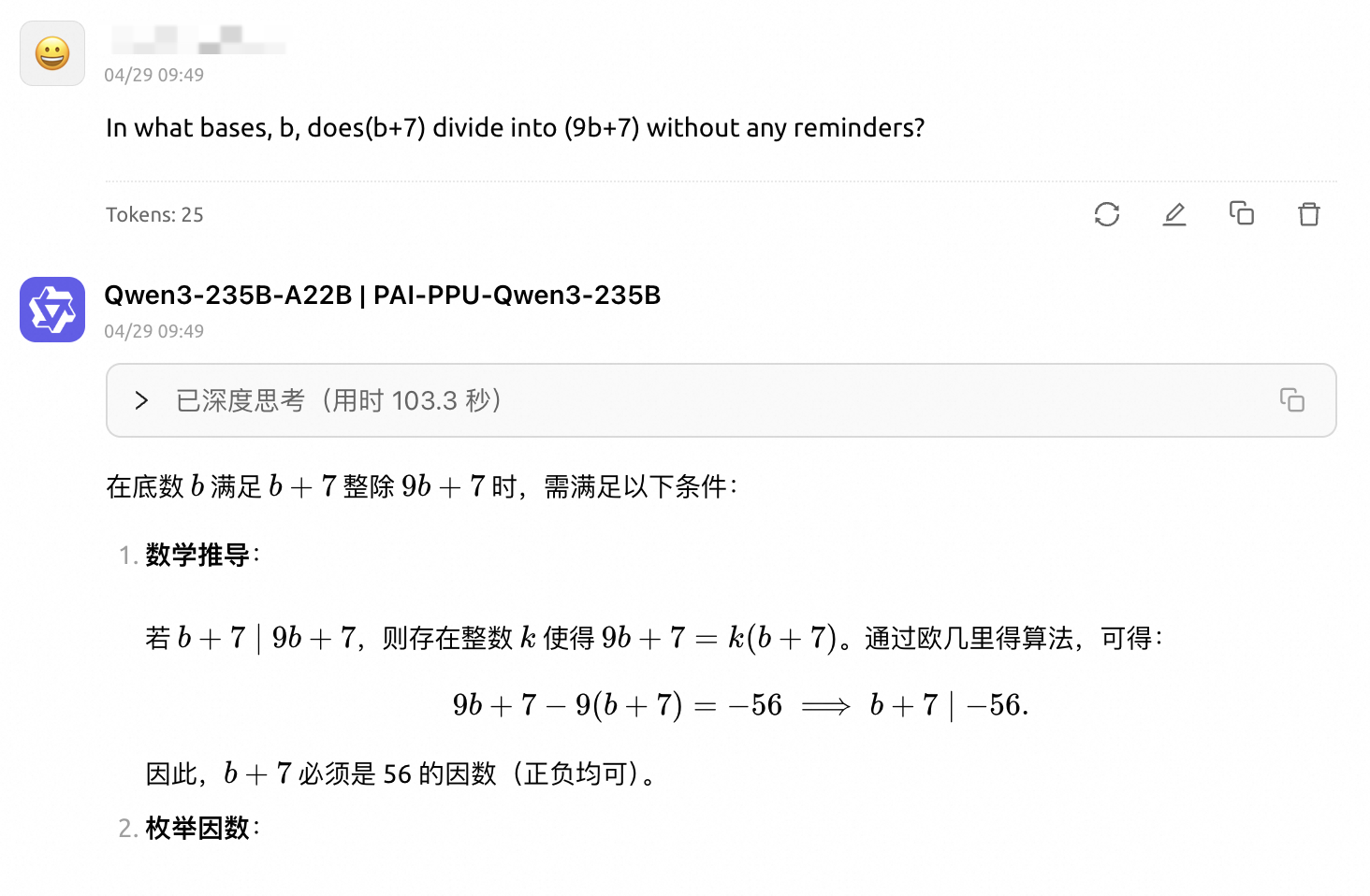
            "content": "In what bases, b, does(b+7) divide into (9b+7) without any reminders?"
        }
    ],
    stream=True,
    temperature=0.6,
    top_p=0.8,
    presence_penalty=1.5,
    extra_body={"chat_template_kwargs": {"enable_thinking": True}}
)

done_reasoning = False
for chunk in response:
    reasoning_chunk = ''
   # reasoning_chunk = chunk.choices[0].delta.reasoning_content
    answer_chunk = chunk.choices[0].delta.content
    if reasoning_chunk != '':
        print(reasoning_chunk, end='',flush=True)
    elif answer_chunk != '':
        if not done_reasoning:
            print('\n\n === Final Answer ===\n')
            done_reasoning = True
        print(answer_chunk, end='',flush=True)
Save the script and run it from your command line: python .py
5.2 Invoke with a client tool
In client tools such as Cherry Studio, enter the endpoint URL and token to invoke the Qwen3 service on PAI-PPU.
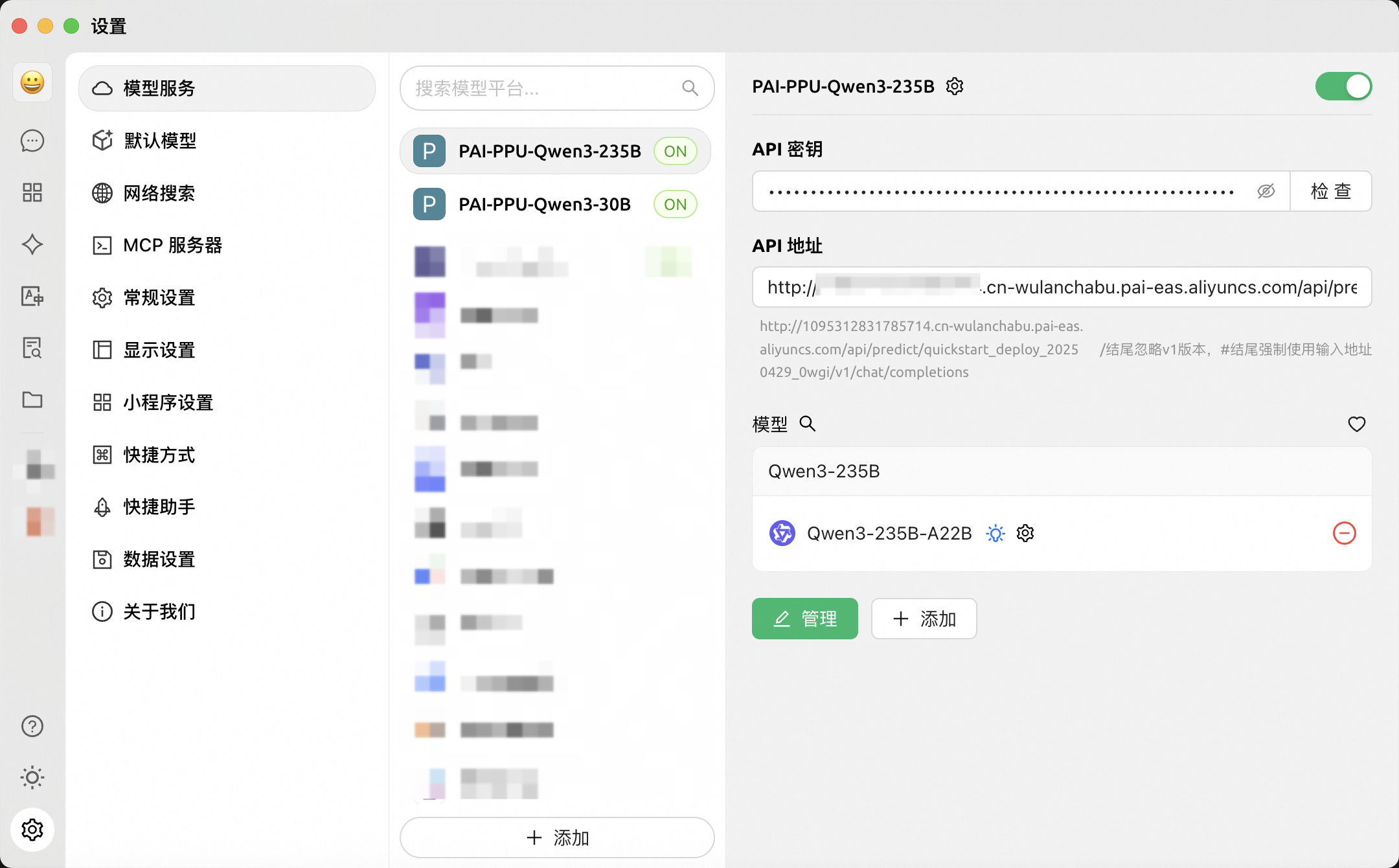
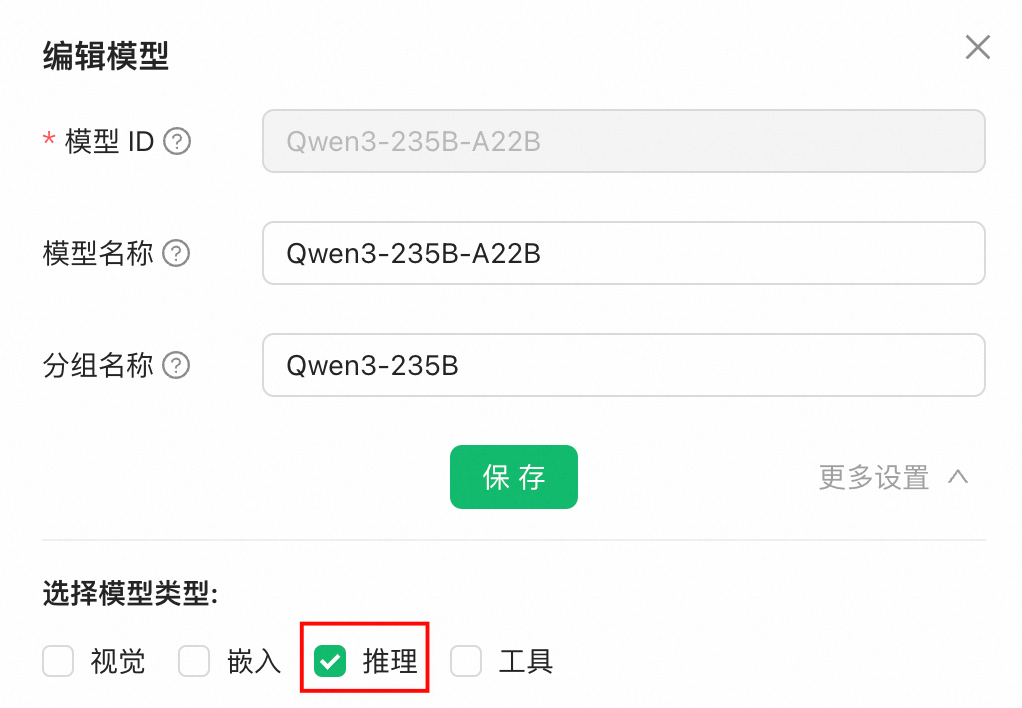
For the inference models in the Qwen3 series, you can achieve a better interactive experience by setting the model type to 'inference' in a client tool.