Lingyang SuperSMS Quick Start
This topic describes the key procedures and frequently asked questions (FAQs) for Lingyang SuperSMS to help you get started with the service quickly.
Key procedure
System and signature preparation are one-time initialization tasks, unless you need to add new signatures. After your signature is prepared, you must request a template at least 2 to 3 business days before you send a SuperSMS message. You can send the message after the template is approved.
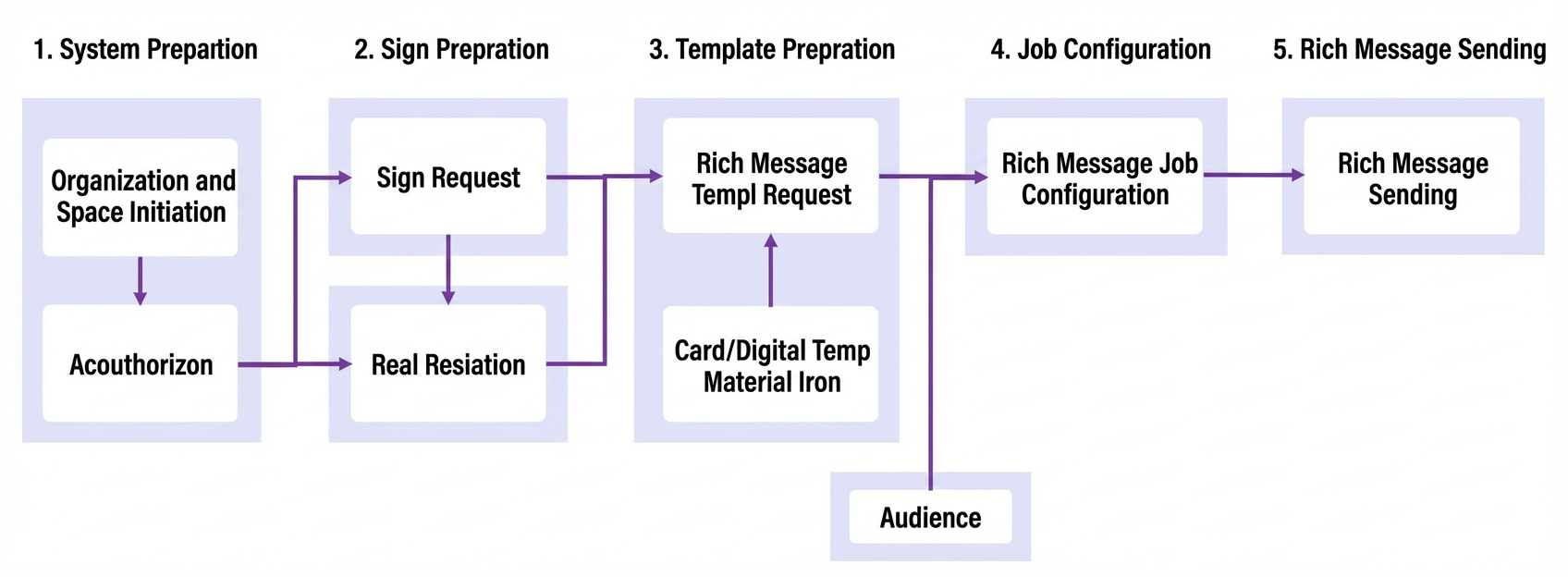
Step 1: System preparation (Organization initialization and account authorization)
Step |
Description |
Example |
1. Log on to the system |
Log on to the Quick Audience platform. Make sure to use the Alibaba Cloud account that you used to purchase Lingyang SuperSMS. |
|
2. Create an organization and a workspace |
|
|
3. Grant permissions to accounts |
In Quick Audience, grant permissions to the Resource Access Management (RAM) users of your operations staff. This lets them create and send SuperSMS tasks. As needed, grant permissions to the accounts. For more information, see Organization Member Management or Space Members Management. |
|
4. Configure the Open Platform |
4.1: Register and log on to the Quick Audience console. Choose Configuration Management > Open Platform. 4.2: Choose Configuration Management.
4.3: Subscribe to the required Lingyang SuperSMS APIs. You can select the APIs based on the interface solution chosen in Step 4. |
Step 2: SuperSMS signature preparation (Prepare materials, follow specifications, and create a signature)
An SMS signature identifies the sender. Before you request a signature, read the SMS signature specifications carefully to ensure your request is approved quickly. This stage has two main tasks that you can perform concurrently. For more information, see Request a signature and complete real-name registration.
1.1. Materials: To request an SMS signature, you need to prepare the SMS signature, business license, Letter of Authorization, and the front and back of the handler's ID card.
SMS Signature Authorization - SuperSMS.doc
(See Figure 1). The official seals on the business license and the Letter of Authorization must match. The SMS signature must be the same as the one specified in the Letter of Authorization. (See Figure 2 for an incorrect example).
2. Note: You cannot use the letter of authorization and business license of a subsidiary to request an SMS signature for the parent company. For example, you cannot use Lingyang's authorization to request the [Alibaba] SMS signature.
Figure 1

Figure 2 (This is an incorrect example. The signature in the Letter of Authorization must be the same as the signature entered in the console).
1.2. Signature specifications:
1. Company
Abbreviated signature: Must be extracted from the full company name and must not be confusing or identical to other companies.
Required materials: Business license, the ID card number, and images of the front and back of the handler's or legal representative's ID card. For company certificates, you can only upload a business license or a certificate with a Unified Social Credit Code.
Before you upload the port information, check the certificate information on platforms such as Qichacha or the official national certificate query platforms listed below. Do not upload certificate information that cannot be found on these platforms.
Note: Business data for industrial and commercial enterprises is based on the National Enterprise Credit Information Publicity System. Data for other organizations is based on the National Organization Unified Social Credit Code Inquiry Platform.
2. App
Abbreviated signature: The signature must be the full name of the app. The app must belong to the entity that completed the real-name registration for the port. The app name must be searchable in the ICP filing records on the ICP/IP Address/Domain Name Information Filing Management System of the Ministry of Industry and Information Technology (MIIT).
Required materials: Business license, images of the front and back of the handler's or legal representative's ID card, and a screenshot of the query result from the MIIT's ICP/IP Address/Domain Name Information Filing Management System.
3. Trademark
Abbreviated signature: Must be identical to the trademark name. The trademark must be registered and searchable on the China Trademark Website of the Trademark Office of the China National Intellectual Property Administration. The trademark owner must be the same as the company undergoing verification.
Required materials: Business license, images of the front and back of the handler's or legal representative's ID card, and the trademark registration certificate.
4. Government/Public institution/Other organization
Abbreviated signature: Must be extracted from the full name on the certificate and must not be confusing or identical to other organizations.
Required materials: Unified Social Credit Code.
Example: For "XX Municipal Administration for Market Regulation", the abbreviated signature can be [XX Municipal Market Reg]. Incorrect examples: [Administration for Market Regulation], [Market Reg].
1.3. Create a signature:
1. Create a qualification (User Marketing > Qualification Management > New Qualification)
2. Upload the required registration materials and submit them
3. Create a new SMS signatureUpload the required materials and submit them. Select the SMS signature type as needed.
4. Notify your support contact (After submission, remind the responsible person in your group to expedite the review).
Step 3: Prepare the template for sending
1. Request a template
Create a template: Go to User Marketing > Lingyang SuperSMS > SMS Template, and create a new text, digital, or card SMS template.
Fill in the basic information for the template.
Parameter
Description
Message type
Select a message type. This is used for Fatigue Control.
Promotional message: Used to send marketing information to users, such as new product launches, promotions, discount coupons, and event invitations. Subject to fatigue control rules. Messages cannot be sent after the sending limit for a period is reached.
Notification: Used to send service-related information to users, such as service activation, point balance changes, payment notifications, and logistics updates. It does not contain marketing content. Not subject to fatigue control rules.
Template name
Enter a name for the template.
Template content
Enter the content for the text message template.
Request description
Provide information for the reviewer. Describe the business scenario for the text message.
After you complete the configuration, click Save and Submit for Review.
For detailed instructions, see Create a SuperSMS template and follow the specifications.
2. Template pre-check feature
You can use the AI-powered pre-check feature to review your message content in advance. This helps ensure that your template passes the review, avoids repeated submissions, and increases the approval rate.
1. Go to User Marketing > Lingyang SuperSMS. Select the template type you want to request (Card SMS Template, Digital SMS Template, or Text SMS Template). Enter the required information and click AI Pre-check.
2. Check the pre-check result in the upper-right corner. Modify the content as suggested, then click Save and Submit for Review.
Mobile phone manufacturers that support template styles and events will review the template. Check the template list for the review result.
Review hours: 9:00 to 23:00 on business days (postponed on public holidays). Submit your request before 18:00 for a faster review, which is typically completed within one business day.
Before you request an SMS template, carefully read the specifications, market conditions, and style library documents.
3. Upload the target audience
[Recommended] Method 1: Upload the audience directly in Quick Audience. Go to Insight > Audience Management to upload the audience.
Method 2: Use the API to create an audience package. For the API documentation, see https://qaopen.yuque.com/org-wiki-qaopen-ti7g9o/itk8ld/eawumqeghgtyq7p0?singleDoc#
4. Send a SuperSMS message
Procedure: Select a workspace, then go to User Marketing > Reach Marketing > Lingyang SuperSMS. Create a new sending task.
In the upper-right corner, click Create Sending Task. On the task creation page, configure the task information. Select Digital SMS and choose an approved template. Make sure to select the parameters for the SMS variables.
Type |
Description |
Instance graph |
Card SMS |
Select Card SMS. Choose an approved signature and card template. Select a fallback type. Most Android models support card messages, but iOS does not. You can choose to fall back to a digital message. Models that do not support card messages will receive a digital message.
Note
Before sending, click "Test" and enter a phone number to send a test message. Check if the content is correct and the images are clear. |
|
Digital SMS |
Select Digital SMS and choose an approved template.
Note
Before sending, click "Test" and enter a phone number to send a test message. Check if the content is correct and the images are clear. |
|
Text SMS |
Select Text SMS. Choose a message type (Promotional message, Notification, or Captcha). Write the template content. You can insert variables for scenarios such as captchas. The variables will be replaced with the customer's specific tag values when the message is sent.
Note
Before sending, click "Test" and enter a phone number to send a test message. Check if the content is correct and the images are clear. |
Sending instructions:
If you use scheduled sending and need to cancel the task, you can cancel it in the SMS Task List at least 10 minutes before the scheduled time.
If you choose scheduled sending, the time must be set within 30 days of the current date.
For scheduled bulk messages, set the sending time to at least 30 minutes from the current time.
Due to carrier restrictions, card and text messages cannot be sent between 22:00 and 8:00. Digital messages cannot be sent between 21:00 and 8:00.
If a target audience is set to auto-update in the custom audience analysis list or manually updated under scenario operations, and the update is completed more than 4 hours before the task is sent, the latest audience is used. Otherwise, the audience from before the update is used.
FAQ
1. Review standards
Refer to the following review standards when you submit qualifications or request signatures and templates. If your qualification, SMS signature, or SMS template is rejected, you can view the rejection reason and suggestions for modification. After making the required changes, you can resubmit it for review. For more information about common rejection reasons and suggestions, see Suggestions for handling review failures.
Category |
Description |
Review standard |
SMS qualification |
To control the sending of illegal and non-compliant text messages and to meet carrier requirements for real-name sending, you must provide the qualification certificates of the signature owner before requesting a signature for Domestic SMS. |
|
SMS signature |
An SMS signature identifies the sender. When you request an SMS signature, follow the SMS signature specifications. Specify the signature source and provide a scenario link to help your signature pass the review quickly. |
|
SMS template |
An SMS template is the content of the message that the recipient receives. It includes variables and template content. When you request an SMS template, follow the content and variable specifications. |
2. Review time
Review duration: Due to the real-name registration requirement for SMS signatures, the number of qualification review tickets is increasing rapidly, which may extend the review time. The review is typically completed within 2 business days. SMS signatures and templates are typically reviewed within 2 hours of submission. For requests related to government and enterprises, the review is generally completed within 2 business days. The review time may be extended during system upgrades, periods of high review volume, or non-working hours.
Review hours: 9:00 to 21:00, Monday to Sunday (postponed on public holidays).
You can activate the exclusive DingTalk group for Short Message Service to view review notifications for SMS signatures and templates, and set up alert notifications.
3. Related topics
Message length (character count) = Number of characters in the SMS signature + Number of characters in the SMS template content. For more information, see SMS sending rules.
For information on the sending frequency limits for Domestic SMS and suggestions for what to do when these limits are triggered, see SMS sending frequency limits.
4.1 API integration: Two integration solutions
Solution 1 |
Solution 2 |
|
Solution |
After the audience package is synchronized to Quick Audience, the subsequent operations are performed entirely within Quick Audience. The template creation, review, and final sending are all done on the Quick Audience platform. Only the audience package is synchronized from your platform to Quick Audience through an API. The phone numbers in the audience package can be MD5 encrypted. Quick Audience will decrypt them during the final sending. |
Sending is done entirely through APIs (text, digital). The creation and review of card SMS templates are done in Quick Audience. |
Recommended for |
Customers who prefer light development and want to use data capabilities such as smart timing and geolocation. |
The product offers a robust set of developer features, including template creation. |
Template creation and review |
Q&A |
Card templates in Quick Audience. Digital and text templates on the customer's self-built platform. |
Final sending |
Q&A |
Self-built platform |
Sending result |
Viewable and downloadable in Quick Audience |
Viewable and downloadable in Quick Audience. Can also be obtained through an API. |
Bill |
Downloadable in Quick Audience. You can perform offline cost allocation based on fields such as the sender. |
Can be downloaded in the Quick Audience console. |
Intelligent QA Scheduling |
✅ |
❎ |
Geolocation capability for QA |
✅ |
❎ |
Smart fallback |
✅ |
❎ |
Required development work API integration |
Method 1: Integrate with the audience package push API (1 API). Method 2: Upload local CSV or XLSX documents (no API integration). |
Integrate with APIs 2 to 13. |
For more information, see SuperSMS Integration Solution.pptx.
4.2 API list:
1. Audience package push (Solution 1)
Create Audience Package · Open Platform
2. Sending-related APIs:
API 2. Send a single Lingyang SuperSMS message (Solution 2)
Lingyang SuperSMS (Phone Number) Send SMS · Open Platform
API 3. Send Lingyang SuperSMS messages in batches (Solution 2)
Lingyang SuperSMS (Phone Number) Batch Send SMS · Open Platform
3. Delivery receipt APIs:
API 4. Query SMS sending details (Solution 2)
Query SMS Sending Details · Open Platform
API 5. Retrieve message template content by template ID (Solution 2)
Get Message Template Content by Template ID · Open Platform
API 6. Enterprise Edition delivery receipt message response format (Solution 2)
Enterprise Edition Delivery Receipt Message Response Format · Open Platform
4. Template creation-related APIs
Digital SMS template:
API 7. Create a digital SMS template (Solution 2)
Create Digital SMS Template · Open Platform
API 8. Query a digital SMS template (Solution 2)
Query Digital SMS Template · Open Platform
Text SMS template:
API 9. Create a text SMS template
Create Text Template · Open Platform
API 10. Query text template review details
Query Text Template Review Details · Open Platform
API 11. Query the text template list
Query Text Template List · Open Platform
API 12. Modify a text template
Modify Text Template · Open Platform
API 13. Delete a text template