Node.js SDK getting started guide
The SpeedPix Workshop Node.js software development kit (SDK) provides simple interfaces for AI image generation and processing workflows.
Resource links
Resource |
Link |
Description |
NPM package |
Latest and historical versions |
|
Open source repository |
Source code, issues, and contributions |
View the API reference
Authorization
Get API credentials
Create an application to obtain an
app_keyandapp_secret.
Call the OpenAPI
Prepare the Node.js environment
# Make sure you have Node.js 14 or later.
node --version

# Make sure you have npm or yarn.
npm --version
Configure environment variables
# Set API credentials (recommended method)
export SPEEDPIX_APP_KEY="your-app-key"
export SPEEDPIX_APP_SECRET="your-app-secret"

export SPEEDPIX_ENDPOINT="https://openai.edu-aliyun.com"  # Optional, default value
Install dependencies
# NPM
npm install speedpix

# Yarn
yarn add speedpix
Prepare a published workflow
In the SpeedPix Workshop console:
For more information, see Workflow management
Create or select an AI workflow. You can drag the following example workflow into the workflow editor.
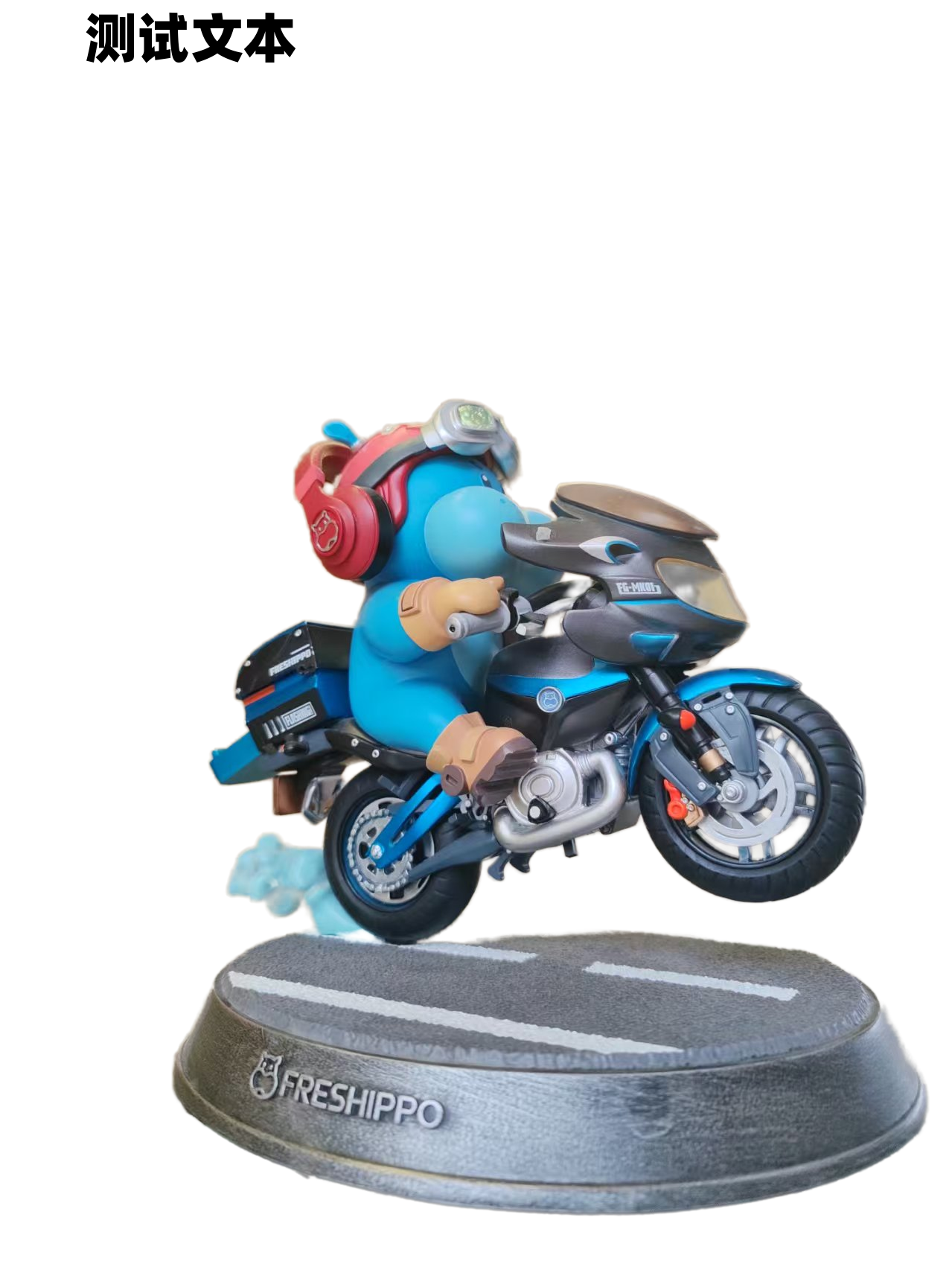
This workflow converts a product image into an image with a white background: SDK Test Case.json. The workflow automatically extracts the main subject from the input image and generates a product image with a white background based on the input text.
Example parameters:
Input text
Input image
Output result
Test text

Publish the workflow and obtain the
workflow_id.When publishing, select the `image` field of node #1 and the `text` field of node #6 as input fields.
Select the `images` field of node #10 as the output field.
Click Submit to publish the workflow. This action creates a v1 version. On the right, click Alias Management, create a new alias named `main`, and map it to the v1 version. You can then use this alias to call the workflow. To update the version, you can switch the alias here without changing your code.
Record the input and output format requirements of the workflow.
Copy the example code
CommonJS (recommended)
const speedpix = require("speedpix");

async function main() {
    try {
        // Run the AI workflow. The configuration is automatically read from environment variables.
        const output = await speedpix.run("your-workflow-id", {
            input: {
                text: "Alibaba Cloud",
                image: "./input.jpg", // Local file path. The SDK uploads it automatically.
            },
            aliasId: "main", // Version alias. Defaults to "main".
        });

        // Save the result.
        if (output?.images?.url) {
            await output.images.url.save("result.png");
            console.log("Image saved as result.png");
        }
    } catch (error) {
        console.error("Error:", error.message);
    }
}

main();
ES Module
import SpeedPix from "speedpix";

// The configuration is automatically read from environment variables.
const client = new SpeedPix();

const output = await client.run("your-workflow-id", {
    input: {
        text: "Alibaba Cloud",
        image: "./input.jpg", // Local file path. The SDK uploads it automatically.
    },
    aliasId: "main",
});

if (output?.images?.url) {
    await output.images.url.save("result.png");
    console.log("Image saved as result.png");
}
TypeScript
import SpeedPix from "speedpix";

async function main() {
  const client = new SpeedPix();

  const output = await client.run("your_workflow_id", {
    input: {
      text: "Alibaba Cloud",
      image: "./input.jpg", // Local file path. The SDK uploads it automatically.
    },
    aliasId: "main",
  });

  if (output?.images?.url) {
    await output.images.url.save("result.png");
  }
}

// Run the main function.
main().catch((error) => {
  console.error("An error occurred:", error);
  process.exit(1);
});
Run the test
# Run the test script.
node quickstart.js

# Verify the installation.
npm list speedpix

# Check the generated file.
ls -la result.png
Resource configuration
Shared computing power vs. dedicated resources
SpeedPix Workshop supports two resource types:
Shared computing power: This is the default option. It is cost-effective and suitable for general business scenarios.
Dedicated resources: This option is recommended for businesses that are sensitive to latency and require high success rates. It provides more stable performance.
Configuration method
By default, the system uses shared computing power if you do not specify a resourceConfigId. If you require low latency and high success rates, you can configure dedicated resources.
const SpeedPix = require("speedpix");
const client = new SpeedPix({
  appKey: "your-app-key",
  appSecret: "your-app-secret"
});

// Use shared computing power (default).
const output1 = await client.run("workflow-id", {
  input: {
    prompt: "A beautiful landscape"
  },
  aliasId: "main"
  // The system automatically uses shared computing power when resourceConfigId is not specified.
});

// Use dedicated resources.
const output2 = await client.run("workflow-id", {
  input: {
    prompt: "A beautiful landscape"
  },
  aliasId: "main",
  resourceConfigId: "your-dedicated-resource-id"  // Specify the dedicated resource ID.
});

// Specify dedicated resources using createPrediction.
const prediction = await client.predictions.create({
  workflowId: "workflow-id",
  input: {
    prompt: "A beautiful landscape"
  },
  aliasId: "main",
  resourceConfigId: "your-dedicated-resource-id"
});
References
Full SDK API parameter description
1. Constructor - new SpeedPix()
The SDK provides multiple initialization methods. You must provide the appKey and appSecret authentication parameters together.
// Method 1: No parameters (recommended, uses environment variables)
const client = new SpeedPix();

// Method 2: Basic configuration
const client = new SpeedPix({
    appKey: "your-app-key",
    appSecret: "your-app-secret"
});

// Method 3: Full configuration
const client = new SpeedPix({
    appKey: "your-app-key",
    appSecret: "your-app-secret",
    endpoint: "https://custom-endpoint.com",  // Optional
    timeout: 60,  // Optional, 60-second timeout
    useFileOutput: true  // Optional
});
Parameters:
Parameter |
Type |
Required |
Default |
Description |
|
string |
Yes |
Environment variable |
The application key. |
|
string |
Yes |
Environment variable |
Application password |
|
string |
No |
|
The API endpoint address. |
|
string |
No |
|
The user agent string. |
|
number |
No |
|
The request timeout in seconds. |
|
boolean |
No |
|
Specifies whether to convert URL outputs to FileOutput objects. |
|
string |
No |
|
The file encoding strategy: |
Parameter rules for authentication:
appKeyandappSecretmust be provided as a pair. You must specify both parameters or neither.If these parameters are not provided, their values are automatically read from the
SPEEDPIX_APP_KEYandSPEEDPIX_APP_SECRETenvironment variables.Other optional parameters are specified after the authentication parameters.
2. Run a workflow - client.run()
const output = await client.run(workflowId, options)Parameters:
Parameter |
Type |
Required |
Default |
Description |
|
string |
Yes |
- |
The workflow ID. |
|
object |
Yes |
- |
The workflow input parameters. |
|
string |
No |
|
The version alias. |
|
string |
No |
- |
The version ID. Use this parameter instead of `aliasId`. |
|
boolean |
No |
|
Specifies whether to wait for completion. |
|
string |
No |
- |
The resource configuration ID. |
|
boolean |
No |
|
Specifies whether to randomize seeds. |
|
boolean |
No |
|
Specifies whether to return temporary files. |
|
number |
No |
|
The polling interval in milliseconds. |
|
AbortSignal |
No |
- |
The cancel signal. |
Automatic file path handling:
The SDK automatically recognizes file path parameters in
input.It supports relative paths (such as
./image.jpg) and absolute paths.It automatically uploads the file and replaces the path with an accessible URL.
Supported formats include jpg, png, gif, bmp, webp, mp4, and mov.
Example:
// Basic usage
const output = await client.run("workflow-123", {
    input: {
        prompt: "Generate an image",
        image: "./source.jpg",           // Auto-upload
        strength: 0.8,
        steps: 20
    }
});

// Advanced usage
const output = await client.run("workflow-123", {
    input: {
        prompt: "Style transfer",
        source_image: "./input.jpg",
        style_image: "/Users/you/style.png",
        control_image: "./control.jpg"
    },
    aliasId: "v2.1",
    resourceConfigId: "gpu-config-1",
    pollingInterval: 2000,  // Poll every 2 seconds
    randomiseSeeds: true
});

// Asynchronous execution (do not wait)
const prediction = await client.run("workflow-123", {
    input: { prompt: "Complex task" },
    wait: false
});
console.log(`Task ID: ${prediction.id}`);
const result = await prediction.wait();  // Manually wait for completion
3. Prediction management - client.predictions
3.1 Create a prediction - predictions.create()
const prediction = await client.predictions.create(options)Parameters
Parameter |
Type |
Required |
Description |
|
string |
Yes |
The workflow ID. |
|
object |
Yes |
The input parameters. |
|
string |
No |
The version alias. |
|
string |
No |
The version ID. |
|
string |
No |
The resource configuration ID. |
|
boolean |
No |
Specifies whether to randomize seeds. |
|
boolean |
No |
Specifies whether to return temporary files. |
|
AbortSignal |
No |
The cancel signal. |
3.2 Get a prediction - predictions.get()
const prediction = await client.predictions.get(predictionId, options)3.3 Cancel a prediction - predictions.cancel()
const prediction = await client.predictions.cancel(predictionId, options)Example:
// Create a prediction.
const prediction = await client.predictions.create({
    workflowId: "workflow-123",
    input: {
        prompt: "Generate an image",
        image: "./input.jpg"
    },
    aliasId: "main"
});

// Get the prediction status.
const updated = await client.predictions.get(prediction.id);

// Cancel the prediction.
if (updated.status === "starting") {
    await client.predictions.cancel(prediction.id);
}
4. File management - client.files
4.1 Upload a file - files.create()
const file = await client.files.create(fileInput, options)Parameters:
Parameter |
Type |
Required |
Description |
|
string | Buffer | ReadableStream |
Yes |
The file path, Buffer, or stream. |
|
string |
No |
A custom file name. |
|
string |
No |
The Multipurpose Internet Mail Extensions (MIME) type. This is auto-detected. |
|
AbortSignal |
No |
The cancel signal. |
Example:
// Upload a local file.
const file1 = await client.files.create("./image.jpg");

// Upload a Buffer.
const buffer = fs.readFileSync("./image.jpg");
const file2 = await client.files.create(buffer, {
    filename: "custom-name.jpg",
    contentType: "image/jpeg"
});

// Upload a stream.
const stream = fs.createReadStream("./video.mp4");
const file3 = await client.files.create(stream);

// Use the uploaded file.
const output = await client.run("workflow-123", {
    input: {
        image: file1.accessUrl,  // Use the file URL.
        prompt: "Process this image"
    }
});
5. Prediction object methods
5.1 Wait for completion - prediction.wait()
const result = await prediction.wait(options)Parameters:
Parameter |
Type |
Default |
Description |
|
number |
|
The polling interval in milliseconds. |
|
AbortSignal |
- |
The cancel signal. |
5.2 Reload - prediction.reload()
const updated = await prediction.reload(options)6. File output object - FileOutput
When the useFileOutput: true parameter is specified, output URLs are automatically converted to FileOutput objects.
// FileOutput methods
await output.images.url.save("result.png");        // Save to a local file.
const buffer = await output.images.url.read();     // Read as a Buffer.
const url = output.images.url.toString();          // Get the URL string.
const json = output.images.url.toJSON();           // Serialize to JSON.
7. Global functions
7.1 Module-level run - speedpix.run()
const speedpix = require("speedpix");
const output = await speedpix.run(workflowId, options);
This function uses the default client, which is configured using environment variables.
7.2 Set the default client - setDefaultClient()
const { setDefaultClient } = require("speedpix");
const customClient = new SpeedPix({ timeout: 30000 });
setDefaultClient(customClient);
8. Error handling
try {
    const output = await client.run("workflow-id", { input: {...} });
} catch (error) {
    if (error instanceof SpeedPix.SpeedPixError) {
        console.log("API error:", error.message);
        console.log("Error code:", error.errorCode);
        console.log("Invoke ID:", error.apiInvokeId);
    } else if (error instanceof SpeedPix.PredictionError) {
        console.log("Prediction error:", error.message);
        console.log("Prediction ID:", error.prediction?.id);
    }
}
9. MIME type detection
The SDK includes a built-in file type detection feature.
const { detectMimeTypeFromBuffer, getContentType } = require("speedpix");

// Detect from a Buffer.
const buffer = fs.readFileSync("./image.jpg");
const mimeType = detectMimeTypeFromBuffer(buffer);

// Detect from a file name.
const contentType = getContentType("image.jpg", buffer);
More usage examples
// Method 1: Simplest (recommended for beginners, uses environment variables)
const speedpix = require("speedpix");
const output = await speedpix.run("workflow-id", {
    input: {
        prompt: "test",
        image: "./input.jpg"    // File paths are automatically uploaded and converted.
    }
});

// Method 2: Instantiate a client (explicitly configure authentication)
const SpeedPix = require("speedpix");
const client = new SpeedPix({
    appKey: "your-app-key",
    appSecret: "your-app-secret"
});
const output = await client.run("workflow-id", {
    input: {
        prompt: "test",
        reference: "/path/to/ref.png"  // Supports absolute paths.
    }
});

// Method 3: Full control (for advanced users)
const client = new SpeedPix({
    appKey: "your-app-key",
    appSecret: "your-app-secret",
    timeout: 120  // 2-minute timeout
});
const prediction = await client.run("workflow-id", {
    input: {
        prompt: "test",
        controlnet: "./control.jpg"    // ControlNet input file
    },
    wait: false  // Do not wait. Return immediately.
});
const result = await prediction.wait();  // Manually wait for completion.
File upload examples
If a workflow requires a file input for `image`, `path`, or `file` parameters:
Upload a local file
const SpeedPix = require("speedpix");

async function uploadExample() {
    const client = new SpeedPix();

    // 1. Upload a local file.
    const file = await client.files.create("./input-image.jpg");

    // 2. Use the file URL in the workflow.
    const output = await client.run("your-workflow-id", {
        input: {
            image: file.accessUrl,  // Use the URL of the uploaded file.
            prompt: "Process this image"
        },
        aliasId: "main"
    });

    // 3. Save the result.
    if (output?.images?.url) {
        await output.images.url.save("processed-result.png");
        console.log("The processed image has been saved.");
    }
}

uploadExample();
Uploading multiple files
const SpeedPix = require("speedpix");

async function multiFileExample() {
    const client = new SpeedPix();

    // Upload multiple files.
    const backgroundImage = await client.files.create("./background.jpg");
    const maskImage = await client.files.create("./mask.png");

    const output = await client.run("your-workflow-id", {
        input: {
            background_image: backgroundImage.accessUrl,
            mask_image: maskImage.accessUrl,
            prompt: "Replace background"
        },
        aliasId: "main"
    });

    if (output?.images?.url) {
        await output.images.url.save("composite-result.png");
    }
}

multiFileExample();
Common file parameter examples
// Depending on the workflow's input requirements, file parameters can be:
const input = {
    // Image type
    image: file.accessUrl,
    input_image: file.accessUrl,
    background_image: file.accessUrl,

    // Path type
    image_path: file.accessUrl,
    file_path: file.accessUrl,

    // File type
    file: file.accessUrl,
    input_file: file.accessUrl,

    // With text prompts
    prompt: "your text prompt",
    negative_prompt: "unwanted elements"
};
Complete example: Image editing flow
End-to-end image editing example
const SpeedPix = require("speedpix");
const fs = require("fs");

async function completeExample() {
    try {
        const client = new SpeedPix();

        // Check if the input file exists.
        if (!fs.existsSync("./input.jpg")) {
            console.log("Prepare an image file named input.jpg.");
            return;
        }

        console.log("Uploading file...");
        const inputFile = await client.files.create("./input.jpg");
        console.log("File uploaded successfully:", inputFile.id);

        console.log("Processing image...");
        const output = await client.run("your-workflow-id", {
            input: {
                image: inputFile.accessUrl,
                prompt: "enhance the image quality, make it more vivid",
                strength: 0.8,
                guidance_scale: 7.5
            },
            aliasId: "main"
        });

        console.log("Processing complete!");

        // Save all outputs.
        if (output?.images?.url) {
            await output.images.url.save("enhanced-output.png");
            console.log("Enhanced image saved as: enhanced-output.png");
        }

        // If there are multiple outputs.
        if (output?.preview?.url) {
            await output.preview.url.save("preview.png");
            console.log("Preview image saved as: preview.png");
        }

    } catch (error) {
        console.error("Processing failed:", error.message);

        if (error instanceof SpeedPix.SpeedPixTimeoutError) {
            console.log("Processing timed out. Please try again later.");
        } else if (error instanceof SpeedPix.SpeedPixError) {
            console.log("API error. Please check your parameter configuration.");
        }
    }
}

completeExample();