Manage materialized views
OceanBase Developer Center (ODC) allows you to view and manage materialized views on the GUI.
Structure tree
As shown in the following figure, click the expand icon before the name of the target materialized view in the materialized view list. Its structure tree is displayed in the drop-down list. The structure tree of an object materialized view can have up to three levels. When you right-click an item in the structure tree, the context menu displays some operations that you can perform on the item. For more information about these operations, see the table of management operations in Management operations.

Management operations
In the materialized view list, objects are sorted in ascending order of the first character in object names by default. Right-click the target object in the structure tree. A shortcut menu appears, displaying some operations provided by ODC for you to manage the target object. The following table describes the management operations.
Operation | Description |
View Materialized View Properties | Enter the Properties tab, where you can view the basic information, columns, and code of the materialized view. |
View Materialized View Data | Enter the Data tab, where you can view data in the materialized view. |
Download | Download the SQL file of the materialized view object. |
Copy | Choose Object Name, Select Statement, Insert Statement, Update Statement, or Delete Statement. |
Delete | Delete the current materialized view object. |
Attribute and data tabs
Attribute tabs:
Basic Info: displays information such as Materialized View Name, Database, and Storage mode.
Column: displays information such as Column Name, Data Type, and Column Comments of the base table corresponding to the materialized view. You can click the refresh icon in the toolbar to refresh the field information.
Index: displays information about indexes in the materialized view.
Constraint: displays information about constraints in the materialized view.
DDL: the definition script of the current materialized view. You can click the download icon in the toolbar to download the script to your local computer or click the format icon to format the statement for ease of viewing.
Data tab: displays the data in the materialized view. The toolbar provides buttons to support the following operations.
Operation
Description
Download
Download the result set.
Back to start
Go to the first page.
Previous
Go to the previous page.
Next
Go to the next page.
Jump to bottom
Go to the last page.
Show data volume
Set the maximum number of rows to be displayed on a page. By default, only 1,000 rows are displayed.
Search
Search for data in the materialized view by keyword.
Columns
Select the columns to be displayed on the page.
Column mode
Display the data of the selected rows in the form of a table. On the Column Mode page, you can switch to the previous or next row. The column mode is convenient for viewing single-row data when a large number of columns are involved.
Manual refresh
Refresh the data of the materialized view on the OceanBase Database side. You need to specify the refresh mode and parallelism.
View refresh history
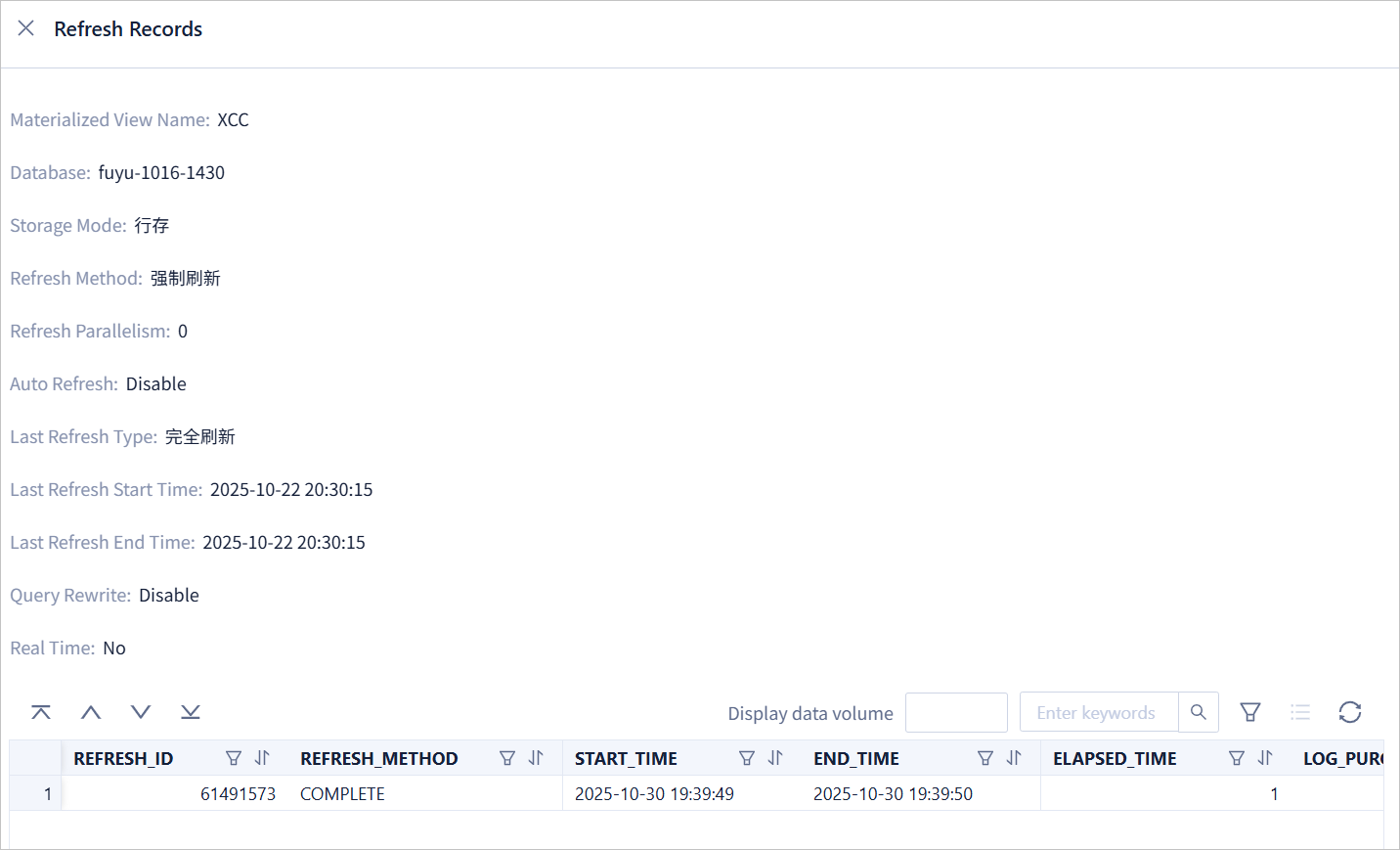
View details of recent refreshes, such as the basic configurations of the materialized view as well as the type and time of recent refreshes.
Refresh
Re-initiate an HTTP request to refresh the display of materialized view data in ODC.