MA Custom Events
Use custom event components to synchronize or record data at any step in an automated marketing activity journey.
MA supports custom event components
In automated marketing activities, you can use custom event components to synchronize or record data after any step in the activity journey.
Procedure
-
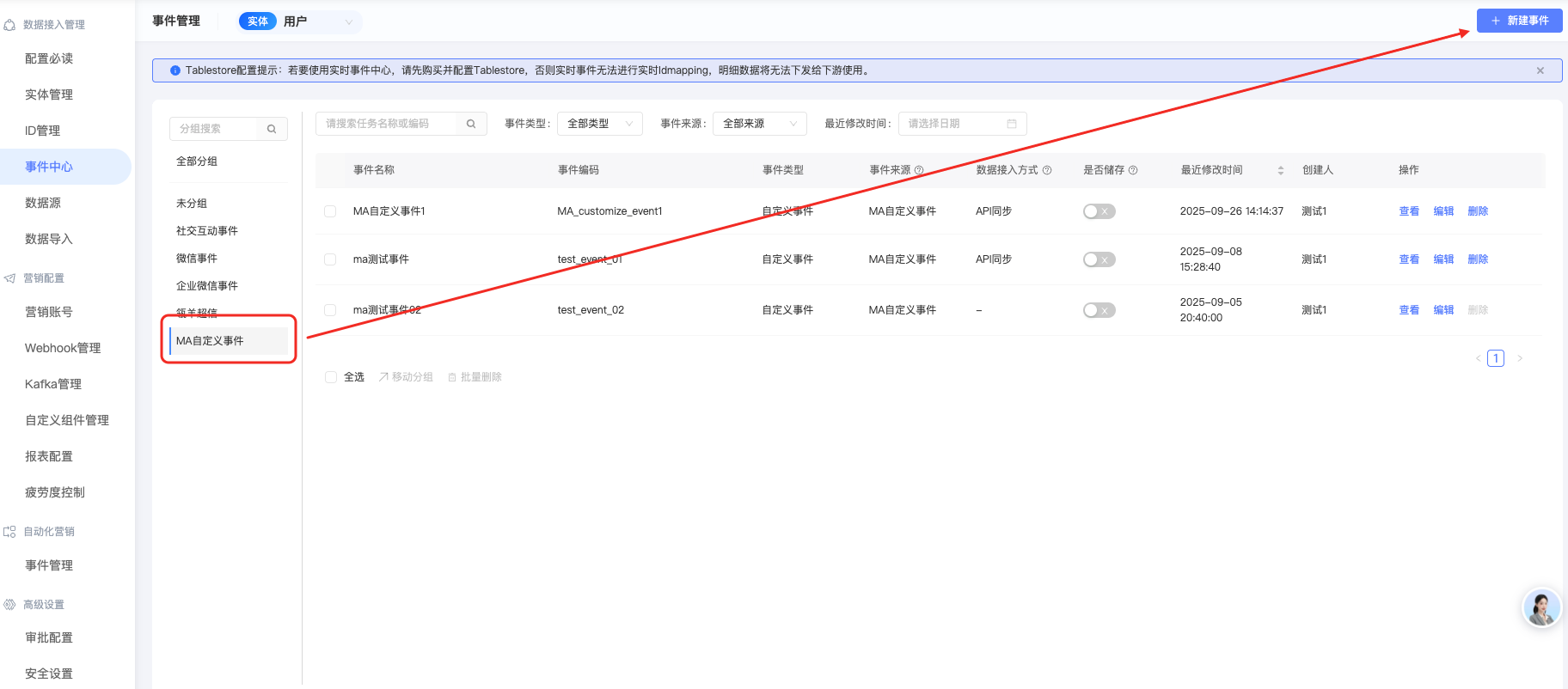
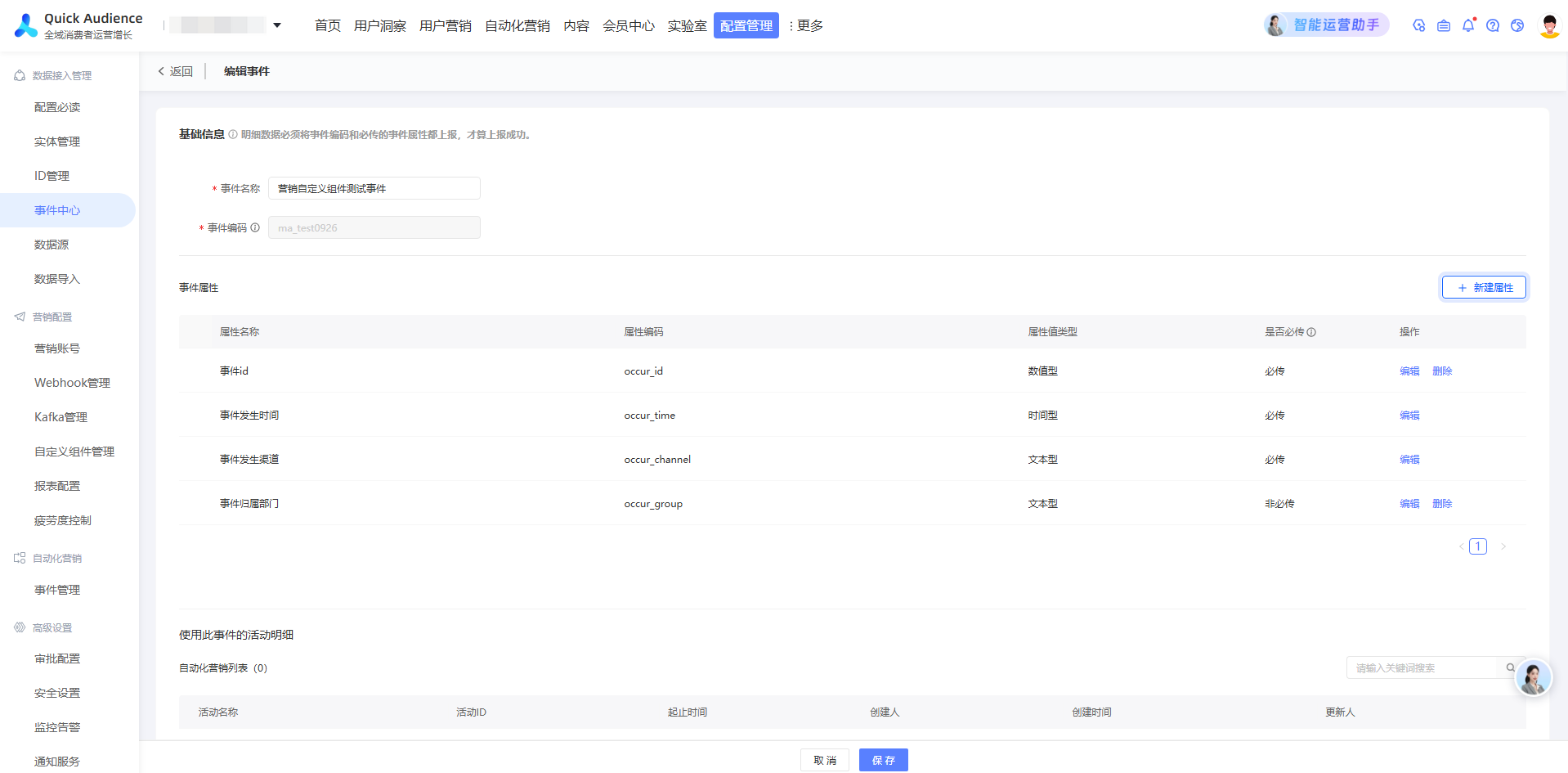
Choose Workspace> Configuration Management> Data Access Management> Event Center, select the MA Custom Event group, and click Create Event in the upper-right corner to go to the Configure Event page. Configure the parameters, as shown in the following figure.
Parameters
Description
Event Name
Enter the event name, for example: Automated marketing event
Event encoding
Enter the event code. The event code must be unique in the current workspace.
The event code is required when reporting event data and uniquely identifies an event.
Event Properties
An event can have multiple properties, such as event occurrence time, event occurrence channel, product, and quantity.
-
When you create a custom event, two built-in properties are included by default:
-
Event Occurrence Time: the time type. Required by default.
-
Event occurrence channel: the text type. Required by default.
-
You can edit preset properties, but the name, code, and value type cannot be changed.
-
You can also add custom properties. Click Create Property to configure the property name, property encoding, property value type (text, numeric, or time), and whether the property is required.
You can edit or delete custom properties. The name and code of a custom property can be modified.
Important
To use reported data in automated marketing, add an external business ID property to the event with the code outBizId and value type text. When this property is specified during event data reporting, the data becomes available for automated marketing.
For transaction-related events, we recommend reporting the order ID as outBizId. For coupon-related events, report the coupon ID as outBizId.
-
-
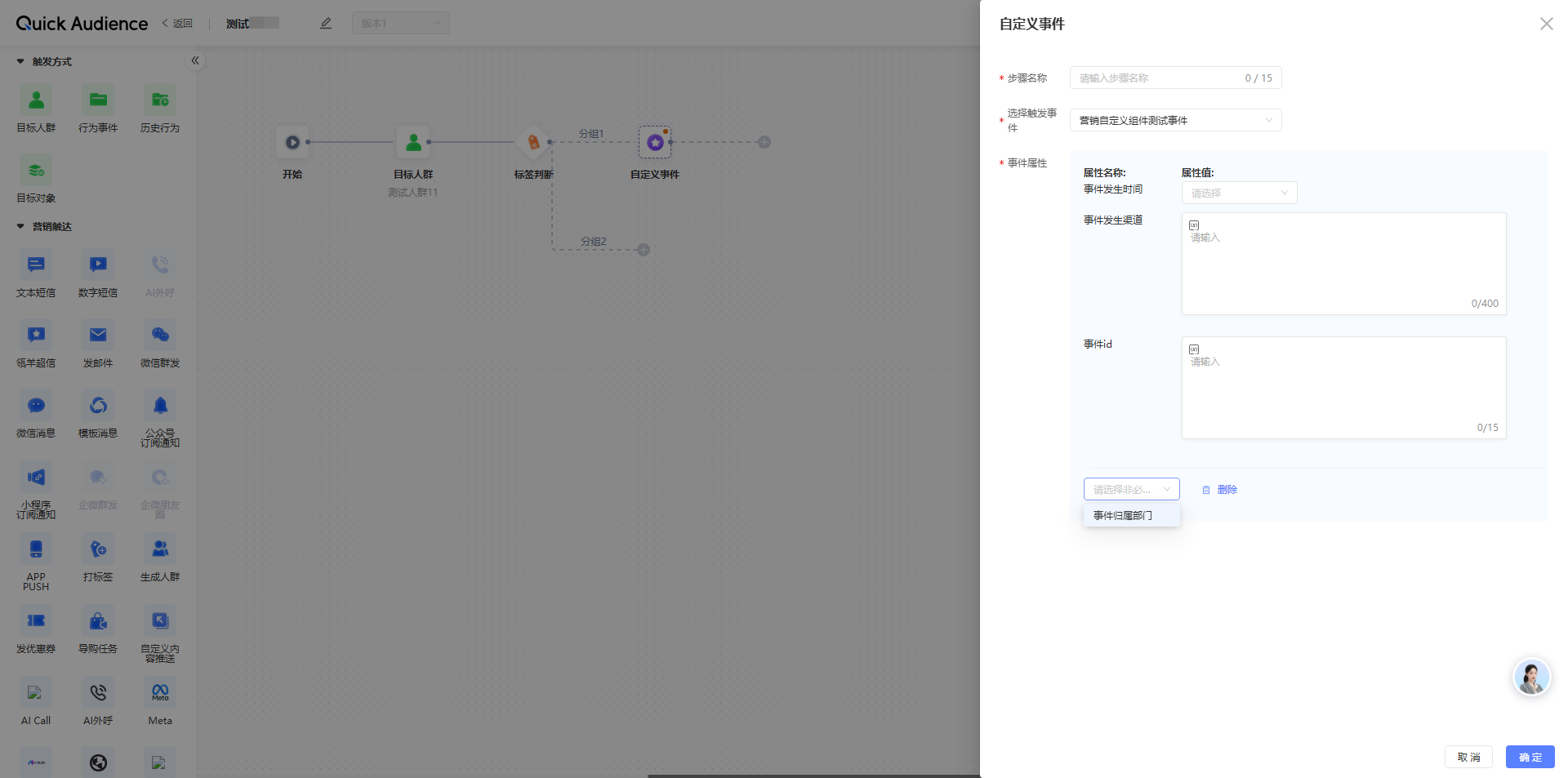
On the MA canvas, click the Custom Event component and configure it in the Surface Report dialog box.
Parameters
Description
Step Name
Enter Step Name
Select a trigger event
Enter a custom event name
Event Properties
Required attributes are displayed by default:
When you create a custom event, two built-in properties are included by default:
Event Occurring Time: the time type. The code is event occurrence time. Required by default.
-
Current time (the time when the canvas is running and the event is generated)
-
Specified time (absolute time)
-
Time difference before and after current time
-
Before and after the current time
Event occurrence channel: the text type. Required by default.
You can click Add Attribute to add the required attribute.
-
-
Click OK to complete the configuration.
-
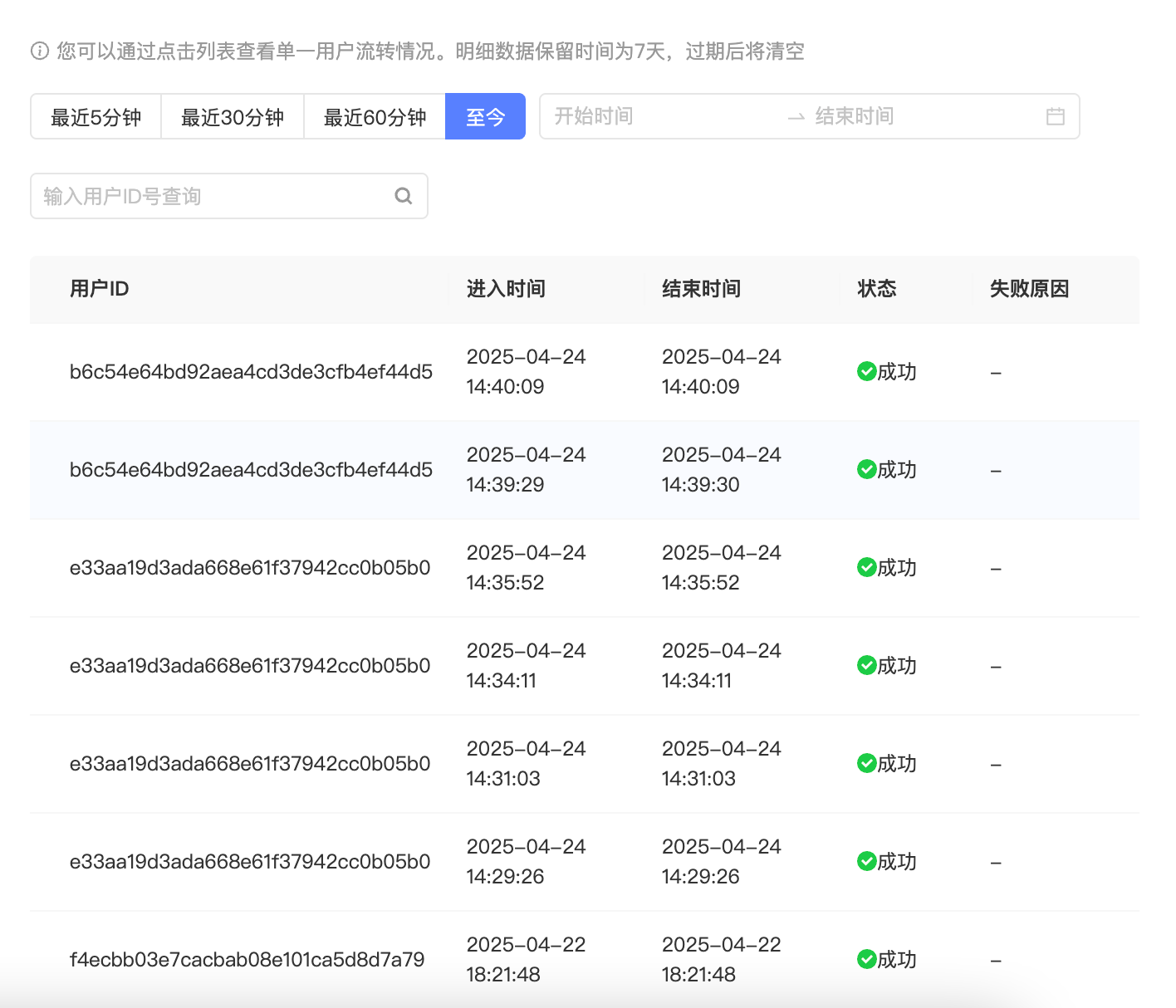
After the canvas is executed, click Component Details to view the user information of the custom event.