Inspiration Generation Agent tutorial
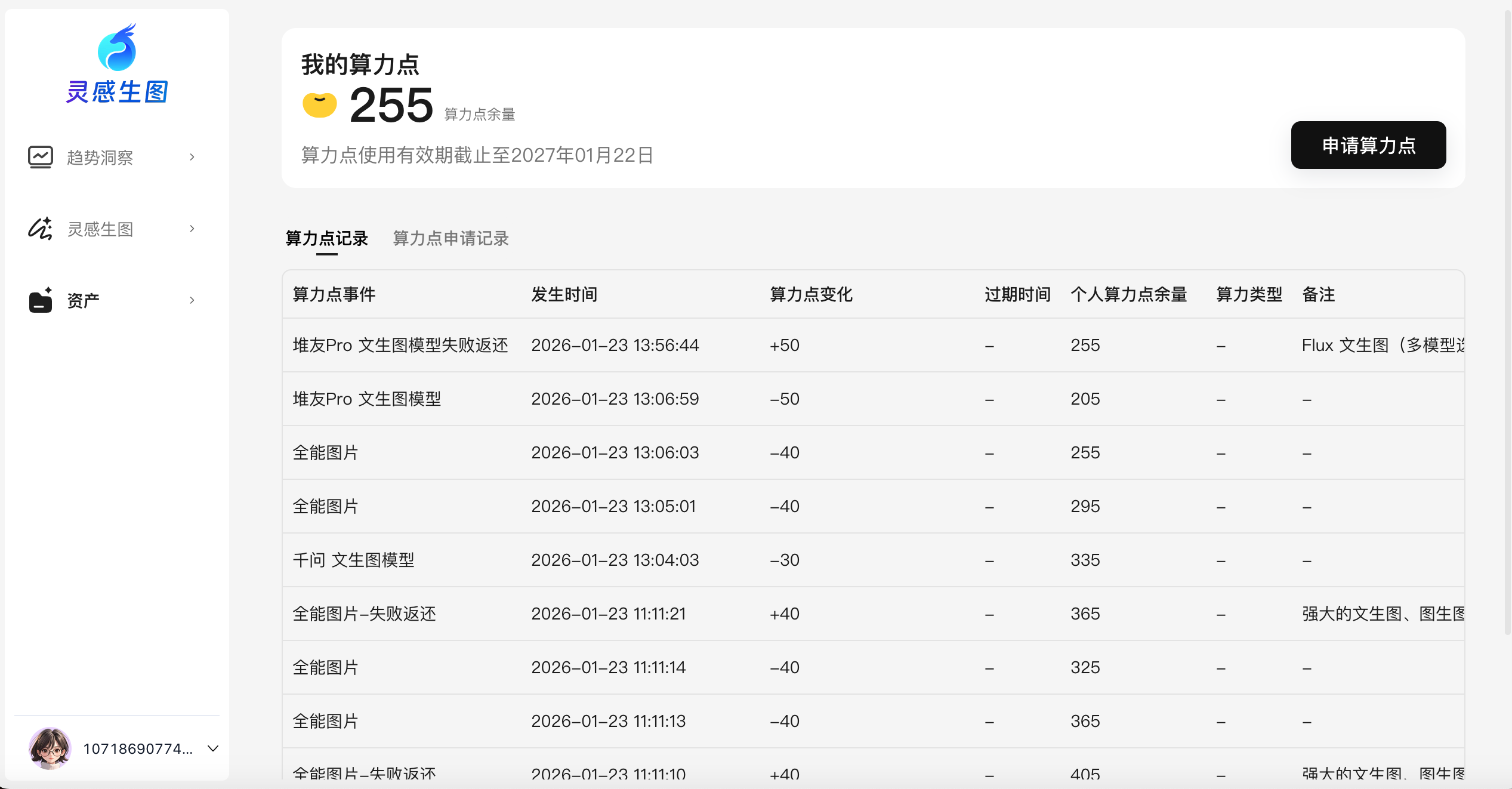
This tutorial guides you through a quick trial of the Inspiration Generation Agent, an AI workbench built for product planners. By integrating external professional data sources like TMIC data, social media sentiment, and WGSN forward-looking trends with your company's internal data, it rapidly generates trend insight reports, planning proposals, and AI-powered design mockups. This solves common product planning problems, such as long lead times and a dependence on manual experience.
Trial benefits
✅ Instantly generate trend insight reports with pre-configured data for children's padded and down jackets—no setup required.
✅ Supports an end-to-end workflow, including report editing, follow-up questions, inspiration collection, and AI image generation.
Trend insight
Trend insight agent
E-commerce trend report
Procedure:
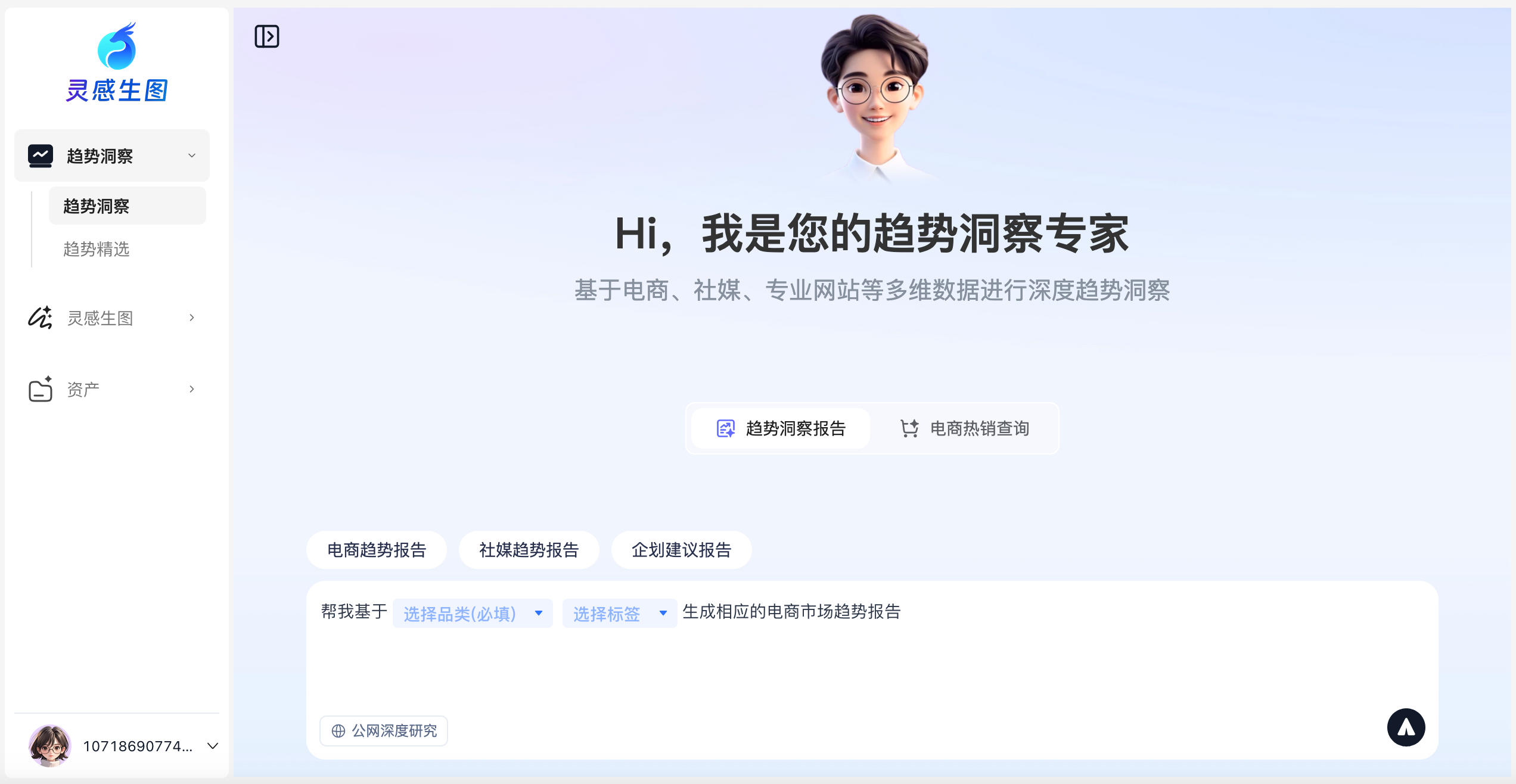
Click the "E-commerce Trend Report" quick command.
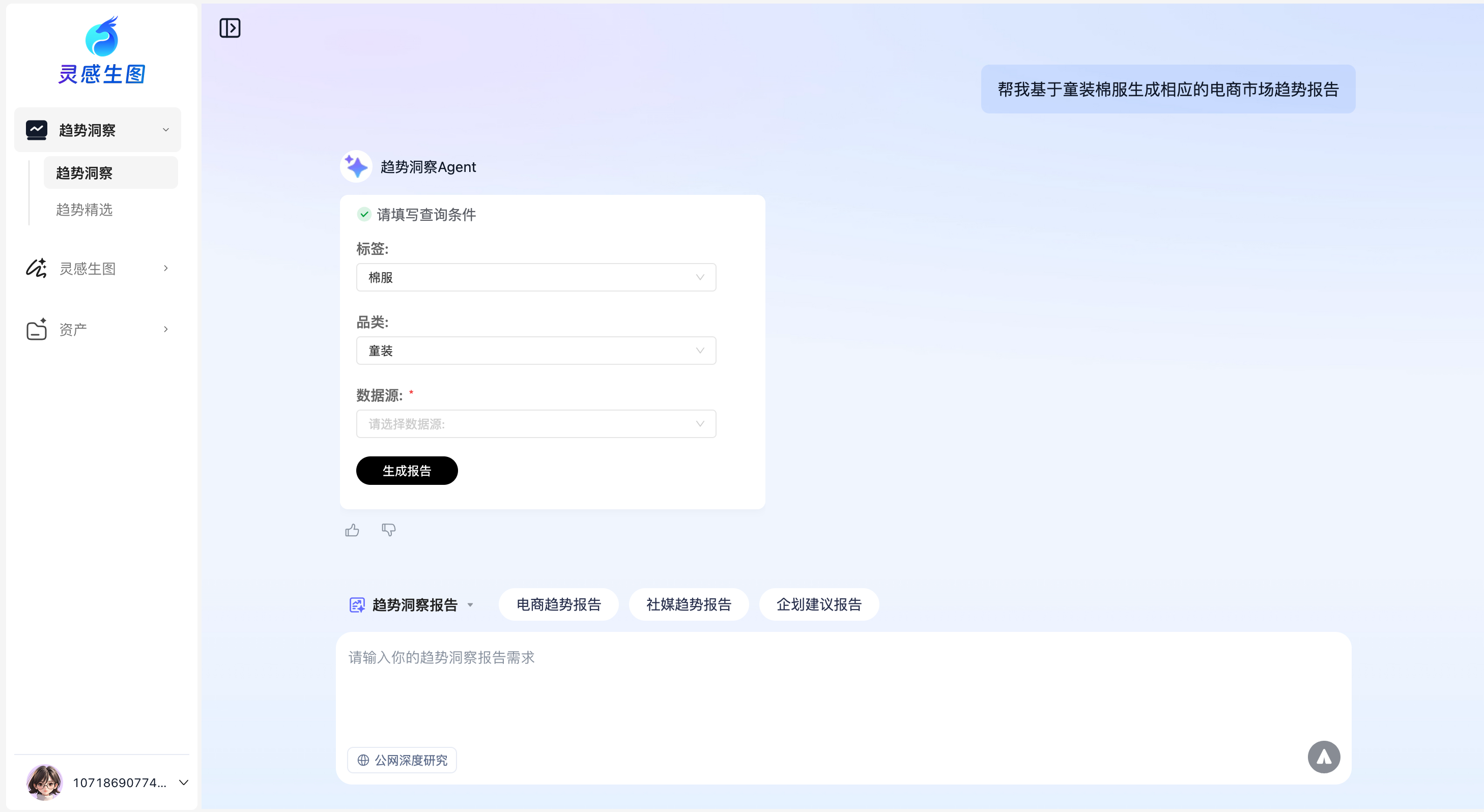
Select a tag with available TMIC data.
The AI matches the corresponding TMIC data source.
Confirm the data source to use for the report.
Generate the report.
Note: The current trial version includes only two pre-configured datasets for children's padded jackets and down jackets. The full product version integrates TMIC data sources based on your specific needs.

Social media trend report
Procedure:
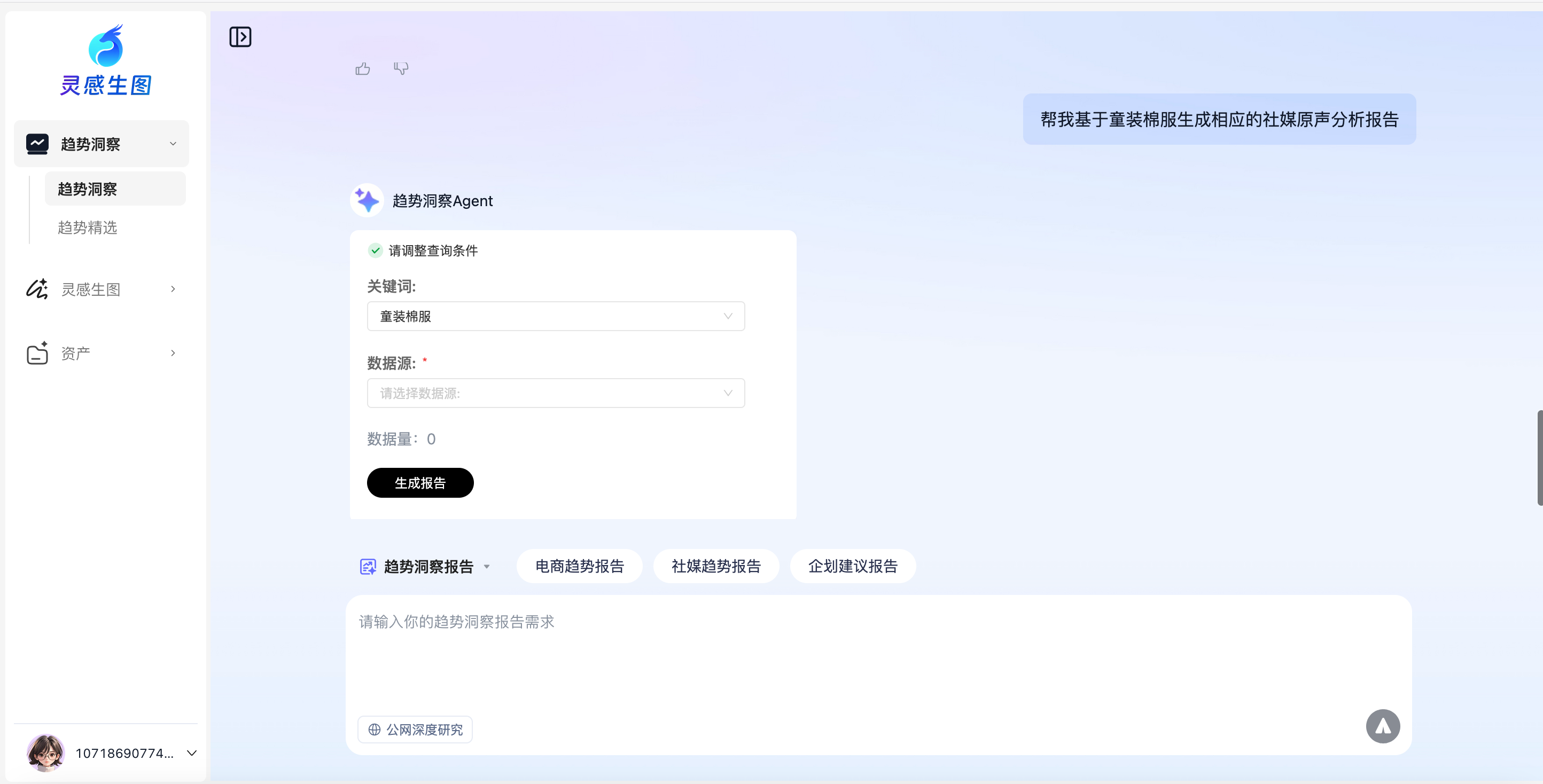
Click the "Social Media Trend Report" quick command.
Select a keyword with available social media data.
The AI matches the corresponding tagged social media data source.
Confirm the data source to use for the report.
Generate the report.
Note: The current trial version includes only two pre-configured datasets for children's padded jackets and down jackets. The full product version collects and tags social media data based on your specific needs.

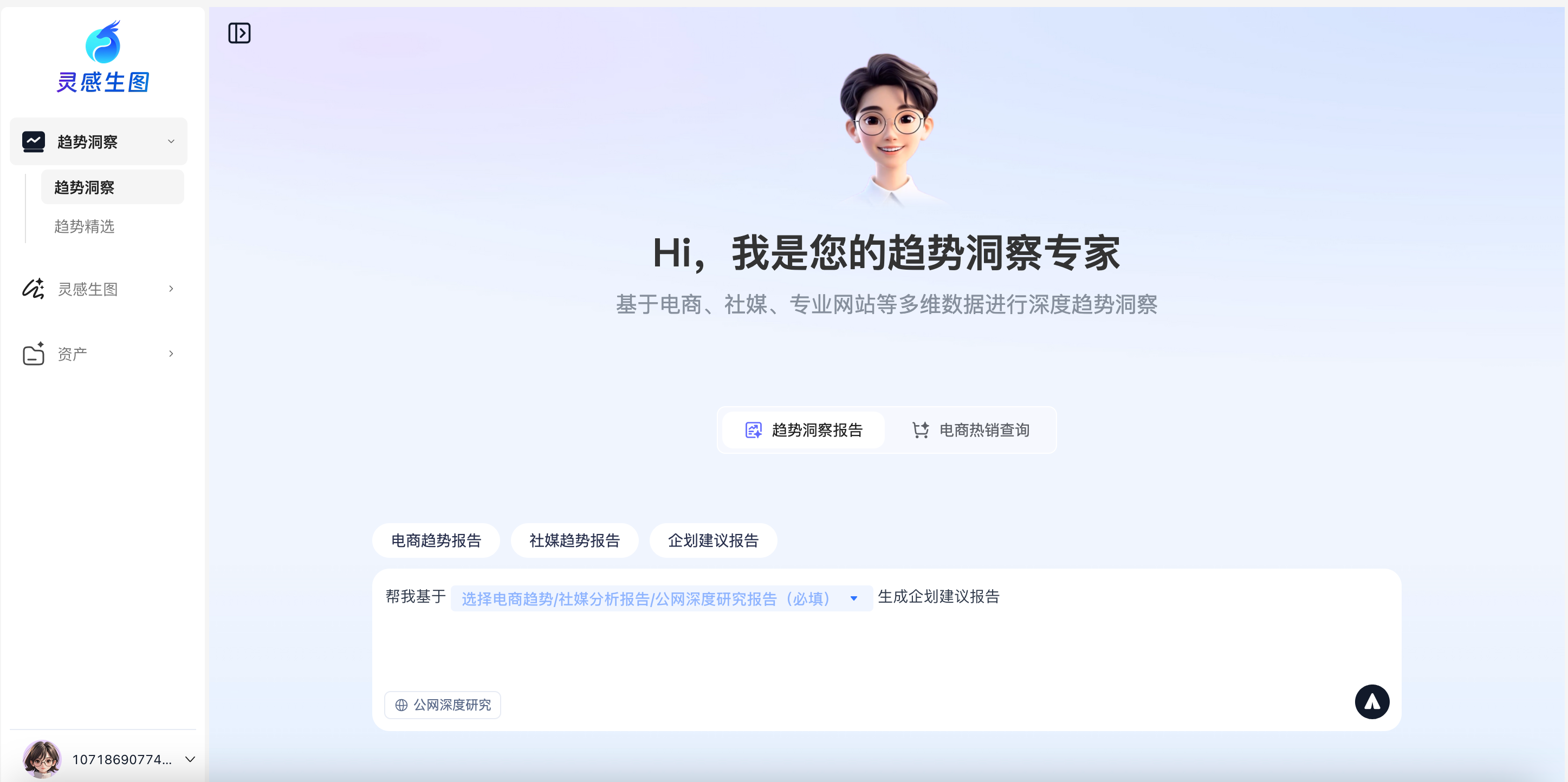
Planning proposal report
Procedure:
Click the "Planning Proposal Report" quick command.
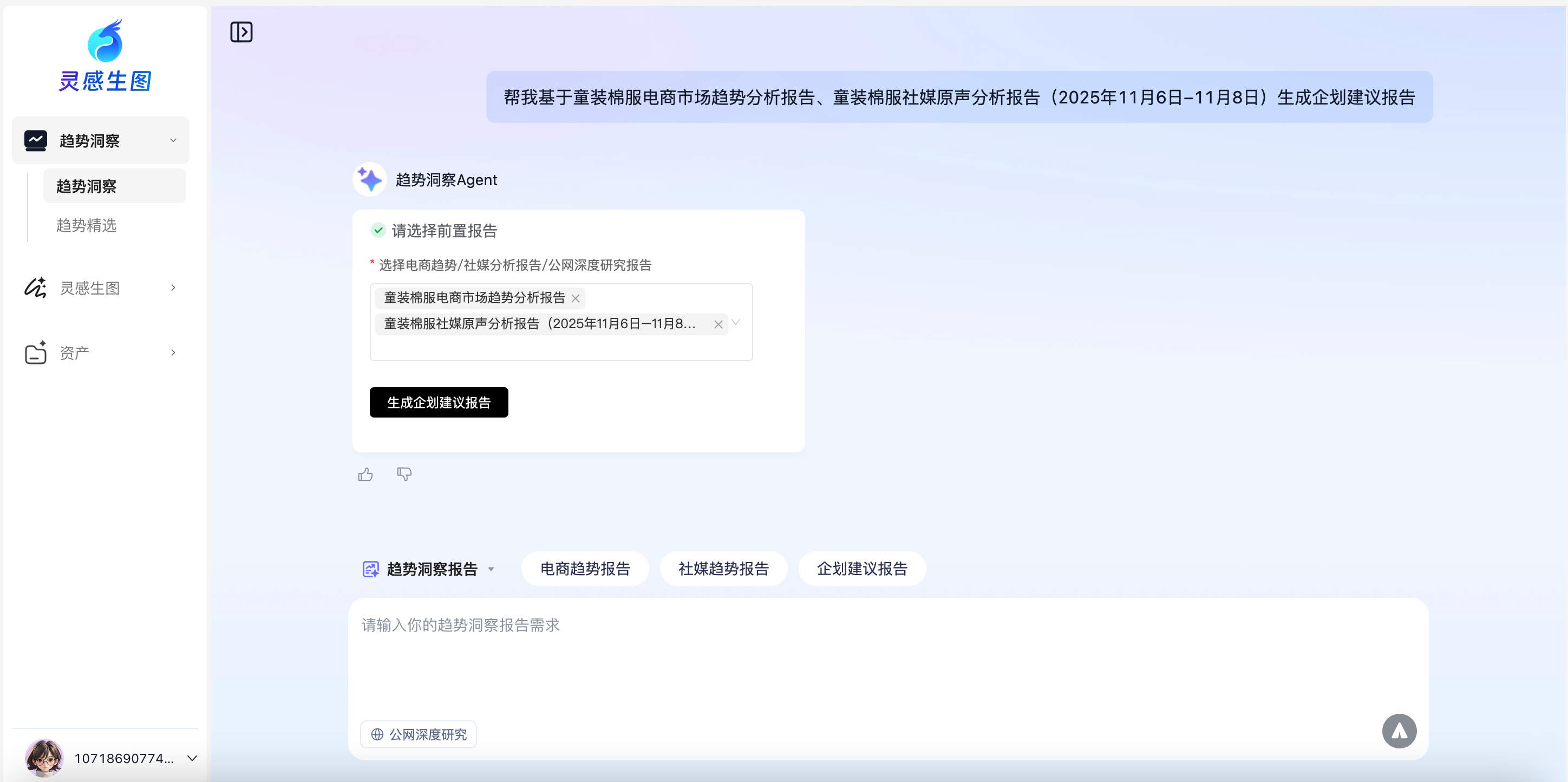
Select one or more existing reports.
Confirm which reports to base the proposal on.
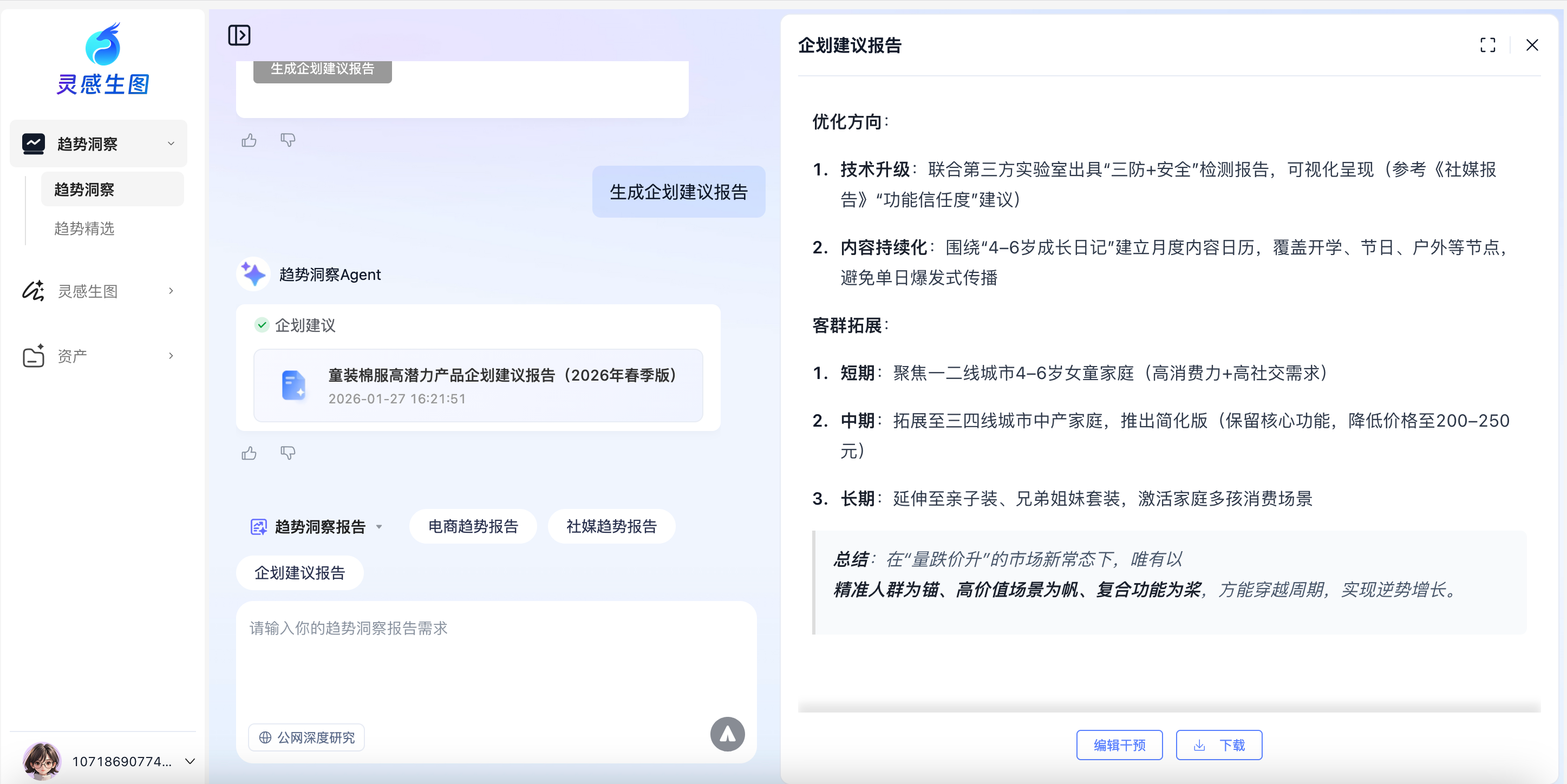
Generate the planning proposal report.
Note: This feature currently generates planning proposal reports based on existing reports and forward-looking trends.
In-depth web research report
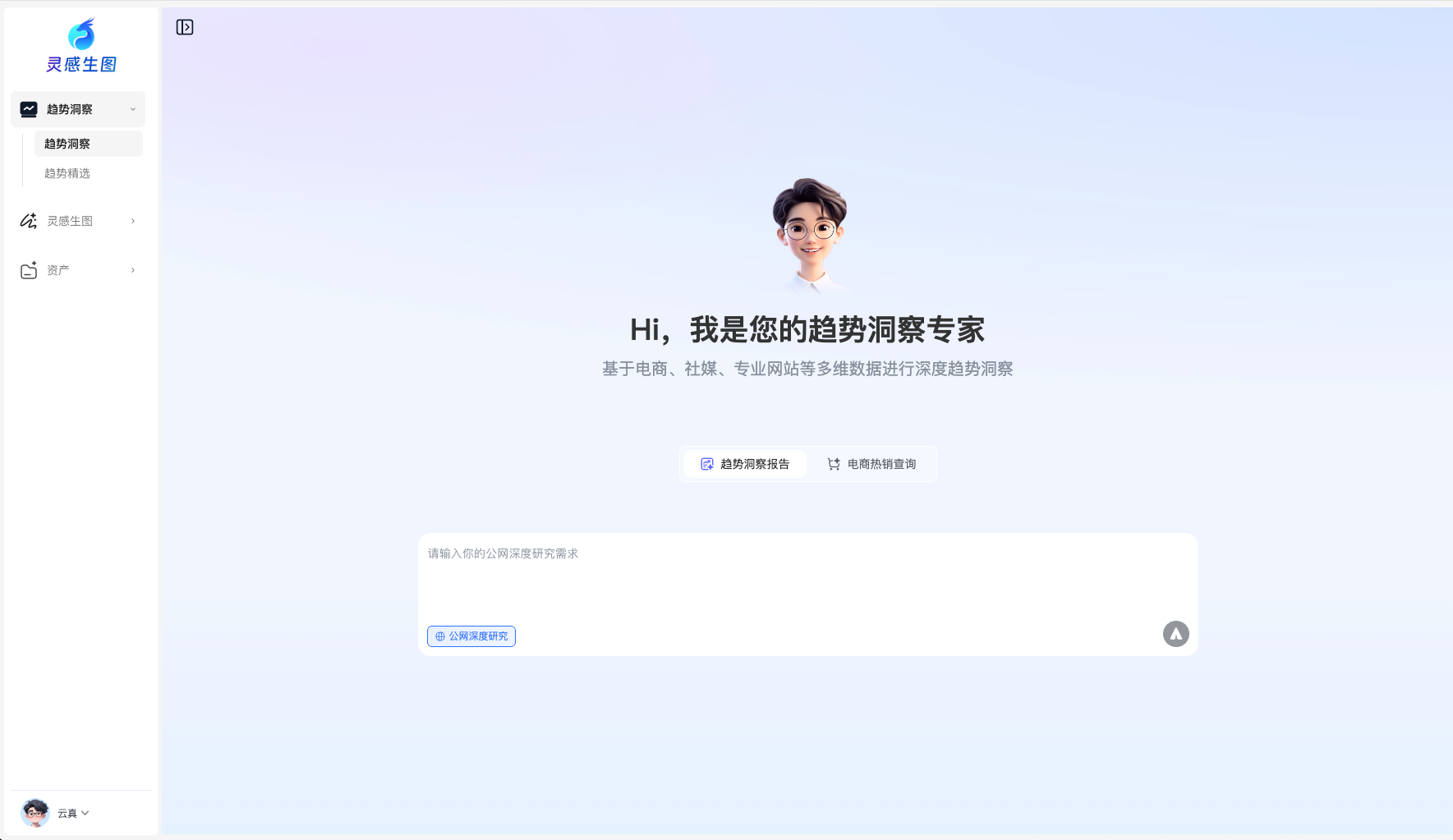
Procedure:
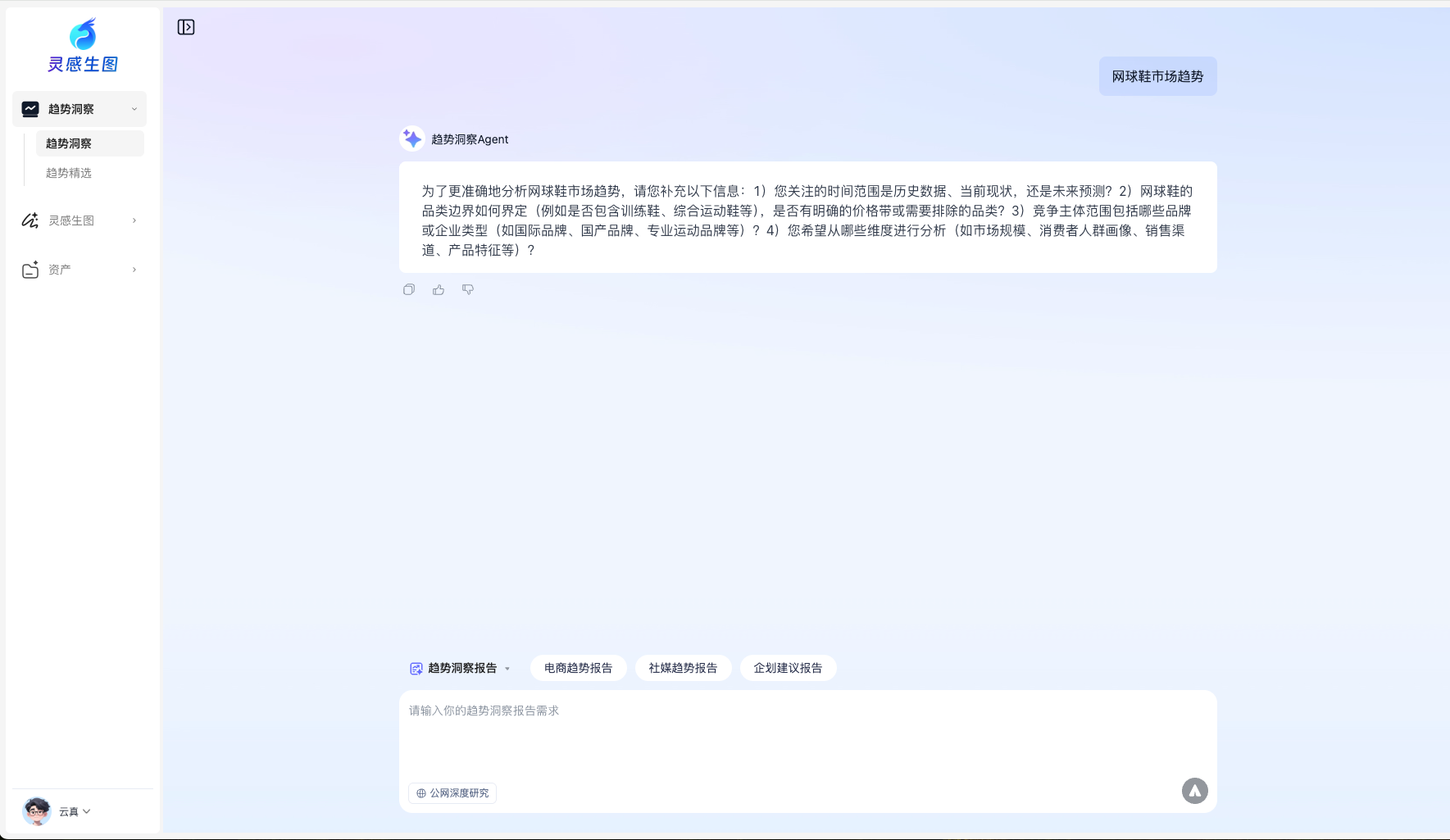
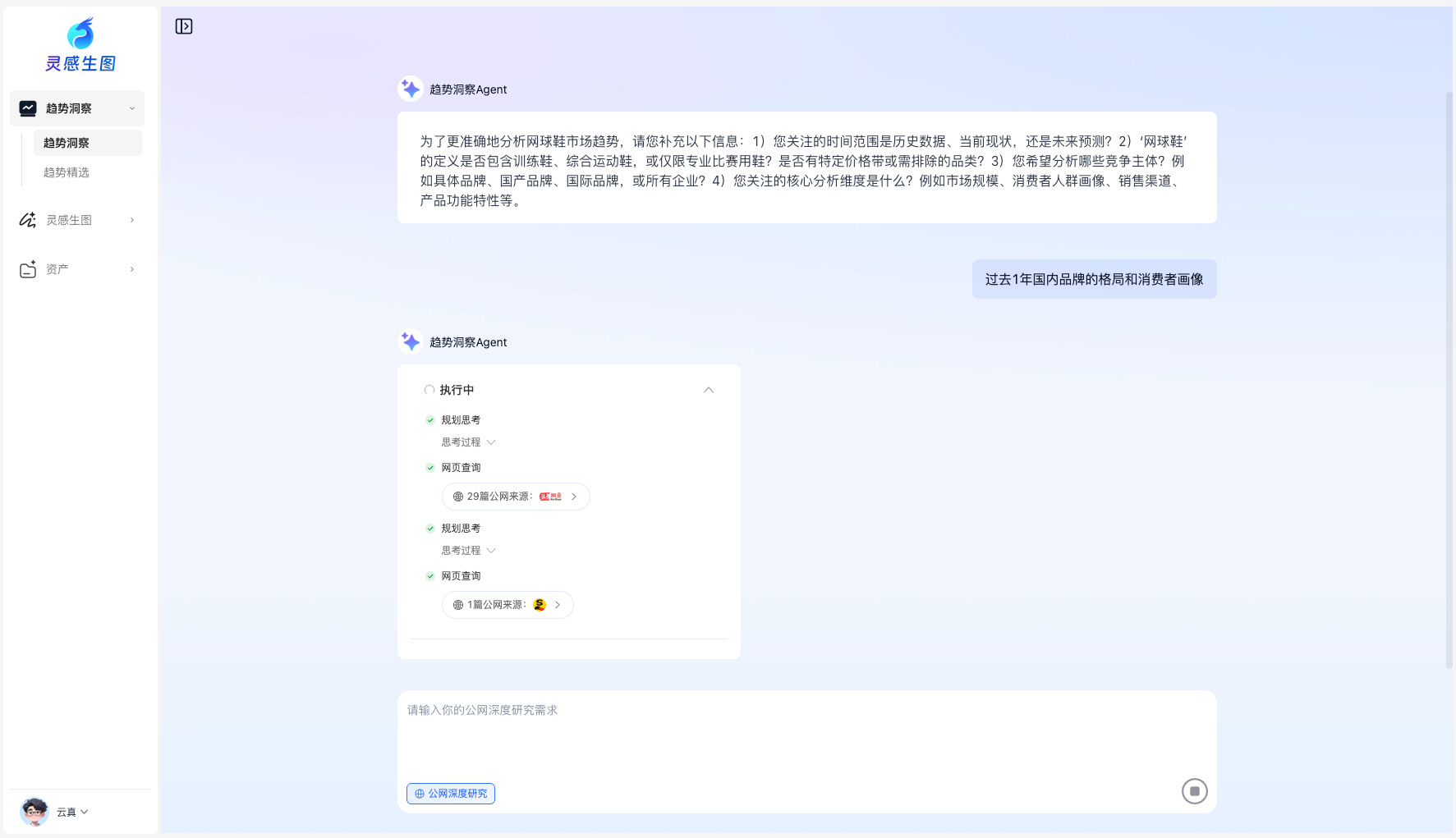
Click "In-depth Public Network Research" and enter the topic you want to research.
Clarify your query to refine the research scope.
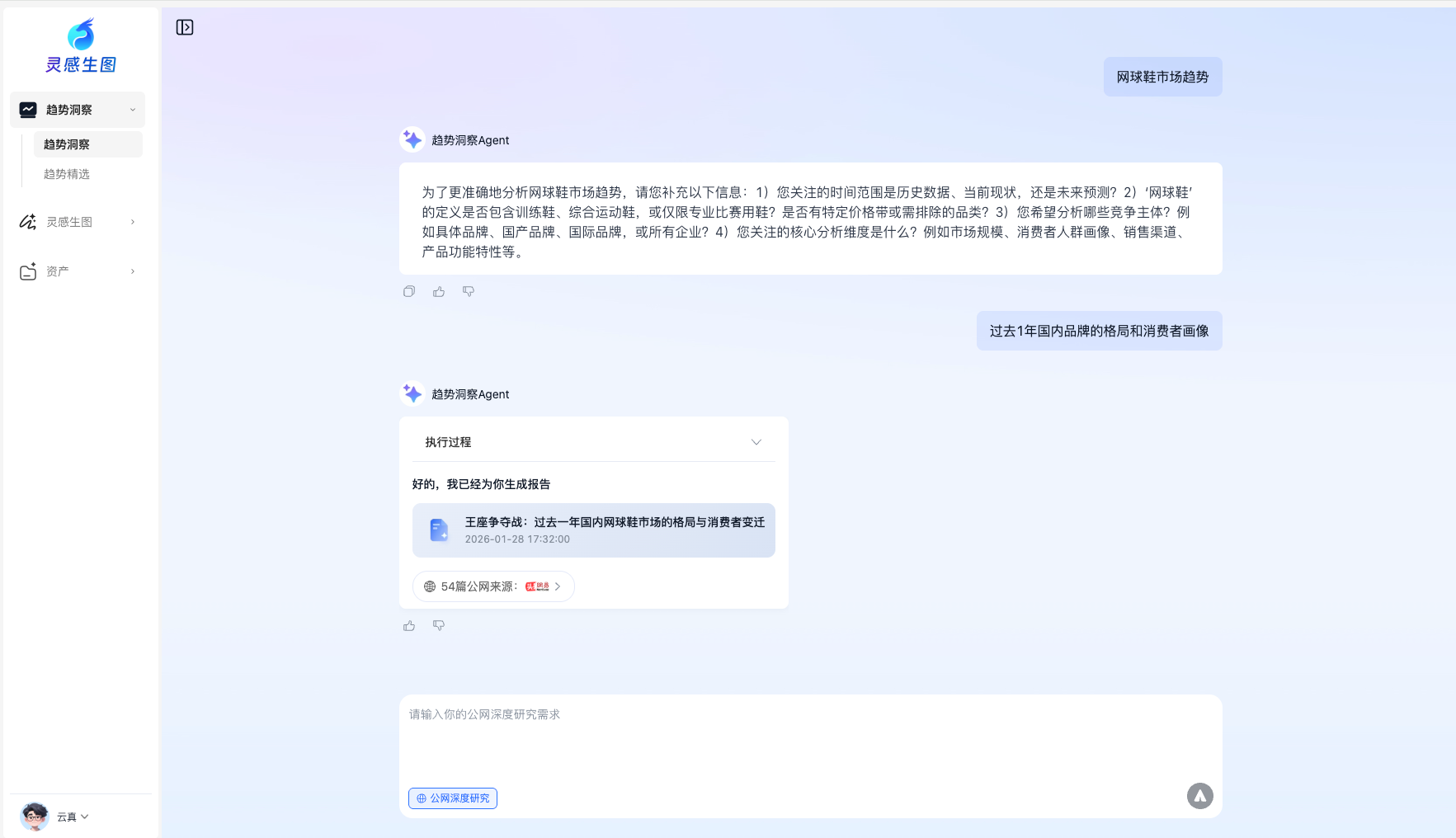
Generate the report.
Note:
The report is generated based on your requirements and information from web searches. You can click the links to view the cited sources.

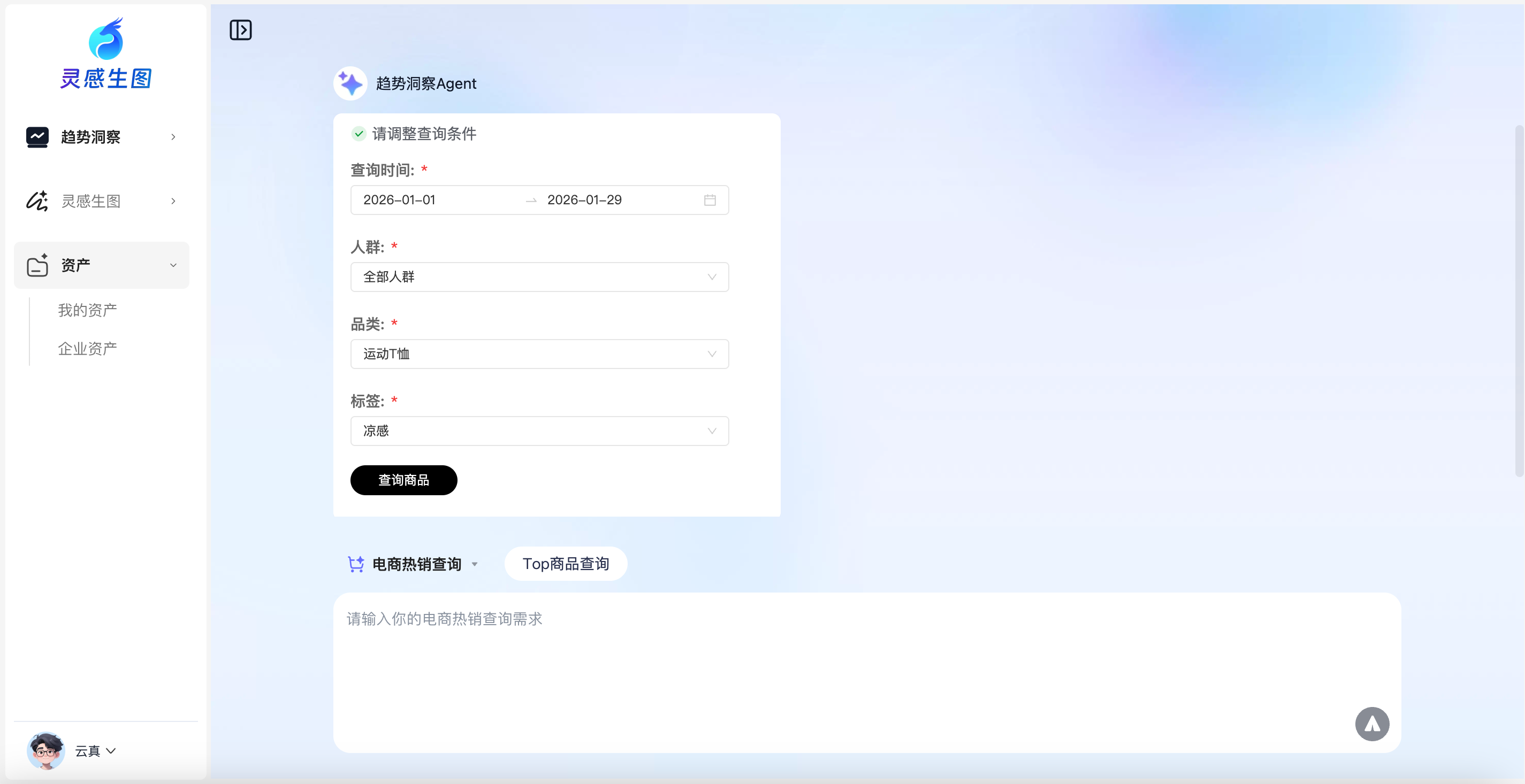
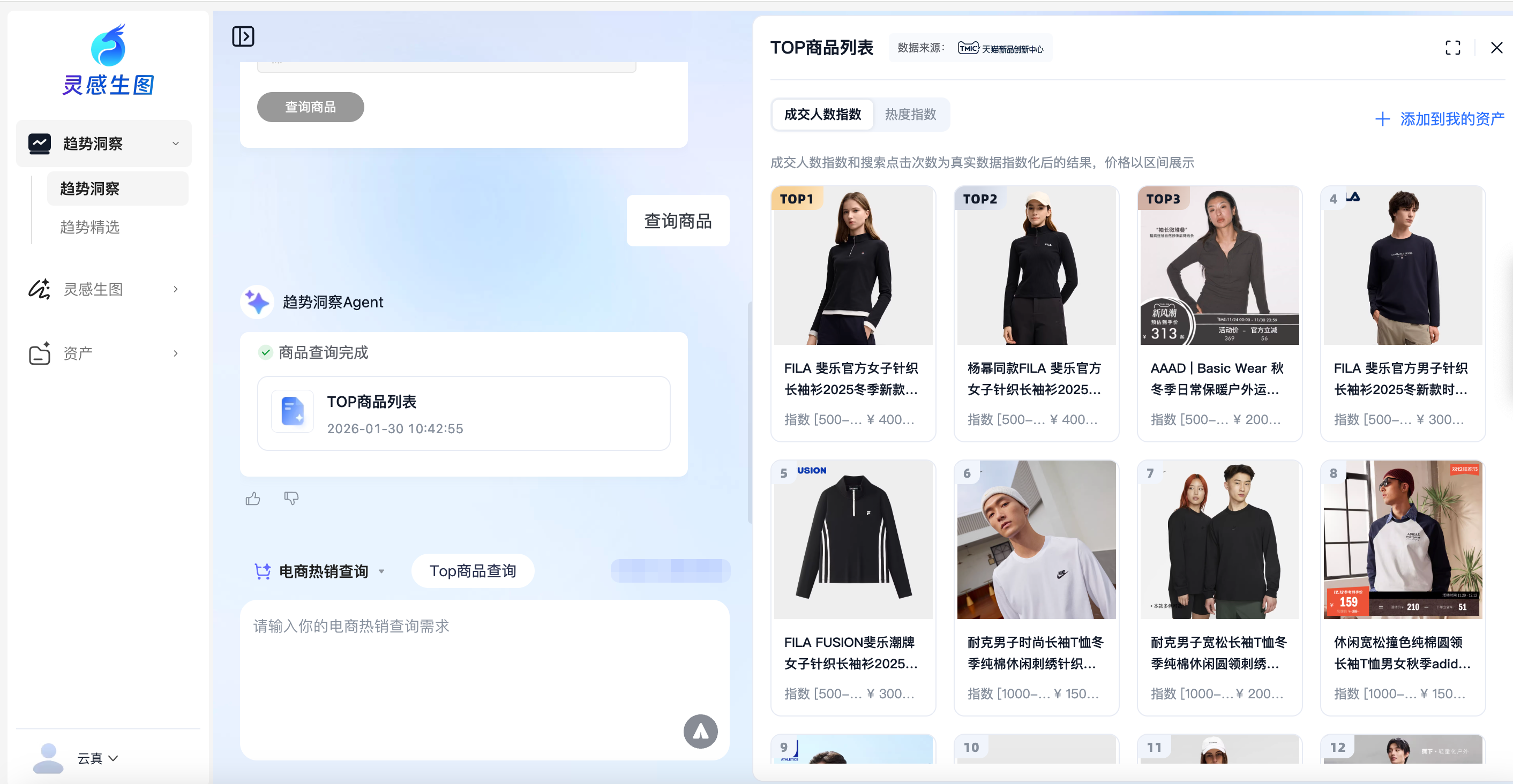
Top product query
Procedure:
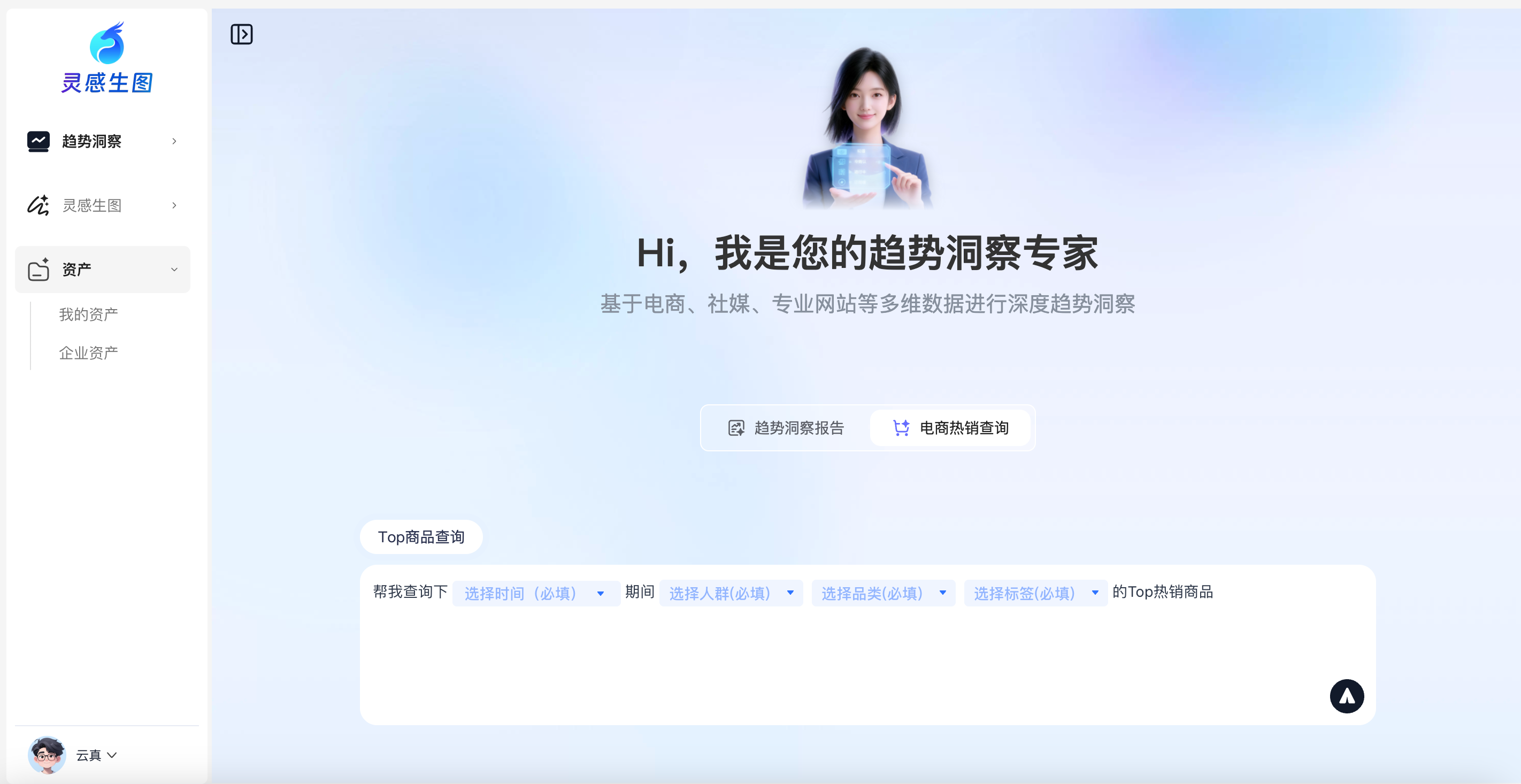
Enter or select the time frame, audience, category, and tags.
Confirm the query criteria.
View the top 20 query results.
Note:
You can currently generate a product leaderboard by combining a category and tags within a specific time frame.
Inspiration collection
You can collect images from a product query or select text from a report and save them to categorized asset tags.

Report follow-up, editing, and download
Follow-up questions: In the report preview, select text and enter a question in the chat box. The agent re-analyzes the original data and provides a summarized response.

Report editing: Click "Edit Intervention" to enter editing mode. Select a module and enter optimization suggestions. The agent regenerates the module and presents it in a new report.
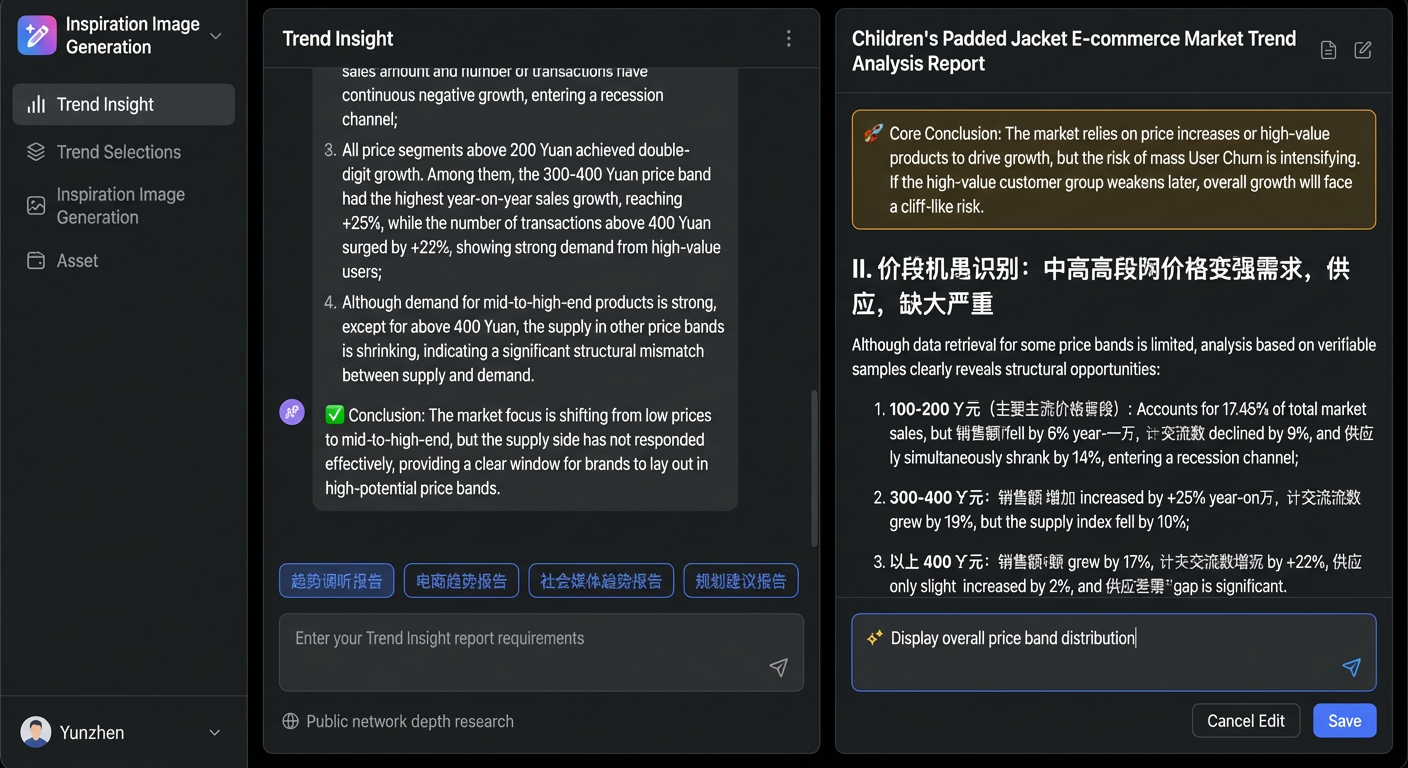
Report download: You can download reports in PDF format.
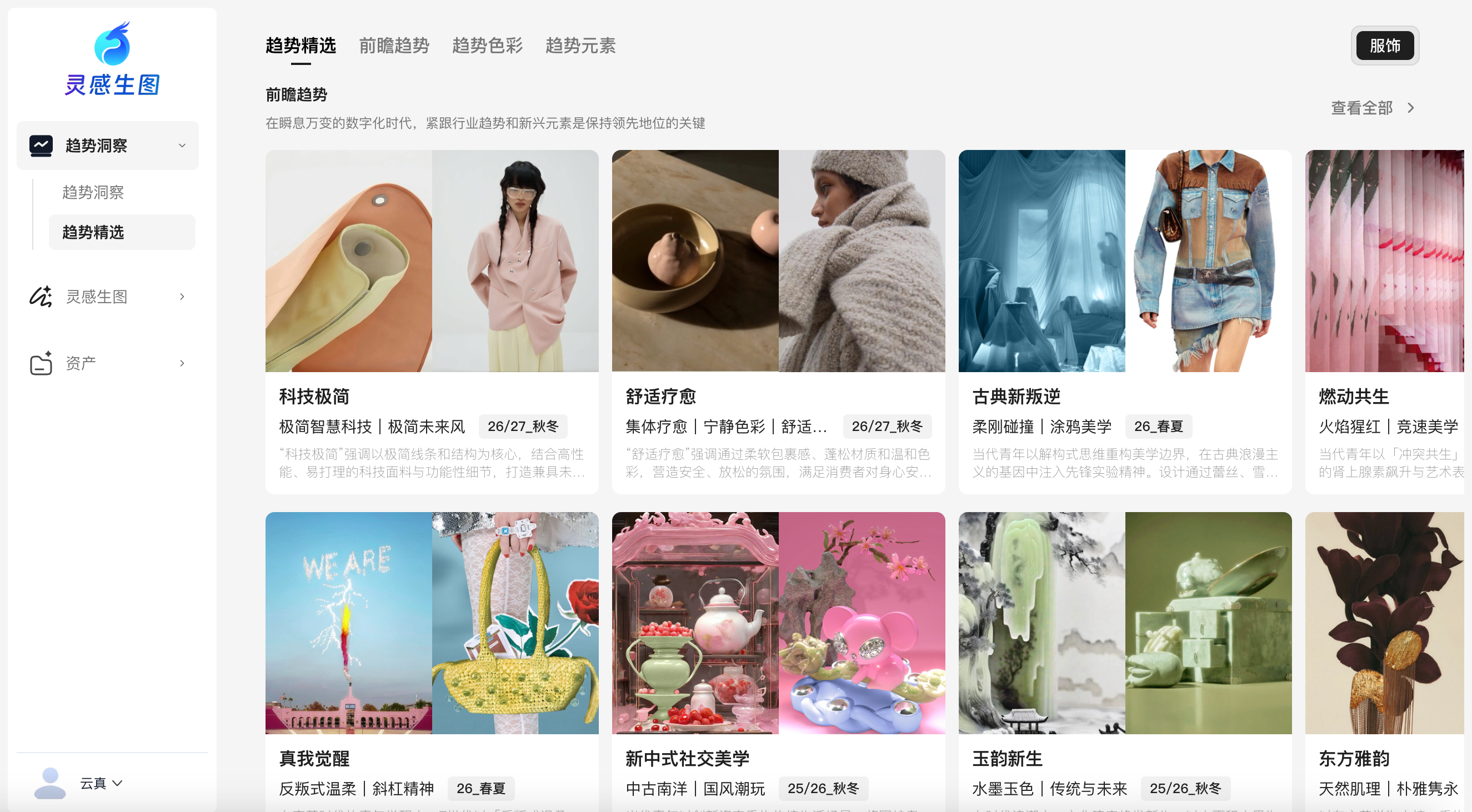
Featured trends
Step 1: Go to "Featured Trends," which contains "Forward-looking Trends," "Trend Colors," and "Trend Elements."
Step 2: After selecting a template, you can refer to the "Inspiration Style" and "Trend Inspiration Prompts," or click "one-click style replication" to generate similarly styled content.
Step 3: After clicking "one-click style replication," you are redirected to "AI Toolbox" > "Apparel - Trend Reference Text" to begin creating. Upload a "Product Image" and enter a text prompt. The text prompt can be created in one of three ways:
(1) Click "generate prompt from image" and upload an "Inspiration Image" to generate design tags with one click.
(2) Click "Trend Library," select a reference template, and generate a prompt (including fabric, color, silhouette, and details) with one click.
(3) Edit the style prompt yourself.
Inspiration image generation
Inspiration creation
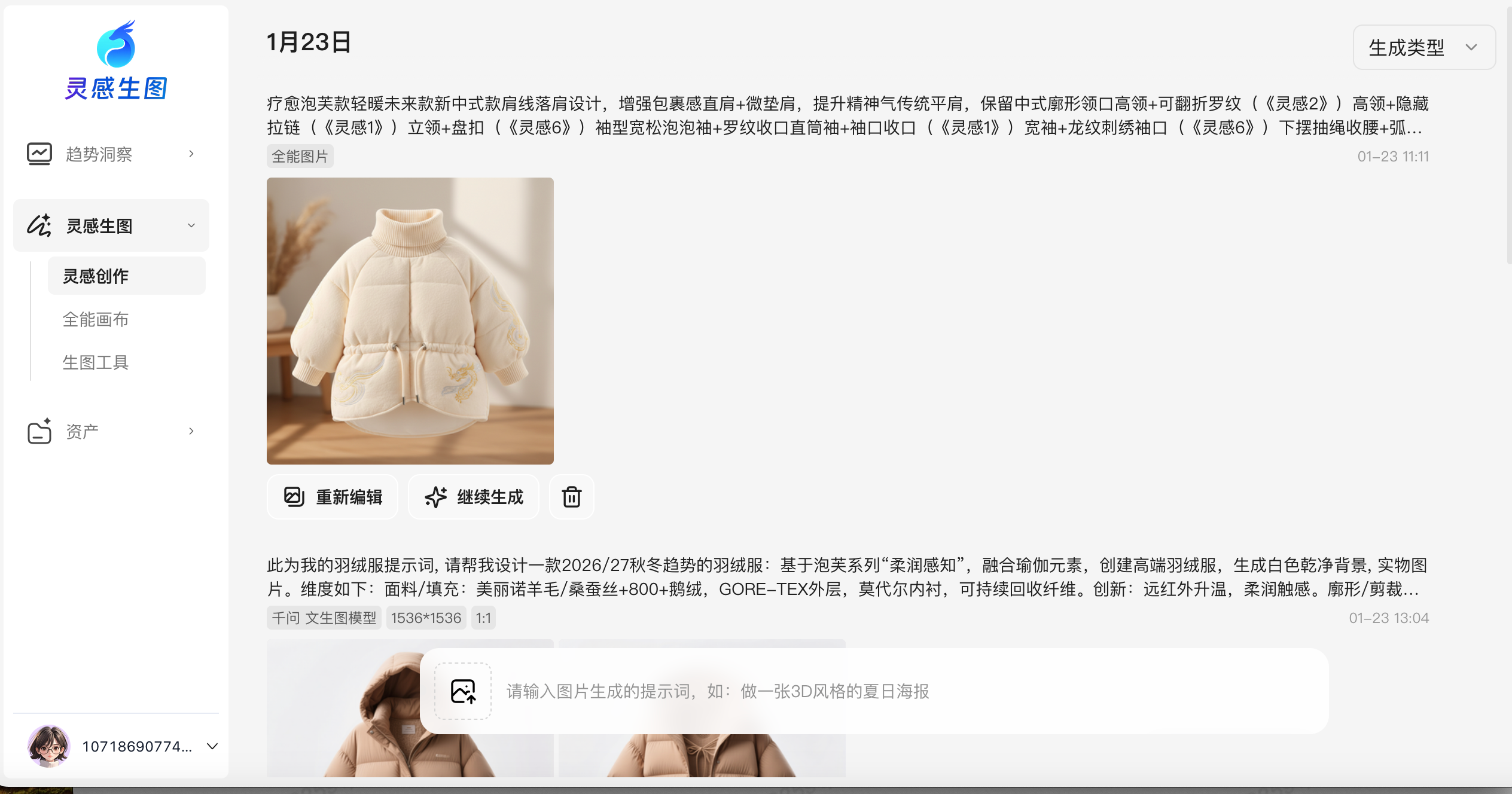
Use the text and images collected from prior analysis as inspiration snippets. In "Inspiration Creation," you can generate content using text-to-image, image-to-image, and image-to-video.
Omni-Canvas
Consolidate all planning elements, including inspiration elements, snippets, color palettes, fabrics, line art, finished garments, and model shots. This creates a cohesive story package that connects all previous content.
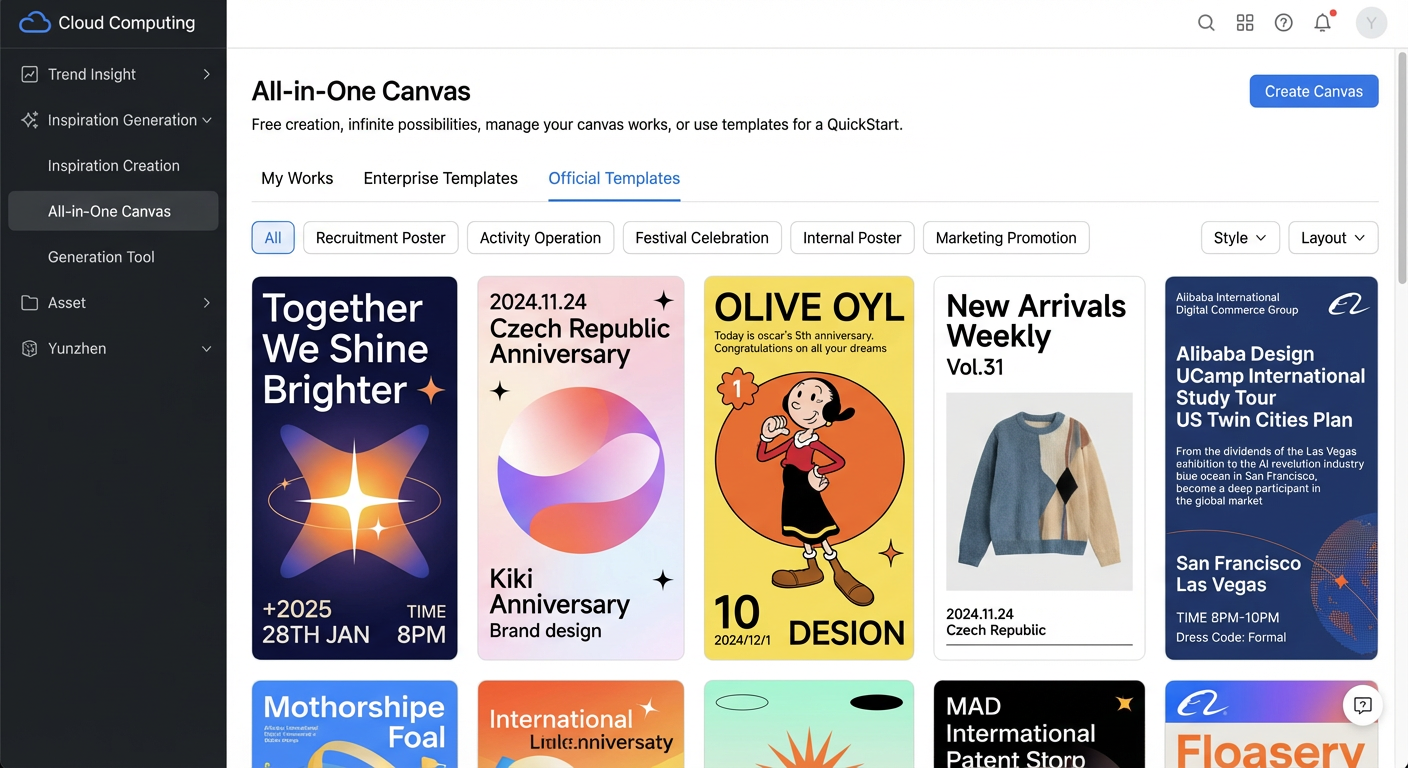
Step 1: Click "Omni-Canvas" and select "Create Canvas" to start. Alternatively, use templates from "Enterprise Canvas" or "Official Canvas." To build on high-quality content, you can batch-select and duplicate its elements with one click for further creation.
Step 2: You can upload local images or generate them using text-to-image. Once an image is on the canvas, select it to iterate on the design.
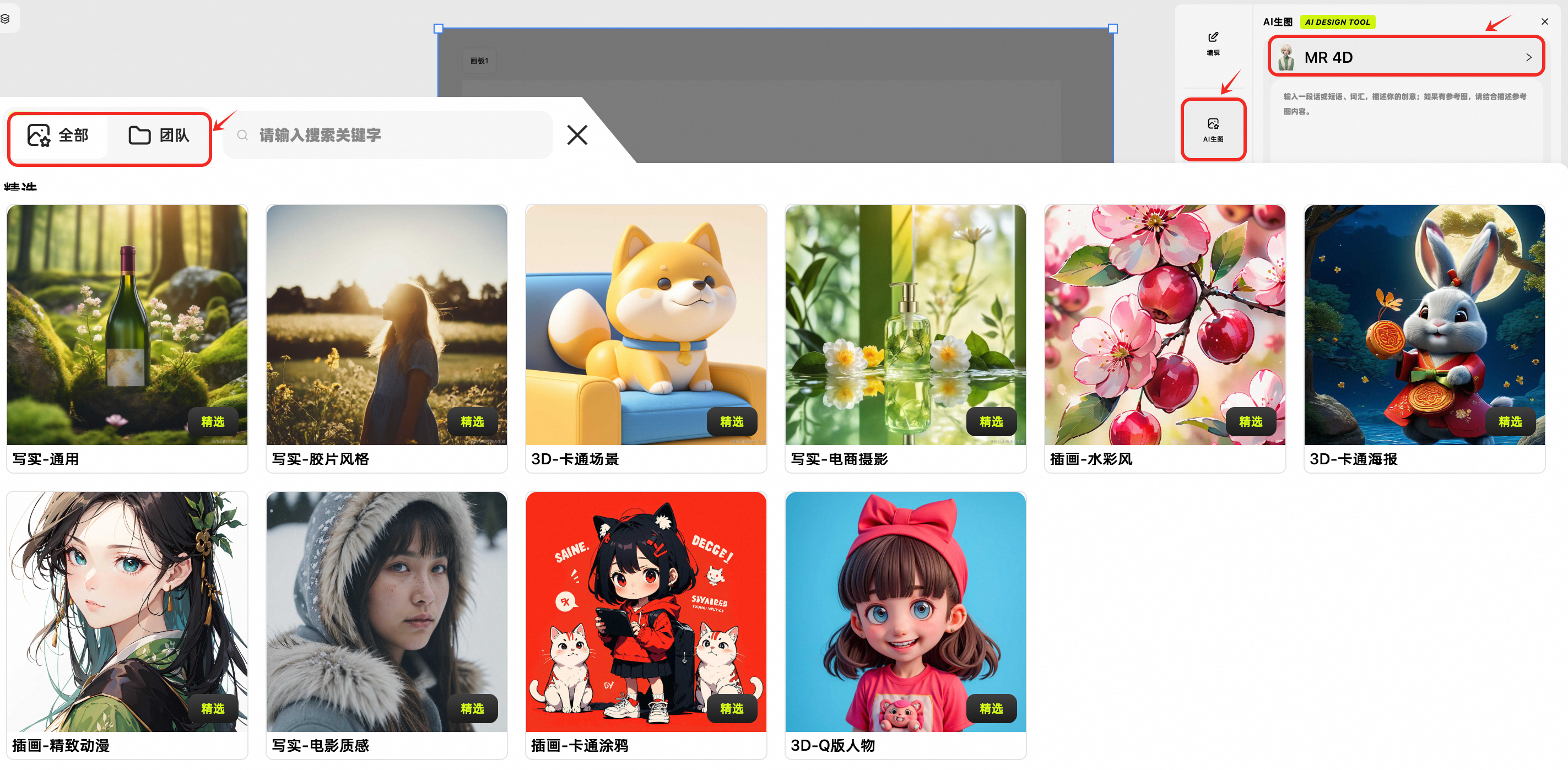
Step 3 - Quickly change styles: Use the "AI Image Generation" feature in the upper-right corner. You can refer to team or official style templates and generate an image from text with one click. Alternatively, click "generate prompt from image," upload an image, and use the resulting prompt for AI creation.
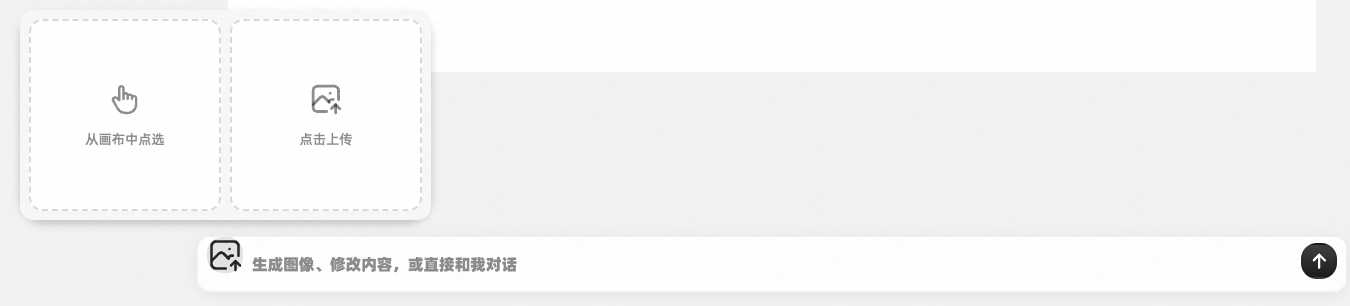
Step 4 - Quickly change details: Open "Image Reference Mode" and upload a reference image for AI creation. You can combine this with "Image Mode" for detailed inpainting.

Step 5: AI creation: Supports background modification, local editing, style and material replacement, multi-image merging, text modification, and batch generation. These functions can be combined with text-to-image and image-to-image.

Image generation tools
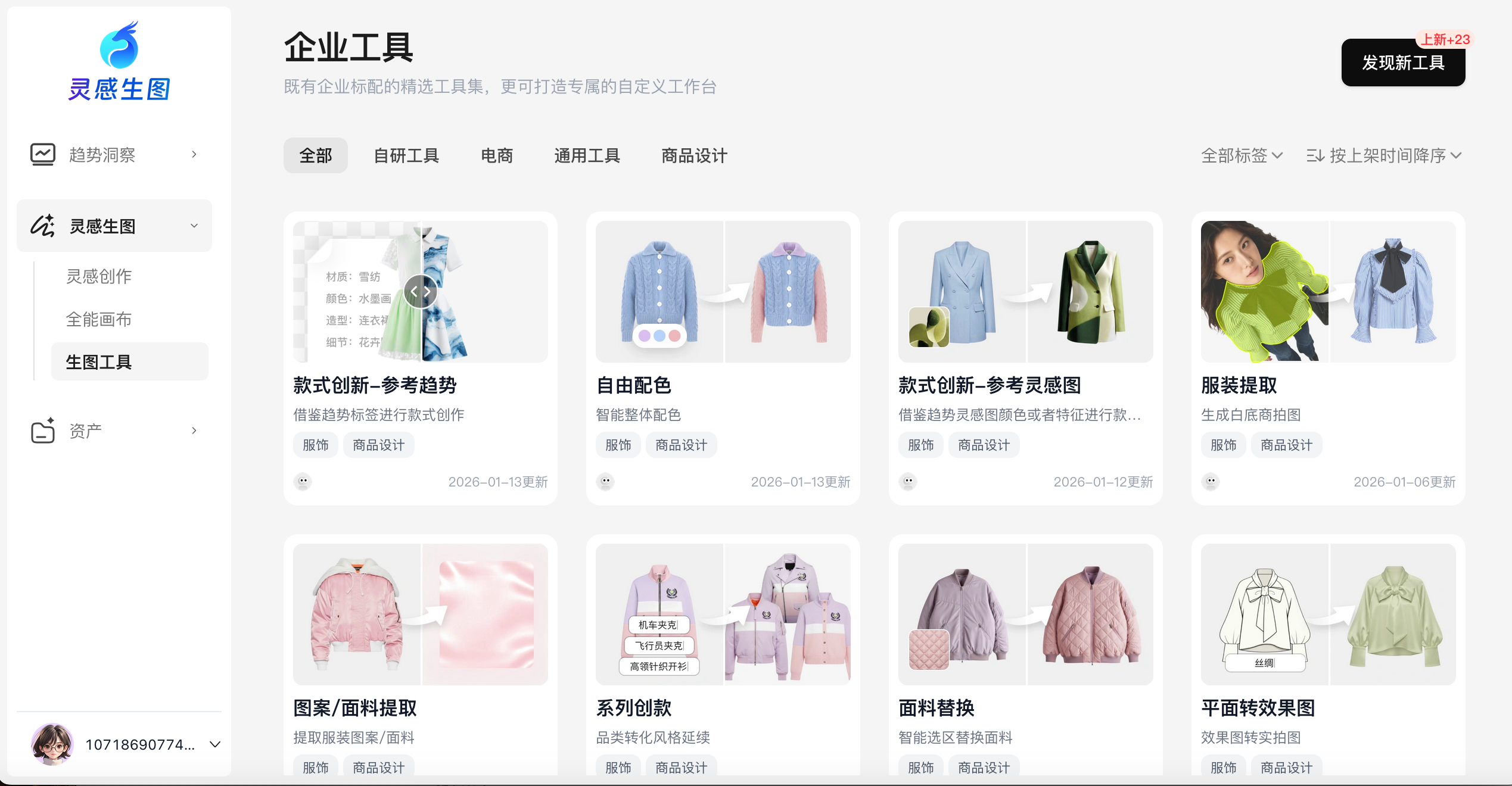
This tool lets you build AI capabilities tailored to your needs. The tools are categorized into e-commerce, product design, and general-purpose. We currently offer over 50 tools focused on apparel, bags, shoes, and jewelry. We plan to add more categories, and customization is available.
Assets
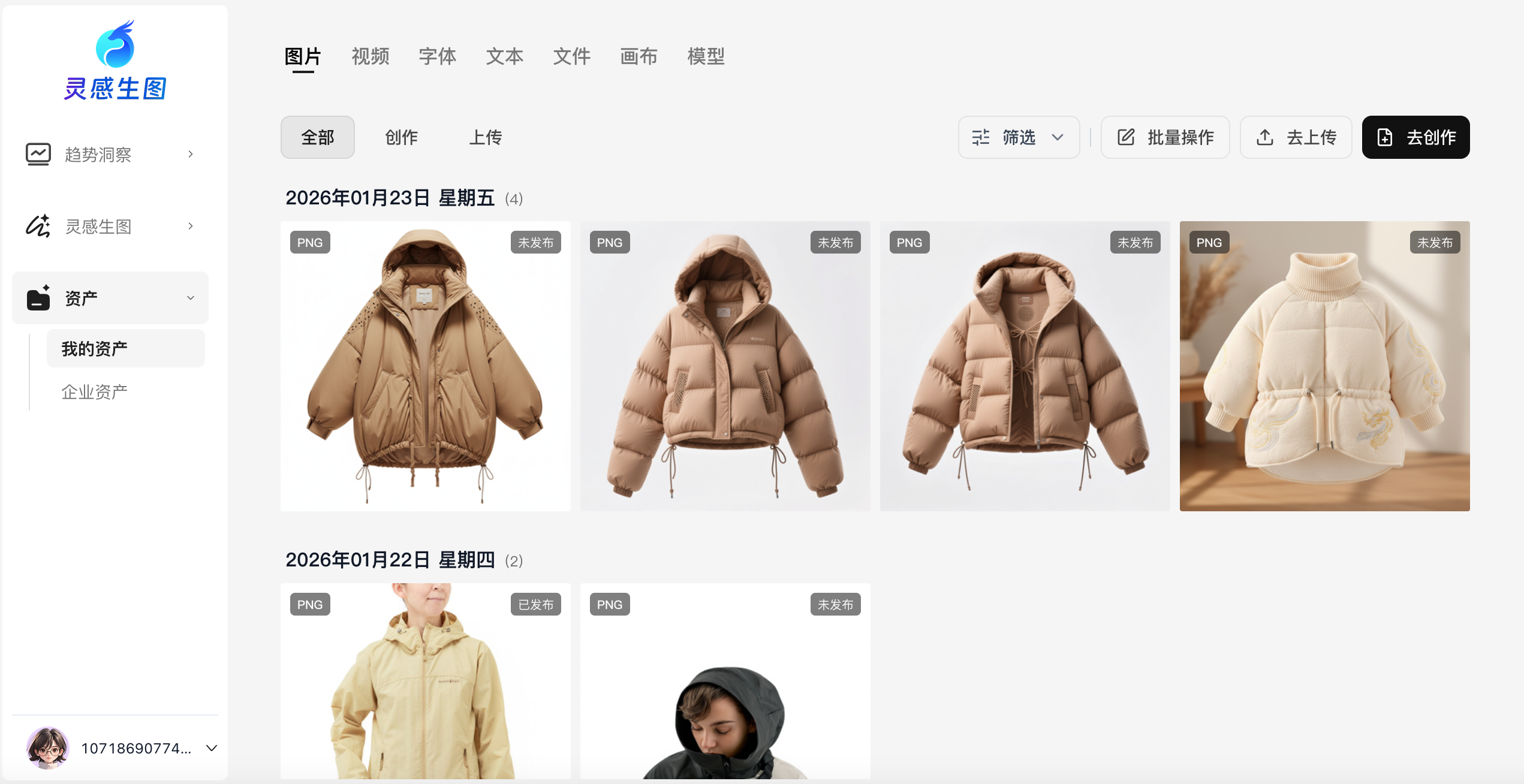
Distinguish between personal and enterprise assets. Publish AI-generated templates or upload your own. Build a custom categorized template library to retain and share AI-generated assets with your team.
System management
User management
Tag management
Resource management