Asset management
Asset Management is the material storage and management capability of AI Website Builder. Use Asset Management to organize the materials of a single application, or to manage the materials across all your applications from one place.
Access Asset Management
Asset Management provides two entry points. Choose the entry point based on whether you want to manage the materials of one application or the materials across all your applications.
Global Asset Center — Go to AI Website Builder and choose Asset Center in the left-side navigation pane. Use the Asset Center to manage all materials across your applications in one place.
Asset Management for a single application — Go to the application and choose Manage > Assets in the left-side navigation pane. Use this page to manage the images, videos, audio files, and other files that the application uses.
Upload and manage materials
You can add materials to Asset Management in the following ways:
Manual upload
On the Asset Management page, click Upload Files in the upper-right corner.
In the window that appears, select the material files on your local computer.
Save from Content Creation — After you create an image or a video in , click Save to store the work in Asset Management.
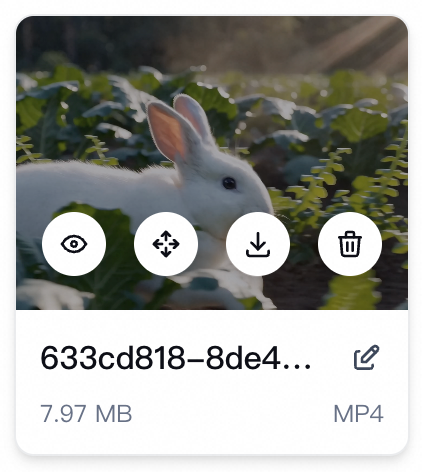
After a material is uploaded, the material card shows the thumbnail, file name, size, and dimensions or format.
In Asset Management, hover over a material card to perform the following operations:
Operation | Description |
|
Preview | Preview the material. | |
Move | Move the material to another folder. | |
Download | Save the material to your local computer. | |
Rename | Change the name of the material in Asset Management. | |
Delete | Move the material to the Recycle Bin, where you can restore it. |
Use folders to isolate materials
Asset Management isolates materials by folder so that materials from different applications do not get mixed up. Both the Asset Center and the Asset Management page of an application contain Shared Assets and folders. Shared Assets is available to all applications, and each application also has an independent folder for storing its own materials.
You can switch between folders and manage folders to view and organize the materials of each application:
Switch folders — In the folder list on the left, click a folder, such as Shared Assets or an application folder, to view the materials in that folder.
Manage folders — Create, rename, or delete folders.
System folders cannot be renamed or deleted.
Search and recover
Keyword search — In Asset Management, enter a file name or a keyword in the search box at the top of the page to find a material.
Recycle Bin — Deleting a material moves it to the Recycle Bin. If you delete a material by mistake, click Recycle Bin in the upper-right corner to find and restore the deleted material.