AI article writing
Content production faces challenges such as finding topics, slow writing, and complex Search Engine Optimization (SEO). Intelligent Creation uses an AI-driven five-step process to quickly generate high-quality, SEO-friendly articles and publish them to your website with one click.
Preparations and feature access
Prerequisites
Website builder instance: You must purchase and initialize at least one Xiaozhi AI Website Builder application.
(Recommended) Create a news category: Create a category on your website for publishing articles, such as "News Center" or "Blog". If you do not create one, the system guides you to create one during the publishing process.
Accessing the feature
|
|
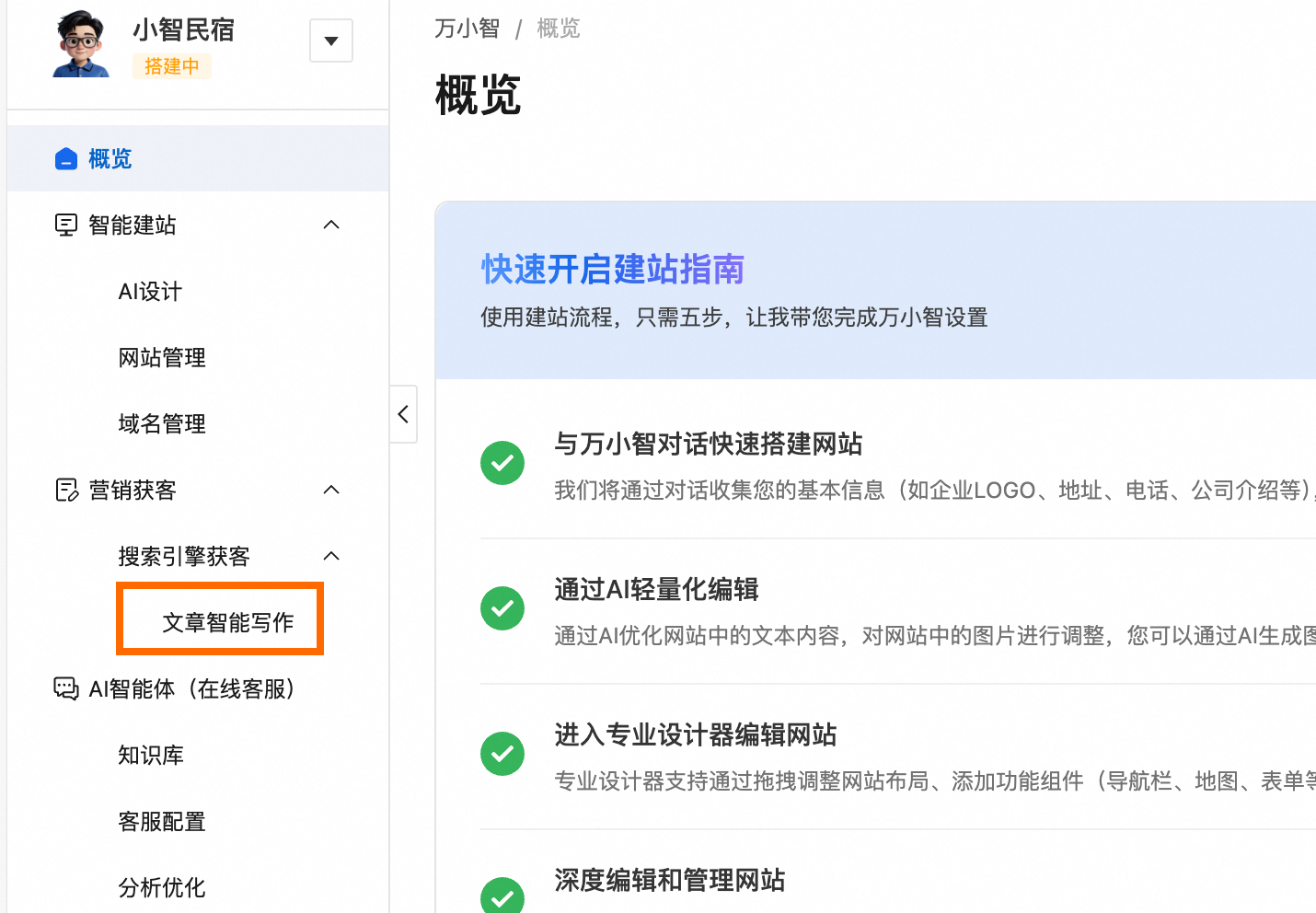
Getting started: Generate an article in five steps
AI Creation provides a complete assisted writing process, guiding you through each step from topic ideation to final publication.
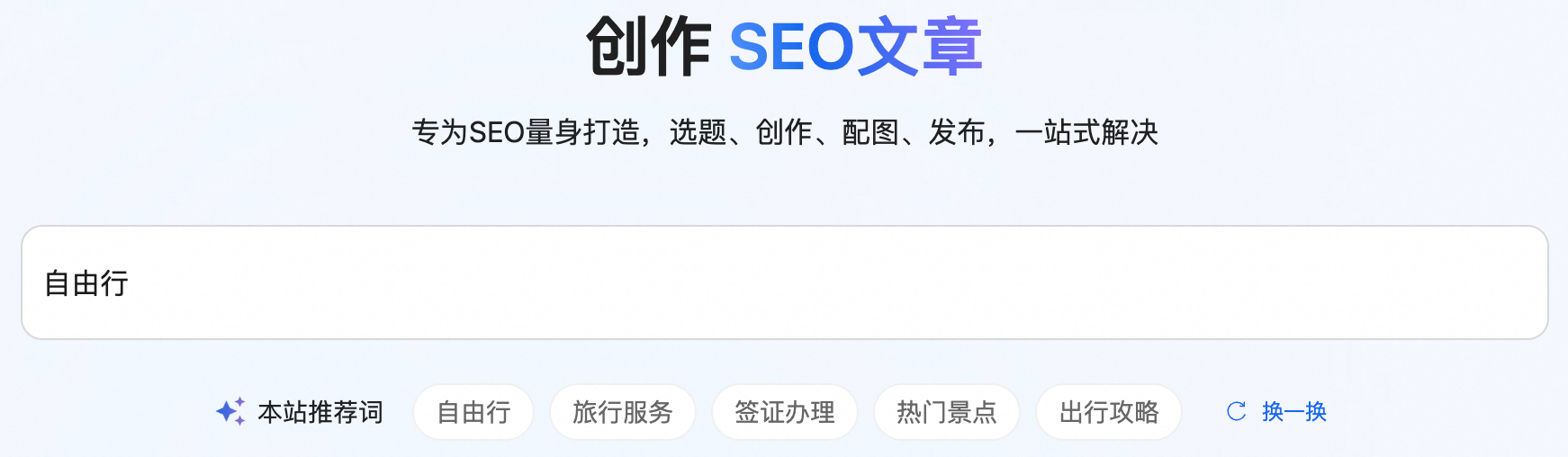
Determine the article topic
Set a clear core topic for the article you are about to create.
In the text box, enter core keywords, such as your industry, main business, or best-selling products.
You can also select from Recommended Keywords. If you are not satisfied with the recommendations, click Try another to refresh.
Click Generate Ideas to proceed to the next step.
Choose an idea direction
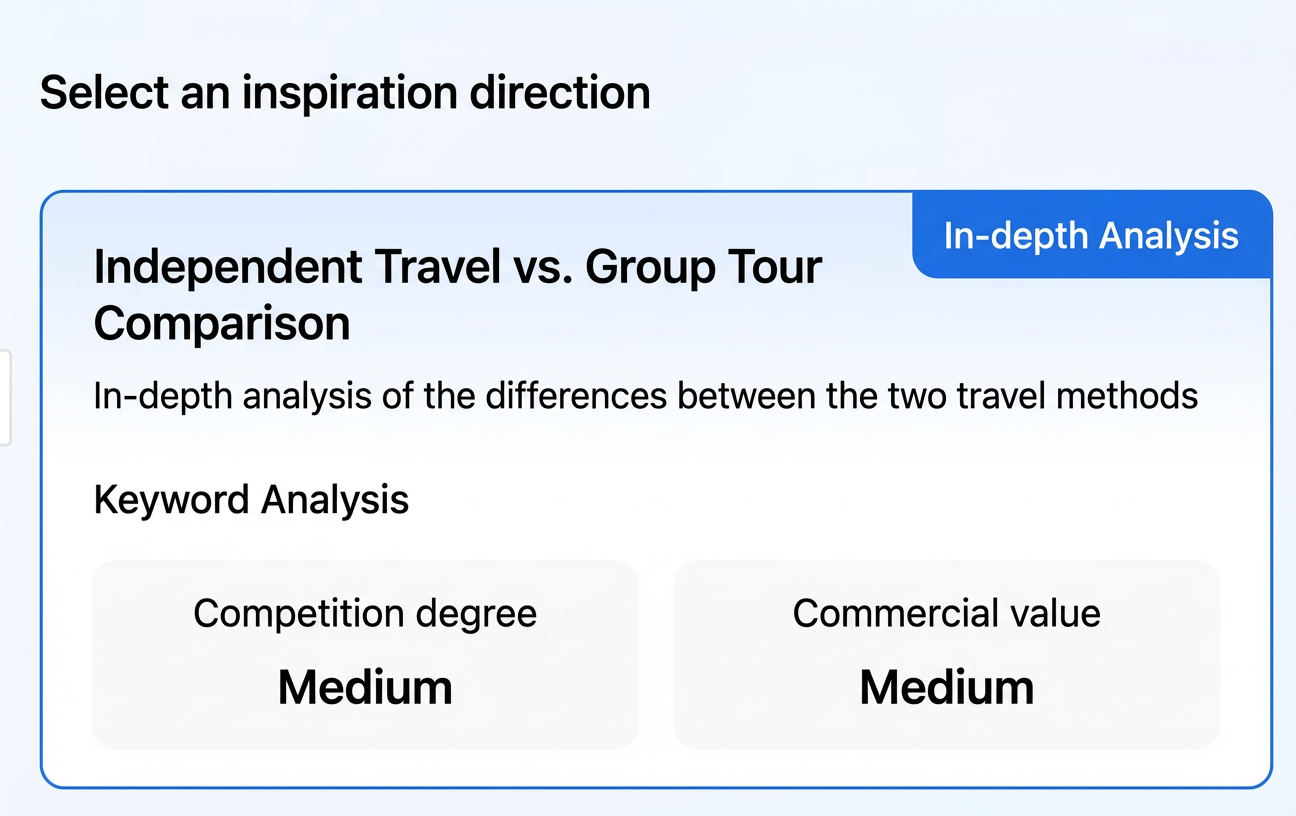
Determine the direction and style of the article's content. The system generates multiple creative directions based on your keywords for you to choose from.
Each idea direction card contains the following information:
Idea Direction: The core topic of the article, such as "Birthday Gift Recommendations".
Style Tag: Tags that influence the article's structure and tone, such as "In-depth Analysis" or "Guide".
Keyword Analysis: Estimates the Competition and Commercial Value based on public search engine data. These are categorized as High, Medium, or Low to help you assess the SEO potential of the topic.
Choose the idea direction that best suits your needs, and then click Generate Titles.
Select and optimize the title
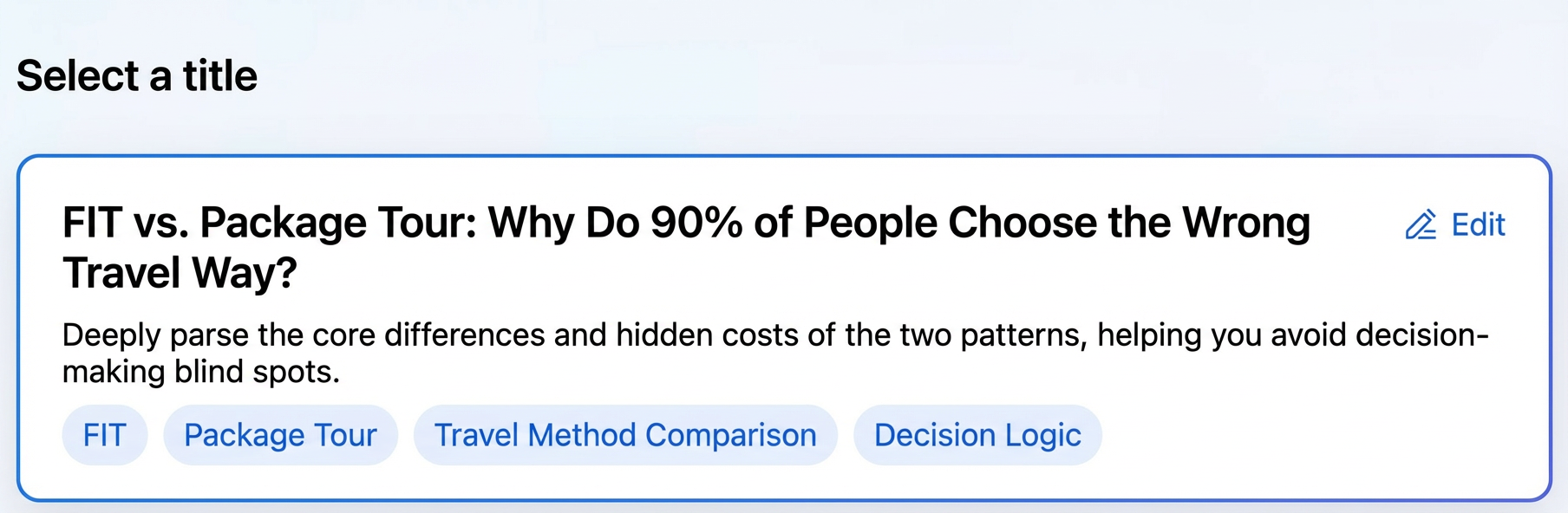
Determine the key SEO information for the article: the Title, Description, and Keywords.
Browse the Title suggestions generated by the system. Each set of suggestions includes complete Title, Description, and Keywords (TDK) information.
Select the title card you are most satisfied with.
If you are not satisfied with the generated content, click Edit in the upper-right corner of the card and make changes in the pop-up window.
After confirming, click Plan Outline.
 Note
NoteSEO best practices:
Title: Keep the length within 30 Chinese characters and highlight the core keywords.
Description: Keep the length within 80 Chinese characters. Use it to supplement the title and naturally incorporate keywords.
Keywords: Set 3 to 5 core keywords that are most relevant to the article's content.
Plan the article outline
Build the overall structure of the article and adjust the content of each section.
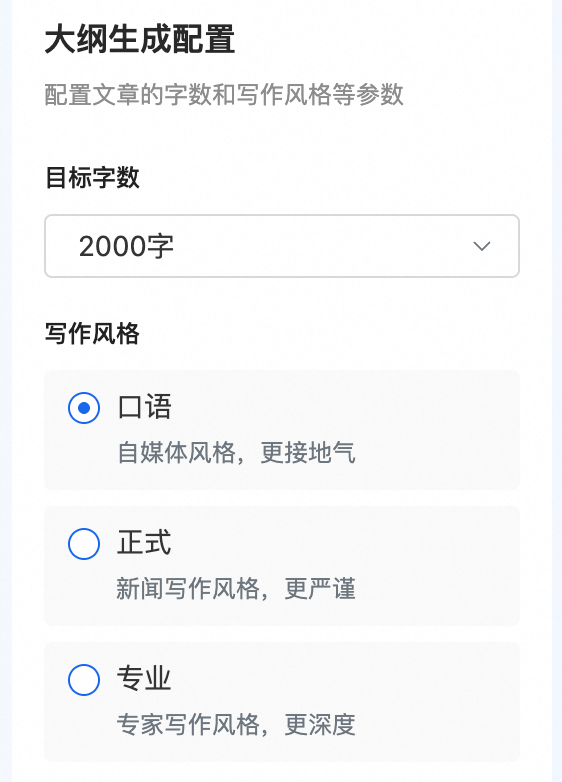
On the left side of the page, configure the basic properties of the article:
Target Word Count: Select the desired length.
Writing Style: Select the tone of the article.
Click Generate Outline. The system generates the outline on the right.
In the article outline on the right, click Edit Outline to make detailed adjustments:
Edit content: Click the text box to make direct changes.
Add or delete sections: Click +Add subsection to add a new section, or click the delete icon
 next to a section to remove it.
After you confirm the outline is correct, click Save, and then click Create Article.
 next to a section to remove it.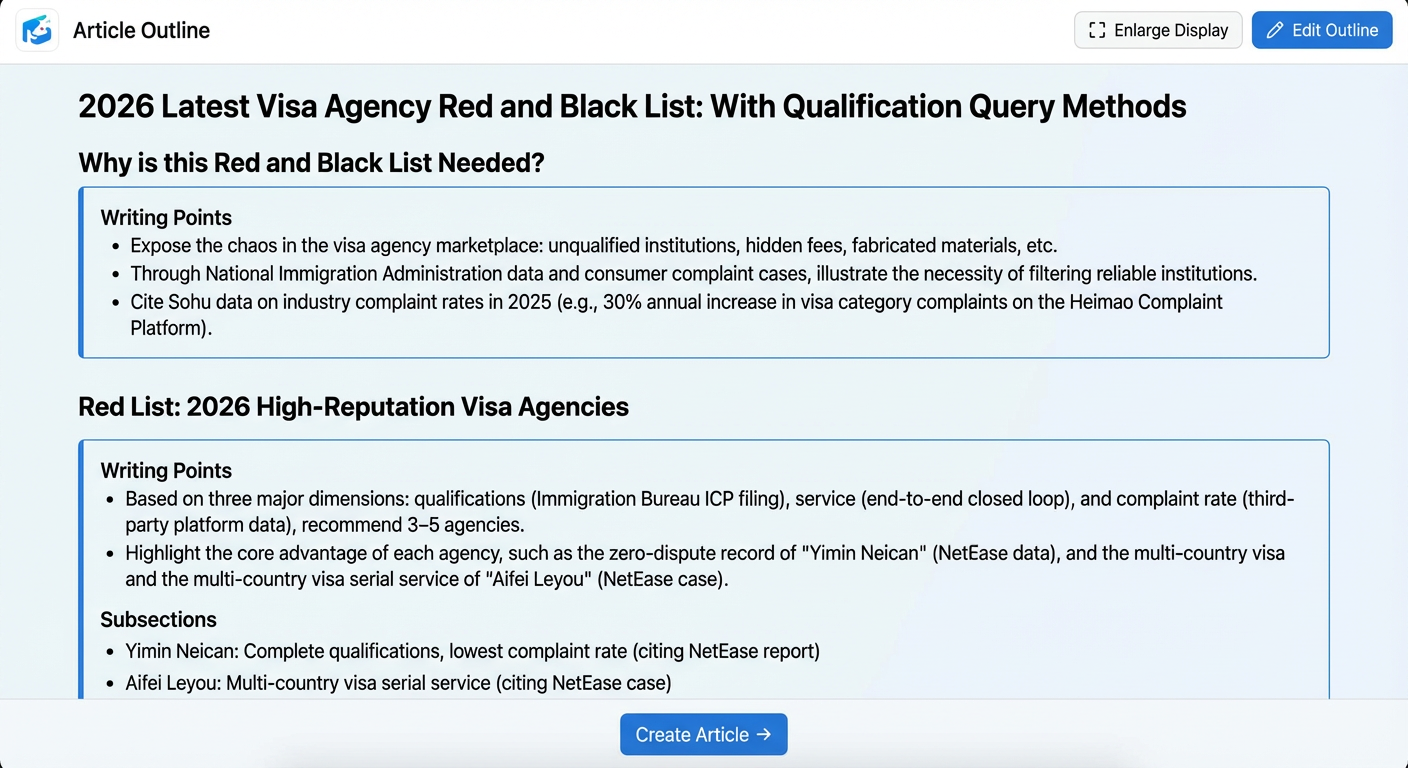
Generate and publish the article
Generate the final article content and publish it to your website.
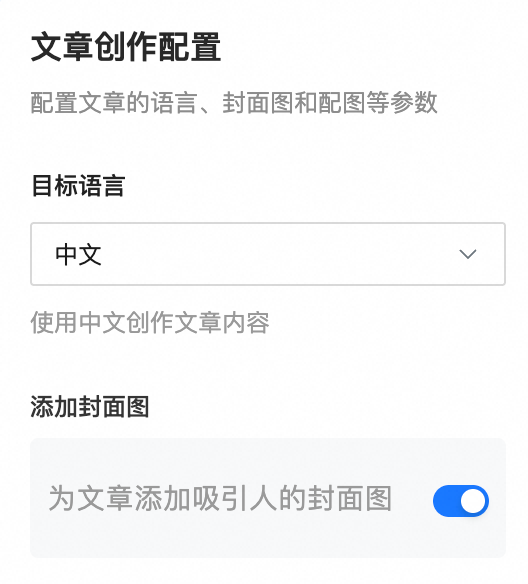
Before generating the article, configure the following options:
Target Language: Select the language for the article.
Image Options: Select whether to add a cover image. If you select yes, the system intelligently matches an image based on the article's topic.
Click Create Article and wait for the AI to generate the full content.
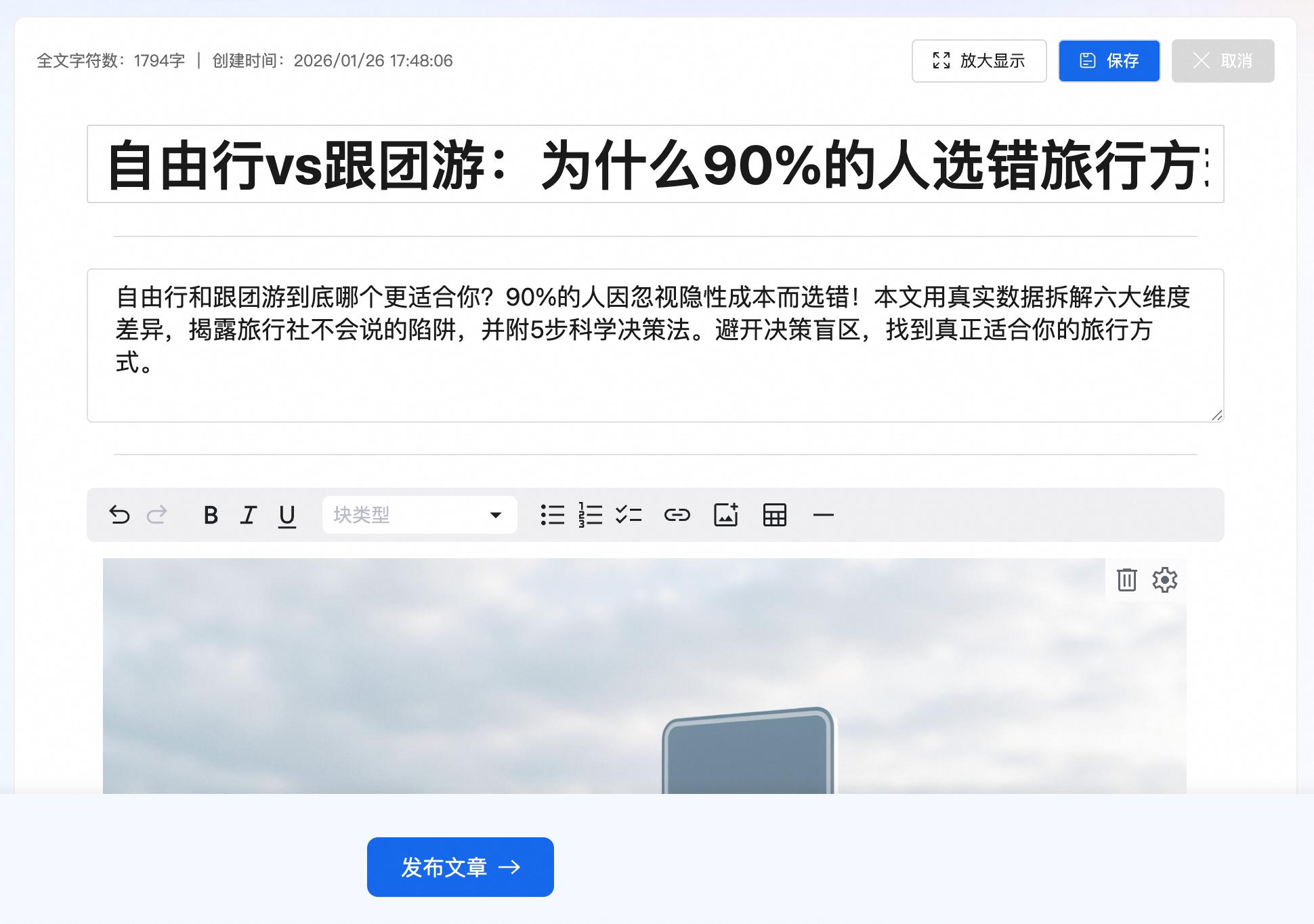
After the article is generated, it opens in a rich text editor. You can make further edits here, such as adjusting the format, inserting images, or adding hyperlinks.
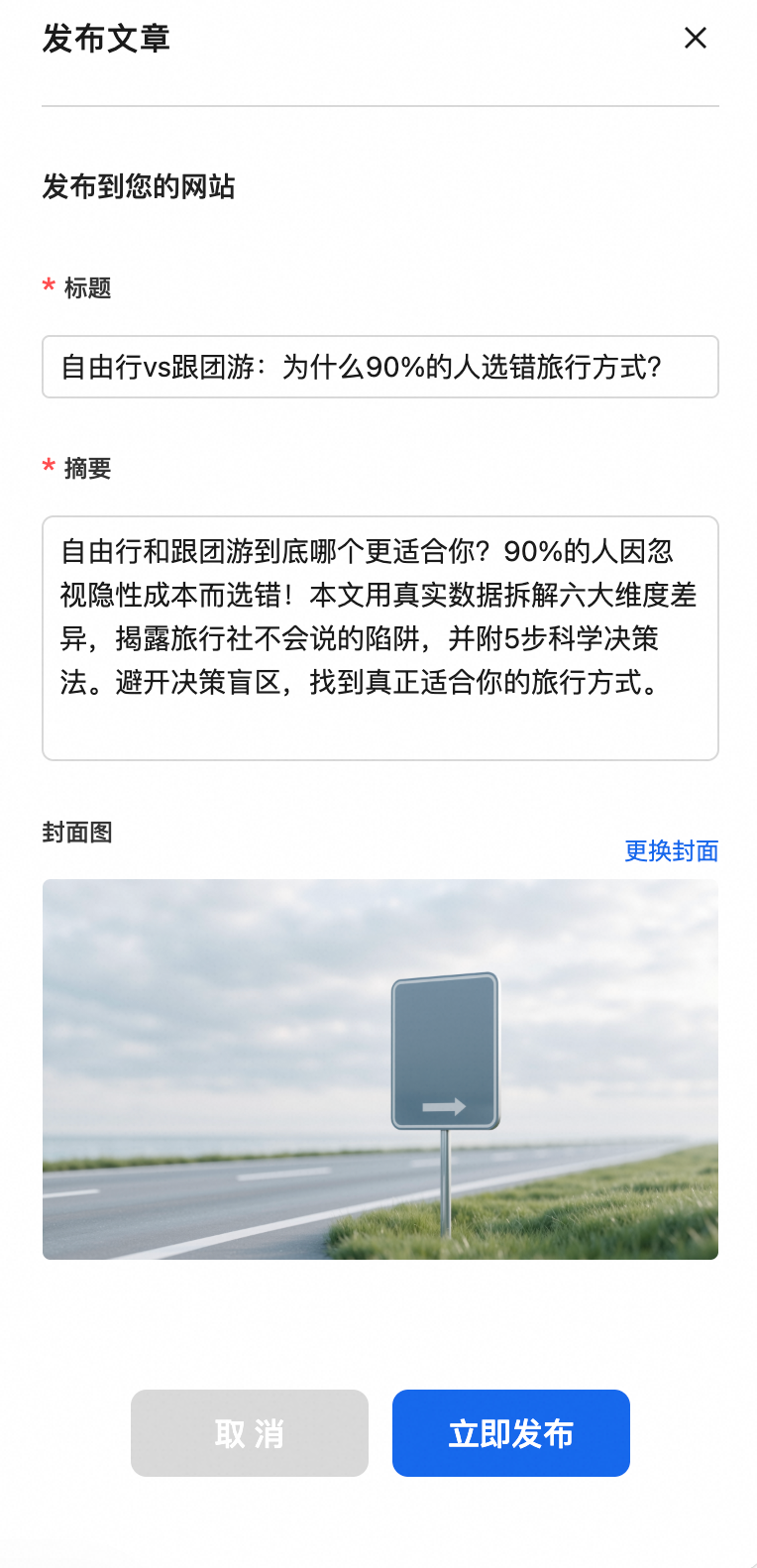
Click Publish Article at the bottom of the page. The Publish Configuration panel slides out from the right.
In the panel, complete the following configurations:
Publish to Website Page: Select the website category where the article will be published. If a news page has not yet been created on the website, the system prompts you to enter a category name and automatically creates one.
Title: Confirm or modify the final display title of the article.
Summary: Fill in the summary information for the article.
Cover Image: Confirm or change the cover image.
Click Publish Now. After successful publication, you can select View Page.
Article management
On the Article Management page, you can view and manage all articles generated by AI Creation.
Article status descriptions
Draft: An incomplete article. Click Continue Creation to resume from the last step.
Published: An article that has been published to the live website.
Generated: An article that has been generated but not published, or has been unpublished from the live website.
Deleted: An article that has been moved to the recycle bin. It can be recovered or permanently deleted.
Management operations
In the Article Management list, you can perform the following operations on articles with different statuses:
Edit
Edit a draft or generated article: To edit an article in the Draft or Generated state, click Continue Creation or Edit.
Edit a published article:
To ensure the stability of online content, published articles cannot be edited directly. To make changes, first unpublish the article. You can edit the article after its status reverts to "Generated". This operation temporarily removes the article from the live website.
Follow these steps:
In the article list, find the desired article and click Unpublish.
When the article status is Generated, click Edit to make changes.
After you finish editing, click Publish Article to publish your changes.
Publish/Unpublish
Publish: Publish an article with a Generated status to the website.
Unpublish: Remove a Published article from the live website, which changes its status to Generated.
Delete: Articles must be in the Generated state to be deleted. To delete a published article, you must first unpublish it.
Preview: Click Preview to see how the article will appear on the live website.