Site verification
Before you can use webmaster tools to promote your website, you must verify site ownership. This topic describes how to verify your site.
To verify your site, obtain a verification code from each platform and paste it on the Site Verification page in your website's backend. After you save and publish your website, return to each platform and click the button to complete the verification.
For more information about how to obtain the site verification code or file from Baidu Search Platform, see 1. Obtain the site verification code or file from Baidu.
For more information about how to obtain the site verification code from 360 Search Platform, see 2. Obtain the site verification code from 360 Search.
For more information about how to obtain the site verification code from Sogou Webmaster Platform, see 3. Obtain the site verification code from Sogou Webmaster.
For more information about how to perform Google HTML meta tag authentication, see 4. Perform Google HTML meta tag authentication.
For more information about how to return to the product backend, see Upload the file or paste the code in the product backend.
1. Get the site verification code or file from Baidu
Log on to the Baidu Search Resource Platform and add your site. To do this, click .
Enter the website domain name and site properties as prompted.
ImportantWhen you enter the domain name, select the HTTP or HTTPS protocol. Your choice depends on whether a security certificate is configured for your website. An incorrect selection causes the verification to fail.
When you enter the site properties, accurately describe your website's business area. If you make a mistake, you must wait 30 days before you can make changes.
Verify your site. In the Verify Site step, select either file verification or HTML tag verification. The product backend supports both methods, but HTML tag verification is recommended.
If you select file verification, click Download Verification File to obtain the verification file, as shown in the following figure.

If you select HTML tag verification, copy the code, as shown in the following figure.
 Important
Do not click to complete the verification yet. You must first upload the file or paste the code on the Site Verification page in the product backend. For more information, see Upload the file or paste the code in the product backend.
2. Get the site verification code from 360 Search
Log on to the 360 Webmaster Platform and add your site. To do this, click .

Verify your site. Enter your website name, click Verify, and select either HTML code verification or file verification.
If you select HTML code verification, click Copy Code to obtain the verification code, as shown in the following figure.

If you select file verification, click to download the verification file, as shown in the following figure.

ImportantDo not click to complete the verification yet. You must first upload the file or paste the code on the Site Verification page in the product backend. For more information, see Upload the file or paste the code in the product backend.
3. Get the site verification code from Sogou Webmaster
Log on to the Sogou Webmaster Platform. Click and enter your website information as prompted.


- Note
When you enter the domain name, include the protocol and the domain name, such as https://www.aliyun.com.
Verify your site. After you add the site, click Verify Site. Select HTML Tag Verification and copy the code, as shown in the following figure.
ImportantDo not click to complete the verification yet. You must first paste the code on the Site Verification page in the product backend. For more information, see Upload the file or paste the code in the product backend.

4. Perform Google HTML meta tag authentication
Log on to the Google Search Console to add your site. In the Domain section on the left, enter your domain name and click Continue.
Verify domain ownership using a DNS record. In the pop-up window, click Copy to copy the TXT record. Log on to the Alibaba Cloud account that owns your domain name and navigate to the Domain Names console. From the Domain Names list, click Parse to open the DNS settings, and then click Add Record.
NoteGuidelines for completing records:
Record Type: TXT
Host Record: @
For Record Value, paste the TXT record that you copied.
Leave the other settings as their defaults.
After you add the record, wait one to two hours for it to take effect. Then, log on to the Google Search Console again and click Verify.

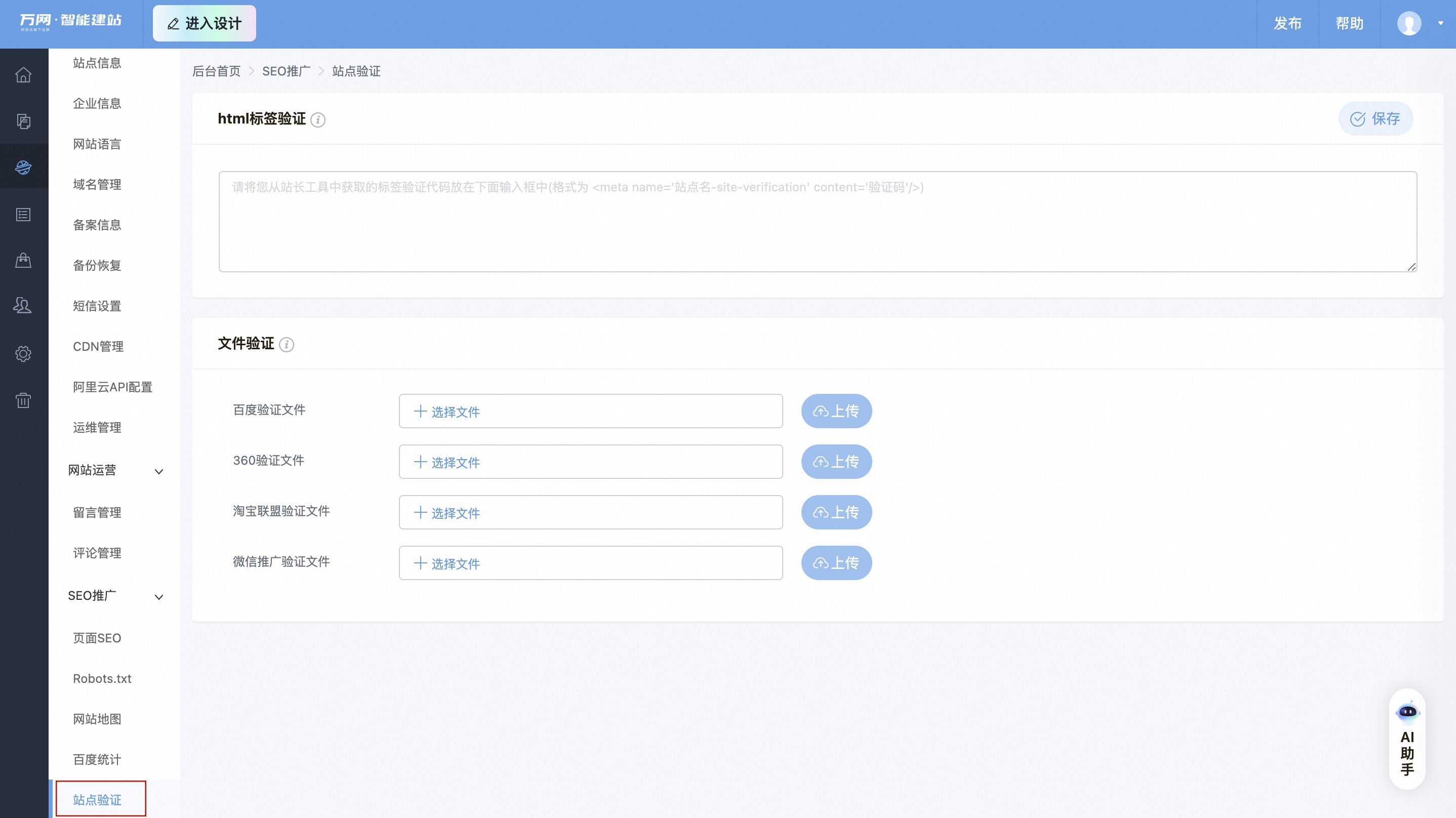
Upload the file or paste the code in the product backend
For site verification with Baidu, 360, or Sogou, you must first obtain the verification file or code from the platform. Then, upload the file or paste the code in the product backend. Finally, return to the platform and click Complete Verification.
In the navigation pane on the left of the website backend, go to the site verification page by clicking .
To complete the verification, enter the code in the verification box and click Save.
NoteTo enter verification codes for multiple platforms, paste the code for one platform, press Enter, and then paste the code for the next platform.