Log on to the Quick Audience console
This topic describes how to log on to the Quick Audience console.
We recommend using Chrome 60 or a later version.
If you log on with a root account:
Click the Quick Audience logon link.
Enter your Alibaba Cloud account and password, and then click Log On.
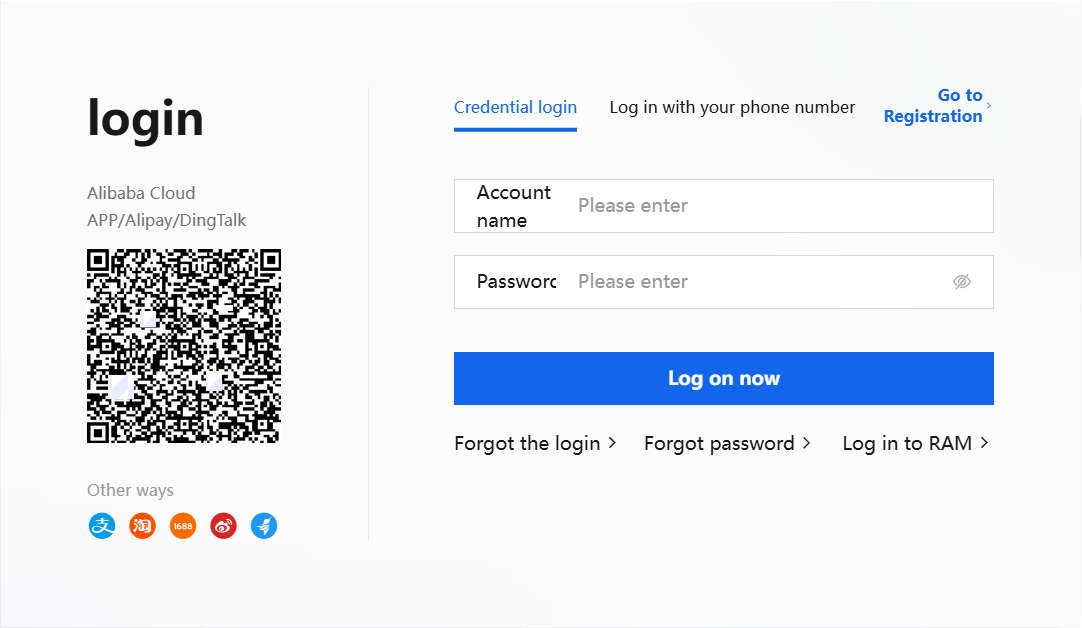
To log on with a RAM user (For more information, see Create a RAM user):
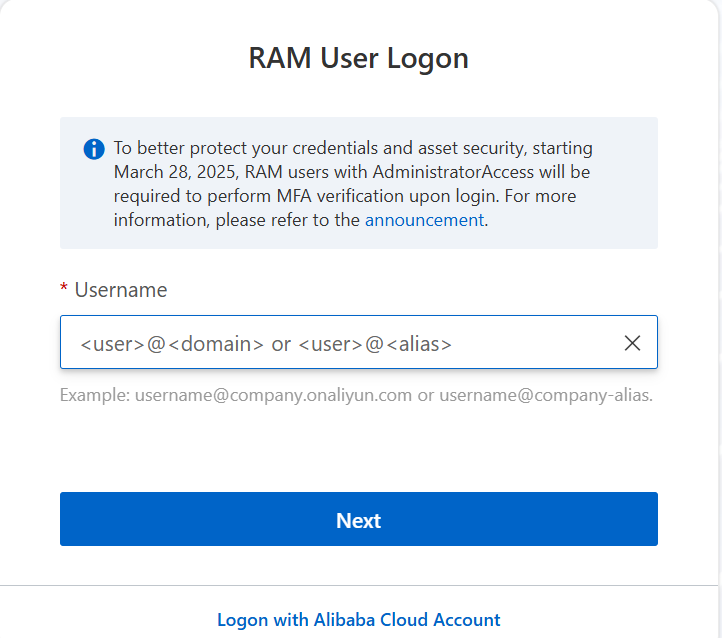
Click the Quick Audience logon link, and then click Log on as RAM User on the logon page.
Enter your RAM user, and then click Next.
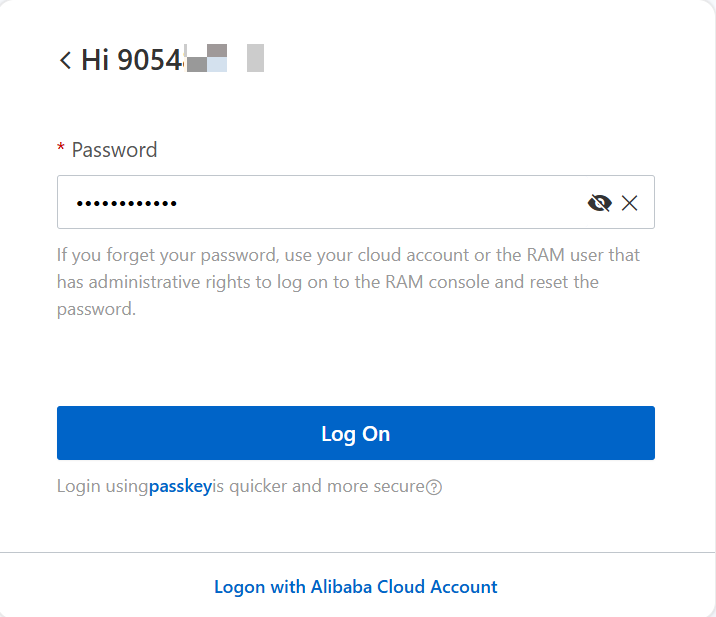
Enter your password, and then click Log On.
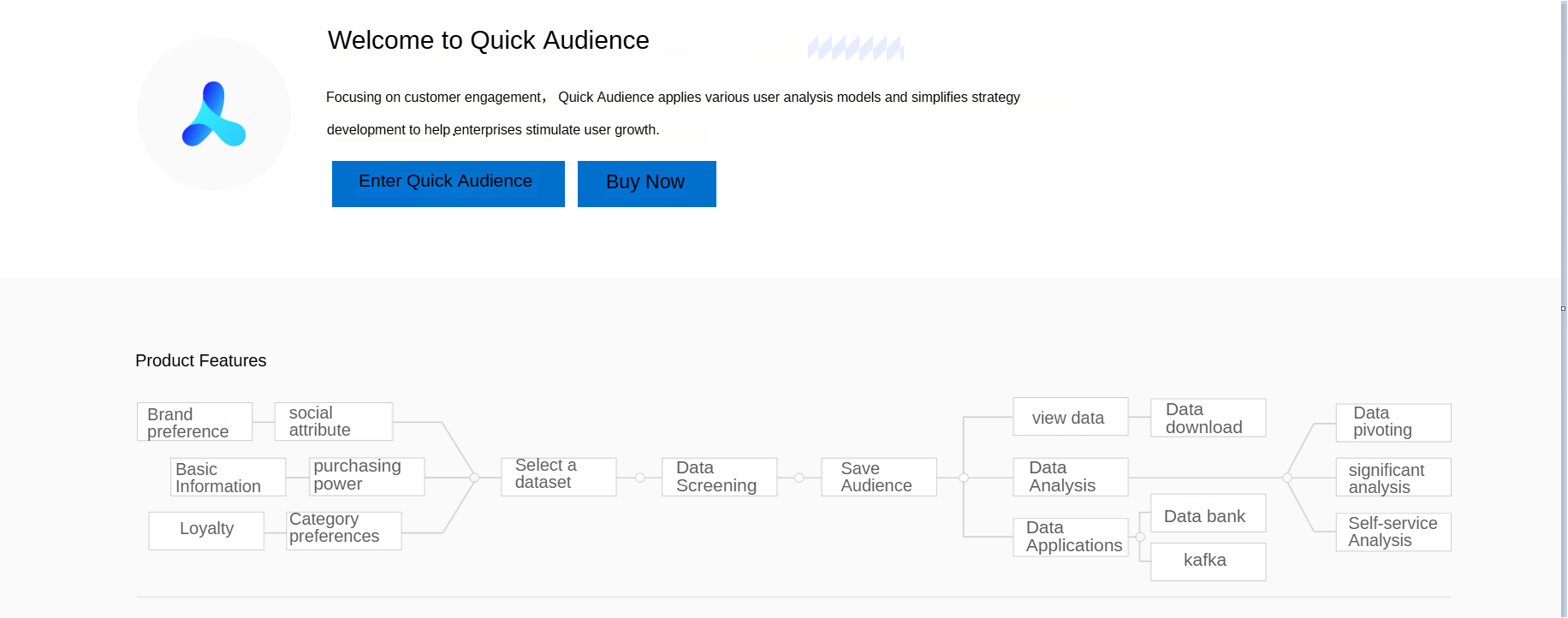
Click Enter Quick Audience to go to the homepage.
 Note
New customers are automatically directed to the new homepage. Existing customers are directed to the old homepage and can switch to the new version.
If you are on the old homepage, click Try New Version > Try Now in the upper-right corner to go to the new homepage. This option is available on the old homepage and on pages for modules such as User Insights or User Marketing.
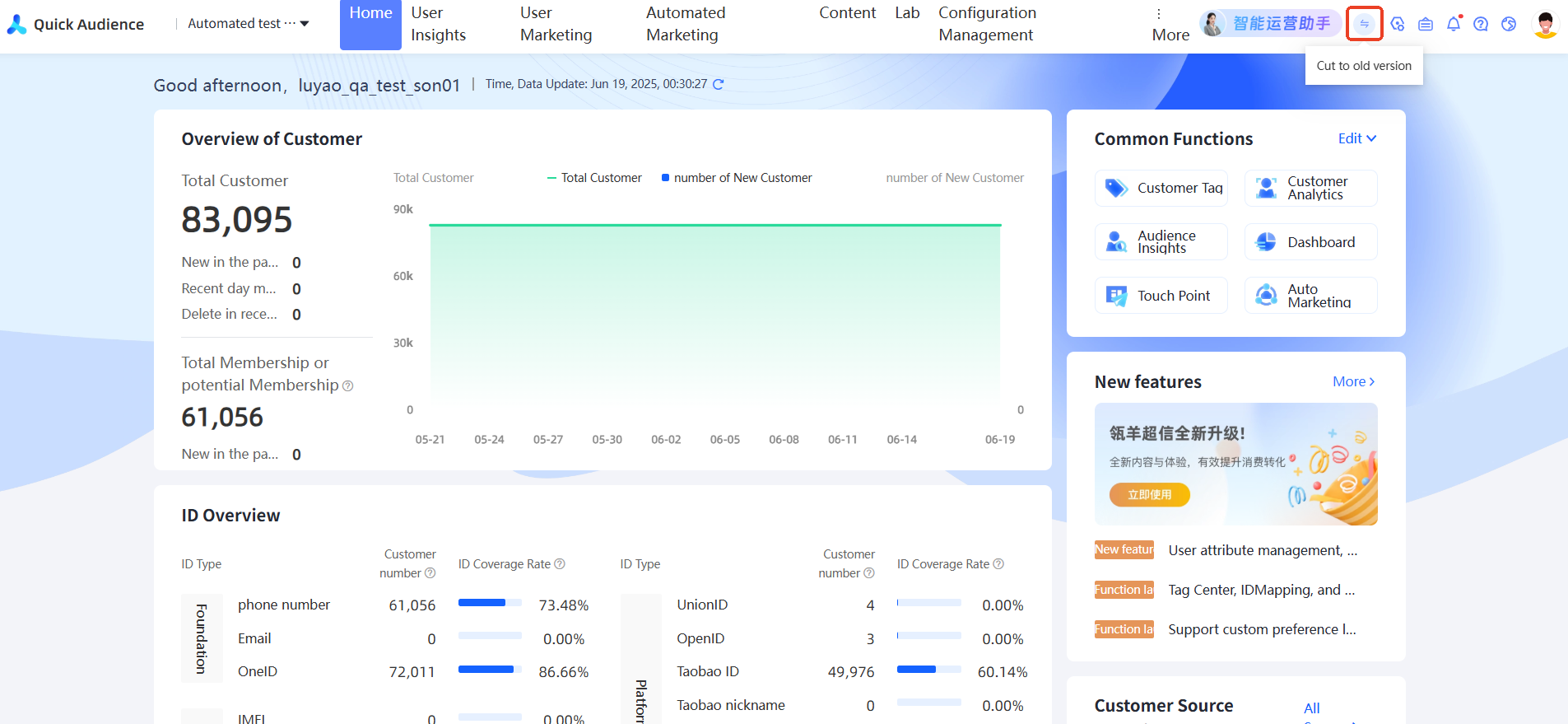
On the new homepage or any other page, you can switch workspaces from the drop-down menu in the upper-left corner.

FAQ
What browsers are recommended for Quick Audience?
A: For full feature support, we recommend using Chrome 60 or a later version.
How do I grant other accounts permissions to use Quick Audience?
A: You can grant permissions to use Quick Audience to both Alibaba Cloud accounts and RAM users. RAM users are also known as sub-accounts and do not need to belong to the Alibaba Cloud account that purchased Quick Audience.
To do this, add an account to a workspace as a member and assign a role to that member. The member can then use Quick Audience within that workspace based on the permissions of the assigned role.
Organization administrators and space administrators can grant permissions. For more information, see Organization Member Management and Space Members Management.
Why do I receive an "Incorrect username or password" error even though I entered the correct credentials?
A: If you receive an "Incorrect username or password" error after you enter your credentials on the logon page, try the following steps:
Try to log on again. Make sure you enter your credentials correctly.
If your account is in the format of <username>@<default domain name> or <username>@<enterprise alias>, it is a RAM user. Click Log on as RAM User to go to the RAM user logon page. Make sure you enter the full username, including the at sign (@) and all characters that follow it.
If you forgot your password or username, click Forgot Password or Forgot Member Name to retrieve them.
Can I switch between the new version (V4) and the old version (V3)?
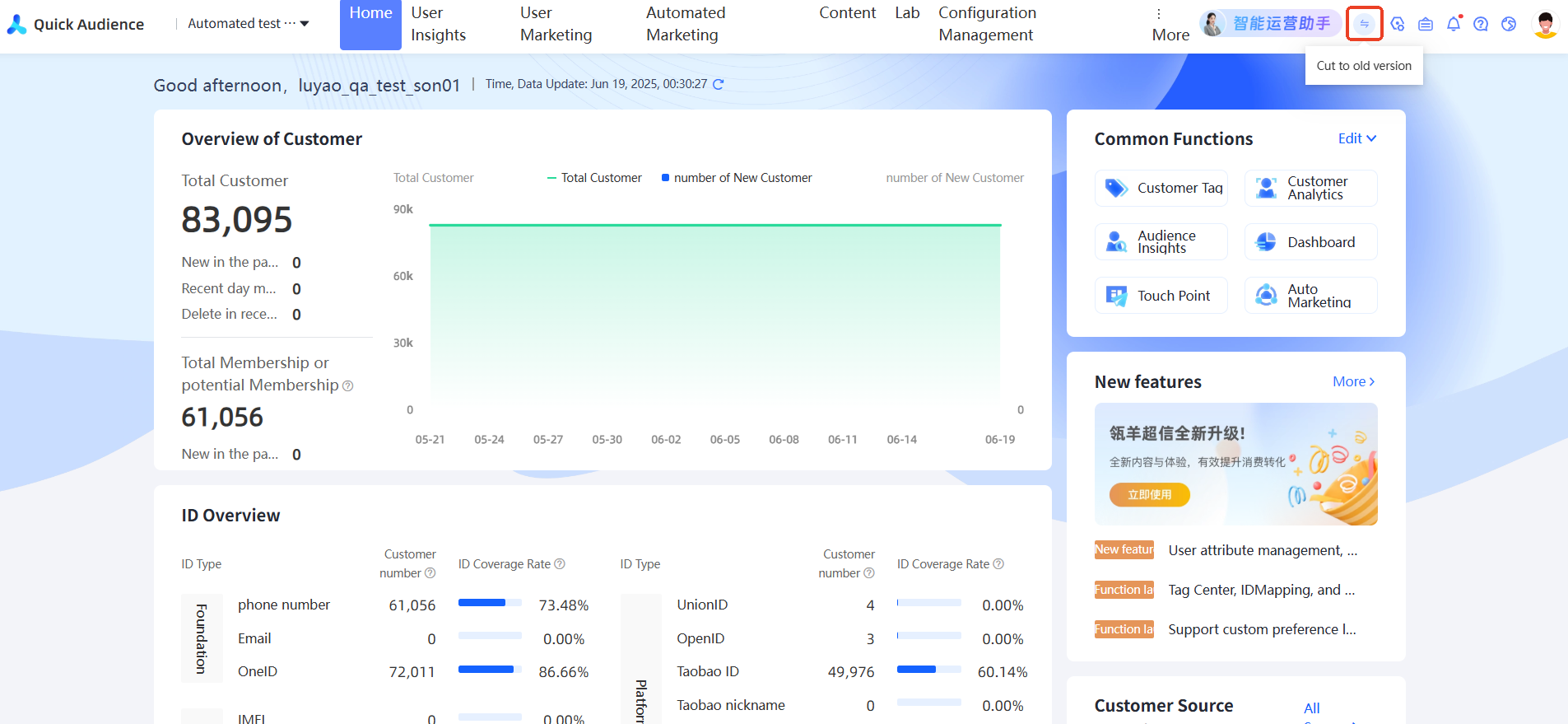
A: Customers who have migrated to the new version can switch between the two versions using a prominent switch in the top navigation bar. This switch is available on all pages within the User Insights, User Marketing, and Analytics Dashboard modules.
You can also open two tabs in the same browser to use the new and old versions separately.