SIP phone and office mode features
Cloud Call Center 2.0 adds a key feature: support for Session Initiation Protocol (SIP) desk phones. It also introduces a new scenario: office phone mode.
Feature overview
New features
SIP desk phones
This feature lets you connect your SIP desk phones to agents in Cloud Call Center. Agents can then make and receive calls using their desk phones. Key features include the following:
·Skill group leaders or administrators can manage the SIP phone status for multiple agents at once, including registration and password resets.
·Each agent is assigned a unique extension number for their softphone and SIP phone.
·Agents can associate their SIP phones and choose to log on in SIP phone mode.
·SIP phone connection and unregistration responses are processed within seconds.
Office phone mode
This mode is designed for customers who use desk phones only for internal office communication. It allows employees to use their phones for internal calls, outbound calls, and inbound calls without logging on to Cloud Call Center. Currently, agents cannot initiate call transfers or conference calls from SIP phones. Because this mode does not involve agent status, the Interactive Voice Response (IVR) system does not support queuing calls to agents.
Summary of call modes and phone terminals
Agent console with WebRTC or a SIP phone: In this mode, agents use the agent console with either Web Real-Time Communication (WebRTC) or a SIP phone. They must manually log on, log off, and set their status to 'Ready'. When an agent answers an assigned call, their status automatically changes to 'On a call'. After the call ends, their status changes to 'Post-processing'. The agent must then manually set their status back to 'Ready'. The console provides an option to automatically change the status to 'Ready' after post-processing. However, because agents can control this setting, this action is still considered manual.
Mobile phone (off-site mode): In this mode, calls are answered on a mobile phone. When an agent switches to off-site mode, they are automatically logged on and their status is set to 'Ready'. When the agent answers an assigned call, their status changes to 'On a call'. After the call, their status changes to 'Post-processing', and then the system automatically sets it back to 'Ready'. In off-site mode, agents cannot access the console. They can only answer calls. They cannot make outbound calls, transfer calls, start conference calls, or monitor other agents. However, agents in other modes can make internal calls to, transfer calls to, start conference calls with, and monitor agents in off-site mode, just as they would with any other agent.
Office phone mode: This mode supports only physical SIP phones and is similar to a traditional office phone system. In this scenario, the agent status does not change. As long as the SIP phone is online, it can be used to make and receive calls. Currently, agents cannot initiate call transfers or conference calls from SIP phones. Because this mode does not involve agent status, the IVR system does not support queuing calls to agents.
In the current implementation, work modes are switched on the agent management page. These modes are mutually exclusive and cannot be switched at will. The agent console does not fully support these work modes. For example, an agent in off-site mode can still log on to the console but may encounter errors, such as being unable to answer calls using WebRTC. Agents need to switch easily between WebRTC, SIP phones, and mobile phones. Therefore, these work modes require optimization.
To allow agents to easily switch between WebRTC, SIP phones, and mobile phones, future versions will no longer distinguish between in-office and off-site modes. Instead, they will be unified into Desktop, Office Phone, and Mobile modes.
In Desktop mode:
1) On the agent management page, you can add a configuration to determine whether agents answer calls on their mobile phones after they go offline. If you select No, the behavior is the same as the current in-office mode. If you select Yes, when an agent logs off from the console, incoming calls can still be assigned to the agent to be answered on their mobile phone. If the agent logs on to the console again, calls are answered using the device configured in the agent console (WebRTC or SIP phone).
2) After an agent logs on, if they have a configured SIP phone (physical phone or softphone), they can choose which device to use for answering calls: WebRTC or the SIP phone.
Instructions
Initialize a SIP phone
In the Customer Service Management > Agents module, four new columns have been added: Softphone Extension, SIP Phone Extension, SIP Phone Status, and SIP Phone Model.
- Softphone Extension: The extension number assigned to each agent's softphone. You can use this number to call the agent directly, which is similar to an internal call.
- SIP Phone Extension: The extension number assigned to an agent after their SIP phone is activated. This number is used for actions such as bringing the phone online.
- SIP Phone Status: The status of the SIP phone. This status appears after an agent's SIP phone is activated. The possible statuses are: No SIP Phone (not initialized), Offline, and Online.
- SIP Phone Model: Manually enter the phone model for record-keeping purposes. This field is available after an agent's SIP phone is activated.
Select one or more agents, and then choose Initialize SIP Phone from the Batch Operations menu at the bottom of the page.
Read the prompt.
Click Next, and then enter the new password and device model.
Click Confirm to start the initialization. After a successful initialization, the agent is assigned a SIP phone extension number, and the phone status changes to Offline.
Repeating this action only resets the agent's SIP phone password.
Register a SIP phone
After an administrator initializes an agent's SIP phone, the agent can register the phone and bring it online. The Device Detection section now includes checks for SIP phones.
Click Reset Password to reset the phone's password. This password is used to connect the phone to the call center.
SIP phone connection process
For more information, see Connect a SIP device.
Log on with a SIP phone
When an agent goes online and their SIP phone is also online, a SIP Phone logon option is available. After you select this option, calls are answered on the SIP phone. The skill group selection does not affect whether the agent uses a SIP phone or a softphone. In addition:
·If Select skill group upon agent logon is disabled in the settings, this pop-up window still appears.
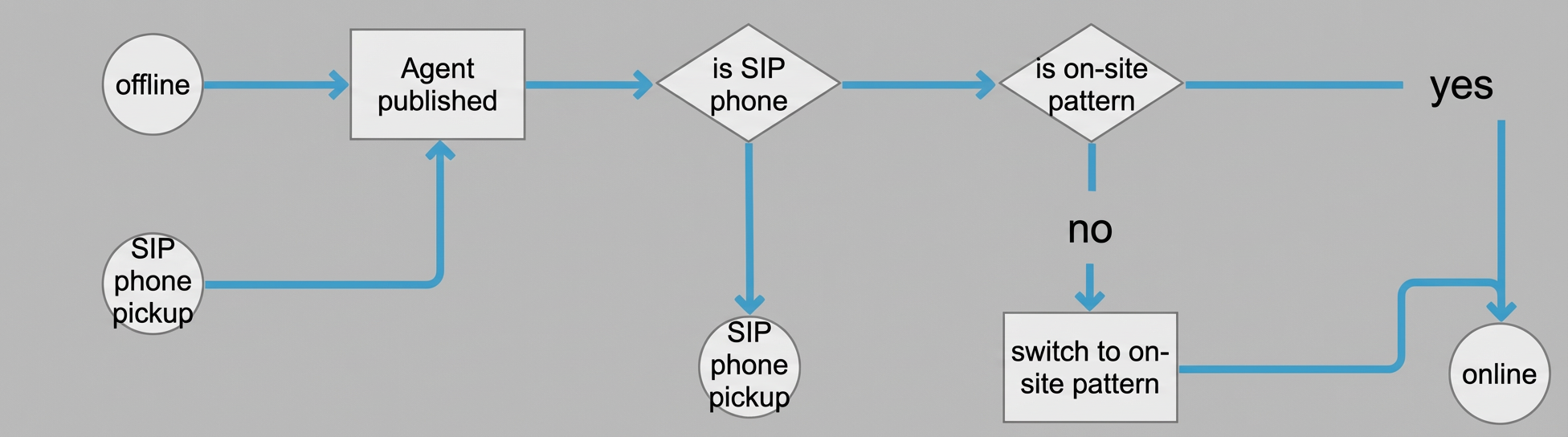
·To switch to the softphone, you must go offline, log on again, and select the softphone option.
·All incoming calls ring on both the softphone and the SIP phone.
·For outbound calls, you can dial from either the softphone or the SIP phone. If you dial from the softphone, you can still answer the call on the SIP phone to continue the conversation. However, the call is disconnected if either the SIP phone or the softphone hangs up.
Office phone mode
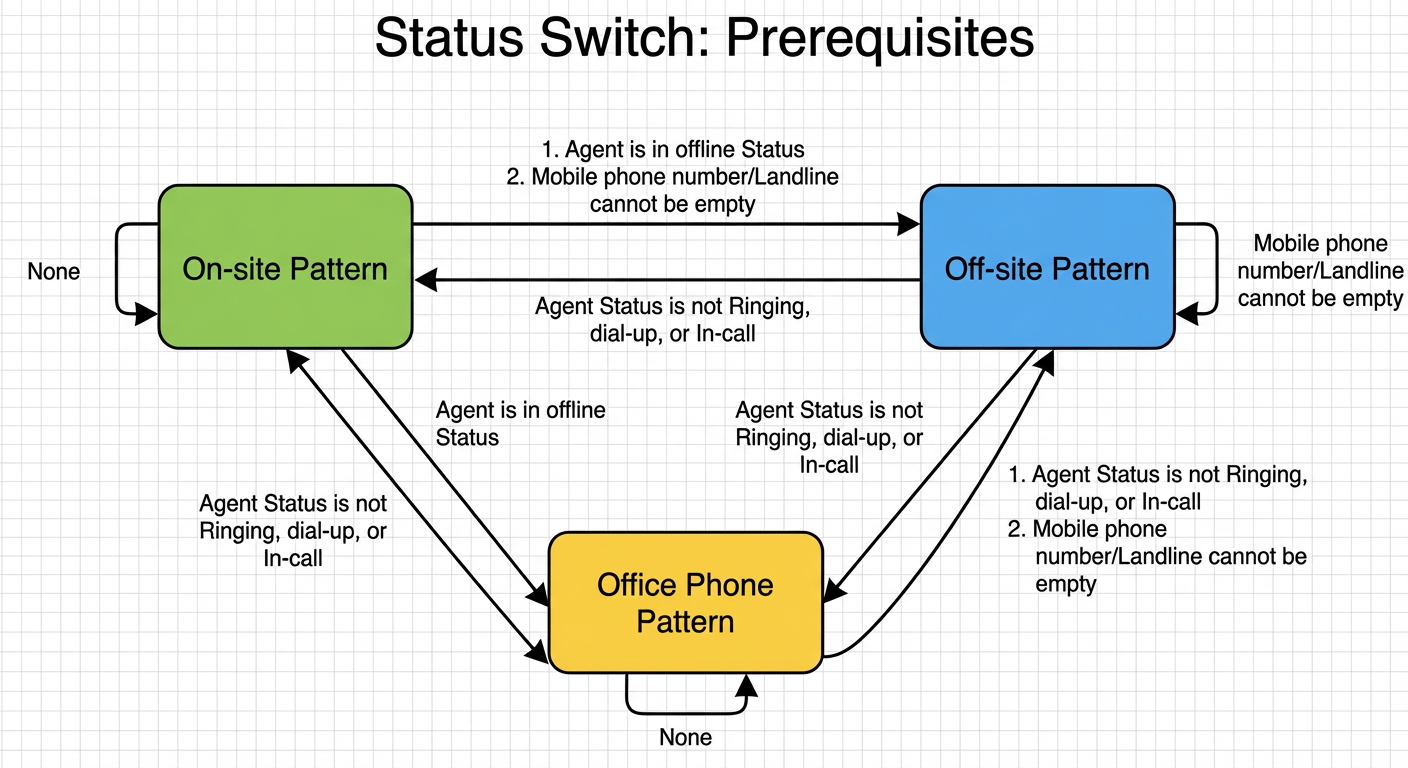
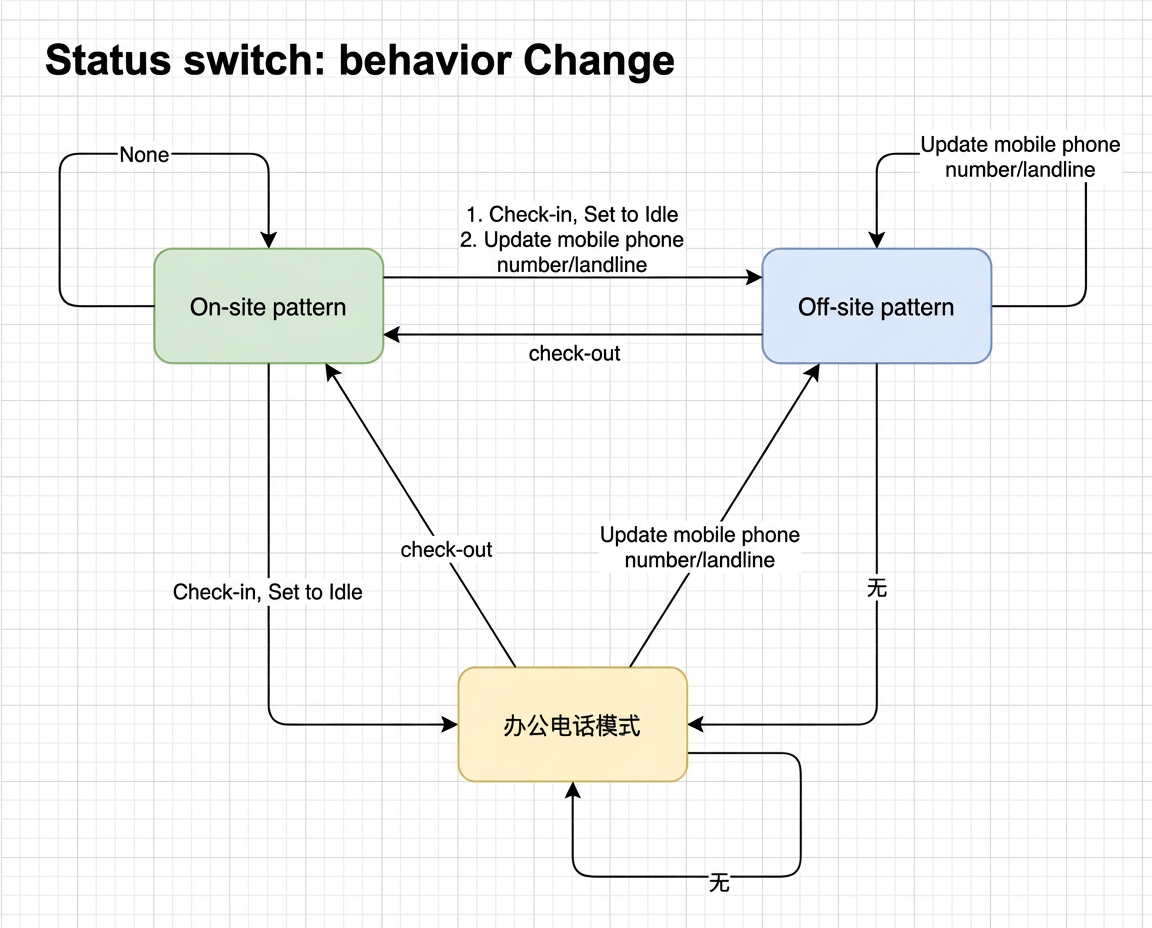
After you bring a SIP phone online, you can continue to use it for inbound and outbound calls even after you close the Cloud Call Center system. This is called office phone mode. When a SIP phone is online, go to Customer Service Management > Agents > Edit > Agent Work Mode and select Office Phone to switch the agent to this mode.
The following diagrams illustrate the status transitions between the three agent work modes:
Directly transfer to an extension in IVR
The Transfer to Agent module in the IVR now supports the Transfer to Extension feature. You can enter the target agent's softphone or SIP phone extension number to transfer the call. The system automatically finds the agent's online device, regardless of which one they are using. For example, if you enter a SIP phone extension in the IVR, the call can be successfully transferred even if the agent is online using their softphone.
Billing
The following features are free of charge:
·The features for SIP phone management, usage, and office mode are free of charge. However, you must provide your own SIP phone devices. We recommend that you use the suggested brands and models.
The following items are billable:
·SIP phone call fees: The fees are identical to the current charges for Cloud Call Center and are equivalent to the fees for using a softphone.
·Internal calls: Calls between agents are currently free of charge. In the future, this feature will be upgraded to a formal product, and fees for internal calls will be charged based on call volume.