Judgment Conditions - Result Judgment Component
The Result Judgment component filters users based on the send result or delivery receipt from the previous Marketing Reach or Data Push component, and routes them into multiple groups based on different result criteria.
For example, one hour after sending a WeChat message, you can send a text message to users whose delivery failed. For users whose delivery was successful, you can send another WeChat message.
-
The Result Judgment component must immediately follow a Marketing Reach or Data Push component.
-
The Marketing Reach and Data Push components support the following results:
-
Text SMS, Digital Message, Send Email, WeChat Message, Template Message, Send Coupon, and Push to Kafka: The send results are Success and Failed.
-
APP PUSH: The send results are Success and Failed. The delivery receipt results are Opened and Ignored.
-
Webhook: The send results are Success and Failed. Optional delivery receipt results are the status values defined in Webhook Management. Your system or a third-party system sends delivery receipts with the corresponding data. Delivery receipts must be sent within the defined data collection period, or they are not accepted.
-
Procedure:
-
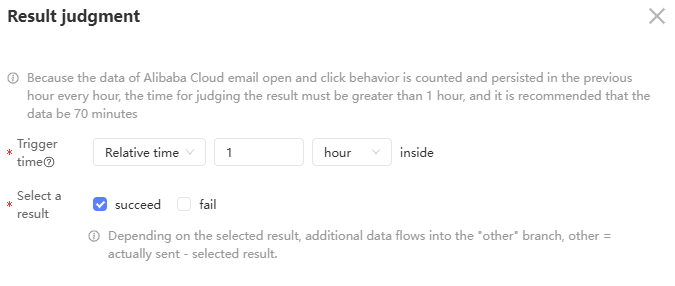
Click the Result Judgment component. In the panel that appears on the right, configure the settings as shown in the following figure.
 Note
NoteThe preceding figure shows the Result Judgment component that follows an APP PUSH component.
Some components have only send results and no delivery receipt results. For these components, the Result Judgment component shows only the Select Result option, without the Result Type option.
-
Set the trigger time. The trigger time defines how long the system waits for the send result or delivery receipt from the preceding component before evaluating.
-
Relative time: The system waits for a specified period after the send operation before it evaluates the result. Supported units are minutes, hours, and days.
-
Specific time: The system waits until a specific time to evaluate the result.
Note-
The trigger time is the maximum time the system waits for a result. If a result for a user is received before the trigger time, the system stops waiting and evaluates the result immediately.
-
If you set a specific time, and that time has already passed when a user reaches the Result Judgment component, the system evaluates the result immediately without waiting.
-
-
Select Send Result or Delivery Receipt Result, and then select one or more results.
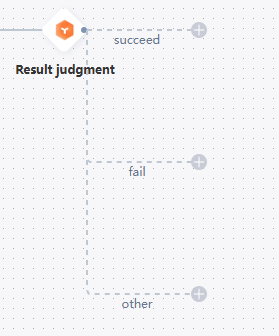
NoteFor send results, an "Other" branch is always added, regardless of how many results you select. When the trigger time is reached, users whose results do not match your selections are moved to the "Other" branch.
An "Other" branch is also added for delivery receipt results.
-
Click OK. A branch for each selected result is created on the canvas, as shown in the following figure.