Download build artifacts
You can download build artifacts from the pipeline after an application is successfully built or published.
Prerequisites
A build pipeline has been run. For more information, see Run a pipeline.
Download the latest build artifact
Log on to the EMAS console, select the Cloud Build product, and click Enter to open the Cloud Build page.
In the Related operations column for the application, click Details to open the Pipeline Overview page.
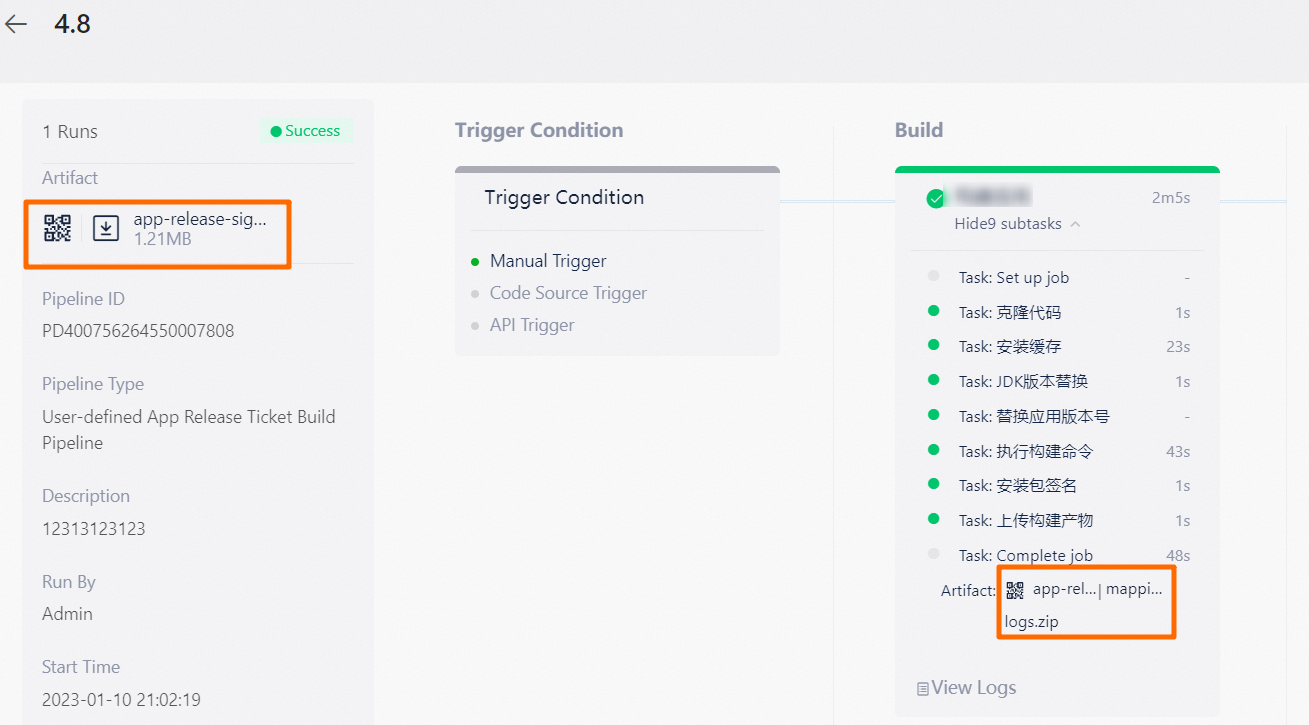
On the Pipeline Overview page, you can download or preview the artifact.
You can download and install the application artifact for Android/HarmonyOS using a browser to scan the QR code or click the download link. The QR code and download link are in the Artifacts section on the left side of the page or in the Build Application stage.
For more information, see Install an application by scanning a QR code (Android).
HarmonyOS applications do not currently support installation by scanning a QR code.
You can preview an H5 application artifact by scanning the QR code with a browser. The QR code is available under Artifacts on the left side of the page or under the artifact in the Build Application stage. For more information, see Preview an application by scanning a QR code (H5).
Download a historical build artifact
On the Pipeline List tab, click Details in the Related operations column for the application to go to the Pipeline Overview page.
Click Execution History to open the Execution History tab and find the desired build batch.
In the Artifacts column, scan the QR code or click the download link to download the application file for the specified build batch.

Install an application by scanning a QR code (Android)
Use the built-in browser on your Android device to scan the artifact QR code to install the application. The QR code has a default time-to-live (TTL) of 15 minutes.
Preview an application by scanning a QR code (H5)
By default, H5 application artifacts are not public. After you make an artifact public, you can use your device's built-in browser to scan the artifact QR code to preview the application. The QR code has a default time-to-live (TTL) of 15 minutes.
To make an H5 application artifact public, edit the Upload Build Artifact step in the Build H5 Application stage and enable the Public parameter.
