Customize the build application stage
You can customize the application build stage if the default stage in the pipeline template does not meet your needs.
Instructions
Open the pipeline editing page. For more information, see Open the pipeline editing page.
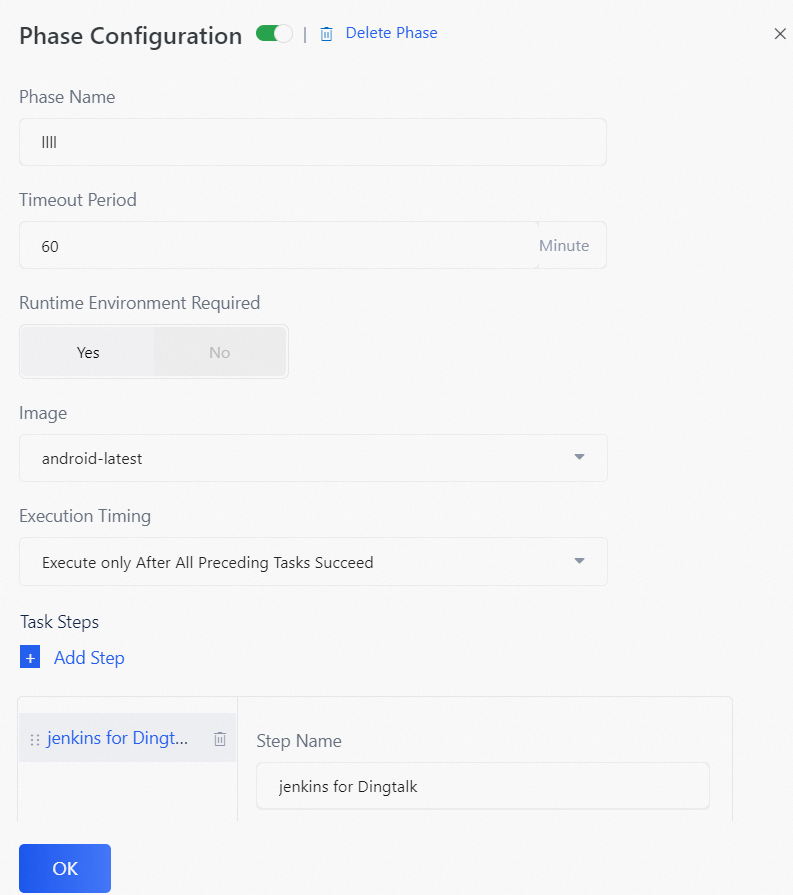
Click the Build stage to open the Stage Configuration pane on the right.
In the Stage Configuration pane on the right, configure the parameters.
Option
Description
Stage name
Set the name for this stage.
Timeout (minutes)
Set the maximum running time for this stage. The default value is 60 minutes. If the running time of this stage exceeds the preset value, the stage fails.
Runtime environment required
Specifies whether this stage requires a runtime environment. A runtime environment is required if the build task must run in a specific environment, for example, an environment with Android SDK configured.
Build application stage: Required
Custom stage (serial scenario): Required/Not required
Custom stage (parallel scenario): Required
If this option is set to Required, the Image is android-latest. If this option is set to Not required, the Image is Agentless.
This parameter cannot be edited.
Scheduling
Set the condition for executing this stage.
Execute only if the previous stage succeeds
Execute only if the previous stage fails
Execute unconditionally: Execute this stage after the previous stage is complete, regardless of whether it succeeded or failed.
Task steps
Click Add Step to set the tasks for this stage.
In the list of steps that appears, select the step to add. The step is added to the Tasks list for this stage. Configure the step as needed. You can also select an existing step and modify its parameters as needed.
For more information about the configuration, see Build configuration instructions.
NoteIn the Task steps for H5 applications, the Public switch for the Upload build artifact step is turned off by default. If you turn it on, you can directly scan the artifact's QR code with a browser to run the artifact.
Hover the mouse over an added task and drag it to change the order of the tasks.
Click OK to save the stage configuration.
Build configuration instructions
Clone code
Clones the code required to build the application from a specified branch of a code repository.
Option
Description
Code address
The address of the code repository. The code repository is preset. For more information, see Add code access permissions.
Code branch
Set the code branch.
ImportantCase-sensitive.
Code access permissions
The access permissions for the code repository. The access permissions are preset. For more information, see Add code access permissions.
Switch JDK version
Option
Description
JDK version
From the drop-down list, select the JDK version to use.
Upload artifact
Uploads the build artifact.
Option
Description
Path
Set the relative path from the root directory to the directory where the build artifact is stored.
NoteSet this option as needed.
Traverse subdirectories
Specifies whether to traverse all subdirectories of the specified directory when uploading the build artifact.
File extension
Set the file extension to upload build artifacts of a specific file type. To set multiple extensions, separate them with commas (,).
Public
Specifies whether the build artifact can be accessed and read by everyone after it is uploaded.
NoteIf you are building a debug package, turn off this switch.
Bash
Runs a custom shell script.
Option
Description
Script content
Enter the custom shell script.
Script execution directory
Enter the local directory where the custom shell script is executed.
Sign APK
In an Android scenario, this step uses the zipalign and apksigner tools to sign the APK.
Option
Description
APK file path
Set the storage path for the APK file after it is built.
Enable V2 signature
Specifies whether to apply a V2 signature to the built APK file.
Enable zipalign optimization
Specifies whether to enable zipalign optimization.
Delete APK before signing
Specifies whether to delete the original APK file after the new file is signed.
Keystore certificate
Set the Keystore certificate used to build the APK file.
NoteThe Keystore certificate must be preset. For more information, see Configure a certificate (Android).
Replace Android application version
In an Android scenario, this step sets the version number used to build and publish the application. If the Replace application version number stage is not enabled, the version number from the code is used as the application version number by default.
Option
Description
versionCode
Set the version number for the application release.
versionName
Set the version name for the application release.
build.gradle path
Enter the relative path of the build.gradle file to use. If you leave this blank, the ./app/build.gradle file is used by default.
Gradle cache
In an Android scenario, this step installs and saves the Gradle cache. Caching build-related resources after the first build can speed up subsequent builds.
Option
Description
Exact match
Specifies whether to perform an exact match.
Enabled: Does not use the cache from an older version.
Disabled: Allows the use of the cache from an older version.
Android static code scan
In an Android scenario, this step performs a static code scan. This step must be added after the build is complete.
Option
Description
Execution directory
The directory where the static code scan is performed. The default is the root directory of the code repository.
H5 static code scan
In an H5 scenario, this step performs a static code scan. This step must be executed after the code is cloned, either before or after the build.
Option
Description
Execution directory
The directory where the static code scan is performed. The default is the root directory of the code repository.