Fatigue Control
Fatigue control limits how often marketing messages are sent to individual users, helping prevent dissatisfaction or complaints caused by excessive contact.
Function overview
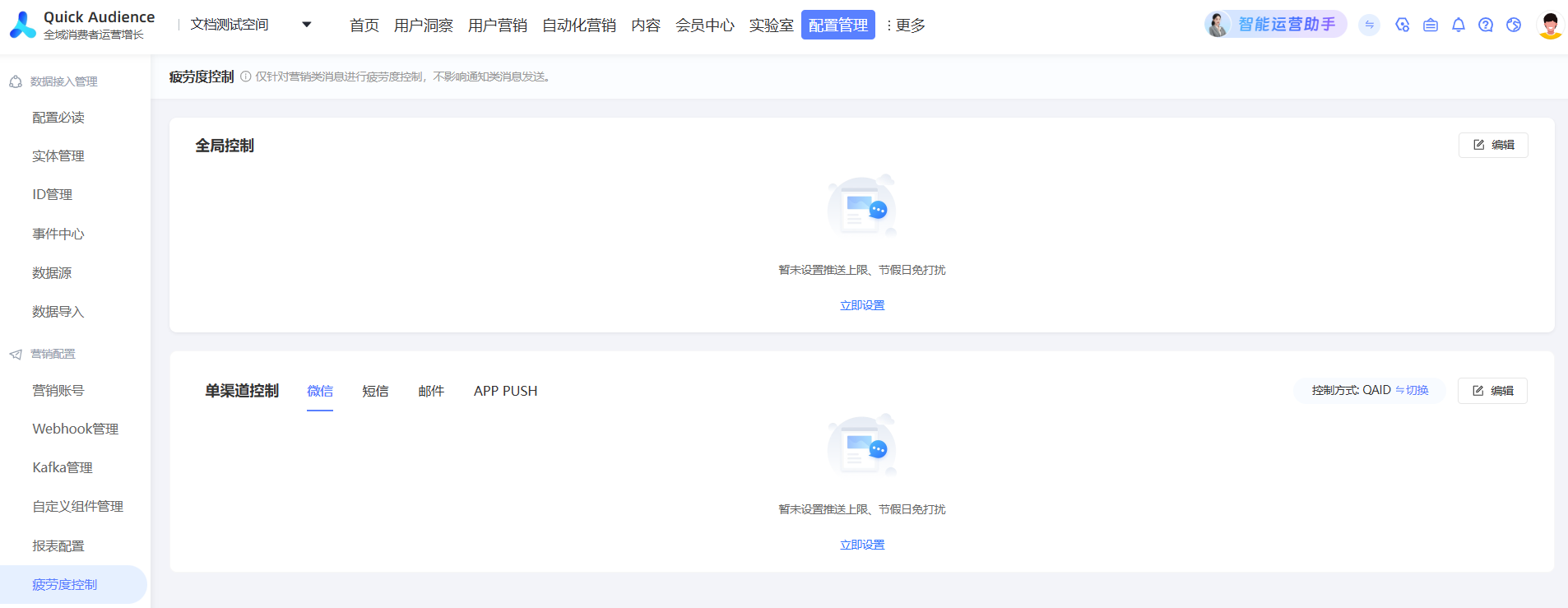
Path: Select a workspace > Configuration Management > Marketing Configuration > Fatigue Control.
-
Fatigue control applies only to marketing messages and does not affect notification messages, such as SMS and push notifications.
-
Fatigue control for a workspace applies only to marketing pushes within that workspace. Messages sent from other workspaces are not counted, even if they use the same sending account and are sent to the same user.
-
Global and single-channel controls are applied concurrently. If any control rule is triggered, the corresponding marketing message is not sent.
Global control
Global fatigue control applies to all marketing channels in the current workspace, such as text messages, emails, WeCom, App Push, WeCom Moments, Mini Program subscription notifications, Official Account template messages, WeChat broadcasts, Webhooks, and custom components.
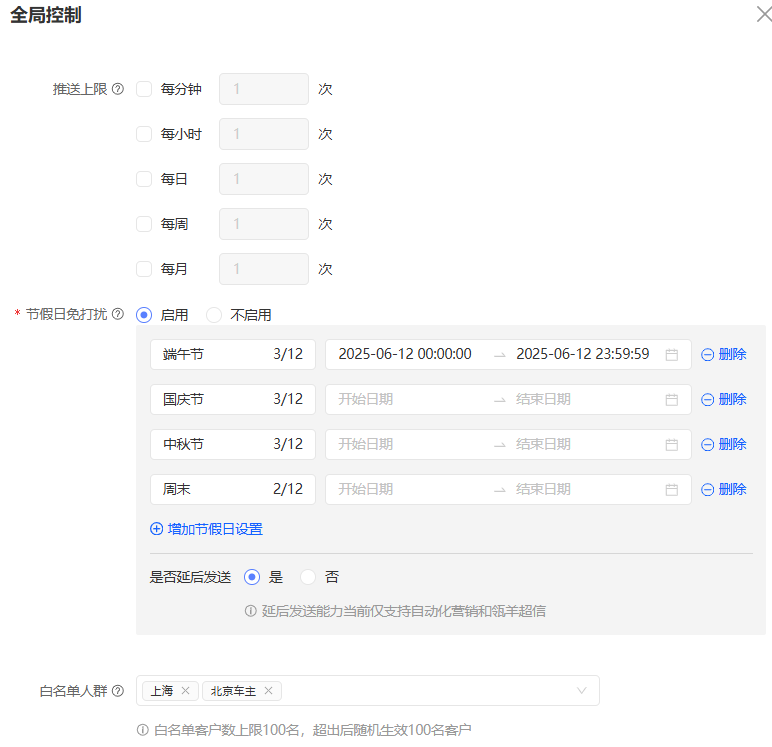
Set a push limit
Limit the total number of messages sent to a single user across all channels within a 1-minute, 1-hour, daily, weekly, or monthly period. For example, if you set the limit to 10 messages per month and run a weekly automated marketing campaign that sends three text messages to the same user, only one text message is sent during the fourth week.
-
Number of pushes: The default value is 1. Enter an integer of 1 or greater.
Note-
If you enter 0 or leave the field empty, the setting does not take effect.
-
If you enter a decimal value, the system rounds it to the nearest integer.
-
-
Query rules for marketing reach records: After you set a push limit, you can restrict sends per minute, hour, day, week, or month. Multiple limits can be enabled at the same time. Before sending a message, the system queries the touchpoint records for the corresponding period to check whether the limit has been reached:
-
Per minute: Queries touchpoint records from the last minute.
-
Per hour: Queries touchpoint records from the last hour.
-
Per day: Queries touchpoint records from the last 24 hours.
-
Per week: Queries touchpoint records from the last 7 days.
-
Per month: Queries touchpoint records from the last 30 days.
-
Set do-not-disturb for holidays
During the specified time periods, no marketing messages are sent. If you enable postponed sending, the messages are sent after the period ends. Holiday do-not-disturb applies only to automated marketing.
-
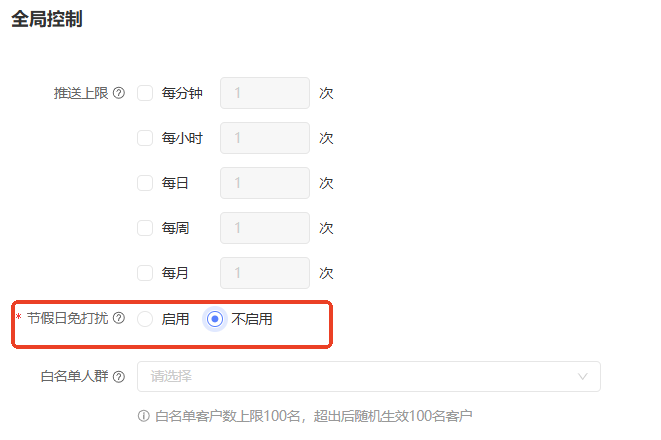
Holiday do-not-disturb: After you enable this feature, you can add up to 20 do-not-disturb periods for holidays. You can name each holiday period.
-
Postpone sending: This is currently supported only for Automated Marketing and Lingyang SuperSMS.
NotePrerequisite: You must enable the holiday do-not-disturb feature to use the postpone sending function.
Add a whitelist audience
-
The audience added to the global control whitelist bypasses both global and single-channel controls. Messages are always sent to these users.
-
You can add multiple audience packages at the same time.
-
The whitelist is limited to 100 customers. If you add more than 100 customers, the system randomly selects 100 to be on the whitelist.
Single-channel control
Configure fatigue control for individual marketing channels such as WeChat, text messages, emails, and App Push.
New feature: Switch control method
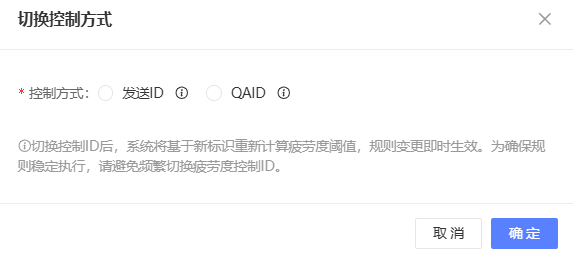
Switch the ID type used for fatigue control between Send ID and QAID. Existing customer workspaces default to QAID control, while new customer workspaces default to Send ID control.
-
Control by Send ID: Fatigue control is based on the actual ID used by the touchpoint, such as phone number (for text messages), device token (for push), or OpenID (for WeChat).
-
Control by QAID: Fatigue control rules for each touchpoint are based on the QAID.
-
Workspaces for existing customers default to QAID control. Workspaces for new customers default to Send ID control.
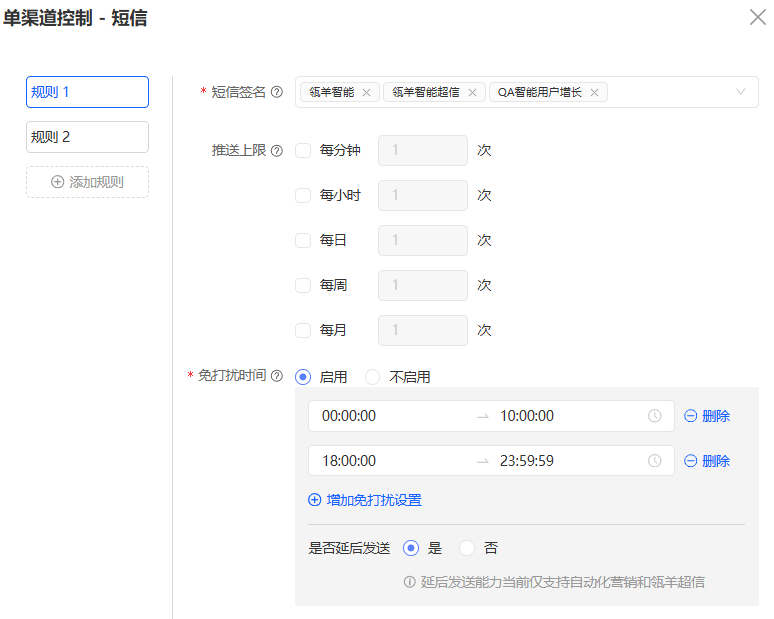
Text message
-
SMS signature: You can select multiple SMS signatures at the same time. Each signature can be used in only one rule. If the SMS signature you need is not available, go to Add Signature to add it.
-
Push limit: This limits the number of text messages sent to the same user with the same signature within a 1-minute, 1-hour, daily, weekly, or monthly period. This limit does not apply to SMS notifications. For configuration details, see Set a push limit.
-
Do-not-disturb time: This setting applies to specific time periods, regardless of holidays. You can add up to 20 time periods. During these periods, no marketing messages are sent. If you enable postponed sending, the messages are sent after the period ends. Do-not-disturb applies only to automated marketing.
-
Add a whitelist audience: The whitelist audience is configured by adding a target audience package in the global control settings.
Email, WeChat, and App Push
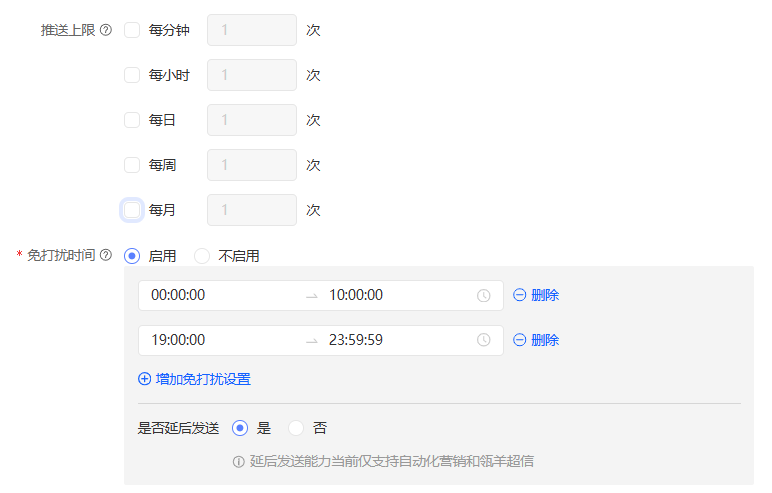
These three channels share similar configuration options and are described together.
-
Push limit: For more information, see Set a push limit.
-
Do-not-disturb time: This setting applies to specific time periods, regardless of holidays. You can add up to 20 time periods. During these periods, no marketing messages are sent. If you enable postponed sending, the messages are sent after the period ends. Do-not-disturb applies only to automated marketing.
-
Add a whitelist audience: The whitelist audience is configured by adding a target audience package in the global control settings.
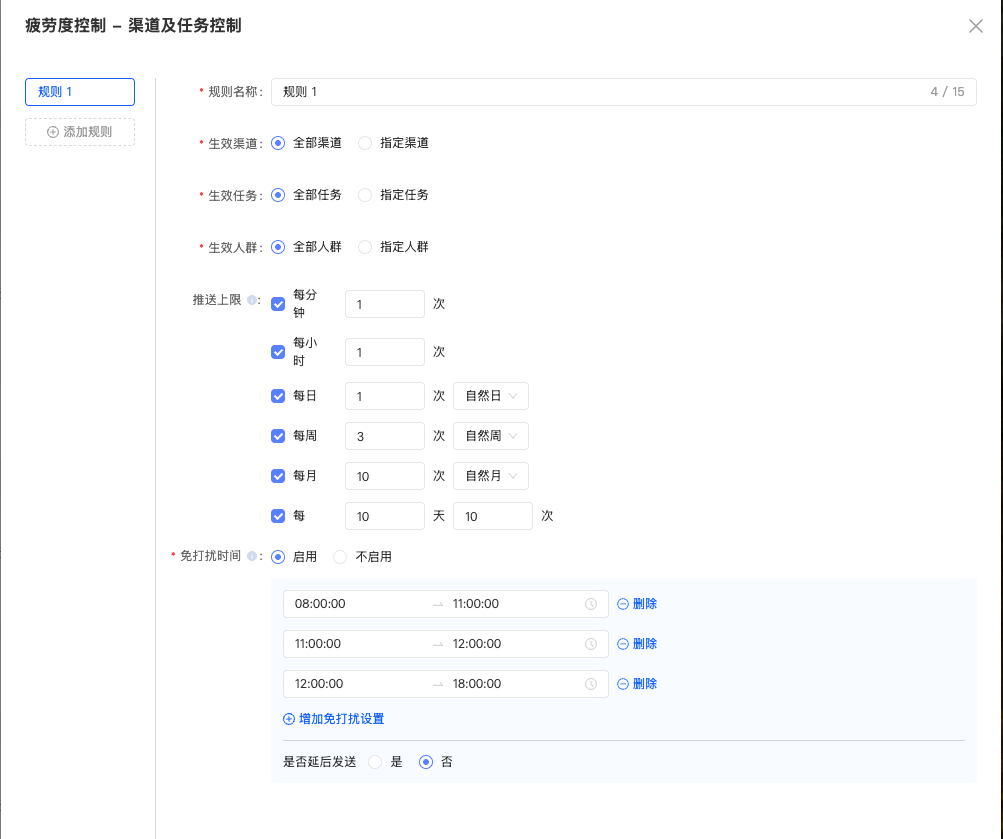
Channel and task control
-
Overall management flow
-
When a user is targeted for a message, the system evaluates all fatigue control settings, including global, single-channel, and rule-based controls, concurrently.
-
If multiple rule-based controls are configured, they are evaluated sequentially:
-
If any rule limit is reached, the message is not sent to the user.
-
If no limits are reached, the message is sent, and the sent count for each matched rule is updated based on the delivery result.
-
2. Set rules as needed
-
You can add, edit, or delete each rule.
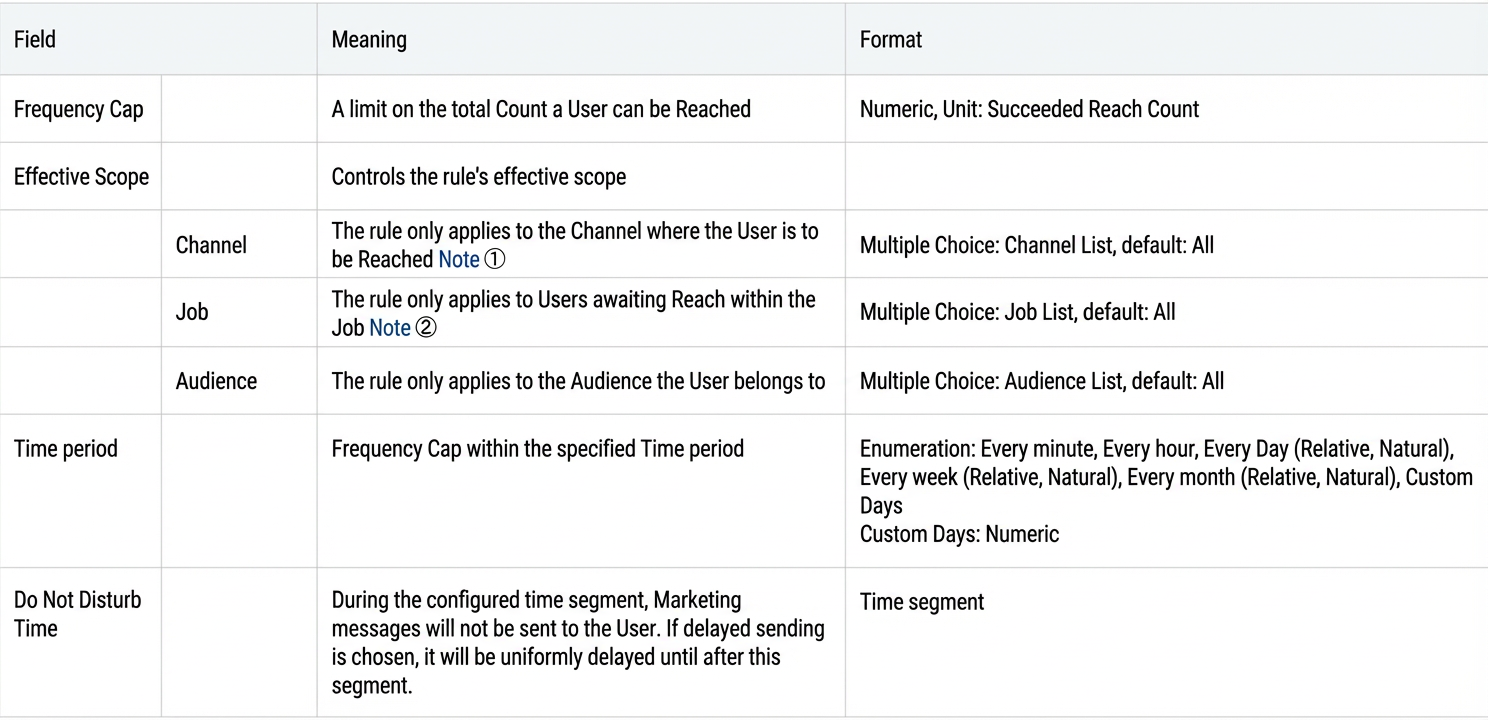
Note 1: Each channel can be further subdivided:
-
Text message, SuperSMS: SMS signature
-
WeChat Official Account: Official Account name
-
WeChat Mini Program: Mini Program name
-
APP PUSH: PUSH account
-
Email: Email account
-
Webhook: Webhook name
Note 2: Task types include the following:
-
User marketing tasks: Text message, WeChat Official Account (3 types of common tasks), WeChat Mini Program, Email, APP PUSH, Webhook
-
Automated marketing tasks
FAQ
-
Are touchpoint records from before a rule was set counted towards the limit?
A: No. Touchpoint records from before a rule was set are not counted towards the limit.
For example, a user has been contacted twice today. You then set the daily limit to three. The user can still be contacted three more times today.
-
What is the priority of the rules?
A: There is no priority. Global and single-channel controls are applied concurrently. If any control rule is triggered, the corresponding marketing message is not sent.
Example 1: If you set the global push limit to 20 times per day and the text message channel limit to 10 times per day, a user can receive a maximum of 10 text messages per day. However, the global limit also applies. For example, if other channels have already sent 11 messages to the user that day, the text message channel can only send 9 more messages (20 - 11 = 9) before reaching the global limit.
Example 2: If you set the global push limit to 10 times per day and the text message channel limit to 20 times per day, the user can receive a maximum of 10 messages in total from all channels, including text messages.