Hide a department from the address book
This topic describes how to hide a department and add departments to a whitelist.
Procedure
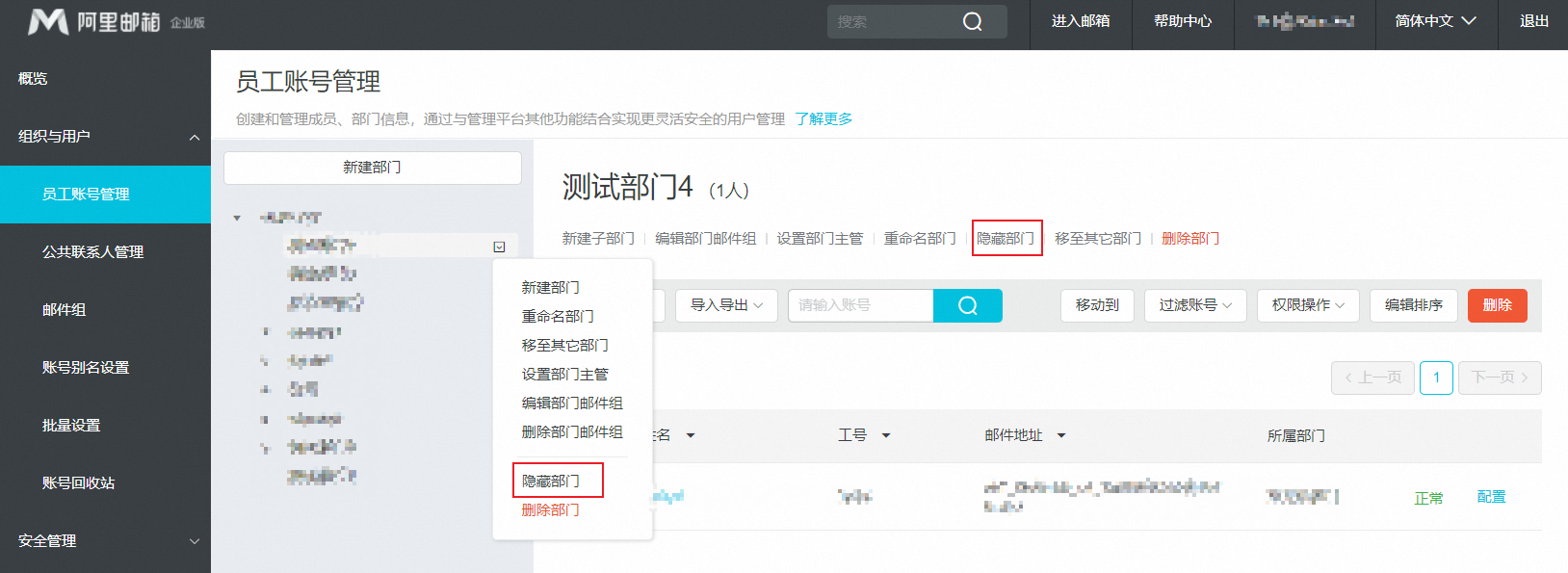
Method 1: Log on to the domain administrator console as the postmaster. Go to Organization and Users > Mailbox Management. Select the department and click Hide Department.
Notes
When a department is hidden, an indicator appears next to it in the organization tree. The department no longer appears in the address book. To make the hidden department visible to specific departments, you can add them to a whitelist.
Add departments to a whitelist
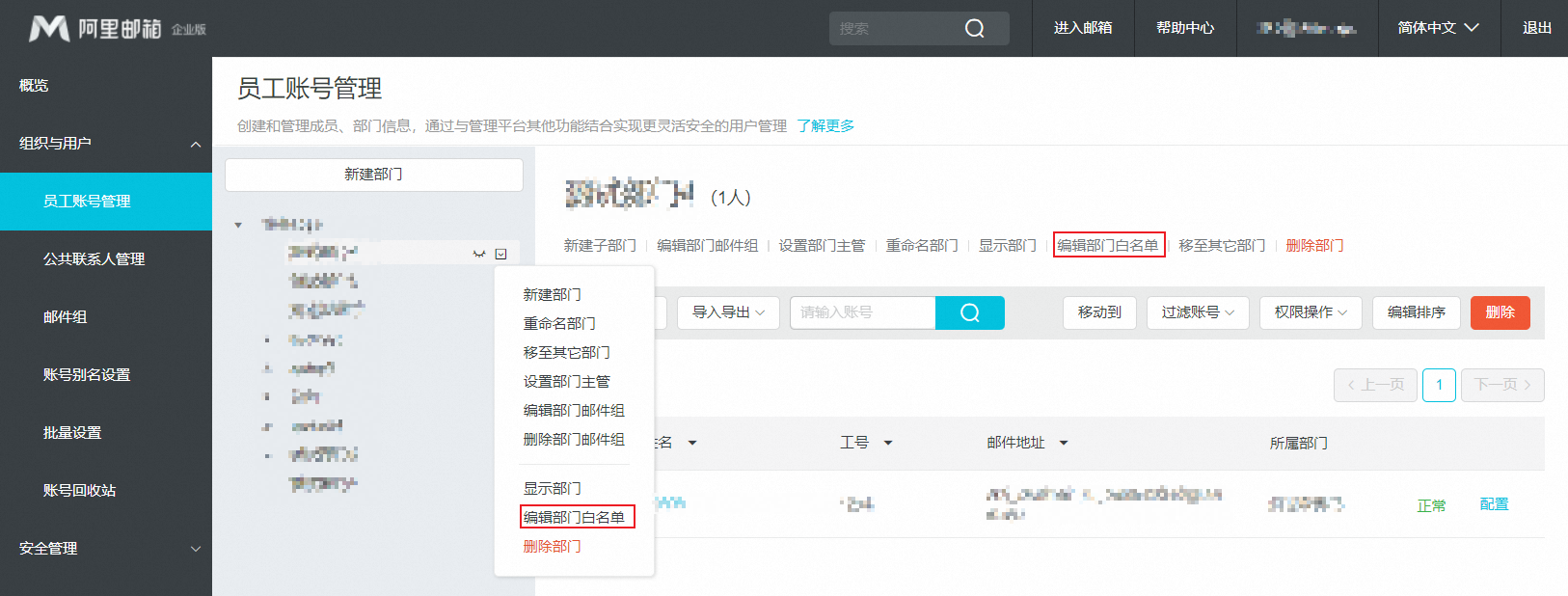
Method 1: Log on to the domain administrator console as the postmaster. Go to Organization and Users > Mailbox Management. Select a hidden department and click Add Department Whitelist. In the pop-up window, click the selection box, select the departments to add to the whitelist, and then click Confirm.
Method 2: Log on to the domain administrator console as the postmaster. Go to Organization and Users > Mailbox Management. Hover over a top-level department to display the drop-down menu icon. Click the icon and select Add Department Whitelist. In the pop-up window, click the selection box, select the departments to add to the whitelist, and then click Confirm.