Troubleshooting steps for auxiliary channels and pop-up windows on Android
Overview
This topic describes how to troubleshoot issues related to auxiliary channels and pop-up windows on Android.
Details
Parameter check
Log on to the Multiexperience Development Platform EMAS console. Select Mobile Push, choose the application, and then click Application Configuration. Ensure that the parameters for each platform match exactly and do not contain extra spaces.
Client integration confirmation
After each channel is successfully initialized, test push notifications in each vendor's console before you use the Alibaba Cloud Management Console or OpenAPI to send push notifications.
If the following log example is not printed during debugging, enable debug logs before you initialize and register the push SDK:
CloudPushService pushService = PushServiceFactory.getCloudPushService();
pushService.setLogLevel(CloudPushService.LOG_DEBUG); // LogLevel supports the following settings: CloudPushService.ERROR | CloudPushService.INFO | CloudPushService.DEBUG | CloudPushService.OFF (disables logs)
pushService.register(applicationContext, new CommonCallback() {...};
Huawei channel
The Huawei channel is successfully initialized if the returned result contains a token, as shown in the following figure. If no registration information is reported, verify that the registration was successful.

Xiaomi channel
The following figure shows a successful initialization of the Xiaomi channel.

GCM/FCM channel
When the GCM/FCM channel is successfully initialized, the following log information appears:
05-19 19:18:44.530 19153-19177/com.xxx D/MPS:GcmRegister: token from register: eWIXLYCNP0Q:APA91bFUAgxj6XYf5okyoCBnRPw1UwITndzXrvPDgbdI2N44PYm17hFEBiNXNQJrJ8bOG_xjw3c3UPDAhzNMTLNjlAKcjUanKyLA6E3k4wEmgZuhgUT02UMmMvH2LVA1L2Z4-l-cT_UgOPPO channel
To verify that the OPPO channel is registered successfully, filter the logs by the MPS:OPush keyword. A successful registration prints a log similar to "onRegister regid=****". If the registration fails, verify that the parameters are entered correctly. In the Alibaba Cloud console, enter the OPPO MasterSecret, not the AppSecret. If you cannot find the OPPO MasterSecret, contact OPPO customer service.
If `targetSdkVersion` is set to 26 or later, you must set a NotificationChannel when using the OPPO channel. For more information about NotificationChannel, see Devices running Android 8.0 or later cannot receive push notifications. For the OPPO channel, create a notification channel in the push console. Ensure that the ID of the NotificationChannel is correct and consistent across all configurations.
vivo channel
To verify that the vivo channel is registered successfully, filter the logs by the MPS:vPush keyword. A successful registration prints a log similar to "getRegId regId:**". Otherwise, verify that the parameters are entered correctly.
Meizu channel
When the Meizu channel is successfully initialized, the following log information appears:
Note: Configure a callback address in the Meizu console. For more information, see Integrate the Meizu auxiliary channel.
Check the auxiliary pop-up window configuration
When you integrate the auxiliary push channel, ensure that you use the latest auxiliary channel extension package. Verify that the current device supports auxiliary pop-up windows:
Xiaomi auxiliary pop-up window: Supported on V2.3.0 and later.
Huawei auxiliary pop-up window: Supported on V3.0.8 and later.
The Huawei pop-up window is currently supported only on EmotionUI 4.1 and later.
The specified managed pop-up Activity must inherit from AndroidPopupActivity. When registering it in AndroidManifest.xml, declare the android:exported=true attribute.
import com.alibaba.sdk.android.push.AndroidPopupActivity;
public class PopupPushActivity extends AndroidPopupActivity {
    static final String TAG = "PopupPushActivity";
    @Override
    protected void onCreate(Bundle savedInstanceState) {
        super.onCreate(savedInstanceState);
    }
    /**
      * Implement the notification open callback method to get notification information.
     * @param title     Title
     * @param summary   Content
     * @param extMap    Extra parameters
     */
    @Override
    protected void onSysNoticeOpened(String title, String summary, Map<String, String> extMap) {
        Log.d("OnMiPushSysNoticeOpened, title: " + title + ", content: " + summary + ", extMap: " + extMap);
    }
}
Server-side configuration
Note: During the push testing phase, do not use full push. Because full push might have delays in collecting statistics for newly registered devices, it can be misleading. During the integration phase, send pushes by deviceID.
Send pushes using OpenAPI
The advanced push API of OpenAPI 2.0 provides three parameters:
AndroidPopupActivity,AndroidPopupTitle, andAndroidPopupBody. These parameters are used to set the Activity that opens when the auxiliary pop-up notification is tapped, the notification title, and the notification content, respectively. TheStoreOfflineparameter must also be set to true.The auxiliary pop-up window takes effect only when the application's background process is terminated on a device that uses a vendor channel. It does not work for devices that do not use a vendor channel or for online devices.
When the auxiliary pop-up window is active, the Title, Body, AndroidActivity, and functional settings in the extra parameters, such as sound and vibration, of the push API do not take effect.
PushRequest pushRequest = new PushRequest();
// Other settings are omitted.
// Push type - Notification
pushRequest.setPushType("NOTICE");
// Title
pushRequest.setTitle(dateFormat.format(new Date()));
// Content
pushRequest.setBody("PushRequest body");
// Extra parameters
pushRequest.setAndroidExtParameters("{\"k1\":\"android\",\"k2\":\"v2\"}");
// Set the Activity to open for the auxiliary pop-up window
pushRequest.setAndroidPopupActivity("*****");
// Set the title for the auxiliary pop-up notification
pushRequest.setAndroidPopupTitle("*****");
// Set the content for the auxiliary pop-up notification
pushRequest.setAndroidPopupBody("*****");
// Set offline storage
pushRequest.setStoreOffline(true);
Send pushes using the Alibaba Cloud console
Log on to the Multiexperience Development Platform EMAS console. Select Mobile Push and choose the application. In the navigation pane on the left, choose Create Task > Push Notification. In the vendor settings, set the required parameters for the vendor channel, as shown in the following figure.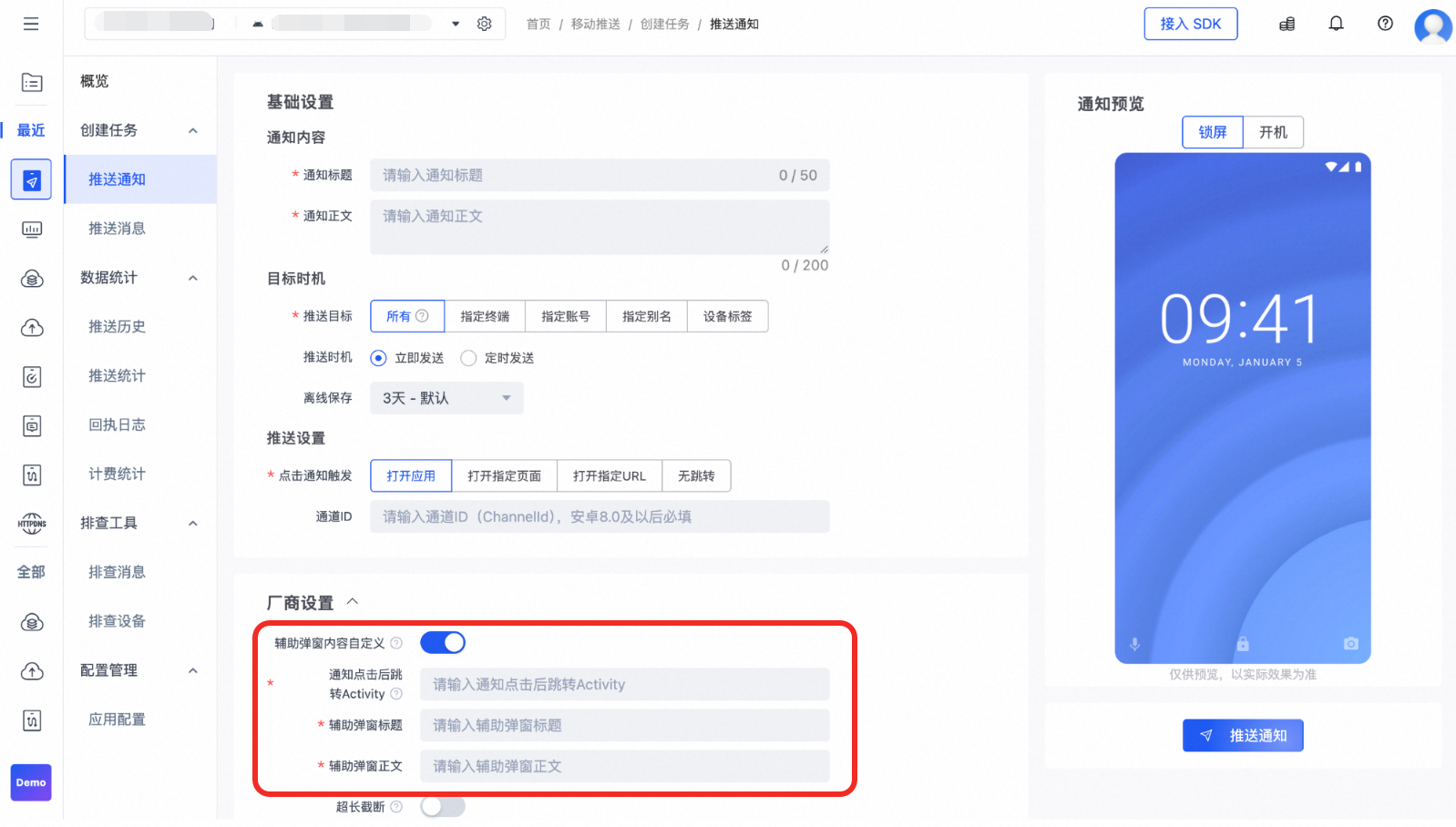
The problem persists
If the preceding steps do not resolve the issue and you still cannot send pushes to vendor devices using the advanced OpenAPI, you can seek assistance through the following channels. When you request assistance, provide the AppKey, messageID, and deviceID.
Submit a ticket. When you submit the ticket, select the Mobile Push category.
Alternatively, join the DingTalk group to ask questions:
DingTalk download link: Download DingTalk
DingTalk group number: 35248489
Applicable to
Mobile Push