Add an alert rule
Add alert rules to monitor your resources.
Procedure
Log on to the OceanBase Management Console .
In the navigation pane on the left, click Instance List.
On the cluster workbench page, click Performance Monitoring in the navigation pane on the left.
In the upper-right corner, click Add Alert Rule.
Specify the associated instance:
Product: This parameter is set to OceanBase Database by default.
Resource Scope: Select All Resources, Application Group, or Instance.
If you select All Resources, an alert notification is sent when any instance of the specified product meets the rule's conditions.
If you select Application Group, an alert notification is sent when an instance in the specified group meets the rule's conditions.
If you select Instance, an alert notification is sent only when the selected instance meets the rule's conditions. The option to create rules for an application group has been moved to the resource page for that group.
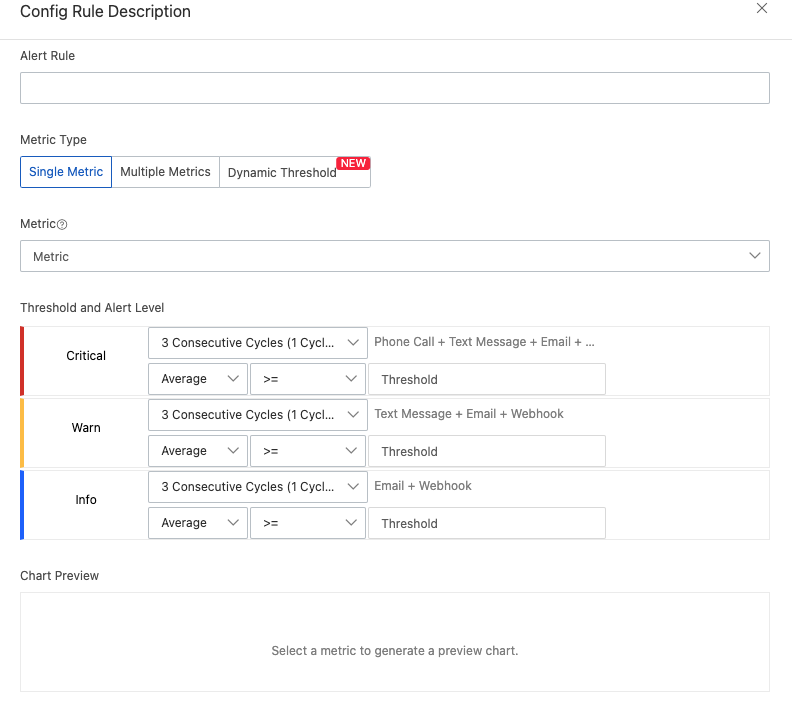
Configure the alert rule:
Rule Name: Enter a unique name for the rule.
Metric Type:
Single Metric: Select a metric, then set its threshold and alert level.
Multiple Metrics: Select an alert level, then set alert conditions for two or more metrics.
Dynamic Threshold: For more information about dynamic thresholds, see Overview and Create an alert rule with a smart threshold.
Metric: Specify the metric to monitor.
Threshold and Alert Level: Set the alert frequency for different alert levels.
Monitoring Chart Preview: Select a monitoring chart.
Configure other alert parameters.
Parameter
Description
Mute Period
The interval to wait before resending an alert notification if the alert is not resolved. Valid values: 5 minutes, 15 minutes, 30 minutes, 60 minutes, 3 hours, 6 hours, 12 hours, and 24 hours.
When a metric reaches its threshold, an alert notification is sent. If the metric continues to exceed the threshold during the mute period, no more notifications are sent. If the metric has not returned to normal after the mute period ends, Cloud Monitor sends another alert notification.
For example: If you set Mute For to 12 hours, Cloud Monitor resends the alert notification after 12 hours if the alert is not resolved.
Effective Period
The period during which the alert rule is active. Alert notifications are sent only during this period.
NoteWhen an alert rule is inactive, it does not send alert notifications. However, the alert is still recorded in the Alert History list.
Alert Contact Group
The contact group that receives alert notifications.
Alert notifications for the application group are sent to the contacts in this group. An alert contact group can contain one or more contacts.
For more information about how to create alert contacts and alert contact groups, see Create an alert contact or an alert contact group.
Tags
The tags for the alert rule. A tag consists of a key and a value.
NoteYou can add up to 6 tags.
Advanced Settings
For more advanced settings, see the Cloud Monitor document Create an alert rule.
Click Confirm to create the alert rule.