Backup policy
OceanBase Database lets you modify backup policies. You can change parameters such as the backup cycle, backup time, and retention period, and enable features such as archive backups or geo-redundancy as needed. When you create a cluster instance, a local level-1 backup policy is created by default, and log backup is enabled.
Concepts
Archive backup: This feature lets you store backup files that require long-term retention and are restored infrequently. Enabling archive backup incurs additional costs. For more information about billing, see Billing of backup and restoration. After you enable archive backup, backup files are migrated to archive storage after the retention period for level-1 backups expires. Backup files transferred to archive storage must be stored for at least 60 days. If you disable this feature before the 60-day period ends, you must pay the price difference to cover the full 60-day storage period.
NoteArchive backup depends on local level-1 backups. You must have a local level-1 backup before you can enable archive backup. To enable the archive backup feature, contact OceanBase technical support.
Archive backup is supported only on OceanBase V2.2.77 and later.
Archive backup can effectively reduce your storage cost. However, because archive backup uses low-speed storage media, the restoration speed is slower than that of level-1 backups.
Serverless instances do not support archive backup.
Geo-redundancy: This feature depends on local backups. You must have a local backup before you can enable a geo-redundant backup. However, the backup frequency, backup cycle, and data retention policy for geo-redundancy can be different from those for local backups. Geo-redundancy saves an extra copy of the backup file to a specified region. The storage space used is billed separately. For more information about billing, see Billing of backup and restoration. You can set only one geo-redundant region for each cluster instance. If you change the geo-redundant region or disable geo-redundancy, the system automatically clears the original level-1 backup files in the previous geo-redundant region.
You can choose a weekly or monthly backup frequency as needed. If you choose the weekly backup pattern, the system displays the local backup cycle options. If the local backup cycle is set to more than once a week, you can select at least one of these backups for the geo-redundant cycle. If you choose the monthly backup pattern, you can select to perform one or two backups per month.
Geo-redundancy is suitable for scenarios that have low requirements for data consistency but high requirements for data availability, such as large enterprises and multinational corporations. It helps improve data security, ensure data availability, and reduce data restoration time.
NoteData restoration from a geo-redundant backup generally depends on the most recent data backup before the point in time for recovery and the log backups created since then. To ensure that data can be restored within the specified retention period, the actual number of days that backups are retained may be longer than the period you select.
Serverless instances do not support geo-redundancy.
Sparse backup: This feature lets you set a more flexible backup policy and retain the minimum number of backup sets. This minimizes your storage cost and is often used for business scenarios that require long-term retention of backups, such as for auditing. To ensure that data can be restored to any point in time within the backup interval, you must retain log backups. If you disable this feature, the system immediately clears the corresponding backup files.
NoteAfter you enable sparse backup, you cannot enable archive backup or geo-redundancy.
Serverless instances do not support sparse backup.
Set a backup policy
Log on to the OceanBase Management Console .
In the left navigation pane, click Instance List.
In the instance list, click the name of the target cluster instance to open the Cluster Instance Workspace.
In the navigation pane on the left, click Backup and Restoration and then click the Backup Policy tab. This tab displays the backup policy for the cluster instance. The default backup policy is displayed when you back up the cluster for the first time.
In the upper-right corner of the page, click Modify Backup Policy:
Parameter
Default value
Description
Backup file storage region
Local
The storage region for backup files is the city where the current cluster instance is located.
Data backup type
Full
Currently, only full data backups are supported.
Log backup
Enabled by default
Log backup is enabled by default and cannot be disabled.
With log backup enabled, you can restore the cluster to any point in time within the log backup time range, in addition to the snapshot points of backup sets.
Backup cycle
The day after the cluster instance is created.
For example, if you create the cluster instance on a Monday, the backup is performed on Tuesday.
You can select the dates for backups. Backups can be performed on specified days of the week or month.
For data security, back up your data at least once a week.
Backup time
04:00
You can select a specific time for the backup from the drop-down list.
Perform backups during off-peak hours as needed.
Avoid setting the backup time within the data merge window (one hour before or after the data merge time). Otherwise, the backup job may be delayed.
Data backup retention period / Days for point-in-time recovery
7 days
By default, backup data is retained for 7 days. You can set the retention period from 2 to 7200 days. For more information about the relationship between Backup cycle and Data backup retention period / Days for point-in-time recovery, see Relationship between backup cycle and data backup retention period.
Sparse backup
Disabled by default
You can choose whether to enable sparse backup as needed.
The backup cycle for sparse backup depends on the local level-1 backup. You can select from the dates already chosen for the level-1 backup.
You can set a custom retention period for sparse backup data (30 to 7200 days) or retain it permanently.
You can choose whether to retain log backups.
Archive backup
Disabled by default
You can choose whether to enable archive backup as needed.
By default, the backup cycle for archive backup is the same as that for the level-1 backup. The time can be modified.
When a local level-1 backup expires, the system automatically converts it into an archive backup. The retention period for the archive backup is calculated from the creation time of the local level-1 backup. You must set its retention period to be longer than the original retention period of the local level-1 backup.
The retention period for archive backup data is 60 to 7200 days.
The data backup type, backup file storage region, and log backup information for archive backups are the same as those for level-1 backups.
Geo-redundancy
Disabled by default
You can choose whether to enable geo-redundancy as needed.
By default, geo-redundant backup data is retained for 7 days. You can set the retention period from 3 to 7200 days.
OceanBase V2.2.77 and V3.x support setting a separate geo-redundancy policy. Other versions, such as V4.x, support only the image pattern.
OceanBase V2.2.77 and V3.x support enabling geo-redundant archive backup.
Geo-redundant storage region for backup files
No default value
You can set only one geo-redundant storage region. After the geo-redundant region is confirmed, it cannot be modified.
NoteWhen cross-border backup is involved, you must sign the Cross-border Data Transfer Compliance Commitment. For more information, see Cross-border data transfer compliance commitment.
Backup retention policy upon instance release
Retain all existing data backups and their associated log backups
When the instance is released, retain all existing data backups and their associated log backups. You can view and restore data from the instance in the recycle bin. The instance does not go to the recycle bin if it is released due to a refund, a five-day unconditional refund, an expired subscription, or an overdue payment for a pay-as-you-go instance.
NoteRetaining backup files when an instance is released incurs costs. For more information about billing, see Billing of backup and restoration.
Do not retain backups (cannot be restored after release).
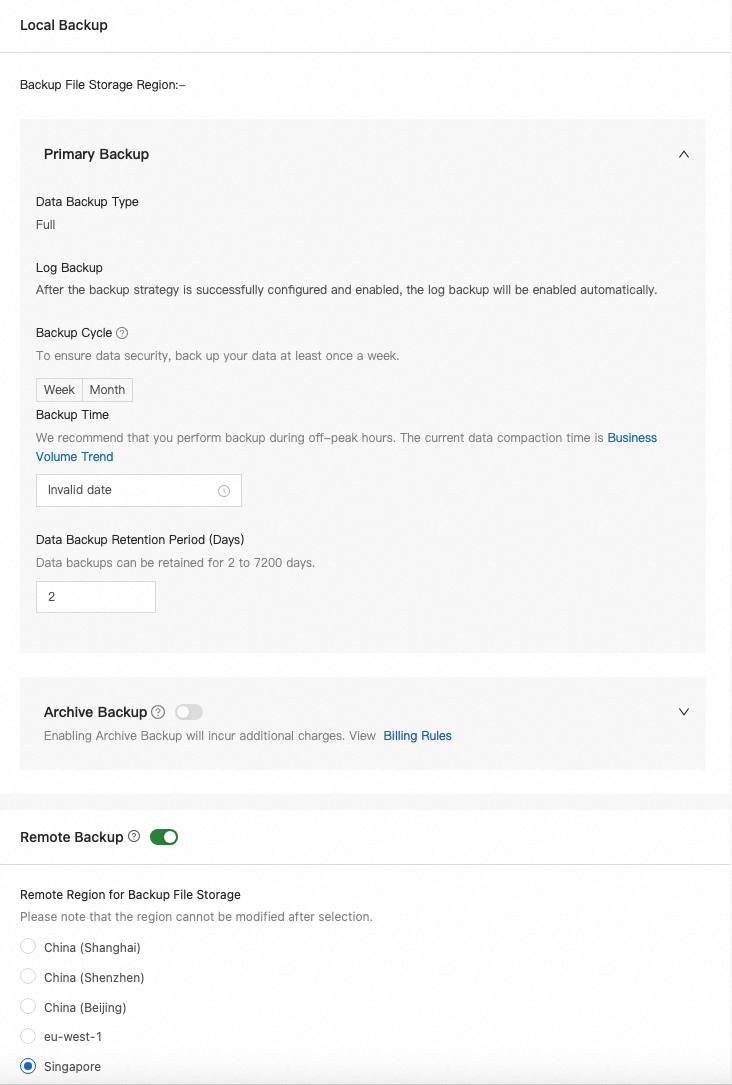
Click OK to complete the configuration.
Relationship between backup cycle and data backup retention period
Terms
The backup cycle is the interval at which full data backups are performed. You can set it to once a week, once a day, or a custom schedule, such as every Monday, Wednesday, and Friday. The length of the backup cycle affects the frequency of backup set creation and the recovery granularity.
The data backup retention period controls the backup lifecycle to ensure that point-in-time recovery (PITR) is possible. Expired backups are automatically deleted.
Mechanism
The backup cycle and the data backup retention period together determine the final number of data backup sets to be retained and the actual retention period for log backups.
The system retains backup sets based on the association between data and logs to ensure that you can perform PITR within the configured time range.
Data restoration generally depends on the most recent data backup before the point in time for recovery and the log backups created since then. To ensure that data can be restored within the specified retention period, the actual number of days that backups are retained may be longer than the period you set.
Configuration examples
Example 1: Back up once a week
Backup cycle | Data backup retention period / Days for point-in-time recovery | Maximum number of data backup sets to retain | Estimated actual retention period for log backups |
Once a week | 2 days | 2 | [2, 10] days |
Once a week | 7 days | 3 | [8, 15] days |
Example 2: Back up once a day
Backup cycle | Data backup retention period / Days for point-in-time recovery | Maximum number of data backup sets to retain | Estimated actual retention period for log backups |
Once a day | 2 days | 3 | [2, 4] days |
Once a day | 7 days | 8 | [8, 9] days |
Example 3: Back up every Monday, Wednesday, and Friday
Backup cycle | Data backup retention period / Days for point-in-time recovery | Maximum number of data backup sets to retain | Estimated actual retention period for log backups |
Every Monday, Wednesday, and Friday | 2 days | 3 | [3, 5] days |
Every Monday, Wednesday, and Friday | 7 days | 4 | [8, 10] days |
Cross-border data transfer compliance commitment
If geo-redundancy involves cross-border backup, you must agree to the Cross-border Data Transfer Compliance Commitment. The commitment is as follows:
The region you select or the deployment region of the product may involve cross-border data transfer. By agreeing and confirming, you acknowledge that you have full rights to dispose of this business data and are solely responsible for the act of data transfer. You must ensure that your data transfer complies with all applicable laws. This includes providing adequate data security protection technologies and policies, fulfilling legal obligations such as obtaining explicit consent from individuals, and completing data export security assessments and declarations. You also warrant that your business data does not contain any content that is restricted or prohibited from being transferred or disclosed under any applicable laws. If you fail to comply with the preceding statements and warranties, you will bear the corresponding legal consequences and be liable for any losses incurred by Alibaba Cloud, OceanBase, or other affiliated companies.