Database Audit provides an Agent management feature. You can use this feature to set resource usage thresholds for Agents on a server and perform operations such as suspending, waking up, or stopping Agents as needed. This topic describes how to manage Agents.
Prerequisites
An Agent is installed on your server. For more information, see Install an Agent.
Modify Agent configuration
Database Audit lets you configure Agent settings, such as operating mode, CPU affinity, maximum CPU and memory usage, and packet capture NICs. Follow these steps to modify the Agent configuration.
-
Log on to the Database Audit system.
For more information, see Log on to the Database Audit system.
-
In the left-side navigation pane, choose .
-
On the Agent Management tab, click Configure in the Actions column for the target Agent.
To apply the same configuration to multiple Agents, select the Agents and click Configure below the Agent list.
-
In the Modify Agent Configuration dialog box, configure the Agent parameters as described in the following table.
Category
Parameter
Description
Resource usage limits
CPU affinity
Select whether to enable or disable CPU affinity.
CPU affinity (also known as CPU association) keeps a process running on a specific CPU for as long as possible, preventing it from being migrated to other processors. In a multi-core system, each CPU has its own cache that stores information used by a process. If the process is scheduled to run on a different CPU, the cached information may not be reused, which lowers the CPU cache hit rate and reduces processing performance.
If you enable CPU affinity, the Agent runs on a single CPU core. If you disable it, the Agent runs on multiple CPU cores, which might consume more CPU resources. We recommend that you enable CPU affinity.
Max CPU usage
Specifies the maximum CPU utilization for the Agent. Default value: 100%. Valid values: 0% to 100%. A value of 0 indicates no limit.
Setting this value too low can result in incomplete audit data. We recommend that you set a reasonable value.
Max memory usage
Specifies the maximum memory that the Agent can use.
The memory that the Agent uses to cache data packets will not exceed this value. Setting this value too low can result in incomplete audit data. The default value is 200 MB. This value cannot exceed the maximum memory of the device.
Circuit breaking protection
ImportantIf any of these thresholds are exceeded, the Agent suspends operations until all metrics fall below the thresholds.
System CPU usage threshold
Specifies the CPU usage threshold for the system. Default value: 100%. Valid values: 0% to 100%. A value of 0 indicates no limit.
If the overall CPU usage of the server exceeds this value, the Agent suspends operations.
System memory usage threshold
Specifies the memory usage threshold for the system. Default value: 100%. Valid values: 0% to 100%. A value of 0 indicates no limit.
If the overall memory usage of the server exceeds this value, the Agent suspends operations.
System disk read IO threshold
Specifies the maximum disk read rate for the system. The default value is 0, which indicates no limit.
If the server's overall system disk read rate exceeds this value, the Agent suspends operations.
System Disk Write IOThreshold
Specifies the maximum disk write rate for the system. The default value is 0, which indicates no limit.
If the server's overall system disk write rate exceeds this value, the Agent suspends operations.
Packet capture and filtering settings
Packet capture NIC
Specifies the network interface cards (NICs) that the Agent uses to capture traffic. Separate multiple NIC names with spaces.
If this parameter is set, Database Audit captures traffic only from the specified NICs. If this parameter is not set, traffic is captured from all NICs by default.
Packet capture filter string
Specifies the packet capture filter string.
When configured, Database Audit stops automatic packet capture based on your configured assets. Instead, it captures only the traffic on the packet capture NICs that matches this filter string. Example:
(host 192.168.1.100 and port 3306) or (host 192.168.1.101 and port 3306).Filter by tool
When configured, traffic from the specified client tools is not forwarded. You can enter multiple values separated by commas. Example:
JDBC,Navicat Premium.exe.Filter by account
When configured, traffic from the specified database accounts is not forwarded. You can enter multiple values separated by commas. Example:
root,sa.Local loopback audit settings
Loopback NIC
Specifies the name of the loopback NIC.
If not set, the name of the loopback NIC is automatically identified. We recommend that you do not configure this parameter.
Loopback packet capture filter string
Specifies the packet capture filter string for the loopback interface.
When configured, Database Audit stops automatic packet capture based on your configured assets. Instead, it captures only the traffic on the loopback NIC that matches this filter string. Example:
(port 3306) or (port 3307).Loopback NIC replacement IP (IPv4)
Specifies the IPv4 address for local loopback.
When this address is set, Database Audit replaces the local loopback IPv4 address in the network traffic with this address. If this parameter is not set, no changes are made.
Loopback NIC replacement IP (IPv6)
Specifies the IPv6 address for local loopback.
When this address is set, Database Audit replaces the local loopback IPv6 address in the network traffic with this address. If this parameter is not set, no changes are made.
Remote logon audit
Disabled by default. When enabled, the IP address and port in local traffic are replaced with the IP address and port of the remote connection. You must add the IP address of the remotely connected server on the asset page. If no remote connection exists, no replacement occurs. Enabling this feature significantly degrades server performance due to additional network overhead and increased CPU and memory resource consumption.
Local audit
Audits database communication data from non-network sources, such as inter-process communication. This feature currently supports only specific versions of Oracle, PostgreSQL, MySQL, and SQL Server. We recommend that you do not enable this option if your environment does not meet these requirements.
Other
Debug mode
Enables or disables debug mode.
When enabled, Database Audit records more detailed debug logs.
Data transfer encryption
Enables or disables data transfer encryption.
When enabled, data forwarded by the Agent is encrypted.
CPU exception protection threshold
If the Agent's CPU usage exceeds this value, the Agent automatically attempts to resolve the exception. Under normal conditions, the Agent's CPU usage does not exceed your configured limit. This setting acts as a safeguard against unexpected issues. The default value is 100%. A value of 0 disables the CPU exception protection feature.
Memory exception protection threshold
If the Agent's memory usage exceeds this value, the Agent automatically attempts to resolve the exception. Under normal conditions, the Agent's memory usage does not exceed your configured limit. This setting acts as a safeguard against unexpected issues. The default value is 300 MB. A value of 0 disables the memory exception protection feature.
-
Click OK.
View Agent monitoring data
Database Audit allows you to view the CPU and memory usage of the server hosting an Agent, as well as metrics such as forwarding rate and dropped packets, within a specified time range. Follow these steps to view the Agent's monitoring data:
-
Log on to the Database Audit system.
For more information, see Log on to the Database Audit system.
-
In the left-side navigation pane, choose .
-
Find the target Agent and click Monitor in the Actions column.
-
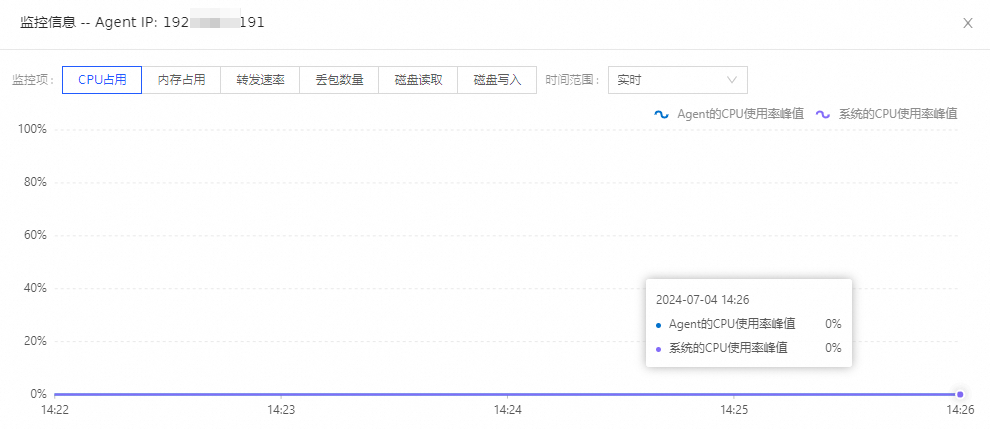
In the Monitoring Information dialog box, click the CPU Usage, Memory Usage, Forwarding Rate, Dropped Packets, Disk Read, or Disk Write tab to view the corresponding trend chart.
By default, Database Audit displays real-time monitoring information. You can select a different time range from the Time Range drop-down list.
Use tags to manage Agents
If you have a large number of Agents, you can use tags to quickly group them based on business attributes or physical locations. Follow these steps to add and remove tags for Agents.
-
Log on to the Database Audit system.
For more information, see Log on to the Database Audit system.
-
In the left-side navigation pane, choose .
-
On the Agent Management page, select the target Agent or Agents. Below the Agent list, select Add Tag or Remove Tag from the Set Tag drop-down list.
In the Add Tag or Remove Tag dialog box, select the tags you want to manage and click OK.
Manage Agent status
You can suspend, wake up, stop, or delete an Agent based on your business requirements. Follow these steps to perform these operations.
-
Log on to the Database Audit system.
For more information, see Log on to the Database Audit system.
-
In the left-side navigation pane, choose .
-
Find the target Agent and follow the instructions below to suspend, wake up, stop, or delete it.
-
Suspend an Agent
If the server hosting the Agent experiences high CPU or memory usage, you can suspend the Agent. Select the Agent that you want to suspend and click Suspend below the Agent list. After an Agent is suspended, it stops forwarding database access traffic to the Database Audit system but maintains its communication connection.
ImportantYou can only suspend an Agent that is in the Normal state.
-
Wake up an Agent
You can wake up a suspended Agent to resume its normal operation. Select the Suspended Agent that you want to wake up and click Wake Up below the Agent list.
-
Stop an Agent
You can stop an Agent if its server has high CPU or memory usage, or if you temporarily do not need it to forward database traffic. You can only stop an Agent that is in the Suspended or Normal state. Select the Agent you want to stop, click the
 icon, and then select Stop from the drop-down list. When stopped, the Agent stops forwarding database access traffic and disconnects from the Database Audit system. To restart the Agent, you must manually start it on its host server.
 -
Start an Agent
You can start a stopped Agent to resume its normal operation. Select the Stopped Agent that you want to start and click Start below the Agent list.
-
Upgrade an Agent
You can upgrade an Agent to the latest version if its status is Connected. Select the Agent you want to upgrade, click the
icon, and then select Upgrade from the drop-down list. -
Roll back an Agent
You can roll back an Agent to its previous version if its status is Connected. Select the Agent you want to roll back, click the
icon, and then select Roll Back from the drop-down list. -
Download Agent logs
In the Actions column of the target Agent, choose to download its logs for the most recent day.
-
Diagnose an Agent
In the Actions column of the target Agent, choose to view its current running status.
-
Uninstall an Agent
Select one or more Agents that are in the Connected, Stopped, or Suspended state, and click Uninstall below the Agent list to uninstall them.
-
Delete an Agent
You can delete an Agent if its status is Abnormal or if you no longer need it to forward database traffic. To delete an Agent, select it, click the
icon, and then select Delete from the drop-down list. Alternatively, find the Agent you want to delete and click Delete in its Actions column. A deleted Agent is removed from the Agent list.
-