Synchronize data from RDS PostgreSQL to Alibaba Cloud Message Queue for Kafka
Data Transmission Service (DTS) streams change data from an ApsaraDB RDS for PostgreSQL instance to an ApsaraMQ for Kafka instance in real time. DTS captures every INSERT, UPDATE, and DELETE from the source database and delivers them to a Kafka topic — no custom CDC pipeline required.
What DTS supports for this sync route:
| Category | Details |
|---|---|
| DML operations | INSERT, UPDATE, DELETE |
| DDL operations | CREATE TABLE, DROP TABLE, ALTER TABLE (common sub-commands), TRUNCATE TABLE (PostgreSQL 11+), CREATE INDEX ON TABLE |
| Kafka data formats | Canal JSON, DTS Avro, Shareplex JSON |
| Compression formats | LZ4 (default), GZIP, Snappy |
| Billing | Schema synchronization and full data synchronization are free. Incremental synchronization is charged. See Billing overview. |
Prerequisites
Before you begin, make sure that:
-
The destination ApsaraMQ for Kafka instance has enough storage space for all data to be synchronized.
-
A topic already exists in the destination Kafka instance to receive data. To create one, see Step 3: Create resources.
-
The
wal_levelparameter on the source RDS PostgreSQL instance is set tological. See Set instance parameters. -
Logical Replication Slot Failover is enabled on the source RDS PostgreSQL instance to prevent replication interruptions during a failover.
For supported source and destination versions, see Synchronization solutions.
Permissions required
The database account for the source RDS PostgreSQL instance must be a privileged account that is the owner of the database to be synchronized.
To create an account and set up a database, see Create an account and Create a database.
Limitations
Source database
Bandwidth and objects:
-
The server where the source database resides must have at least 100 Mbit/s of outbound bandwidth. Lower bandwidth reduces synchronization speed.
-
Tables must have primary keys or UNIQUE constraints with unique fields. Without them, duplicate data may appear in the destination.
-
If the destination table is not created by DTS (that is, Synchronization Types does not include Schema Synchronization), the destination table must have the same primary key or non-null UNIQUE constraint as the source table.
-
Database names cannot contain hyphens (
-). For example, a database nameddts-testdatacannot be synchronized. -
DTS does not synchronize TimescaleDB extension tables, tables with cross-schema inheritance, or tables that have expression-based unique indexes.
-
If you synchronize at the table level and need to map column names, split tasks that exceed 5,000 tables into multiple tasks, or configure the task to synchronize the entire database instead.
WAL retention requirements:
| Synchronization type | Minimum WAL retention |
|---|---|
| Incremental synchronization only | More than 24 hours |
| Full data synchronization + incremental synchronization | At least 7 days |
After the initial full data synchronization completes, you can reduce the retention period to more than 24 hours. If the task fails because DTS cannot retrieve the required WAL logs, or if data inconsistency or loss occurs due to insufficient retention, the issue is not covered by the DTS Service-Level Agreement (SLA).
Operations that interrupt synchronization:
| Operation | Impact |
|---|---|
| DDL changes using non-standard syntax | Task may fail or data may be lost |
| Major engine version upgrade on the source database | Instance fails and cannot be recovered; you must reconfigure |
| Single incremental data record exceeds 256 MB | Instance fails and cannot be recovered; you must reconfigure |
| DDL operations during schema or full data synchronization | Task fails |
During full data synchronization, DTS queries the source database and acquires metadata locks. This may block DDL operations on the source database.
Long-running transactions: If the source database has long-running transactions and the task includes incremental synchronization, WAL logs generated before those transactions are committed cannot be cleared. This can cause the source database disk to run out of space.
Other limits
-
A single synchronization task covers one database only. To synchronize multiple databases, create a separate task for each.
-
Run
ALTER TABLE schema.table REPLICA IDENTITY FULL;on the tables to be synchronized before writing data to them in the following cases: Replaceschemaandtablewith the actual schema and table names. Run this command during off-peak hours and avoid table locking operations while it runs. If you skip the related precheck items, DTS runs this command automatically during task initialization.-
When the task runs for the first time.
-
When the synchronization granularity is schema, and a new table is created in that schema or a table is rebuilt using the RENAME command.
-
When you use the Modify Objects feature.
-
-
DTS creates the following temporary tables in the source database to capture DDL statements, table structure changes, and heartbeat information. Do not delete them while the task is running — they are removed automatically when the DTS instance is released.
public.dts_pg_class,public.dts_pg_attribute,public.dts_pg_type,public.dts_pg_enum,public.dts_postgres_heartbeat,public.dts_ddl_command,public.dts_args_session,public.aliyun_dts_instance -
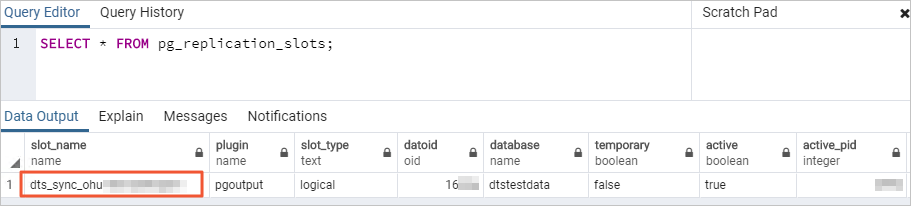
DTS creates a replication slot with the prefix
dts_sync_in the source database and uses it to obtain incremental logs from the source database within 15 minutes. DTS attempts to clear this slot automatically when synchronization fails or the instance is released.ImportantIf you change the database account password or remove the DTS IP address whitelist from the source database during synchronization, the replication slot cannot be cleared automatically. Clear it manually to prevent disk space exhaustion, which can make the source database unavailable. If a failover occurs on the source database, log in to the secondary database to manually clear the replication slot.
-
During initial full data synchronization, DTS consumes read and write resources on both the source and destination databases. Run synchronization during off-peak hours (when CPU usage on both databases is below 30%).
-
Concurrent INSERT operations during full data synchronization cause table fragmentation in the destination. Destination tables may use more storage space than the corresponding source tables after synchronization completes.
-
If the destination Kafka instance is scaled out or in while the synchronization instance is running, restart the synchronization instance.
-
If sources other than DTS write data to the destination database, data inconsistency may occur or the synchronization instance may fail.
-
DTS validates data content but does not validate metadata such as sequences. Validate metadata yourself.
-
If the task fails, DTS technical support attempts recovery within 8 hours. Recovery may involve restarting the task or adjusting DTS task parameters. Database parameters are not changed. For parameters that may be modified, see Modify instance parameters.
-
For partitioned tables, include both the parent table and all child tables as synchronization objects. The parent table of a PostgreSQL partitioned table does not store data directly — all data is in the child tables. Excluding any child table leads to data inconsistency.
Special cases
ApsaraDB RDS for PostgreSQL source: Do not change the endpoint or zone of the source instance during synchronization. Doing so causes the synchronization task to fail.
Self-managed PostgreSQL source: The values of max_wal_senders and max_replication_slots must each be greater than the sum of the replication slots currently in use and the number of DTS instances you plan to create using this database as the source.
Google Cloud SQL for PostgreSQL source: The Database Account must have the cloudsqlsuperuser permission. When selecting synchronization objects, include only objects that the account is authorized to manage, or grant the Owner permission using:
GRANT <owner_of_the_object_to_be_synchronized> TO <source_database_account_used_by_the_task>;An account with thecloudsqlsuperuserpermission cannot manage data owned by another account that also hascloudsqlsuperuserpermission.
DDL synchronization limits
Requirements for DDL synchronization:
-
The database account for the source database must be a privileged account.
-
The RDS PostgreSQL minor engine version must be 20210228 or later. To upgrade, see Upgrade the minor engine version.
Supported DDL statements:
| Statement | Conditions |
|---|---|
CREATE TABLE, DROP TABLE |
— |
ALTER TABLE |
Includes: RENAME TABLE, ADD COLUMN, ADD COLUMN DEFAULT, ALTER COLUMN TYPE, DROP COLUMN, ADD CONSTRAINT, ADD CONSTRAINT CHECK, ALTER COLUMN DROP DEFAULT |
TRUNCATE TABLE |
PostgreSQL 11 or later |
CREATE INDEX ON TABLE |
— |
Not supported in DDL synchronization:
-
Additional modifiers such as
CASCADEorRESTRICTin DDL statements -
DDL statements in sessions that use
SET session_replication_role = replica -
DDL statements executed by calling a
FUNCTION -
DDL statements in transactions that also contain DML statements
-
DDL statements for objects not included in the synchronization task
-
DDL statements executed within a plugin using the Server Programming Interface (SPI)
Data of the BIT type cannot be synchronized during incremental data synchronization.
Set up a synchronization task
Step 1: Go to the sync task list
Use one of the following methods:
From the DTS console
-
Log on to the Data Transmission Service (DTS) console.
-
In the left navigation pane, click Data Synchronization.
-
In the upper-left corner, select the region where the synchronization instance will run.
From the DMS console
The actual steps may differ based on your DMS console mode and layout. See Simple mode and Customize the layout and style of the DMS interface.
-
Log on to Data Management (DMS).
-
In the top menu bar, choose Data + AI > Data Transmission (DTS) > Data Synchronization.
-
To the right of Data Synchronization Tasks, select the region where the synchronization instance will run.
Step 2: Create the task
Click Create Task to open the task configuration page.
Step 3: Configure source and destination databases
| Field | Value |
|---|---|
| Task Name | DTS generates a name automatically. Enter a descriptive name for easy identification. Names do not need to be unique. |
| Source — Select Existing Connection | Select an existing database instance from the drop-down list to auto-fill the connection details, or configure the fields below manually. In the DMS console, this field is named Select a DMS database instance. |
| Source — Database Type | Select PostgreSQL. |
| Source — Access Method | Select Alibaba Cloud Instance. |
| Source — Instance Region | Select the region where the source RDS PostgreSQL instance resides. |
| Source — Replicate Data Across Alibaba Cloud Accounts | Select No if the source instance belongs to the current account. |
| Source — Instance ID | Select the ID of the source RDS PostgreSQL instance. |
| Source — Database Name | Enter the name of the database that contains the objects to synchronize. |
| Source — Database Account | Enter the database account. For permission requirements, see Permissions required. |
| Source — Database Password | Enter the password for the database account. |
| Destination — Select Existing Connection | Select an existing database instance from the drop-down list to auto-fill the connection details, or configure the fields below manually. In the DMS console, this field is named Select a DMS database instance. |
| Destination — Database Type | Select Kafka. |
| Destination — Access Method | Select Alibaba Cloud Instance. |
| Destination — Instance Region | Select the region where the destination Kafka instance resides. |
| Destination — Replicate Data Across Alibaba Cloud Accounts | Select No if the destination instance belongs to the current account. |
| Destination — Kafka Instance ID | Select the ID of the destination Kafka instance. |
| Destination — Encryption | Select a connection method based on your Kafka instance configuration and security requirements. |
| Destination — Topic | Select a topic from the drop-down list to receive the synchronized data. |
| Destination — Use Kafka Schema Registry | Kafka Schema Registry provides a RESTful interface for storing and retrieving Avro schemas. Select No to skip it, or Yes to use it and enter the URL or IP address where the Avro schema is registered. |
After completing the configuration, click Test Connectivity and Proceed.
Add the IP address CIDR blocks of DTS servers to the security settings of the source and destination databases. This can be done automatically or manually. See Add the IP address CIDR blocks of DTS servers to a whitelist.
If the source or destination is a self-managed database (where Access Method is not Alibaba Cloud Instance), click Test Connectivity in the CIDR Blocks of DTS Servers dialog box as well.
Step 4: Configure synchronization objects
On the Configure Objects page, set the following parameters:
| Parameter | Description |
|---|---|
| Synchronization Types | Incremental Data Synchronization is selected by default. Also select Schema Synchronization and Full Data Synchronization to use the full dataset as a baseline for incremental sync. Note
If the destination Kafka instance Access Method is Alibaba Cloud Instance, Schema Synchronization is not supported. |
| Processing Mode of Conflicting Tables | Precheck and Report Errors — the precheck fails if a table with the same name exists in the destination. Ignore Errors and Proceed — skips the duplicate table check. Warning
This option may cause data inconsistency. If table schemas match and a record has the same primary or unique key, DTS keeps the destination record during full synchronization and overwrites it during incremental synchronization. If schemas differ, synchronization may fail or result in partial data. |
| Data Format in Kafka | The format for data written to Kafka. Canal JSON — see Canal JSON format. DTS Avro — parse data using the DTS Avro schema definition and deserialization example. Shareplex JSON — see Shareplex JSON format. |
| Kafka Data Compression Format | LZ4 (default) — low compression ratio, fast speed. GZIP — high compression ratio, slower speed; uses more CPU. Snappy — medium compression ratio and speed. |
| Policy for Shipping Data to Kafka Partitions | Select a partition routing policy based on your requirements. |
| Message acknowledgement mechanism | Select a message acknowledgment mechanism based on your requirements. |
| Topic That Stores DDL Information | Select a topic from the drop-down list to store DDL events. If not set, DDL events are stored in the same topic as data. |
| Capitalization of Object Names in Destination Instance | Configure the case policy for database, table, and column names in the destination. The DTS default policy is selected by default. See Case sensitivity policy for destination object names. |
| Source Objects | Click an object in the Source Objects box, then click the arrow icon to move it to the Selected Objects box. You can select schemas or individual tables. |
| Selected Objects | To map a source table to a specific Kafka topic, partition count, or partition key, see Map topic and partition settings. To filter by SQL operation at the database or table level, right-click the object in Selected Objects and configure in the dialog. Note
Using the object name mapping feature may cause synchronization to fail for other objects that depend on the mapped object. |
Click Next: Advanced Settings.
Step 5: Configure advanced settings
| Parameter | Description |
|---|---|
| Dedicated Cluster for Task Scheduling | By default, DTS runs tasks on a shared cluster. For more stable performance, purchase a dedicated cluster. See What is a DTS dedicated cluster?. |
| Retry Time for Failed Connections | The time DTS retries after a connection to the source or destination fails. Default: 720 minutes. Range: 10–1,440 minutes. Set to 30 minutes or more. If DTS reconnects within this window, the task resumes automatically. Note
If multiple DTS instances share the same source or destination, the shorter retry duration applies to all. DTS charges for runtime during retry periods — set a duration appropriate for your needs or release the instance promptly after the source and destination are released. |
| Retry Time for Other Issues | The time DTS retries after non-connection failures (such as DDL or DML exceptions). Default: 10 minutes. Range: 1–1,440 minutes. Set to 10 minutes or more. Must be less than Retry Time for Failed Connections. |
| Enable Throttling for Full Data Synchronization | Limit the read/write rate during full synchronization to reduce database load. Configure Queries per second (QPS) to the source database, RPS of Full Data Migration, and Data migration speed for full migration (MB/s). Available only when Full Data Synchronization is selected. You can also adjust the rate after the task starts. |
| Enable Throttling for Incremental Data Synchronization | Limit the rate of incremental synchronization. Configure RPS of Incremental Data Synchronization and Data synchronization speed for incremental synchronization (MB/s). |
| Timeout for modifying table REPLICA IDENTITY to FULL during initialization | The maximum time DTS waits for a single ALTER TABLE ... REPLICA IDENTITY FULL DDL to complete during task initialization. |
| Retry interval for modifying the table's REPLICA IDENTITY to FULL during initialization | The wait interval between retries when the ALTER TABLE ... REPLICA IDENTITY FULL DDL times out during initialization. |
| Environment Tag | (Optional) Select a tag to identify the environment of this instance. |
| Scene Label | (Optional) Select a scenario tag to identify the instance. Scenario tags do not affect task operation. |
| Configure ETL | Choose whether to configure extract, transform, and load (ETL). Select Yes to enter data processing statements. See Configure ETL in a DTS migration or sync task. Select No to skip. |
| Monitoring and Alerting | Select Yes to receive notifications when the task fails or latency exceeds a threshold. Configure an alert threshold and contact. See Configure monitoring and alerting during task configuration. Select No to skip. |
Step 6: Run the precheck
Click Next: Save Task Settings and Precheck.
To review API parameters before saving, hover over the Next: Save Task Settings and Precheck button and click Preview OpenAPI parameters.
DTS runs a precheck before starting the synchronization task. The task starts only if all precheck items pass.
If the precheck fails, click View Details next to the failed item, fix the issue as described, and run the precheck again.
If the precheck shows a warning for an item that can be ignored, click Confirm Alert Details, Ignore, OK, and Precheck Again in sequence. Ignoring warnings may cause data inconsistency.
Step 7: Purchase the instance
-
When the Success Rate reaches 100%, click Next: Purchase Instance.
-
On the Purchase page, configure the billing and specification:
Parameter Description Billing Method Subscription — pay upfront; suitable for long-term use. Available durations: 1–9 months, or 1, 2, 3, or 5 years. The longer the duration, the higher the discount. Pay-as-you-go — charged hourly; suitable for short-term use. Release the instance immediately after use to minimize cost. Resource Group Configuration The resource group for the instance. Defaults to the default resource group. See What is Resource Management?. Link Specification The performance level for the synchronization link, which determines synchronization speed. Choose based on your workload. See Data synchronization link specifications. -
Read and select Data Transmission Service (Pay-as-you-go) Service Terms.
-
Click Buy and Start, then click OK in the confirmation dialog.
The task appears on the Data Synchronization page. You can monitor its progress there.
Map topic and partition settings
To map a source table to a specific Kafka topic, set the partition count, or configure a partition key:
-
In the Selected Objects box, hover over the destination topic name at the table level.
-
Click Edit that appears next to the topic name.
-
In the Edit Table dialog box, configure the mapping:
Parameter Description Name of target Topic The topic in the destination Kafka instance that receives data from this source table. Defaults to the Topic selected in the destination database configuration. ImportantFor an ApsaraMQ for Kafka instance, the topic must already exist in the destination — DTS does not create it. For a self-managed Kafka instance with schema synchronization enabled, DTS attempts to create the topic. If you change this value, data is written to the new topic you entered.
Filter Conditions See Set filter conditions. Number of Partitions The number of partitions for writing data to the destination topic. Partition Key Available only when Policy for Shipping Data to Kafka Partitions is set to Ship Data to Separate Partitions Based on Hash Values of Primary Keys. Select one or more columns as the partition key. DTS routes rows to partitions based on the hash value of the key. This option is available only in the Edit Table dialog, not Edit Schema. -
Click OK.
At the schema level, the dialog is named Edit Schema and supports fewer parameters. If the synchronization objects are not an entire schema, Name of target Topic and Number of Partitions cannot be modified in Edit Schema.
FAQ
Can I change the Kafka Data Compression Format after the task is created?
Yes. Use the Modify Sync Objects feature.
Can I change the message acknowledgement mechanism after the task is created?
Yes. Use the Modify Sync Objects feature.