Wanxiaozi Creative Mode lets you bind a custom domain name, configure DNS resolution and HTTPS, and display your ICP and public security filing numbers. For Alibaba Cloud domain names under the same account, use one-click resolution and one-click HTTPS. For domain names from other registrars or under different Alibaba Cloud accounts, use manual resolution and your own certificate.
Bind a domain name
After binding a domain name to your site application, visitors can use it to access your site.
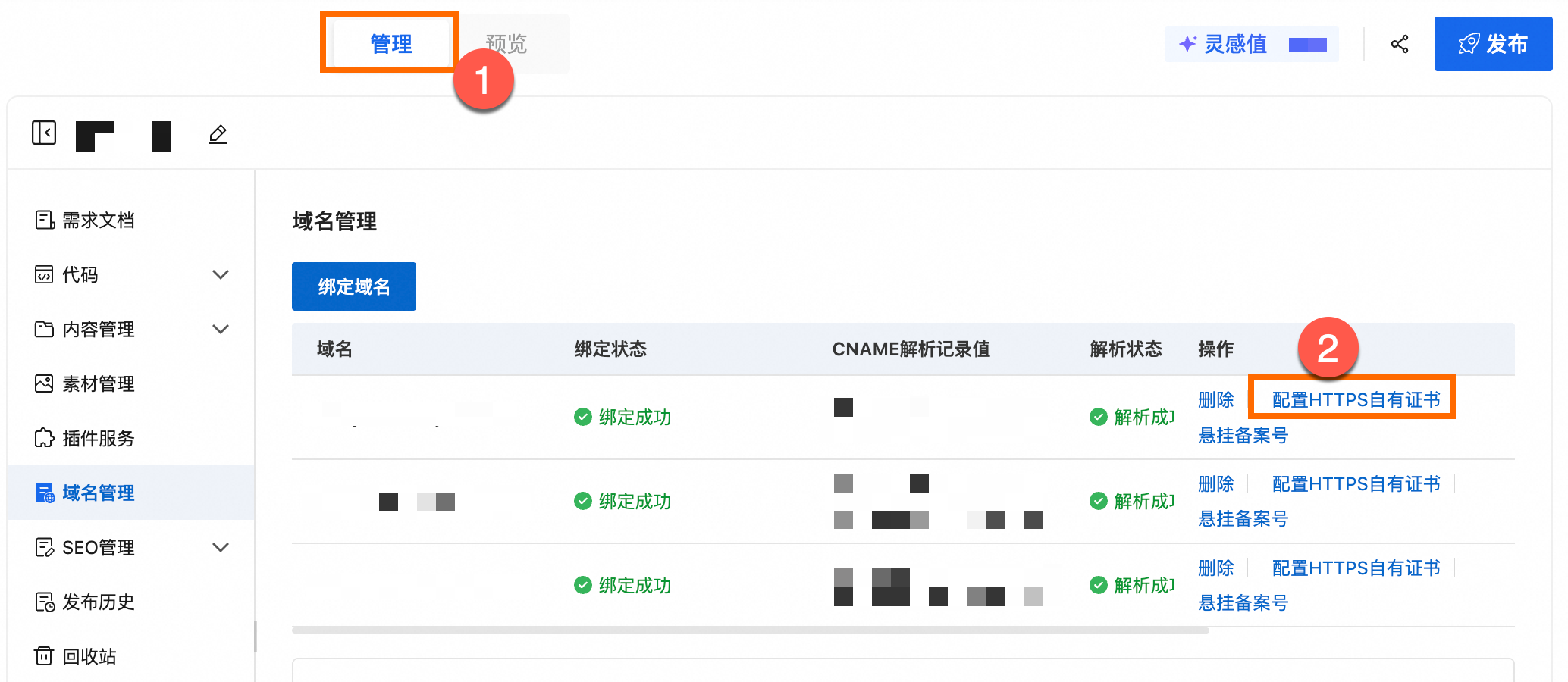
In the Applications list, open your target application. At the top of the page, click the Manage tab to enter the backend management console.
In the left-side navigation pane, click Domain names to open the domain name management page.
Click Bind domain name. In the dialog box that appears, select a domain name from the drop-down list of domains under your current Alibaba Cloud account, and then click OK.
You can bind multiple domain names to a single site. To point multiple domain names to the same site, bind each one individually.
The system automatically adds a
wwwprefix for any root domain you add (for example,www.aliyun.com).Internationalized Domain Names (IDNs) do not support CDN acceleration or HTTPS.
If the domain name is under your current account and has an ICP filing, the system automatically prepares the resolution information. This typically takes 2 to 3 minutes.
Configure DNS resolution
Configure DNS resolution to point your domain name to your Wanxiaozi Creative Mode site. After the DNS changes propagate, visitors can access your site by using the domain name.
Choose a resolution method based on where your domain name is registered:
one-click resolution: For domain names registered with or transferred to Alibaba Cloud under the current account. This is the recommended method.
manual resolution: For domain names registered with other registrars or under a different Alibaba Cloud account.
The domain name management page displays your domain names in a table. Common columns include Domain name, Binding status, CNAME record value, Resolution status, HTTPS, and Actions. The actual column names and order may vary in the console.
One-click resolution (for same-account Alibaba Cloud domains)
After binding an Alibaba Cloud domain name from the same account, the system can complete the DNS resolution automatically. The CNAME record value usually appears within 2 to 3 minutes. If the list does not update, refresh the page. If the record still does not appear, click Retry.
ICP filing: You must complete ICP filing for your domain name if you use nodes in the Chinese mainland.
Account authorization: If you are performing this action for the first time, follow the on-screen prompts to complete the authorization.
If one-click resolution fails, confirm that the domain name is registered with Alibaba Cloud. If it was purchased from another registrar, you can first transfer the domain name to Alibaba Cloud.
Manual resolution (for external or cross-account domains)
ICP filing: You must complete ICP filing for your domain name if you use nodes in the Chinese mainland.
DNS resolution verification: For domain names not registered with Alibaba Cloud or not under the current account, you must add a TXT record to complete verification.
In the Binding status column for your domain name, click Verify. In the dialog box that appears, copy the Host record and Record value.
Add a TXT record with your DNS provider.
If your domain is not registered with Alibaba Cloud, add the TXT record with your domain registrar.
If the domain is under a different Alibaba Cloud account, switch to that account before you proceed.
Example with an Alibaba Cloud domain name: Switch to the account that owns the domain name, log on to the Alibaba Cloud DNS console, navigate to Public DNS, and click DNS settings next to your domain name.
Return to the Wanxiaozi Creative Mode domain name management page and click Click to verify. If verification fails, correct the TXT record and try again. Note that it can take some time for DNS changes to propagate globally.
Get the CNAME record value: After the domain binding is successful, wait about 2 to 3 minutes for the CNAME record value to appear. Once it appears, copy it for the next step.
Add CNAME records.
Example with an Alibaba Cloud domain name: Log on to the Alibaba Cloud DNS console, open the DNS settings for your domain, click Add record, and add the following two CNAME records.
Record 1: Add a CNAME record for the
wwwsubdomainRecord type:
CNAMEHost record:
wwwRecord value: Paste the record value that you copied in the previous step.
TTL:
10 minutes
Record 2: Add a CNAME record for the root domain
Record type:
CNAMEHost record:
@(The @ symbol represents the root domain itself. Some DNS providers may require you to leave this field blank.)Record value: Paste the record value that you copied in the previous step.
TTL:
10 minutes
Configure HTTPS
Choose one of the following methods to configure HTTPS:
Method 1: One-click configuration (automatic certificate application)
The certificate is applied for and renewed automatically.
Method 2: Manual deployment (use an existing certificate or apply for one manually)
Apply for, verify, and download a certificate from Certificate Management Service or another platform, and then upload it. This method is suitable if you already have a certificate or need to manage the certificate files yourself.
One-click configuration (automatic certificate)
After you bind a domain name, the system completes the security certificate configuration. For a domain name under the same account that has completed ICP filing, binding it often triggers the one-click HTTPS feature automatically. The system adds a TXT record to Alibaba Cloud DNS for ACME validation, and the HTTPS column may briefly show "Configuring". The certificate is valid for 90 days and is automatically renewed about one week before it expires.
Manual deployment (your own certificate)
If you already have certificate files, follow the instructions in Step 4: Configure the certificate to deploy it.
Step 1: Obtain a certificate
Alibaba Cloud certificate: The following steps use a Personal Test Certificate (Free Edition) as an example. This free certificate is valid for 90 days and must be re-applied for and re-installed upon expiration. For information on paid certificates, see SSL Certificate Selection Guide.
Third-party platforms: Follow the instructions that are provided by your platform to obtain a certificate.
Log on to the Certificate Management Service console. In the navigation pane on the left, choose . On the Individual Test Certificate (Formerly Free Certificate) tab, click Buy Now.
In the Buy Now panel, enter the Purchase Quantity, keep other configuration items at their default settings, carefully read and check the Certificate Management Service Terms of Service and Technical Support Agreement for Certificate Management Service, click Buy Now, and complete the payment.
ImportantIf this account does not meet the Personal Test Certificate (Free Edition) Purchase Rules, see Purchase a Personal Test Certificate (Pro).
After obtaining a personal test certificate (Free Edition), you cannot cancel the order.
Step 2: Apply for and verify the certificate
The following steps use an Alibaba Cloud Personal Test Certificate (Free Edition) as an example:
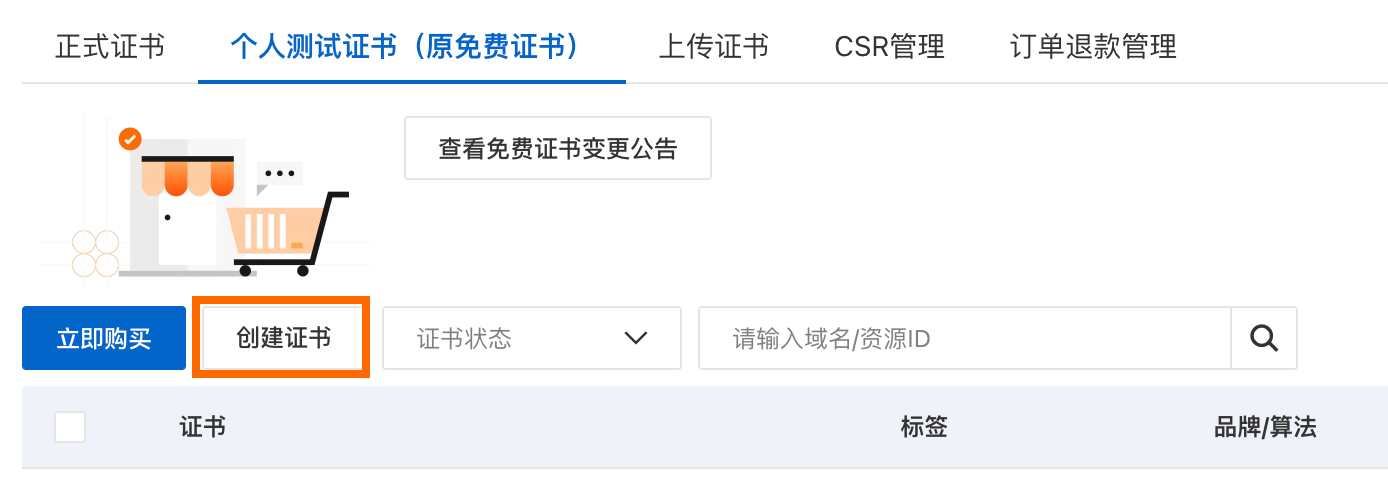
Log on to the Certificate Management Service console. On the Personal Test Certificate (formerly Free Certificate) tab, click Create certificate.
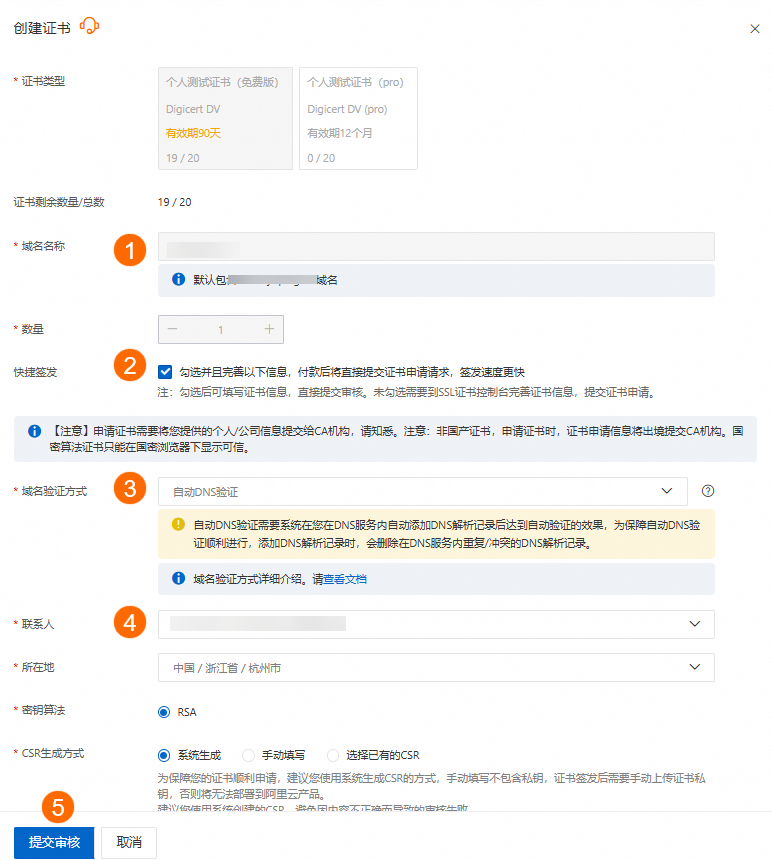
Fill in the required fields, leave the others as default, review your entries, and then click Submit for review.
Domain name: Enter the domain name for which you are applying for the certificate (for example, example.com).
Select Quick issue and fill in the following information.
Domain verification method: Select Automatic DNS verification.
If the domain's DNS resolution and the certificate are managed under the same Alibaba Cloud account, the system typically uses automatic DNS verification. After submission, you just need to wait for the certificate to be issued.
NoteIf the current Alibaba Cloud account is different from the account where the domain's Alibaba Cloud DNS is managed, you can choose one of the following methods:
Manual DNS verification: Add a verification CNAME or TXT record with your DNS provider.
File verification: Place a verification file in a specified path on the web server that your domain points to.
For more information on verification methods, see Domain Ownership Verification.
Contact: Select a contact for this certificate application.
Complete domain validation. Click Verify in the Actions column of the target Subscription Instance. Follow the on-screen instructions to complete the domain ownership validation.
After domain ownership validation is successful, the certificate is typically issued within 1 to 15 minutes (average time). After certificate issuance, the Status changes to Issued. If your SSL certificate is not issued after a long time, check whether your DNS validation configuration is correct.
NoteCertificates are valid for 90 days from the date of issuance.
If you encounter prolonged DNS verification failures, such as incorrect file content, mismatched DNS record values, or DNS validation timeout, see Domain ownership verification issues for solutions.
Step 3: Download the certificate files
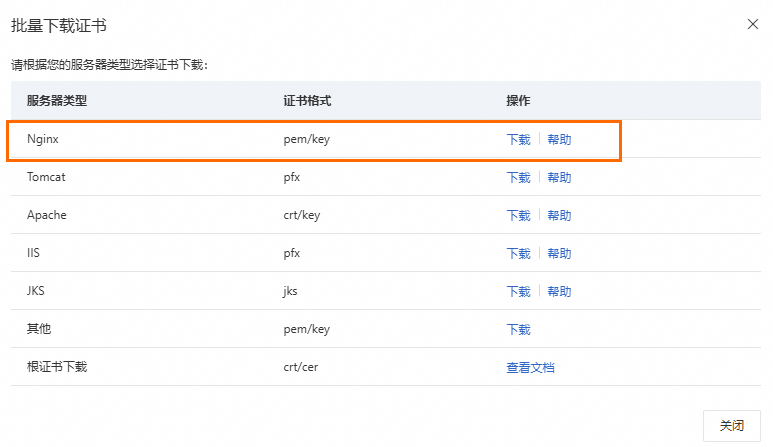
Select the issued certificate and click Download at the bottom left of the list.

Select as the server type and click Download to get the certificate package.
Step 4: Configure the certificate
If your certificate is from another platform, select the Nginx format when you download it.
On the Domain names page, click Configure HTTPS with your own certificate in the Actions column.
 Note
NoteIf this option is not visible, first complete the domain's ICP filing or DNS verification as prompted.
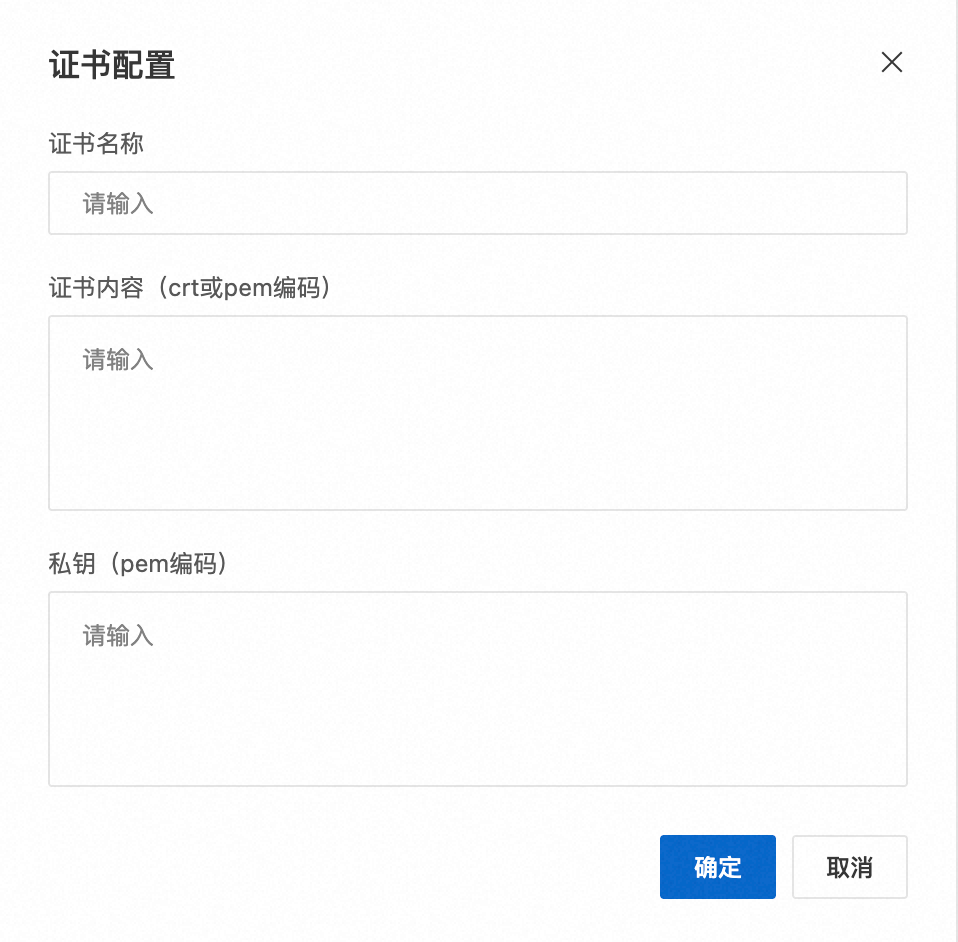
Enter the certificate information in the dialog box to enable HTTPS.
The dialog box contains the following fields:
Certificate name: Enter an easily recognizable name.
Certificate content: Open the certificate file in PEM or CRT format with a text editor, copy all of its content, and paste it into this text box.
Private key: Open the private key file in KEY format with a text editor, copy all of its content, and paste it into this text box.

Display filing numbers
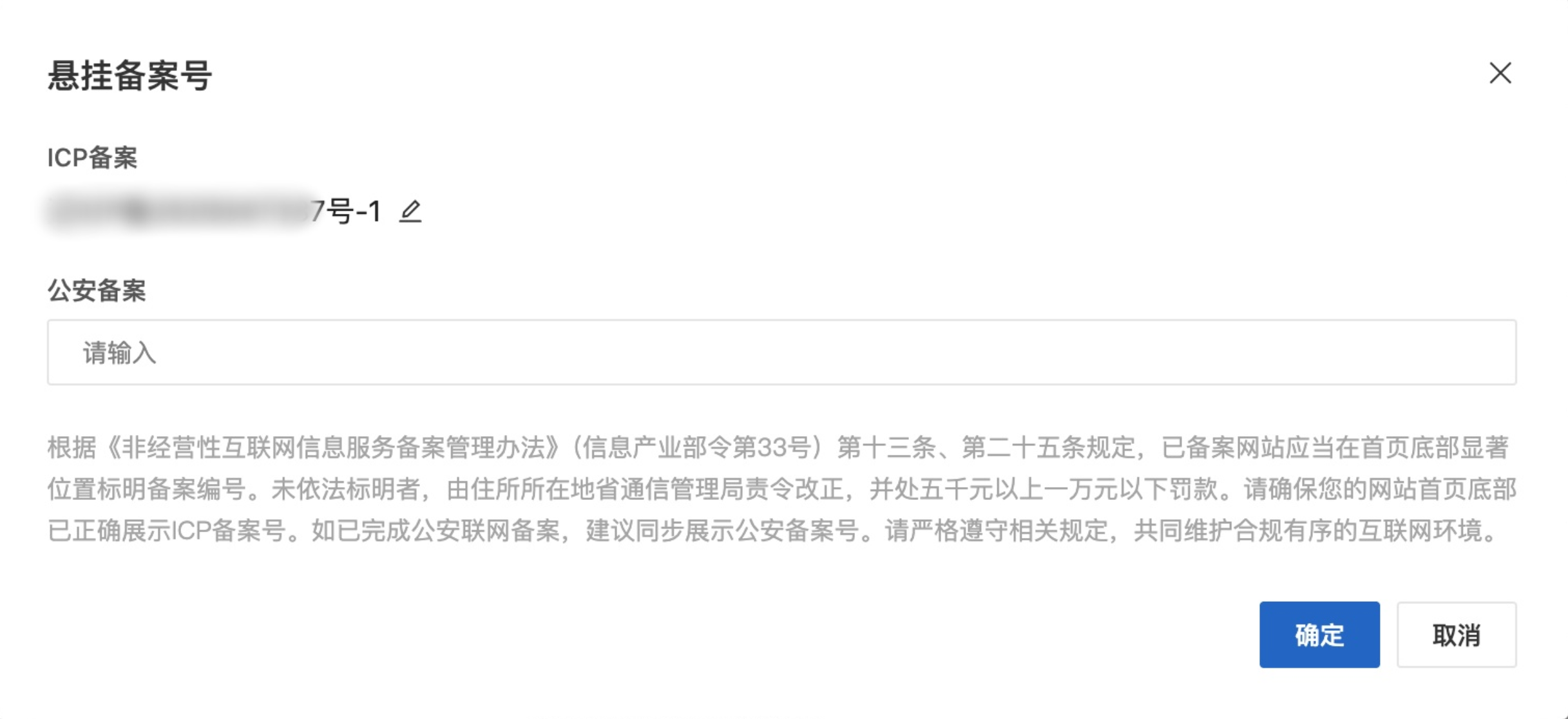
If your application uses nodes in the Chinese mainland, you are required to display the ICP filing number and public security filing number for your bound domain name in the site's footer.
On the Domain names page, confirm that your domain name is bound and that DNS resolution is active.
In the row for your target domain name, click Display filing numbers.
In the dialog box, enter the Public security filing number, and then click OK.
The filing information will be displayed at the bottom of your website pages.