Troubleshoot Windows instance stuttering caused by excessive hardware-reserved memory
Reset KMS activation to fix Windows ECS instance stuttering caused by misconfigured registry licenses after an instance type change.
Problem description
A Windows ECS instance stutters or responds slowly.
Causes
If the Windows registry has improperly configured licenses and the instance type is changed to one with a significantly different memory size, the instance fails to activate. A large amount of memory is then locked or reserved for hardware, which increases the memory load and causes the instance to stutter or respond slowly.
To view memory usage, including hardware-reserved memory, open Task Manager, click the Performance tab, and then click Memory in the left-side navigation pane.
Solution
Reset the Key Management Service (KMS) activation status for the Windows ECS instance.
Before you perform high-risk operations such as modifying instance configurations or data, verify that the instance has disaster recovery and fault tolerance capabilities. To ensure data security, create snapshots for disks attached to the ECS instance to back up data.
-
Connect to the Windows ECS instance.
-
Open a command prompt window as an administrator.
-
Clear KMS activation settings.
-
Clear the KMS server settings:
slmgr.vbs /ckms -
Uninstall the current product key:
slmgr.vbs -upk -
Reset the licensing status of the Windows ECS instance:
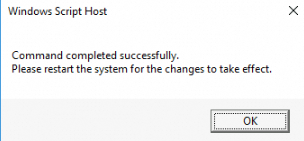
slmgr.vbs -rearmIf prompted to restart the system as shown below, restart the Windows ECS instance for the changes to take effect.
-
Restart the Windows ECS instance for the changes to take effect.
See Restart an instance.
-
-
Reactivate KMS.
-
Identify the correct KMS client product key for the Windows operating system version of the ECS instance.
For KMS client product keys, see Key Management Services (KMS) client activation and product keys.
-
Reactivate KMS:
slmgr.vbs /ipk your_kms_key # Replace your_kms_key with the KMS client product key that you obtained in Step 4.a.
slmgr -skms kms.cloud.aliyuncs.com # Change the KMS server domain name to the Alibaba Cloud KMS server domain name.
slmgr.vbs /ato
-
-
Restart the Windows ECS instance for the changes to take effect.
See Restart an instance.