Network connectivity issues on Windows caused by system route table problems
Problem description
The server can ping its own gateway, but cannot ping other addresses outside its CIDR block.
Cause
The ability to ping the gateway from within the server indicates that the issue is likely not related to security policies. The inability to ping addresses outside the server's CIDR block suggests a problem with the server's routing.
Solutions
Single network interface scenario
-
Remotely connect to the instance. Open Command Prompt and run the
route printcommand to view the server's routing information.The output is similar to the following. The default route is incorrectly set to the loopback interface instead of the public network interface.

-
Network Destination: The destination network to access.
-
Network Mask: A bitmask that indicates which bits of an IP address identify the host's subnet and which bits identify the host itself.
-
Gateway: The address where packets for the destination network are sent for forwarding.
-
Interface: The network interface used for outgoing traffic.
-
Hop count: A hop is a network device point with routing capabilities that data passes through during transmission.
-
-
Run the following command to reset the network configuration and restore normal connectivity.
The path to the resetlog.txt file depends on your environment.
netsh int ip reset resetlog.txt -
Run the
route printcommand again to confirm that the route table is correct.A normal route table is similar to the following.
Multiple network interface scenario
There are two cases, depending on whether the Elastic Network Interface (ENI) requires a secondary private IP address or an IPv6 address:
-
No secondary private IP or IPv6 address:
-
Open the Network and Sharing Center, and then click Change adapter settings.
-
Double-click the current network connection, such as Ethernet. In the Ethernet Status dialog box, click Properties.
-
In the Ethernet Properties dialog box, double-click Internet Protocol Version 4 (TCP/IPv4).
-
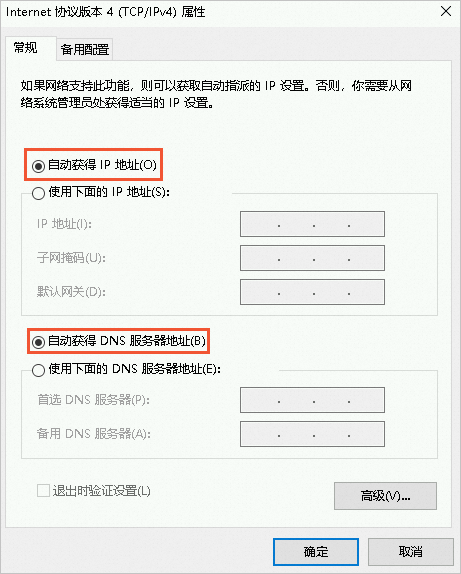
In the Internet Protocol Version 4 (TCP/IPv4) Properties dialog box, select Obtain an IP address automatically and Obtain DNS server address automatically, and then click OK.
-
-
Requiring a secondary private IP and an IPv6 address:
-
Open Command Prompt or Windows PowerShell. Run the
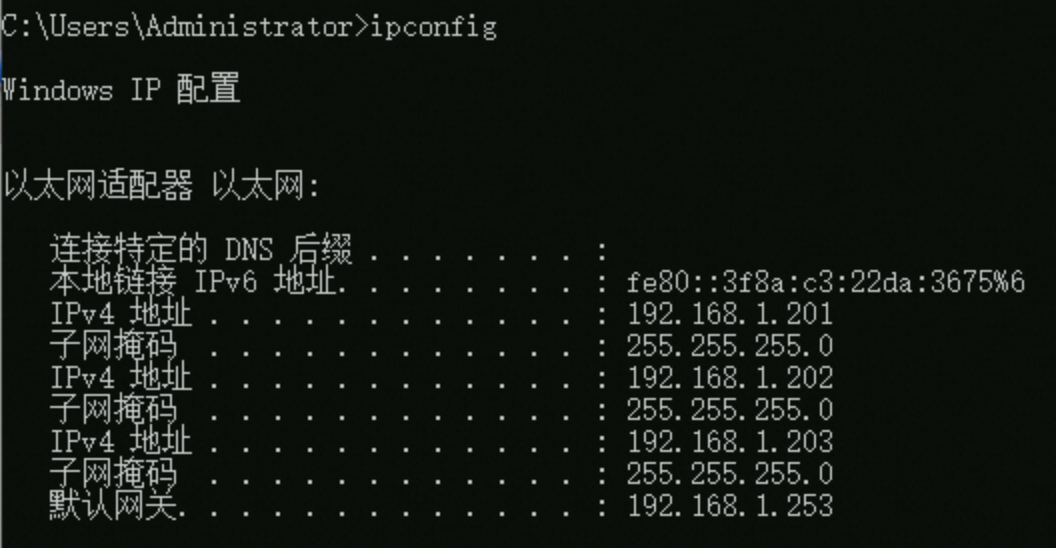
ipconfigcommand to view the current network configuration and routing information. Note the default gateway and subnet mask that are required for the configuration. The output shows the current network interface and its IP information: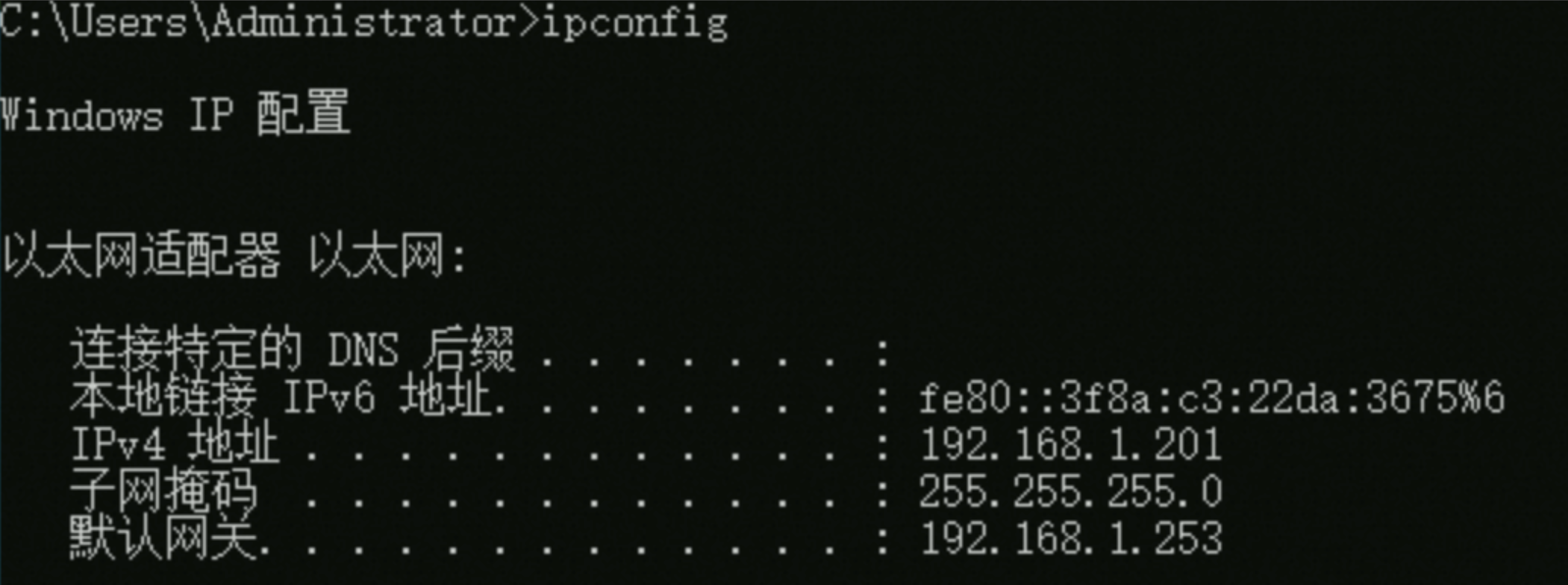
The current network configuration and routing information is similar to the following:
Network Interface
Network Mask
Default Gateway
Primary Private IP Address
Private IPv4 Address to Configure 1
Private IPv4 Address to Configure 2
Ethernet (Primary Interface)
255.255.255.0
192.168.1.253
192.168.1.201 (Automatically configured)
192.168.1.202 (Not detected, requires configuration)
192.168.1.203 (Not detected, requires configuration)
-
Open the Network and Sharing Center, and then click Change adapter settings.
-
Double-click the current network connection, such as Ethernet. In the Ethernet Status dialog box, click Properties.
-
In the Ethernet Properties dialog box, double-click Internet Protocol Version 4 (TCP/IPv4).
-
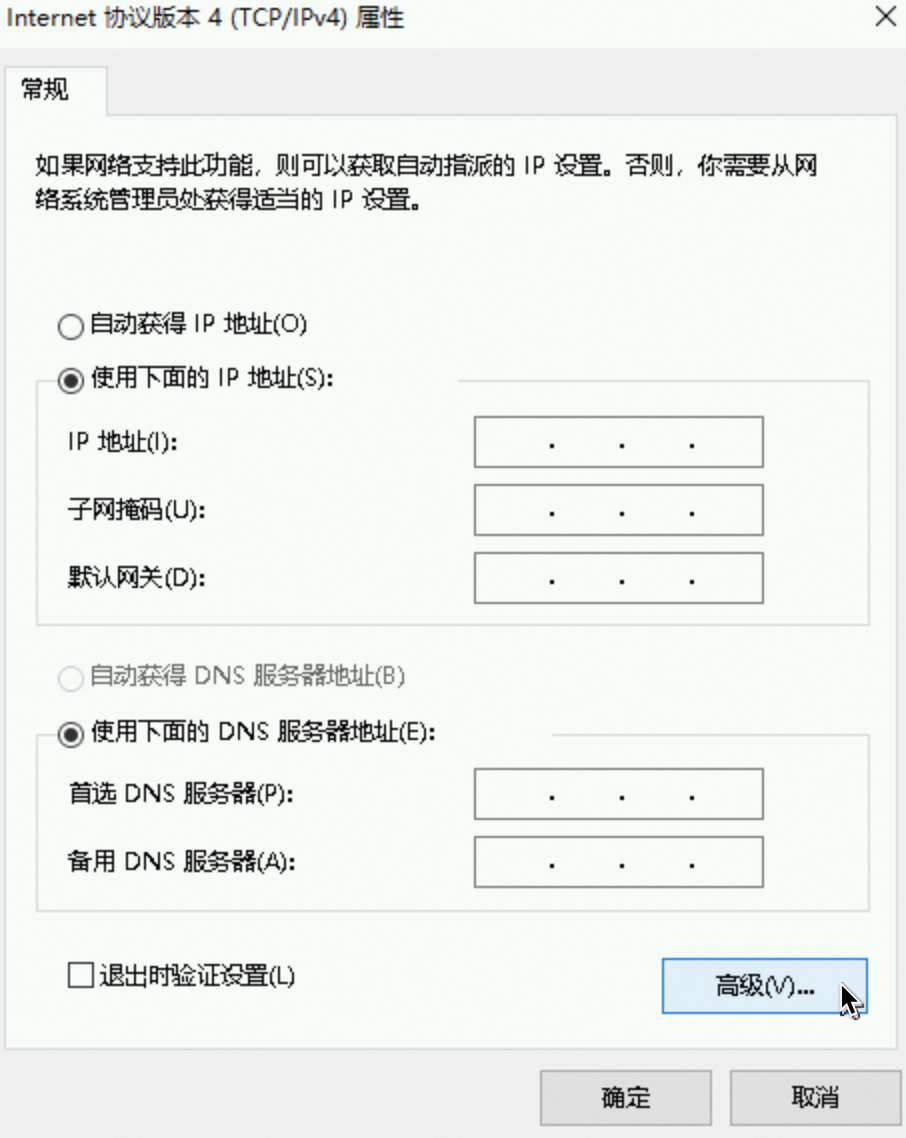
In the Internet Protocol Version 4 (TCP/IPv4) Properties dialog box, select Use the following IP address, and then click OK.
-
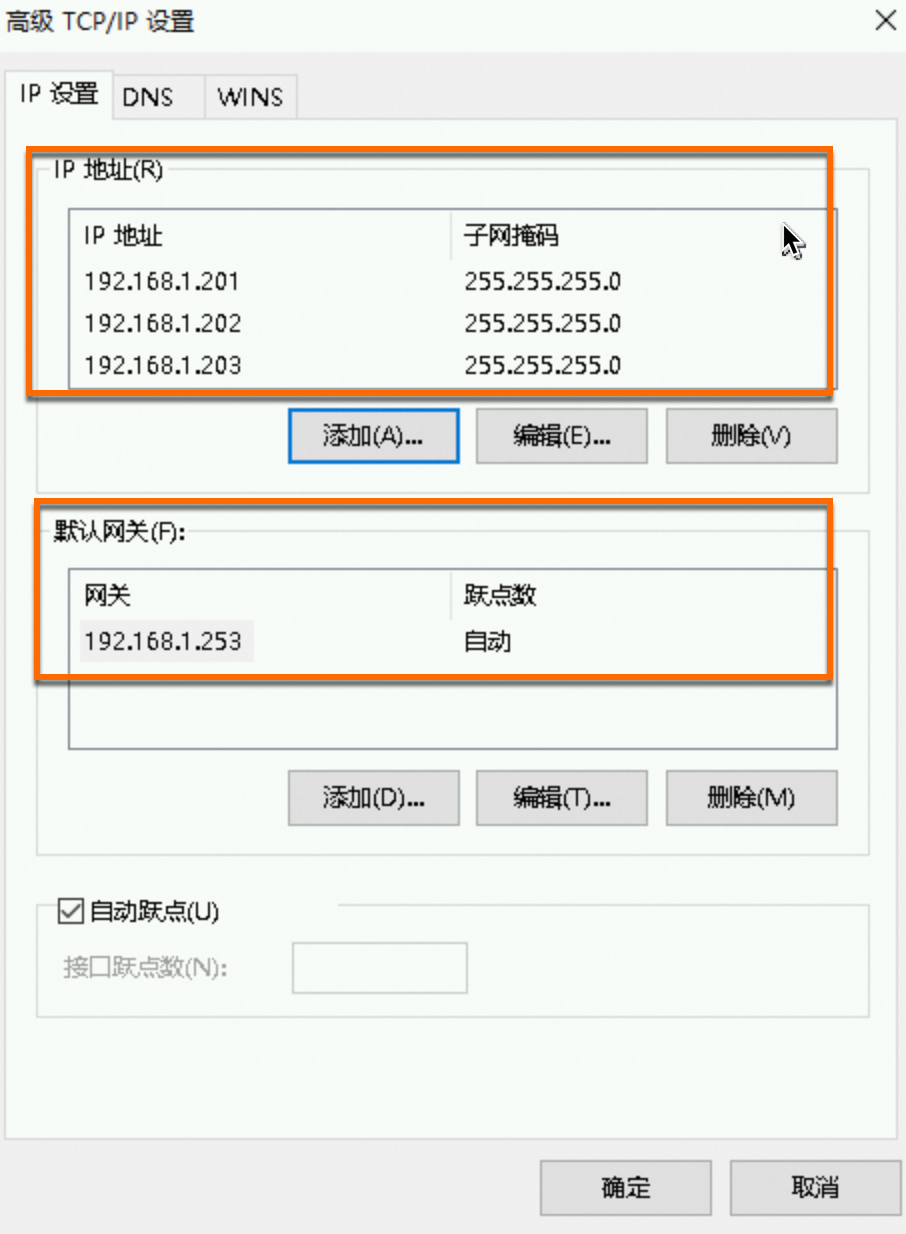
In the Advanced TCP/IP Settings dialog box, set the IP addresses.
-
In the IP addresses section, click Add . Enter the primary and secondary private IP addresses assigned to the Ethernet interface, and the subnet mask that you obtained.
-
In the Default gateways section, click Add , and then enter the default gateway that you obtained.
-
Click OK to complete the configuration of the secondary private IPv4 addresses.
-
-
Run the
ipconfigcommand again to verify that the configuration is successful.
-