Cron jobs
This topic explains cron, from basic concepts and syntax to advanced scheduling strategies and use cases. You will learn how the cron service works, and how to create, manage, and debug cron jobs.
Cron basics and components
What is cron?
cron is a job scheduler in Linux and Unix systems that executes tasks at scheduled times. It allows users to automatically run scripts, commands, or software at specified intervals. cron is ideal for recurring tasks, such as data backups and system updates.
How cron works
cron uses crontab (cron table) files. These configuration files contain commands and their corresponding execution schedules. Each user can have their own crontab file in their home directory, and there is also a system-level crontab file for administrator-managed tasks.
The cron daemon periodically checks these crontab files, parses their schedules and commands, and executes them at the scheduled times.
Cron components
-
Cron daemon: A background process that checks, schedules, and executes the jobs specified in
crontabfiles. -
Crontab files:
-
User-level crontab: Each user can edit their own scheduled jobs by running the
crontab -ecommand. These jobs apply only to the current user. -
System-level crontab: Located in
/etc/crontab, this file is typically managed by a system administrator for system-level tasks.
-
-
Crontab syntax: Each line in a
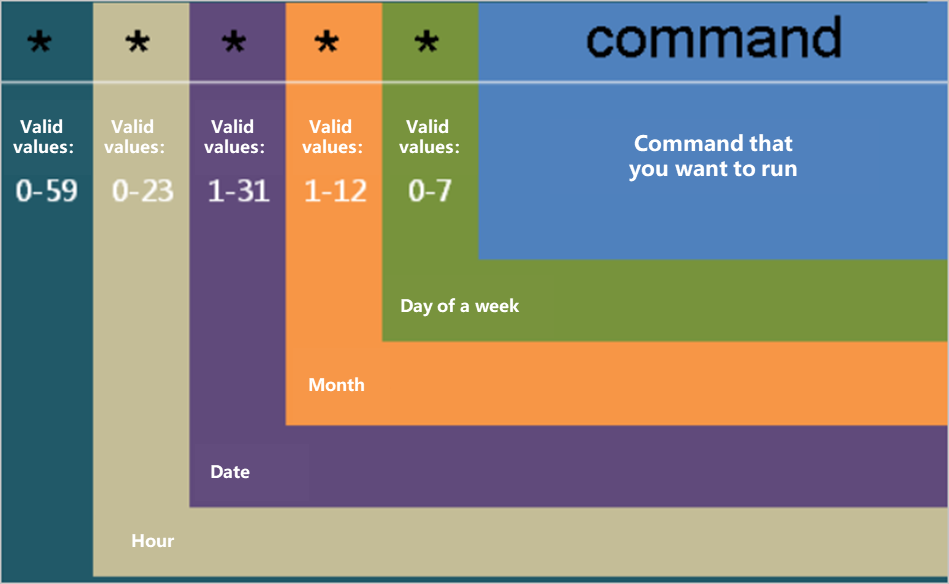
crontabfile consists of six fields: minute, hour, day-of-month, month, day-of-week, and the command to execute.
Cron expression
The following example shows a simple crontab file entry:
# .---------------- minute
# |  .------------- hour
# |  |  .---------- day of month
# |  |  |  .------- month
# |  |  |  |  .---- day of week (Sunday=0 or 7)
# |  |  |  |  |
# *  *  *  *  * user-name  command to be executed
  30 04 *  *  *   root     /path/to/daily_backup.sh
This cron job is configured to run the daily_backup.sh script as the root user at 4:30 AM every day.
Use an absolute path for all commands and script files.
Field values
This table describes the accepted value ranges and supported special characters for each field in a cron expression.
|
Field |
Required |
Value range |
Special characters |
|
Minute |
Yes |
[0, 59] |
|
|
Hour |
Yes |
[0, 23] |
|
|
day-of-month |
Yes |
[1, 31] |
|
|
Month |
Yes |
[1, 12] or JAN-DEC |
|
|
day-of-week |
Yes |
Uses the Unix standard range of [0, 6], where both 0 and 7 represent Sunday (SUN). |
|
Special characters
|
Special character |
Description |
Example |
|
|
Matches any value for the field. |
|
|
|
Specifies a range. |
|
|
|
Specifies an interval. |
|
|
|
Used in the day-of-month or day-of-week field to mean "no specific value". |
|
|
|
Used in the day-of-month or day-of-week field to mean "last". |
|
|
|
Specifies the nearest weekday (Monday-Friday) to a specific day. Can be used only in the day-of-month field. |
|
|
|
Specifies the "Nth" day of the week in a month. Used in the day-of-week field. |
|
Do not combine the L parameter with a list or range, as this can cause parsing errors or logical conflicts.
Common Cron expressions
|
Cron expression |
Description |
Scenario |
|
|
Runs a task every minute. |
Use this to verify your cron configuration. |
|
|
Runs a task at 00:00 every day. |
Suitable for daily system resets or data backups. |
|
|
Runs a task at 02:00 every day. |
|
|
|
Runs a task at 01:00 every day. |
|
|
|
Runs a task at 06:00 every day. |
Suitable for updating data reports in the morning. |
|
|
Runs a task at 12:00 every day. |
Suitable for midday data syncs or daily reminder emails. |
|
|
Runs a task at 18:00 from Monday to Friday. |
Suitable for backing up data at the end of the business day. |
|
|
Runs a task at 21:00 every day. |
Suitable for system cleanup or backing up transaction data after business hours. |
|
|
Runs a task at 00:00 on the first day of each month. |
Suitable for generating monthly financial, sales, or other business reports. |
|
|
Runs a task at 00:00 on January 1 and July 1. |
Suitable for important semi-annual tasks, such as data archiving or organizational restructuring. |
|
|
Runs a task at 14:15 on the first day of each month. |
Suitable for monitoring and applying security patches to IT systems. |
|
|
Runs a task at 00:00 every Sunday. |
Suitable for weekend data cleanup and optimization. |
|
|
Runs a task at 00:00 on January 1. |
Suitable for running important annual startup scripts, such as a system reset or critical data archiving. |
|
|
Runs a task every 10 minutes. |
Suitable for continuous monitoring of critical systems or services. |
For more examples and an interactive editor, see https://crontab.guru/.
Cron comparisons
Comparison across operating systems
Basic features
|
Feature |
Linux/Unix cron |
macOS cron |
BSD cron |
Windows Task Scheduler (Task Scheduler) |
|
Minimum execution interval |
1 minute |
1 minute |
1 minute |
1 minute |
|
Default configuration file location |
/etc/crontab |
/usr/lib/cron/tabs/ |
/etc/crontab |
N/A |
|
User-level configuration support |
Supported |
Supported |
Supported |
N/A |
Special characters
|
Special character |
Linux/Unix cron |
macOS cron |
BSD cron |
Windows Task Scheduler (Task Scheduler) |
|
* (all values) |
Supported |
Supported |
Supported |
Supported |
|
, (value list) |
Supported |
Supported |
Supported |
Supported |
|
- (range) |
Supported |
Supported |
Supported |
Supported |
|
/ (step) |
Supported |
Supported |
Supported |
Supported |
|
L (last) |
Supported by some distributions |
Not supported |
Not supported |
N/A |
|
W (weekday) |
Supported by some distributions |
Not supported |
Not supported |
N/A |
|
# (Nth weekday of the month) |
Supported by some distributions |
Not supported |
Not supported |
N/A |
|
? (any value) |
Supported by some distributions |
Not supported |
Not supported |
N/A |
Advanced features
|
Feature |
Linux/Unix cron |
macOS cron |
BSD cron |
Windows Task Scheduler (Task Scheduler) |
|
Environment variable support |
Limited support |
Limited support |
Limited support |
Fully supported |
|
Missed task handling |
No automatic handling |
No automatic handling |
No automatic handling |
Configurable policies |
|
Logging |
syslog |
syslog |
syslog |
Event Viewer |
|
Second-level scheduling |
Not supported |
Not supported |
Not supported |
Supported |
|
GUI configuration |
None |
None |
None |
Available |
|
Task dependency |
Not supported |
Not supported |
Not supported |
Supported |
|
Network triggers |
Not supported |
Not supported |
Not supported |
Supported |
|
Power management integration |
Not supported |
Not supported |
Not supported |
Supported |
Considerations
-
Linux/Unix, macOS, and BSD:
-
Ensure file permissions are set correctly.
-
Be aware of how environment variables are inherited.
-
Use absolute paths.
-
-
Windows Task Scheduler:
-
Provides a wider range of trigger options.
-
Supports granular permission control.
-
Integrates with system events.
-
-
Cross-platform compatibility:
-
Use the minimum common feature set for cross-platform scheduled tasks.
-
Use basic time formats and avoid special characters.
-
Consider a cross-platform scheduling tool like Jenkins.
-
Comparison across frameworks
Basic syntax
|
Feature |
Spring Framework |
Quartz |
Linux cron |
Jenkins |
Kubernetes CronJob |
|
Second-level scheduling |
Supported (optional) |
Supported |
Not supported |
Supported |
Not supported |
|
Year field |
Optional |
Supported |
Not supported |
Supported |
Not supported |
|
Minimum interval |
1 second |
1 second |
1 minute |
1 second |
1 minute |
|
Time zone support |
Supported |
Supported |
Uses system time zone |
Supported |
Supported |
Special characters
|
Special character |
Spring Framework |
Quartz |
Linux cron |
Jenkins |
Kubernetes CronJob |
|
* (all values) |
Supported |
Supported |
Supported |
Supported |
Supported |
|
, (value list) |
Supported |
Supported |
Supported |
Supported |
Supported |
|
- (range) |
Supported |
Supported |
Supported |
Supported |
Supported |
|
/ (step) |
Supported |
Supported |
Supported |
Supported |
Supported |
|
? (any value) |
Supported |
Supported |
Not supported |
Supported |
Not supported |
|
L (last) |
Supported |
Supported |
Partially supported |
Supported |
Not supported |
|
W (weekday) |
Supported |
Supported |
Partially supported |
Supported |
Not supported |
|
# (Nth weekday of the month) |
Supported |
Supported |
Not supported |
Supported |
Not supported |
Use cases
|
Framework |
Use case |
|
Spring Framework |
- Ideal for Java project integration - For projects requiring transaction support - For deep integration with the Spring ecosystem |
|
Quartz |
- As a standalone scheduling system - For fine-grained task control - For complex scheduling requirements |
|
Linux cron |
- For simple system-level tasks - In single-machine environments - For basic scheduled tasks |
|
Jenkins |
- For CI/CD pipelines - For complex workflows - For workflows requiring a management UI |
|
Kubernetes CronJob |
- For tasks in containerized environments - For cloud-native applications - For jobs requiring high availability and scalability |
Considerations
-
Recommendations:
-
Choose a framework appropriate for your project's scale.
-
Consider maintenance costs and team familiarity.
-
Assess your performance and reliability needs.
-
-
Compatibility considerations:
-
Cron expression syntax may vary slightly across frameworks.
-
Check expression compatibility during migrations.
-
Consider differences in time zone handling.
-
-
Monitoring and maintenance:
-
Set up a comprehensive monitoring system.
-
Collect and analyze logs.
-
Define a disaster recovery plan.
-
Use case
Automatically back up a specific text file to another directory at 23:00 every day to keep the data secure and prevent loss.
Considerations
-
Ensure the source file path (
/path/to/original/file.txt) and the backup path (/path/to/backup/file_backup.txt) are correct. -
Verify that the destination directory exists. If not, create it or add a directory creation command to the cron job.
-
Ensure the user running the cron job has read permissions on the source file and write permissions on the destination directory.
-
Periodically check the backup files and logs to verify that the cron job is running correctly and that the backup files are valid.
Procedure
-
Edit the cron job: Open a terminal and run the
crontab -ecommand to edit the current user's cron jobs. -
Add the cron job: Add the following line to the crontab file:
0 23 * * * cp /path/to/original/file.txt /path/to/backup/file_backup.txtExplanation:
-
0 23 * * *: Runs the job at 23:00 every day. -
cp /path/to/original/file.txt /path/to/backup/file_backup.txt: Copies thefile.txtfile to the destination directory and saves it asfile_backup.txt.
-
-
Save and close:
-
In the Nano editor, press
Ctrl+X, pressYto confirm, and then pressEnterto save and exit. -
In the Vi or Vim editor, enter
:wqand then pressEnterto save and exit.
-
Frequently asked questions
View cron logs
cron job executions are typically recorded in the system log. These logs show whether a cron job was triggered:
grep CRON /var/log/syslogThis command displays all cron-related logs, including cron job execution records.
Cron job timeouts
-
Solutions:
-
Optimize the script: Refine the script's logic to reduce its execution time.
-
Split the job: If the job can be split, break it into multiple smaller jobs.
-
Use a timeout: Use the
timeoututility in your cron job command to limit the script's maximum execution time. For example,0 5 * * * timeout 300 /path/to/script.shlimits the script's execution to 300 seconds.
-
Simple test command
Before configuring a complex cron job, use a simple test command to verify that it triggers correctly. For example, set up a job to append the current date and time to a file every minute:
* * * * * date >> /path/to/date_output.txtAfter a few minutes, check the date_output.txt file to verify that a new timestamp is appended each minute.
Redirect output for testing
To test a cron job, add output redirection to the command. This directs the standard output (stdout) and standard error (stderr) to a log file, so you can check if the script executed and review its output.
30 4 * * * /path/to/your-script.sh > /path/to/logfile.log 2>&1Check the /path/to/logfile.log file to review the script's output and any errors.
Cron job execution frequency
-
Configuration recommendations:
-
Avoid excessive frequency: Setting an overly frequent execution schedule can harm system performance.
-
Configure as needed: Simple, routine jobs like backups may only need to run once a day, while monitoring jobs might need to run every hour or more frequently.
-
Consider system load: Schedule resource-intensive jobs to run during periods of low system load.
-
Other troubleshooting tips
-
Output redirection: Redirect the output and errors of your cron job to a log file for easier troubleshooting. For example:
30 4 * * * /path/to/job.sh > /path/to/job.log 2>&1 -
Email notifications: If a cron job generates output or an error, the cron daemon sends a notification email. Ensure your system mail service is configured correctly, or explicitly configure email delivery within the cron job.
-
Path issues: Absolute paths are generally more reliable than relative paths. Use absolute paths in your cron jobs whenever possible.
-
Editing and viewing cron jobs: Use
crontab -eto edit cron jobs andcrontab -lto view all cron jobs for the current user. This helps ensure your jobs are configured correctly.
Cron job not executing on schedule
-
Causes and solutions:
-
Incorrect cron expression: Check the format of the cron expression. Ensure the time and date fields are correct.
-
Insufficient script permissions: Ensure the script has the necessary execution permissions. Use
chmod +x /path/to/script.shto grant them. -
Environment issues: cron jobs run in a minimal environment and may not load your user's full shell configuration. Use absolute paths for commands in your script, or explicitly set required environment variables within the script itself.
-
Log check: Check the cron log, which is typically located at
/var/log/cronor /var/log/syslog (depending on the system), for trigger information and potential errors. Also, check any output redirection logs you have configured.
-
Confirming cron job configuration
Check the cron syntax: Use crontab -e to edit your crontab file and double-check that the time fields are set correctly. The field order is:
minute hour day-of-month month day-of-week commandEnsure that each field is correct.
On most Linux systems, the cron service (daemon) must be running to execute jobs. You can check the service status with one of the following commands:
sudo service cron statusOr:
sudo systemctl status cronIf the service is not running, start it:
sudo service cron startOr:
sudo systemctl start cronGrant script execution permissions: Ensure your script file has execution permissions. Grant them using the following command:
chmod +x /path/to/your-script.shView all cron jobs for a user
The crontab -l command lists the cron jobs for the current user. cron is a time-based job scheduler in Unix-like operating systems that automatically runs scheduled commands or scripts.
-
Notes:
-
Only the cron jobs for the current user are listed. To view the cron jobs of other users, you typically need root privileges or appropriate system permissions.
-
If no cron jobs are configured for the user, the
crontab -lcommand may return no output or display a message that the crontab is empty.
-
List cron jobs in a crontab
To list the cron jobs for the current user, run the command crontab -l. This command displays all cron jobs defined in the current user's crontab file.
-
Notes:
-
Permissions: Regular users can only view and edit their own cron jobs. The root user or users with appropriate permissions can view and edit the cron jobs of all users.
-
Environment: Commands executed by cron run in a minimal environment, where many user-specific environment variables may not be loaded by default. Therefore, use absolute paths for commands and files.
-
Delete a specific cron job
-
Open the crontab editor: Run the
crontab -ecommand. This opens the current user's crontab file in the default text editor, such asviornano. -
Delete the specific job: In the editor, find the line for the job you want to delete and remove it. In
viorvim, you can move the cursor to the line and pressdd. Innano, move to the line and pressCtrl+Kto cut it. -
Save and exit:
-
In
viorvim, type:wqand press Enter to save your changes and exit. -
In
nano, pressCtrl+X, thenYto confirm you want to save, and finally press Enter to exit.
-
-
To delete all cron jobs for the current user, use the following command.
This command deletes all jobs instantly without a confirmation prompt. Use with extreme caution.
crontab -r-
Notes:
-
Backup: Before editing or deleting cron jobs, it is a good practice to back up your crontab. You can save your current jobs to a file using
crontab -l > crontab_backup.txt. -
Caution: Deleting or modifying cron jobs can affect system operations or application functionality. Ensure you understand the purpose of a job before modifying it.
-
Resolve "not allowed to use crontab" error
-
Connect to the ECS instance as the root user.
For more information, see Log on to a Linux instance using Workbench.
-
Run the following commands to check for the existence of the
cron.alloworcron.denyfiles:find /etc/cron.allow find /etc/cron.denyA user's permission to run the
crontabcommand depends on the/etc/cron.allowand /etc/cron.deny files, as detailed below.Cron.allow exists
Cron.deny exists
Authorized crontab users
No
No
Only the root user can use the crontab command.
Yes
No
Only users listed in the cron.allow file can use the crontab command.
No
Yes
All users not listed in the cron.deny file can use the crontab command.
Note
If the cron.deny file is empty, all users can use the crontab command.
Yes
Yes
Only users listed in the cron.allow file can use the crontab command.
Note
The cron.allow file takes precedence over the cron.deny file. In this case, the cron.deny file has no effect.
-
Based on your requirements, edit the
cron.alloworcron.denyfile.-
If the
cron.allowfile does not exist and the non-root user's username is in thecron.denyfile, remove the username fromcron.denyand save the file. -
If the
cron.allowfile exists, add the non-root user's username to thecron.allowfile and save the file.
-
-
Restart the cron service for the changes to take effect:
systemctl restart crond.service -
Switch to the non-root user and run the
crontabcommand again to verify that it can be executed successfully.
Cron field ranges and usage
-
The Day-of-week field is the fifth field in a cron expression and specifies on which days of the week a job runs.
-
Numbers: 1-7 (1 = Sunday, 2 = Monday, ..., 7 = Saturday)
-
Abbreviations: SUN, MON, TUE, WED, THU, FRI, SAT
-
-
Common format examples:
-
MON-FRI: runs every day from Monday to Friday. -
MON,WED,FRI: runs every Monday, Wednesday, and Friday. -
MON-WED,SAT: runs from Monday through Wednesday and also on Saturday. -
2-6: runs from Monday through Friday (using numbers). -
SUN,SAT: runs every weekend (Saturday and Sunday).
-
-
Advanced usage:
-
SUN#1: on the first Sunday of the month. -
6L: on the last Friday of the month. -
*/2: every two days. -
MON#2: on the second Monday of the month.
-
-
Notes:
-
When you use day-of-week abbreviations, they are not case-sensitive. For example,
MONis equivalent tomon. -
The
?character is used to prevent conflicts when you specify both a day-of-month and a day-of-week. -
When using
Land#, be aware that not all cron implementations support them. Ensure they do not result in invalid date combinations. -
Note that when using numbers for the days of the week, 1 represents Sunday. This may be counter-intuitive as many systems use 0 or 7 for Sunday. Always check your system's documentation.
-
Using the 'L' character
In the day-of-month field
-
Used alone:
-
L= The last day of the month. -
Example:
0 0 L * ?runs at midnight on the last day of every month. -
It automatically handles months of varying lengths, including leap years.
-
-
Used with an offset:
-
L-n= The nth day before the last day of the month. -
Example:
0 0 L-2 * ?runs at midnight on the third-to-last day of every month.
-
In the day-of-week field
-
Used alone:
-
L= Saturday (the last day of the week). -
Example:
0 0 ? * Lruns at midnight every Saturday.
-
-
Used with a number:
-
nL= The last weekday n of the month. -
Example:
6Lindicates the last Friday of the month. -
Example:
2Lindicates the last Monday of the month.
-
-
Used with a day-of-week abbreviation:
-
XXXL= The last specified day of the week of the month. -
Example:
FRILindicates the last Friday of the month. -
Example:
MONLindicates the last Monday of the month.
-
Notes:
-
Avoid combinations:
-
The L character should not be used with other ranges or lists.
-
Incorrect examples:
L,15orL-3,15.
-
-
Adaptation to days in a month:
-
L automatically adapts to months of varying lengths.
-
It correctly handles February in a leap year.
-
-
Day-of-week usage:
-
When using L in the Day-of-week field, set the Day-of-month field to
?. -
This practice prevents potential date conflicts.
-
-
Execution conditions:
-
If the specified last day of the week does not exist in a given month, the job will not run.
-
For example, February may not have a fifth Friday.
-
Fix "errors in crontab file" error
To resolve this issue, log on to the instance to correct the crontab file format or perform cloud disk resizing if the disk is full.
-
Connect to your ECS instance.
For more information, see Connection methods for ECS instances.
-
Check whether the cron job format in the
crontabfile is correct.-
If the format is correct, proceed to step 3.
-
If the format is incorrect, correct it as follows:
-
-
Run the following command to check disk usage:
df -hThe system displays information similar to the following. For example, Use% shows the usage of the /dev/xvda1 partition.
If disk usage is close to 100%, the disk space is insufficient. We recommend resizing the cloud disk. For more information, see Cloud disk resizing overview.
[root@ ~]# df -h
Filesystem Size Used Avail Use% Mounted on
/dev/xvda1 20G 2.7G 17G 15% /
tmpfs 498M 0 498M 0% /dev/shm