Manually deploy BT-Panel
BT-Panel is a user-friendly and powerful server and website management tool that supports both Linux and Windows operating systems. You can use BT-Panel to configure environments such as LAMP, LNMP, websites, databases, FTP, and SSL with a single click. You can also easily manage your server through a web interface to improve operations and maintenance (O&M) efficiency. This topic describes how to manually deploy BT-Panel on an ECS instance.
For more information about BT-Panel, see the BT-Panel official website.
Preparations
Before you deploy BT-Panel, ensure that your ECS instance meets the following requirements:
For the environment configuration requirements for BT-Panel, see the BT-Panel official documentation.
Public network access is enabled for the ECS instance.
If you did not enable public network access when you created the instance, attach an EIP to it. For more information, see Attach an EIP.
To ensure the successful installation and use of BT-Panel, install it on a new ECS instance where no other services have been manually deployed, or on an instance with a reinitialized system disk.
WarningInstalling BT-Panel on an ECS instance that already has other services deployed may cause the installation to fail, lead to issues with BT-Panel features, or make existing services unavailable because of port conflicts or resource contention. Therefore, you must install BT-Panel on an instance with a clean operating system.
Reinitializing the system disk deletes all data on it. Before you perform this operation, create a snapshot backup of your system disk. For more information, see Reinitialize the system disk (reset the operating system).
Manually deploy BT-Panel for Linux
This section provides an example of how to install BT-Panel for Linux 9.0.0 on Alibaba Cloud Linux 3.
Install BT-Panel for Linux.
Remotely connect to the ECS instance where you want to deploy BT-Panel.
For more information, see Log on to a Linux instance using Workbench.
Run the following command to install BT-Panel for Linux.
This step uses Alibaba Cloud Linux 3 as an example. For installation commands on other operating systems, see the Linux panel installation script on the BT-Panel official website.
url=https://download.bt.cn/install/install_lts.sh;if [ -f /usr/bin/curl ];then curl -sSO $url;else wget -O install_lts.sh $url;fi;bash install_lts.sh ed8484becEnter
yas prompted and press Enter to confirm the installation.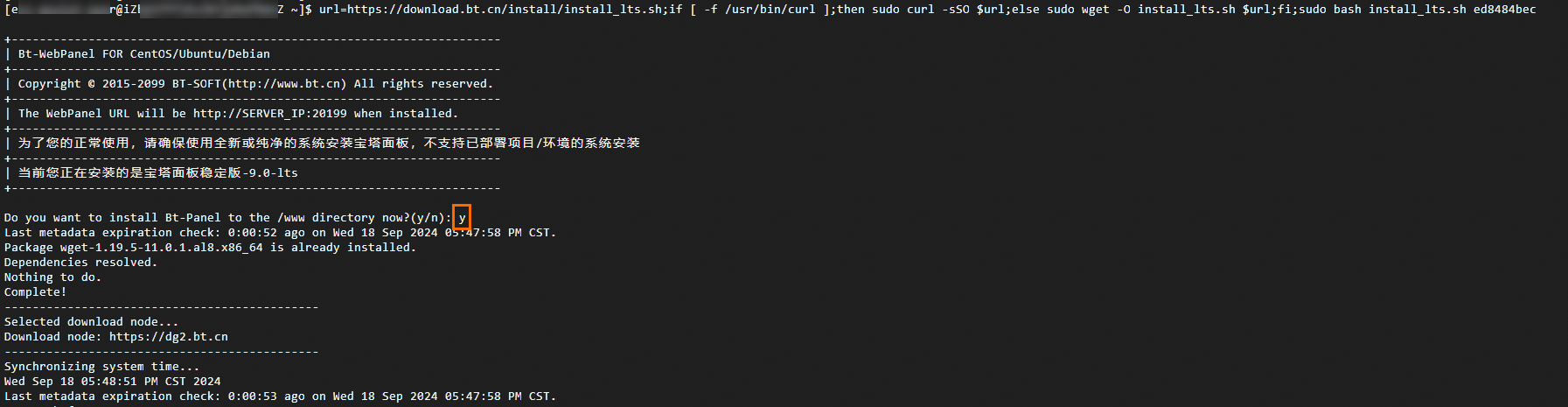
The installation takes about 2 minutes.
Obtain the login information for BT-Panel for Linux.
After the installation is complete, the login information is displayed. Find and securely save the information in the Panel account login information section. This information includes the following:
[ECS] Allow inbound traffic on port 20753 in the security group: This line indicates the port that BT-Panel uses. The default port is
20753, but it may vary depending on the installation environment. Use the port number shown in your command output.External panel address: The public login URL for BT-Panel.
Internal panel address: The private login URL for BT-Panel.
username: The BT-Panel username.
password: The password for the BT-Panel username.
Allow inbound traffic on the BT-Panel port in the ECS instance security group. For more information, see Add a security group rule.
In this example, the BT-Panel port is
20753. Use the port that is displayed in the Panel account login information section. For data security, this example only opens the ports that are required for BT-Panel to function. Open additional ports as needed for your applications. For example, to remotely connect to a MySQL database, you must allow inbound traffic on the default MySQL port3306.Log on to BT-Panel for Linux.
On a computer that has public network access, open a browser and enter the external panel address that you obtained in step 2.
In this example, the external panel address is
https://123.57XX.XX:20753/5d85663a. If you cannot access BT-Panel, refer to the following documents for troubleshooting:NoteWhen you first access the external BT-Panel address in your browser, a warning such as "Your connection is not private" may appear. To proceed, click Advanced and then click Proceed to 123.57.XX.XX (unsafe). For more information, see the BT-Panel official documentation.
Enter the username and password that you recorded, and then log on to BT-Panel for Linux.
Select I have read and agree to the User Agreement and click Enter Panel.
Bind your BT-Panel official website account.
After you log on, you must bind a BT-Panel account to use the features of BT-Panel for Linux. If you do not have a BT-Panel account, click Create an account to register, and then bind the new account.
NoteThe account that you create is used to log on to the BT-Panel Membership Hub. This account cannot be used to log on to the BT-Panel management page.
After you bind your BT-Panel account, the Recommended installation suite dialog box appears. Install the software that you need.
For detailed usage instructions, see the BT-Panel official documentation.
Manually deploy BT-Panel for Windows
This section provides an example of how to install BT-Panel for Windows 8.2.0 on Windows Server 2022.
Deploy BT-Panel for Windows.
Remotely connect to the ECS instance where you want to deploy BT-Panel.
For more information, see Log on to a Windows instance using Workbench.
In a browser (Chrome is recommended), go to the BT-Panel download page and download the BT-Panel for Windows installer.
Extract the BT-Panel for Windows installer package. In the extracted folder, double-click BtSoft.exe and follow the on-screen instructions to install BT-Panel for Windows.
The installation takes about 5 minutes.
When the following screen appears, the installation of BT-Panel for Windows is complete.
Obtain the panel address, username, and password.
In the dialog box that indicates the installation is complete, click Start Using. The Panel initial information dialog box appears. Record the panel address, username, and password.
Allow inbound traffic on the BT-Panel port in the ECS instance security group. For more information, see Add a security group rule.
In this example, the BT-Panel port is
8888. Use the port that is displayed in the Panel initial information dialog box. For data security, this example only opens the ports that are required for BT-Panel to function. Open additional ports as needed for your applications. For example, to remotely connect to a MySQL database, you must allow inbound traffic on the default MySQL port3306.Log on to BT-Panel.
On a computer that has public network access, open a browser and enter the panel address that you recorded in step 2.
In this example, the panel address is
http://8.152.XX.XX:8888/3xiqMq91. If you cannot access BT-Panel, refer to the following documents for troubleshooting:Enter the username and password that you recorded in step 2, and then log on to BT-Panel for Windows.
Select I have read and agree to the User Agreement and click Enter Panel.
Bind your BT-Panel official website account.
After you log on, you must bind a BT-Panel account to use the features of BT-Panel for Windows. If you do not have a BT-Panel account, click Create an account to register, and then bind the new account.
NoteThe account that you create is used to log on to the BT-Panel Membership Hub. This account cannot be used to log on to the panel management page.
After you bind your BT-Panel account, the Recommended installation suite dialog box appears. Install the software that you need.
For detailed usage instructions, see the BT-Panel official documentation.