Schedule maintenance windows for ECS instances
Define off-peak maintenance windows to run scheduled O&M operations, such as instance restarts and redeployments, with minimal business impact.
Usage notes
-
Do not configure maintenance windows for instance maintenance attributes when using ECS scheduled maintenance windows.
-
All time ranges use UTC.
Beijing time is UTC+8 (8 hours ahead of UTC). Convert Beijing time to UTC before configuring. For a weekly (Every) schedule, the earliest start time is 00:00 on Sunday, and each end time must be later than the start time. -
Each maintenance window must span at least 4 hours in total.
-
Each maintenance window can target only one scope: all instances in your account, instances in a specific resource group, or instances with specific tags.
-
To prevent an instance from being maintained multiple times in a short period, configure the Minimum Interval Duration for the maintenance window. Valid values: 1 to 48 hours.
How it works
-
Maintenance window takes effect: When a scheduled O&M event matches the maintenance window schedule, the task runs within the window.

-
Maintenance window does not take effect: When a scheduled O&M event does not match any maintenance window, the task runs on the event's own schedule. Specify multiple time ranges to increase match coverage.

Maintenance actions
Maintenance windows support three actions: Restart Instance, Redeploy Instance, and Performance Jitter, No Restart. Redeploy Instance (high priority) overrides Restart Instance (low priority) — when a window with Redeploy Instance takes effect, matching SystemMaintenance.Reboot events are also executed within the window.
Performance Jitter, No Restart has the least impact on your workloads. It applies to scenarios where only brief performance jitter occurs during system maintenance and no restart is required. When this action is selected, the O&M event runs within the window and does not trigger an instance restart or redeployment.
By default, scheduled O&M events expire after 48 hours. To extend the expiration period to 7 days, submit a ticket.
|
Maintenance action |
Instance |
Affected O&M event |
Operation on the instance |
|
Restart Instance |
All instances |
SystemMaintenance.Reboot (Instance Restart Due to System Maintenance) |
Instances are restarted. |
|
Redeploy Instance Note
If the target scope includes both instances with and without local disks, select a maintenance action based on your requirements for instances with local disks. |
Instances without local disks |
SystemMaintenance.Reboot (Instance Restart Due to System Maintenance) |
Instances are restarted. |
|
Instances with local disks (d series or i series instances) |
SystemMaintenance.Reboot (Instance Restart Due to System Maintenance) |
Instances are restarted. |
|
|
SystemMaintenance.Redeploy (Instance Redeployment Due to System Maintenance) |
Instances are redeployed, and data on local disks is lost. Back up important data or migrate it to cloud disks, such as ESSDs and standard SSDs, in advance. Note
Before SystemMaintenance.Redeploy events can match a maintenance window, authorize the Redeploy Instance action by using one of the following methods:
|
Create a maintenance window
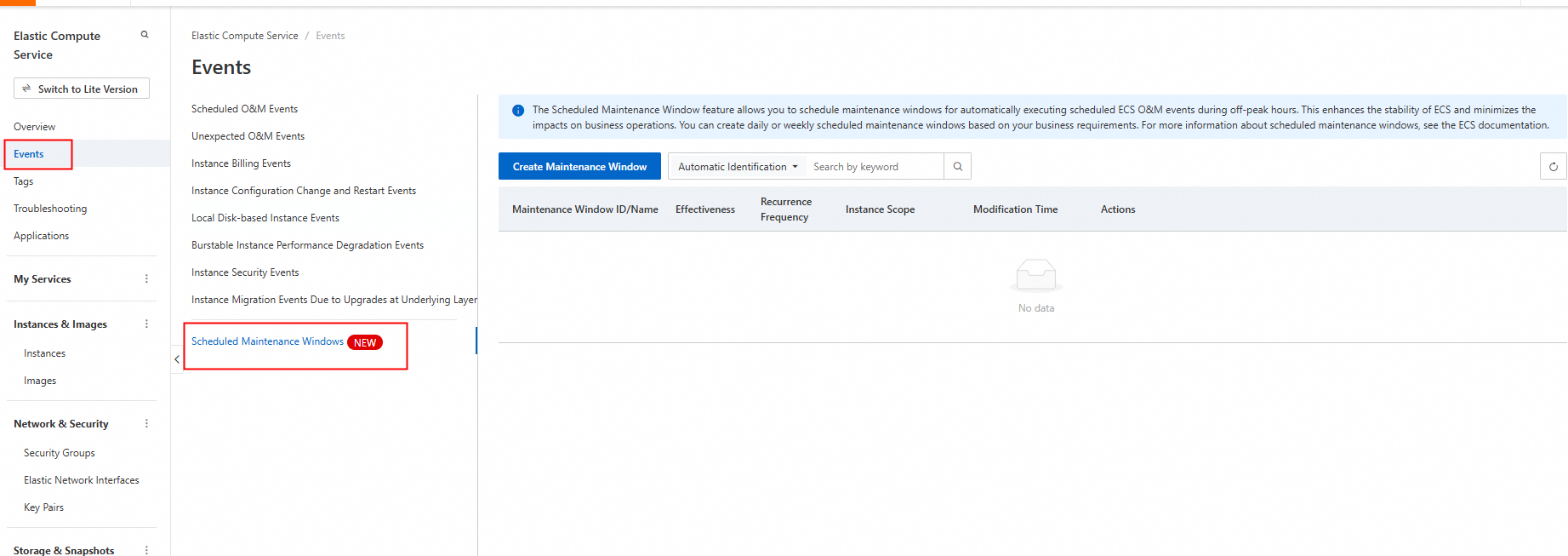
Go to ECS console - Events.
-
On the Event page, choose Scheduled Maintenance Windows in the left-side navigation pane.
-
Click Create Maintenance Window.
-
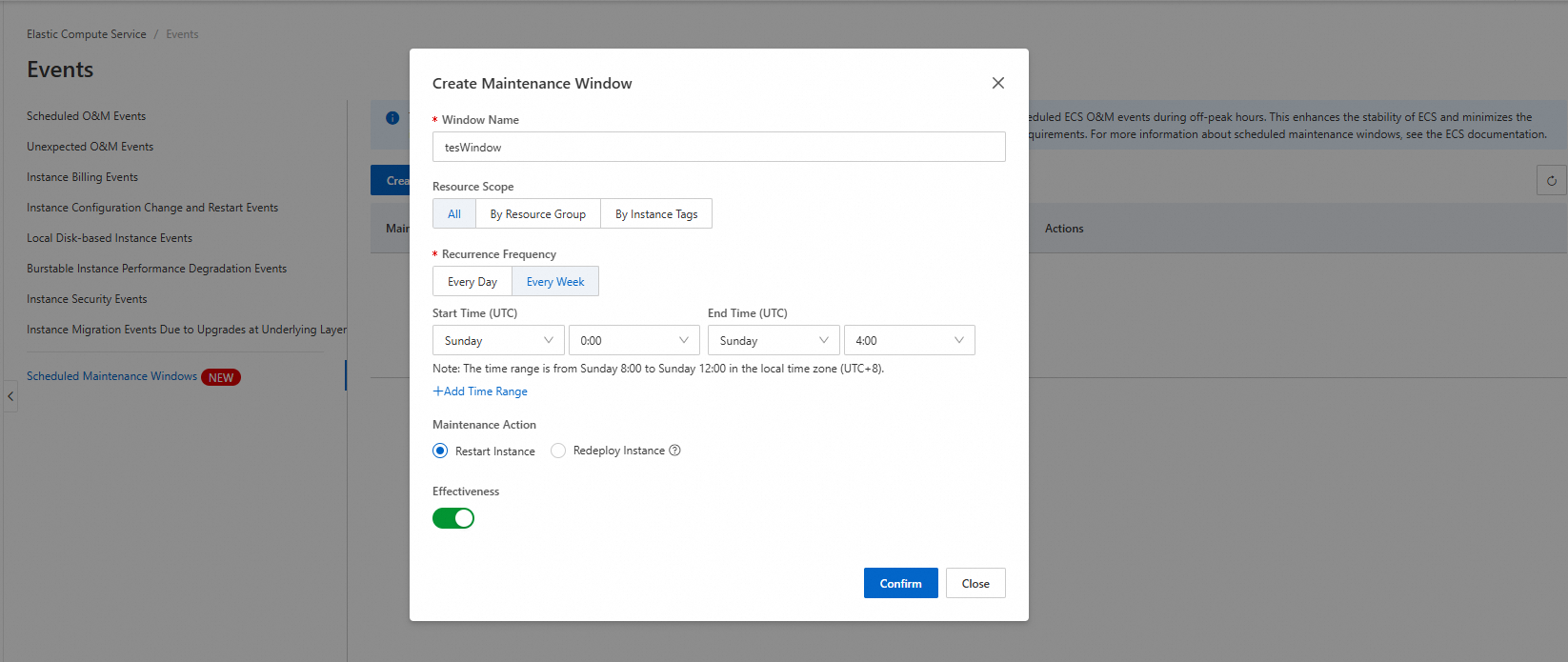
In the Create Maintenance Window dialog box, configure the following parameters.
Parameter
Description
Example
Window Name
The window name. 2 to 200 characters; supports letters, digits, colons (:), underscores (_), periods (.), and hyphens (-).
-
Keep the name within 2 to 64 characters to ensure full display.
-
Duplicate names are allowed. Use unique names for easier management.
Redis maintenance window
Resource Scope
The target scope. Each window supports only one scope type:
-
All: All instances in your account.
-
By Resource Group: All instances in a specific resource group.
-
By Instance Tags: All instances with specific tags across all regions.
All
Recurrence Frequency
The recurrence frequency: daily or weekly.
-
Every: Weekly schedule.
-
Every Day: Daily schedule.
Every Week
Time Range
One or more time ranges in the schedule.
NoteEach time range must be at least 4 hours long.
ImportantThe start time and end time are in UTC (Coordinated Universal Time),
not Beijing time. Before configuring, convert Beijing time to UTC. Beijing time is UTC+8 (8 hours ahead of UTC). For example, if you want the maintenance window to be 02:00-06:00 Beijing time, set it to 18:00-22:00 UTC on the previous day.
-
Every Week:
-
Start Time: Monday 0:00 (UTC)
-
End Time: Monday 4:00 (UTC)
-
-
Every Day:
-
Start Time: 0:00 (UTC)
-
End Time: 4:00 (UTC)
-
Maintenance Action
The maintenance action for event responses:
-
Restart Instance: Restarts instances. Responds to SystemMaintenance.Reboot events only.
-
Redeploy Instance: Redeploys and restarts instances. Responds to both SystemMaintenance.Reboot and SystemMaintenance.Redeploy events.
-
Performance Jitter, No Restart: Allows brief performance jitter during system maintenance without triggering an instance restart or redeployment. This option has the least impact on your workloads and suits scenarios that require high service continuity and can tolerate short performance fluctuations.
Restart Instance
Minimum Interval Duration
The minimum time interval between two consecutive scheduled O&M events on the same instance, used to prevent an instance from being maintained multiple times in a short period. Valid values: 1 to 48 hours. Default value: 1 hour. This parameter is in the More collapsible section of the dialog box; expand the section to configure it.
After you set this parameter, if the next scheduled O&M event on the instance is triggered before the minimum interval elapses, the event is automatically postponed to the next available maintenance window after the interval ends.
NoteThe Minimum Interval Duration applies only to scheduled O&M events. Emergency O&M events, such as security vulnerability fixes, are not subject to this interval.
24 Hours
Effectiveness
Enable or disable the maintenance window.
Turn on to enable.
Turn off to disable.
Turn on the switch
-
-
Click OK.
Manage maintenance windows
-
View maintenance windows. View the list on the Scheduled Maintenance Windows page, or click Details in the Actions column to view details.
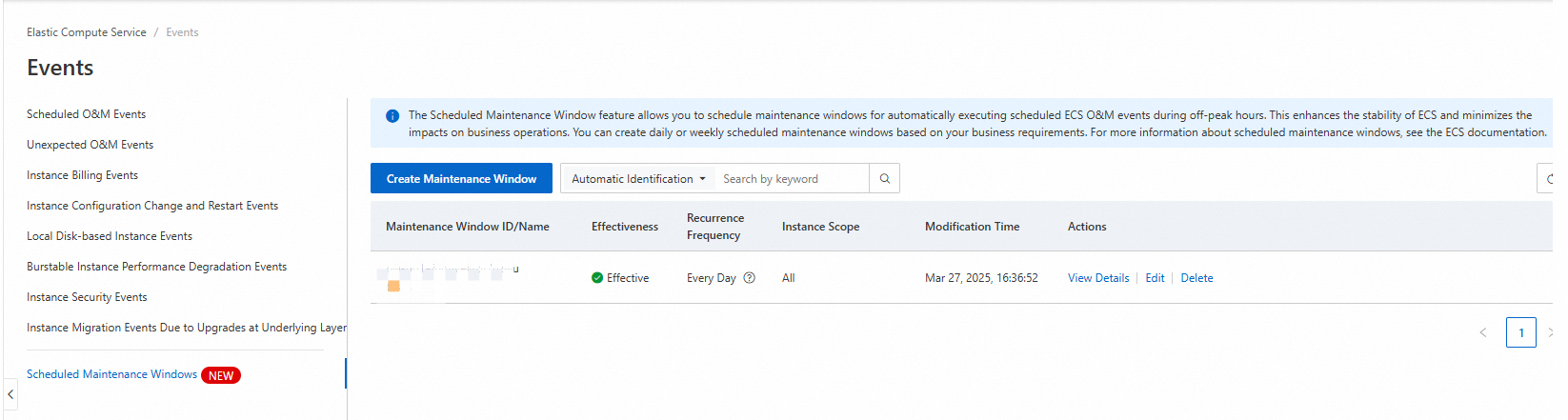
On the maintenance window management page, click Create Maintenance Window to create a new window. The list displays columns such as Maintenance Window ID/Name, Effectiveness, Recurrence Frequency, Supported Maintenance Actions, Minimum Interval Duration, Instance Scope, and Modification Time.
-
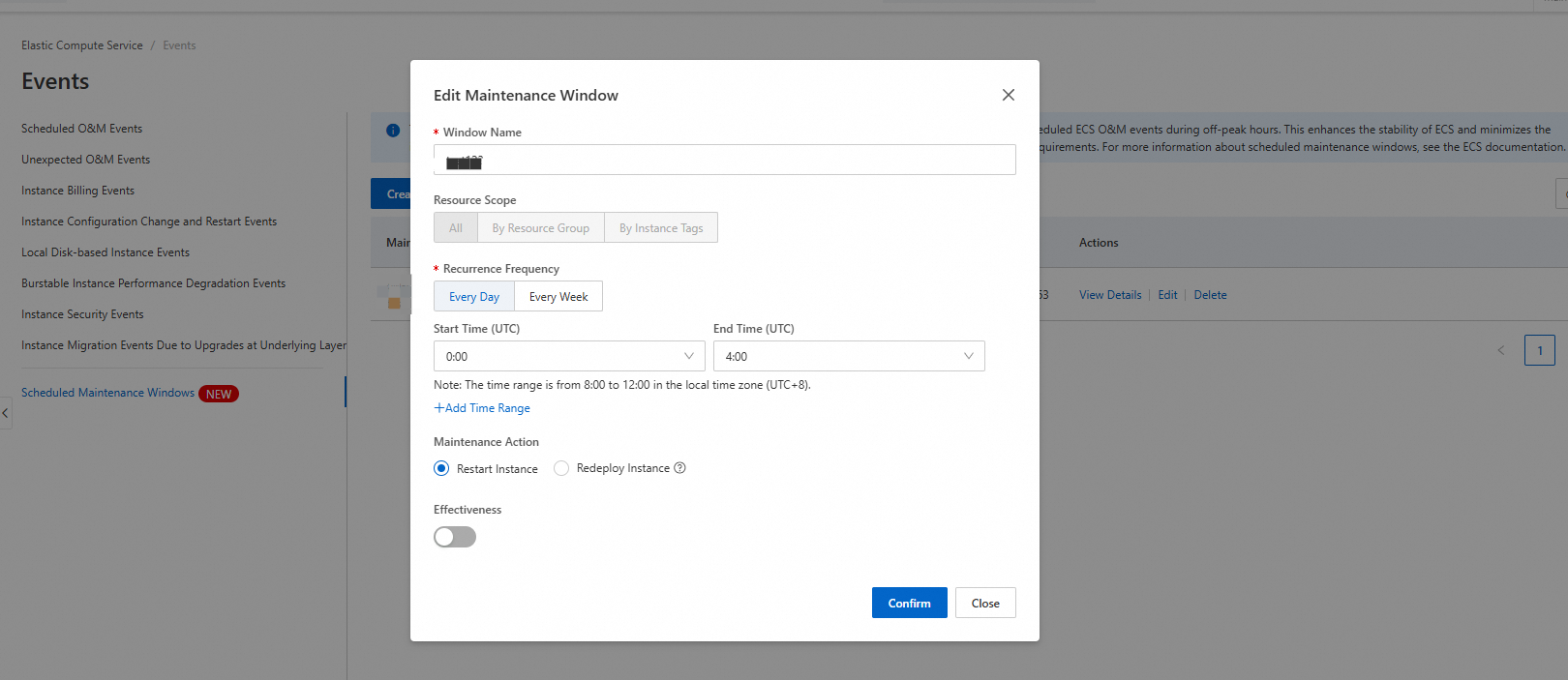
Modify a maintenance window. When business requirements change (for example, the window conflicts with a business peak, or the window duration needs to be extended), find the target window and click Modify in the Actions column to update the configuration.

In the dialog box that opens, you can modify the following parameters:
-
Window Name
-
Resource Scope (supports All, By Resource Group, and By Instance Tags)
-
Recurrence Frequency (for example, Every Day)
-
Time Range
-
Maintenance Action
-
Minimum Interval Duration
-
Effectiveness
-
-
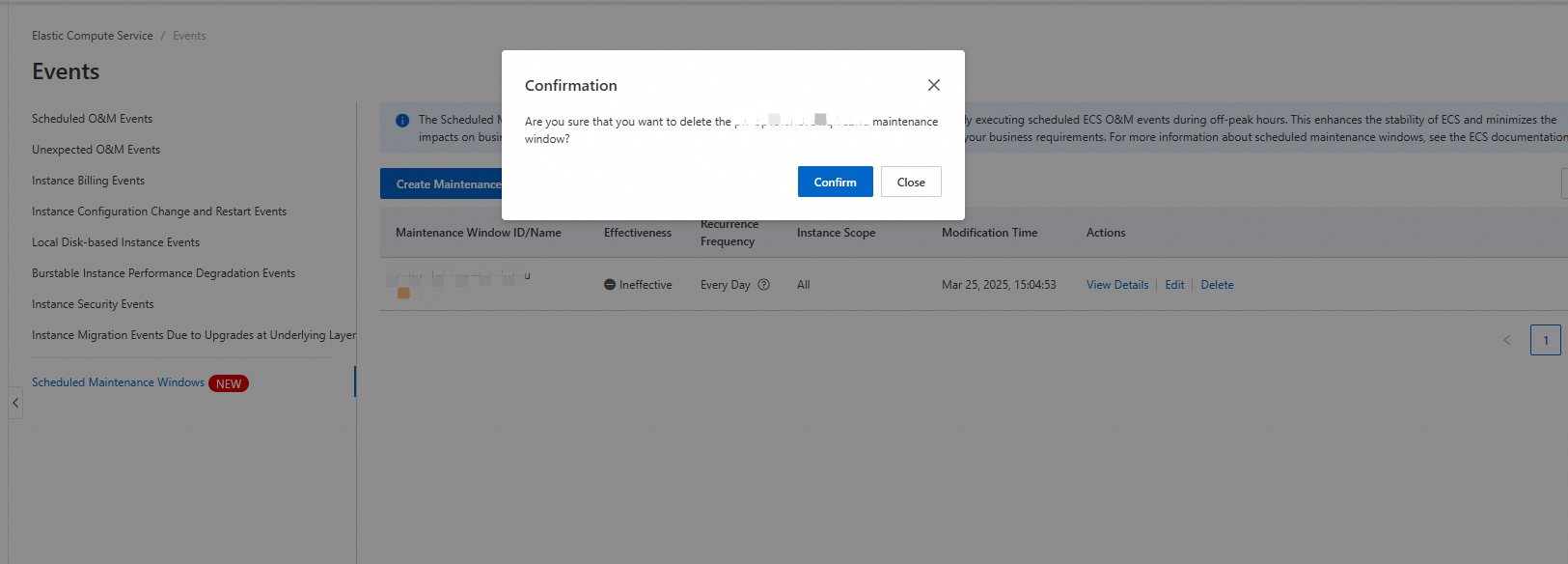
Delete a maintenance window. Delete redundant or overlapping windows. Find the target window and click Delete in the Actions column, then click OK in the confirmation dialog box to delete the maintenance window.