Enable automatic snapshot policies
Enable automatic snapshot policies for disks to prevent data loss from human error, malware, or hardware failures.
Security risks
Disk data faces multiple threats that can cause corruption or permanent loss:
Human error: accidental file deletion, disk formatting, or incorrect configurations.
Malicious attacks: ransomware that encrypts data, or hackers who delete or tamper with data.
Software faults: application bugs or system crashes that cause inconsistent writes or data corruption.
Hardware failures: physical devices can fail, although this is unlikely.
Best practices
An automatic snapshot policy periodically creates snapshots for specified disks to prevent data loss and improve reliability.
Console
When you create an instance on the instance buy page, the Snapshot section applies an automatic snapshot policy to the system disk and data disks.
If the default policy does not meet your requirements, click Create Automatic Snapshot Policy to create and select a custom policy.
API
Call CreateAutoSnapshotPolicy to create an automatic snapshot policy. Use
timePointsto specify backup times,repeatWeekdaysfor the backup schedule, andretentionDaysfor the retention period. A successful request returnsAutoSnapshotPolicyId.When you create an instance by calling RunInstances or CreateInstance, use
SystemDisk.AutoSnapshotPolicyIdfor the system disk andDataDisk.X.AutoSnapshotPolicyIdfor data disks.
After the policy takes effect, the system automatically creates backups. You can then roll back a disk using a snapshot to recover historical data.
Compliance capabilities
Check whether automatic snapshot policies are enabled
ECS Insight
Go to ECS Insight.
On the Reliability tab, click Snapshots Created Within Previous 7 Days to check whether snapshots were created for your disks in the last 7 days.
Security Center
Go to the Security Center console.
In the left-side navigation pane, choose . On the Cloud Service Configuration Risk tab, find Enable Automatic Snapshot Policy and click Scan in the Actions column.
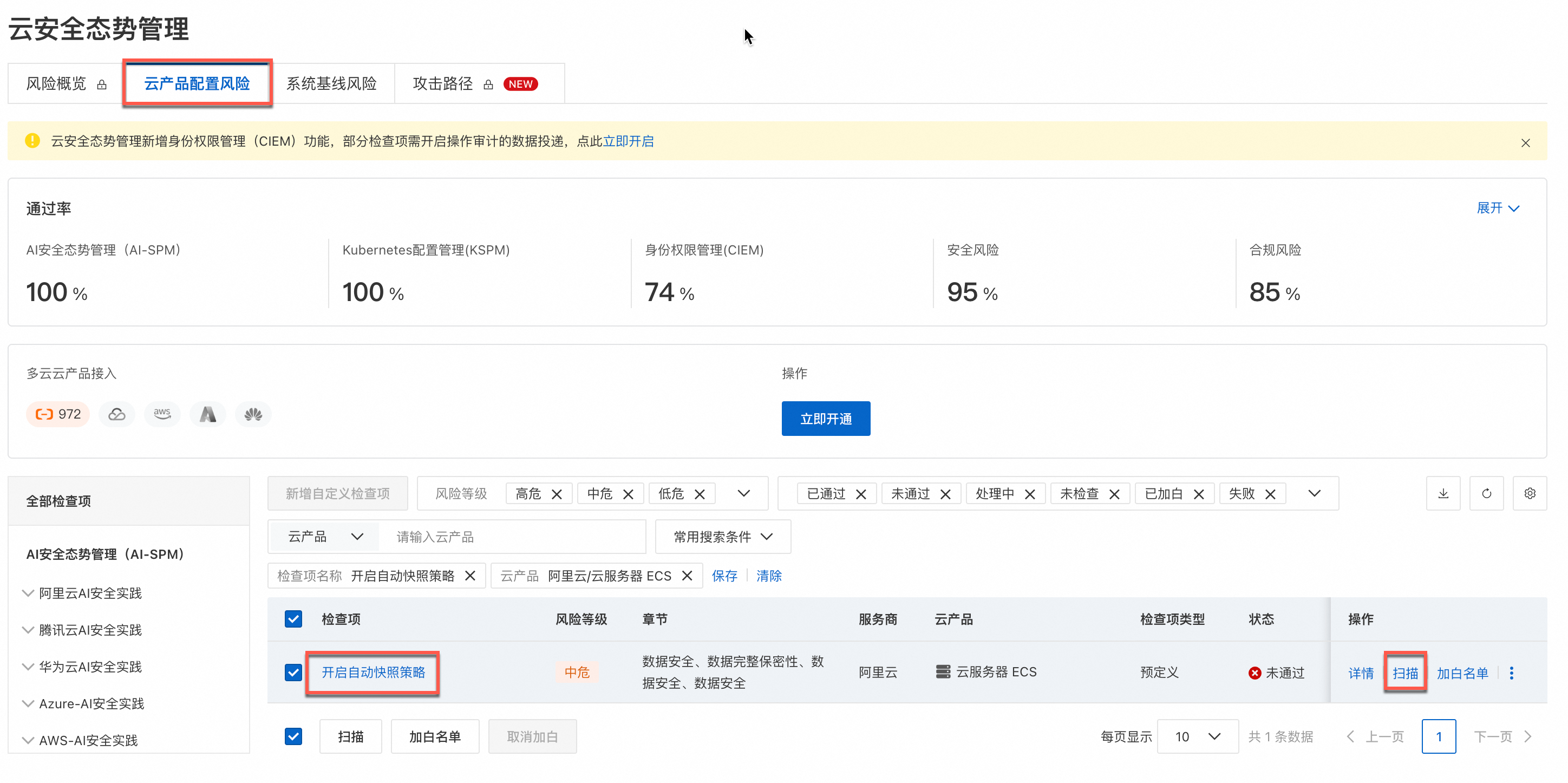
If the status is Failed, an automatic snapshot policy is not enabled for one or more instances. Click Details to view the affected instances.
Intercept: Block ECS instance creation without an automatic snapshot policy
This policy is in invitational preview and is available only in the China (Chengdu), China (Ulanqab), and China (Hohhot) regions.
To enforce data protection against threats such as ransomware, you can require that all new instances have an automatic snapshot policy. ECS lets you configure a RAM policy that requires an automatic snapshot policy for system and data disks of new instances. This restriction applies to specified RAM users and RAM roles. When a restricted user creates an instance or a disk, ECS checks whether an automatic snapshot policy is included in the request. The check result is sent to RAM for authentication. If the request does not meet the policy conditions, RAM denies the request.
For enterprise users:
Log on to the Resource Directory console with an Alibaba Cloud account. In the left-side navigation pane, click Control Policies. Create a custom policy and paste the following JSON content.
{
  "Version": "1",
  "Statement": [
    {
      "Action": [
        "ecs:RunInstances",
        "ecs:CreateInstance"
      ],
      "Resource": "*",
      "Condition": {
        "StringLike": {
          "ecs:IsDiskAutoSnapshotPolicyEnabled": "*false*"
        }
      },
      "Effect": "Deny"
    },
    {
      "Action": [
        "ecs:RunInstances",
        "ecs:CreateInstance"
      ],
      "Resource": "*",
      "Condition": {
        "StringEquals": {
          "ecs:IsSystemDiskAutoSnapshotPolicyEnabled": "false"
        }
      },
      "Effect": "Deny"
    }
  ]
}
In Resource Directory, attach the policy to the target folder or member. The policy blocks non-compliant requests from all accounts in the folder or from the specified member.
For individual users:
Log on to the RAM console with an Alibaba Cloud account. In the left-side navigation pane, click Permission Policy. Create a custom policy with the same JSON content as above.
Attach the policy to the required RAM users, RAM user groups, or RAM roles. See Grant permissions to a RAM user.
Fix: Enable an automatic snapshot policy for a disk
If a check finds that no automatic snapshot policy is enabled, set an automatic snapshot policy for the disks.