Enable eRDMA
Set up eRDMA on a supported instance type by installing the driver and binding an Elastic RDMA Interface (ERI) for ultra-low latency RDMA networking.
Enable eRDMA on an ECS instance
Step 1: Confirm instance and image support
Only certain instance types and images support eRDMA:
-
Enterprise-level CPU instances: see eRDMA-supported enterprise-level CPU instance types and images.
-
GPU instances: see eRDMA-supported GPU instance types and images.
Step 2: Install the eRDMA driver
-
The eRDMA driver is developed and maintained by Alibaba Cloud.
-
Driver installation may take some time.
-
Driver installation packages
-
Install the eRDMA driver
Install the eRDMA driver automatically during instance creation, or manually on an existing instance.
-
Enterprise-level CPU instances: see Configure eRDMA on an enterprise-level instance.
-
GPU instances: see Enable eRDMA on a GPU instance.
-
-
eRDMA kernel driver
After installing the eRDMA driver, run
eadm verto check the eRDMA kernel driver version. The latest installer package (1.4.5) corresponds to kernel driver version 0.2.38.
The eRDMA kernel driver supports two installation modes that determine the available connection establishment methods. See RDMA_CM for details on eRDMA connection establishment.
-
Standard: Supports only RDMA_CM connection establishment.ImportantBy default, CPU-based instance families that support eRDMA install the eRDMA kernel-mode driver in Standard mode. In this mode, only the RDMA_CM connection establishement method is supported.
-
Compat: Supports both RDMA_CM and OOB connection establishment.Important-
By default, GPU-based instance families that support eRDMA install the eRDMA kernel-mode driver in Compat mode. In this mode, the RDMA_CM and OOB connection establishement methods are supported.
-
You can use CLI to enable compatibility between the RDMA_CM and OOB connection establishement methods. For more information, see Change the connection establishment mode of eRDMA to be compatible with bRPC.
-
In Compat mode, an additional 16 TCP ports in the range of 30608 to 30623 are occupied.
-
-
Step 3: Bind an ERI to the instance
Enable the eRDMA interface on the primary ENI during instance creation, or bind an ERI to an existing instance.
To determine the maximum number of ERIs that an instance type supports, check the value of the EriQuantity parameter in the response of the DescribeInstanceTypes operation. A value of 0 indicates that the instance type does not support ERIs.
-
Enable the eRDMA interface for an ENI during instance creation
-
Create an ERI and bind it to an ECS instance
-
To create an ERI, see Create a standalone ERI.
-
To bind an ERI to an ECS instance, see Bind a secondary ENI.
-
-
Modify the attributes of a bound ENI to enable the eRDMA interface
-
Create a secondary ENI with the eRDMA interface enabled and bind it to an instance by using an API operation
Create and bind a secondary ENI by using API operations:
-
Call an API operation to create an ERI.
You can call the CreateNetworkInterface operation to create an ENI. To create an ENI with an ERI enabled, set the NetworkInterfaceTrafficMode parameter to HighPerformance.
Record the ENI ID returned in the
NetworkInterfaceIdparameter. -
Call AttachNetworkInterface. Set NetworkInterfaceId to the ID from the previous step and InstanceId to the target instance ID to bind the ERI-enabled ENI.
ImportantIf your instance type supports multiple ERIs, specify a different NetworkCardIndex for each ERI when binding them to maximize network bandwidth. This ensures the ERIs are bound to different channels. See Network card indexes.
-
Verify eRDMA configuration
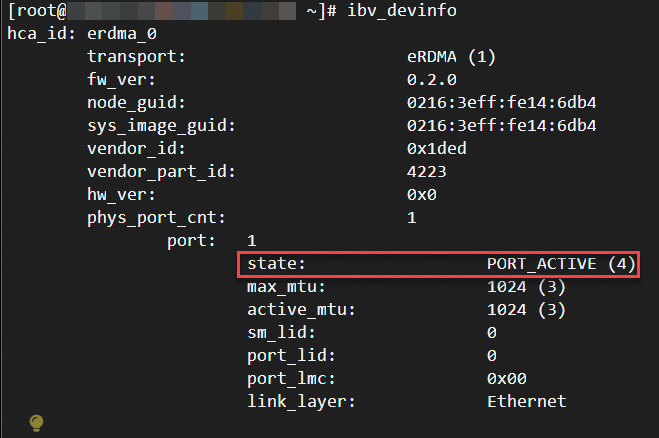
Run ibv_devinfo to check device hardware properties, port statuses, and supported features. If RDMA components work correctly, the ibv_devinfo output shows at least one port as PORT_ACTIVE. See Testing RDMA operations.
Use ibv_devinfo with the -v flag for detailed device information, such as hardware version, maximum message size, queue count, and memory window size.
Run ibv_devinfo to verify eRDMA configuration:
-
eRDMA is configured correctly: The eRDMA interface is enabled on the ENIs and the driver is installed correctly.
Note-
If your instance has multiple ERIs attached, each eRDMA device port should show
stateasPORT_ACTIVE. -
If the
stateshowsinvalid state, the eRDMA network interface is abnormal. Check whether the secondary ENI is configured correctly. For example, runifconfigto verify all network interfaces and IP addresses. See Configure a secondary elastic network interface.
-
-
eRDMA driver is not installed correctly: The driver is missing or improperly installed. See Step 2: Install the eRDMA driver on the ECS instance.

-
No ERI is bound to the instance: The driver is installed, but no ERI is enabled on the ENI. See Step 3: Bind an ERI to the ECS instance.

You can also use the diagnose tool to test eRDMA. See Use the diagnose tool to check for RDMA-related issues and evaluate eRDMA performance.
Test eRDMA network performance
perftest measures RDMA operation latency and bandwidth for send, receive, read, and write operations. Use it to evaluate RDMA device performance and diagnose network issues. See the perftest documentation.
perftest test suite
The perftest package includes the following bandwidth and latency tests:
|
RDMA operation |
Bandwidth test program |
Latency test program |
|
Send |
ib_send_bw (send bandwidth test) |
ib_send_lat (send latency test) |
|
RDMA Read |
ib_read_bw (read bandwidth test) |
ib_read_lat (read latency test) |
|
RDMA Write |
ib_write_bw (write bandwidth test) |
ib_write_lat (write latency test) |
|
RDMA Atomic |
ib_atomic_bw (atomic bandwidth test) |
ib_atomic_lat (atomic latency test) |
|
Native Ethernet |
raw_ethernet_bw (raw Ethernet bandwidth test) |
raw_ethernet_lat (raw Ethernet latency test) |
Install perftest
Install perftest from the official repository (requires a public IP address) or from a YUM/APT repository.
Official repository
-
Assign a public IP address to the ECS instance.
-
Download and install perftest from the official perftest repository.
YUM or APT repository
The perftest versions in software repositories may differ across Linux distributions, causing compatibility issues. Use the same distribution on all communicating instances. If not possible, install from the official repository.
-
Alibaba Cloud Linux 3, CentOS, or Anolis OS
sudo yum install perftest -y -
Ubuntu
sudo apt install perftest -y
perftest usage example
Each test runs as an independent command. For example, ib_send_lat runs a send latency test.
Set the correct test parameters to control perftest behavior and obtain accurate perftest results. The following guidelines help you configure and run perftest.
-
Network latency test: See Test the write latency performance of an instance with eRDMA enabled.
-
Network bandwidth test: See Enable eRDMA on a GPU instance.
References
-
Use eRDMA within containers for large-scale data transfer and high-performance networking. See Enable eRDMA in Docker containers.
-
Use eRDMA in Alibaba Cloud Container Service for Kubernetes (ACK) clusters for low-latency, high-throughput communication across services. See Use eRDMA to accelerate container networks.
-
Integrate eRDMA with TCP applications such as Redis, Spark, Kafka, or other HPC applications. See Application integration.
-
Monitor, diagnose, and track eRDMA status in real time. See Monitor and diagnose eRDMA.