Instance boot mode
Configure the correct boot mode when importing a custom image to prevent startup failures.
Boot mode types
ECS supports two boot modes:
Mode | Description | Typical use |
BIOS | Traditional firmware interface that initializes hardware and loads the OS | Legacy OSs such as CentOS 6 and Windows XP |
UEFI | Modern firmware standard with Secure Boot support | Modern OSs and security-enhanced instance types |
How the boot mode is determined
The final boot mode depends on the instance type's supported boot mode and the image's configured boot mode.
Instance type boot mode — set by Alibaba Cloud, not changeable. Options: UEFI, BIOS, or UEFI & BIOS.
Image boot mode — public images use a default mode. For custom images, set the mode during import or modify it later. Options: UEFI, BIOS, or UEFI-Preferred.
UEFI-Preferred means the image supports both modes but boots in UEFI when the instance type allows it.
The following table shows how the final boot mode is determined:
Instance type boot mode | Image boot mode | Final boot mode |
|
|
|
|
|
|
|
|
|
|
|
|
|
|
|
If the instance type and image boot modes are incompatible — for example, a BIOS image on a UEFI-only instance type — the instance fails to start.
Configure the boot mode
Prerequisites
Before configuring the boot mode for a custom image, verify:
The image has the correct bootloader configuration:
UEFI: The image has an EFI System Partition (ESP)
BIOS: The image has a Master Boot Record (MBR)
The intended boot mode is compatible with the target instance type (see the table above)
Alibaba Cloud can only read image metadata during import — it cannot inspect or modify the internal bootloader configuration. An incorrect bootloader causes the instance to fail to recognize the system disk.
Specify the boot mode when importing a custom image
Console
In the ECS console, go to the Images page and select the target region.
In the upper-right corner of the Images page, click Import Image.

In the Import Image dialog box, configure the parameters and select a Boot Mode.
UEFI-Preferredcannot be set during import. To useUEFI-Preferred, import the image first, then modify the boot mode.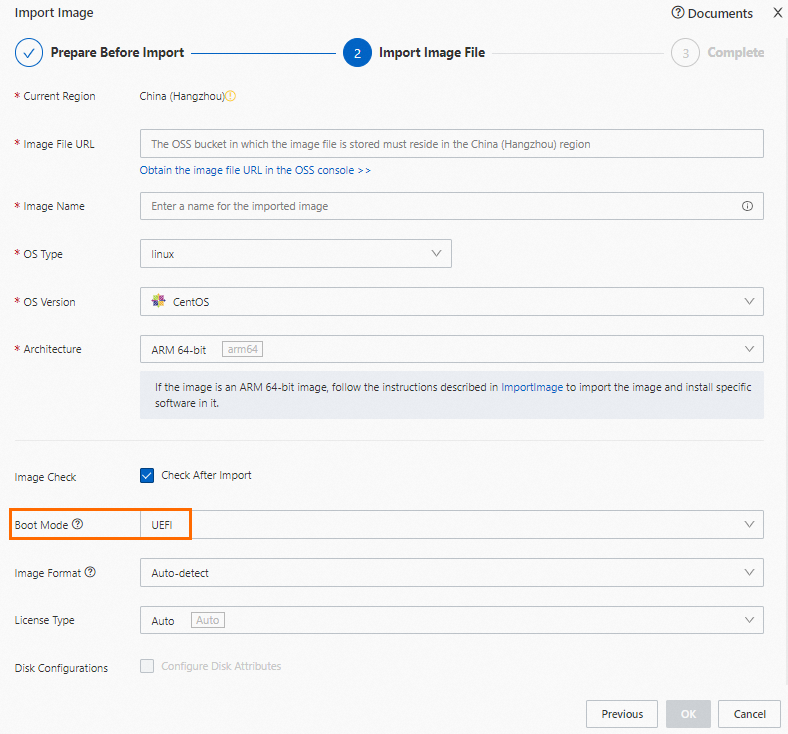
Click OK.
API
Call ImportImage and set BootMode to the desired boot mode.
Modify the boot mode of an existing custom image
After a custom image is used to create an instance, its boot mode cannot be modified.
Console
In the ECS console, go to the Images page and select the region of the target custom image.
Click the image ID to open its details page.
In the Basic Information section, click the
 icon next to Boot Mode.
Select a boot mode and click Confirm.
API
Call ModifyImageAttribute and set BootMode to the desired mode.
FAQ
Why can't I see certain image versions when creating an ECS instance?
The instance type's boot mode filters available images. If you select a security-enhanced instance type that only supports UEFI, BIOS-only images are hidden. Select a different instance type or use a UEFI-compatible image.
How can I view the boot modes supported by an instance type?
Console
Go to the Custom Launch page.
On the Instance page, click the All Instance Types tab and click View more specification parameters.

Select the Supported Boot Mode checkbox and click OK.

Search for the target instance type to view its supported boot modes.


API
Call DescribeInstanceTypes. The SupportedBootModes field in the response lists the supported boot modes.
In
InstanceTypeFamilyorInstanceTypes, enter the instance type or instance family to query.Click Initiate Call.
In the response,
SupportedBootModesindicates the supported boot modes.
How can I view the boot mode of an image?
Console
Go to the Images page and select the target region.
Click the image ID to open its details page.
The Boot Mode is shown in the Basic Information section.

API
Call DescribeImages. The boot mode is returned in BootMode.
How do I check whether a custom image uses a BIOS or UEFI bootloader?
Run this check on the source server or on a temporary instance created from the image.
Linux: Check if
/sys/firmware/efiexists. If yes, the system booted in UEFI mode.Windows: Open PowerShell as administrator and run
Get-Disk. CheckPartitionStyle: GPT indicates UEFI, MBR indicates BIOS.