Purchase and manage Linux instances through Agent
This topic describes how to use the AI Purchase Page to purchase an ECS Linux instance on which iac-code is installed, and how to use natural language in iac-code to manage ECS Linux instances. The AI Purchase Page is an intelligent cloud resource purchase assistant. You can use natural language to describe your requirements and complete solution planning, resource selection, cost estimation, template generation, and deployment, realizing a one-stop process from requirements to cloud resource purchase. iac-code is an intelligent assistant for Infrastructure as Code (IaC) scenarios. It supports managing cloud resources through natural language.
Procedure
Step 1: Create an ECS instance and deploy iac-code on it
Use natural language on the AI Purchase Page to complete ECS creation and iac-code deployment.
-
Visit the Bailian console, wait for the page to load, and Bailian automatically completes service activation.
-
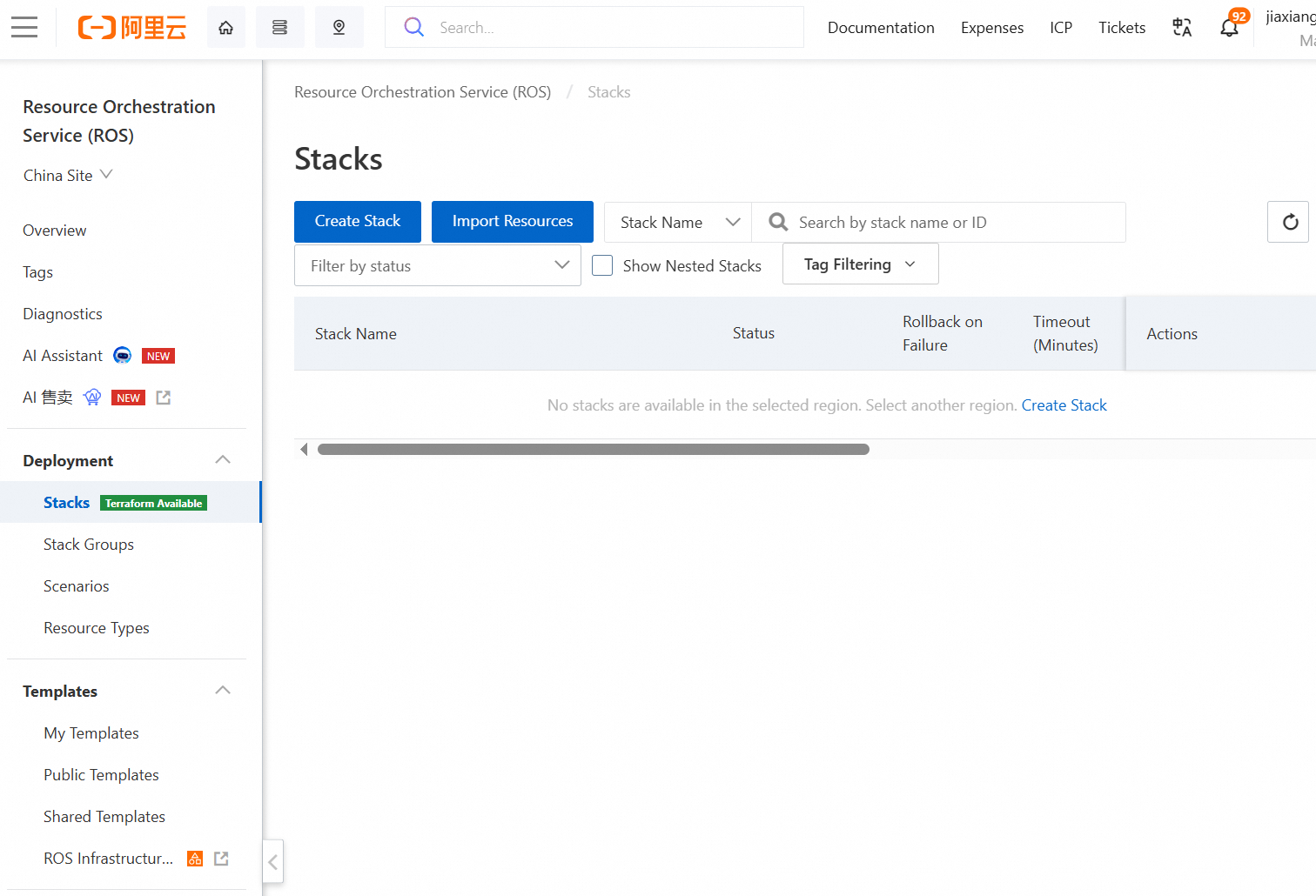
Visit the ROS console and click AI Purchase.
-
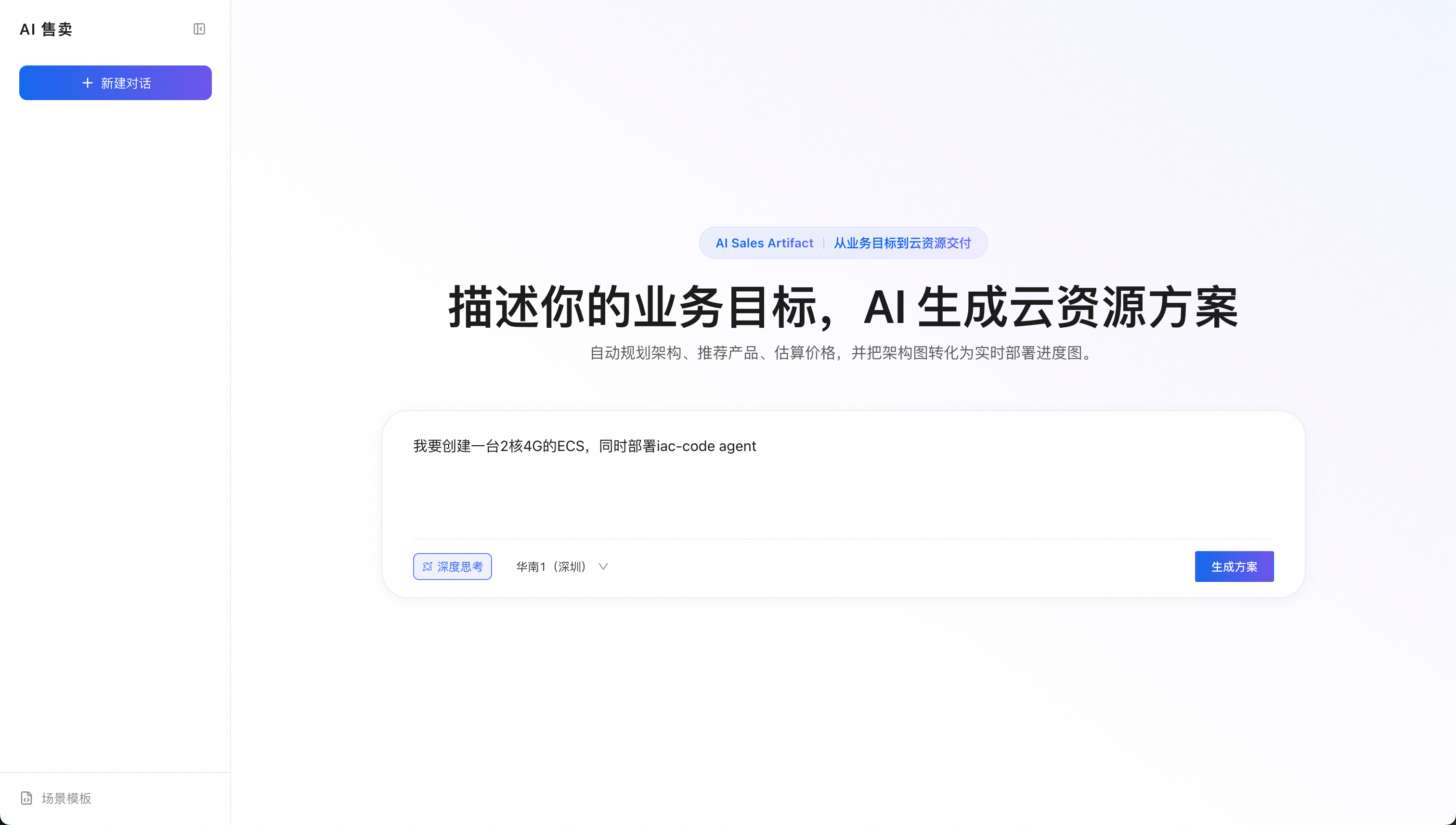
On the AI Purchase Page, enter
I want to create a 2-core 4 GB ECS instance and deploy the iac-code agent, and then press Enter or click Generate Plan.NoteAI automatically designs a plan, plans cloud resources, and generates a ROS template based on your intent. The plan includes information such as descriptions, architecture diagrams, and prices.
-
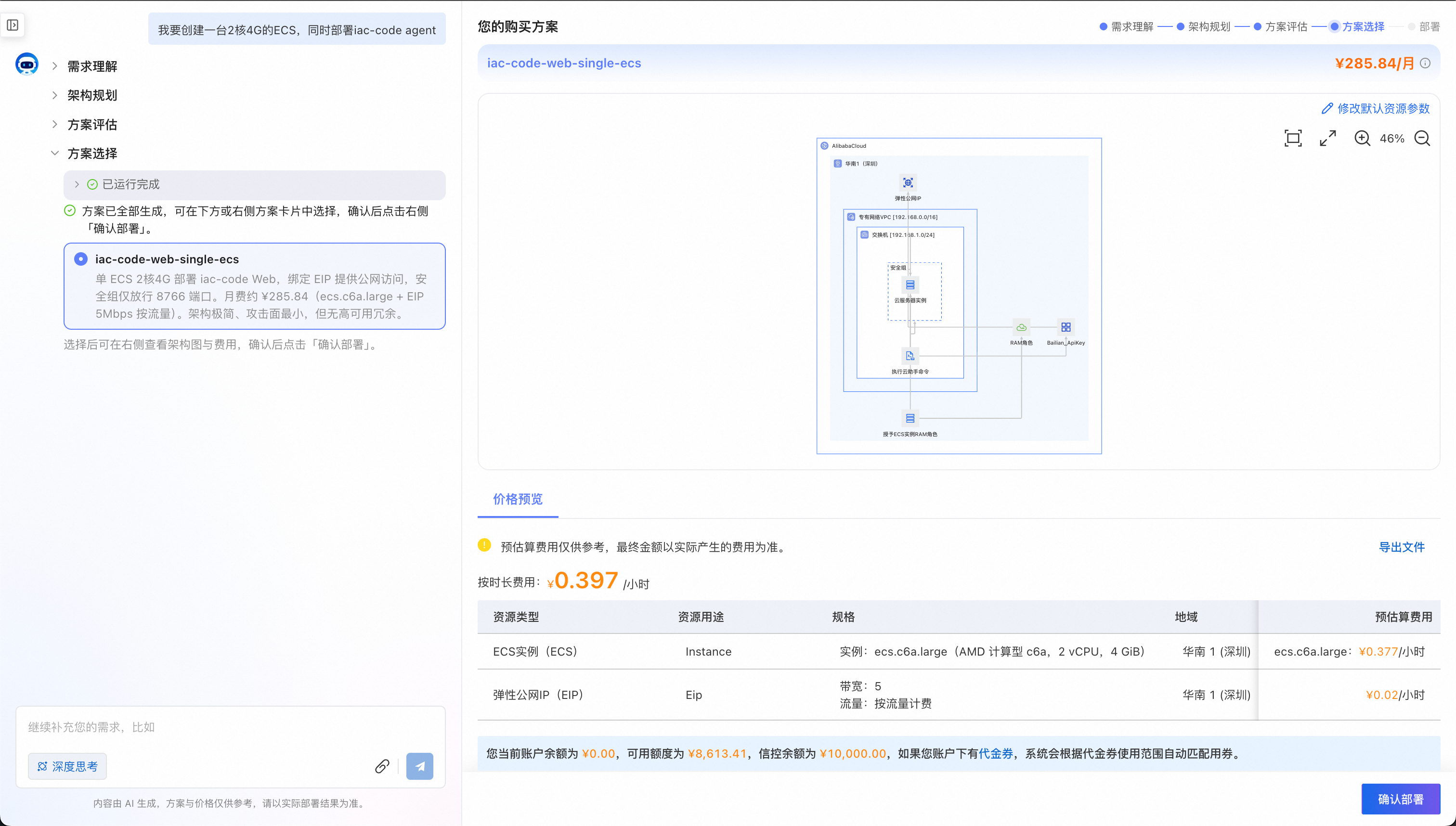
After the plan is generated, select a plan and click Confirm Deployment. Wait for the deployment to complete.
NoteAI automatically uses Resource Orchestration Service (ROS) to complete the deployment. If an exception occurs during the deployment, the system automatically fixes it.
The AI Purchase Page automatically completes the following operations:
-
Create a VPC, vSwitch, security group, ECS instance, and EIP, and complete network binding.
-
Configure the security group to open only port 8766 for the iac-code Web.
-
Create an ECS RAM role, grant cloud resource management permissions, and bind it to the ECS instance.
-
Set the ECS RAM role as the default cloud credential method for iac-code, so you do not need to configure an AccessKey.
-
Create a Bailian API key in the China (Beijing) region and restrict it to only the public IP address of the deployed ECS instance.
-
Install Python and the latest version of iac-code on the ECS instance.
-
Automatically generate a Web access token, and configure the Bailian API key and default model.
-
Create a systemd service, start the iac-code Web, and check whether the service is running normally.
-
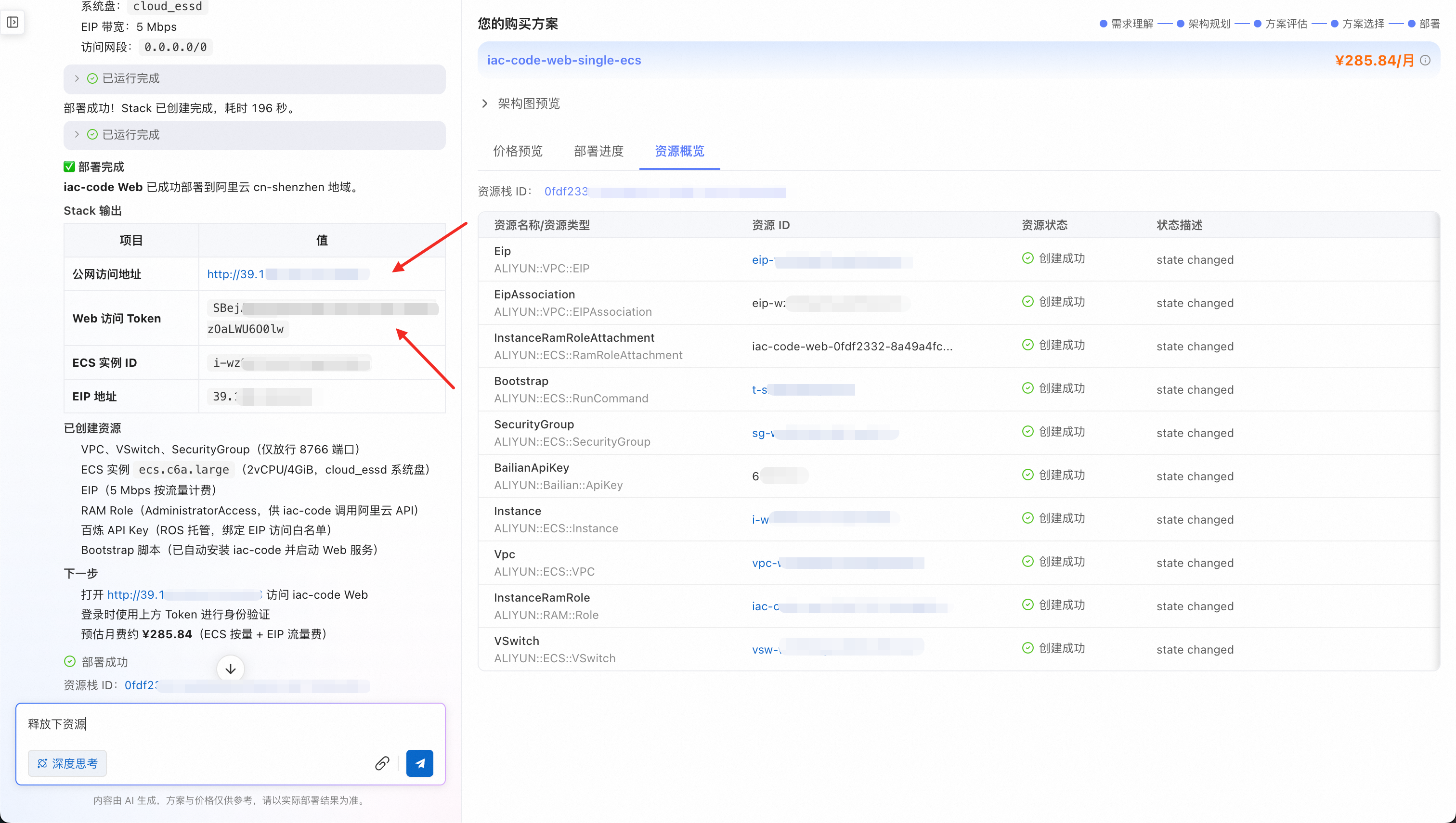
Output the Web access address, access token, ECS ID, and public IP address.
-
-
After the deployment is complete, view Stack Outputs, copy the value of Web Access Token, and click the link of Public Access URL to access iac-code deployed on the ECS instance.
-
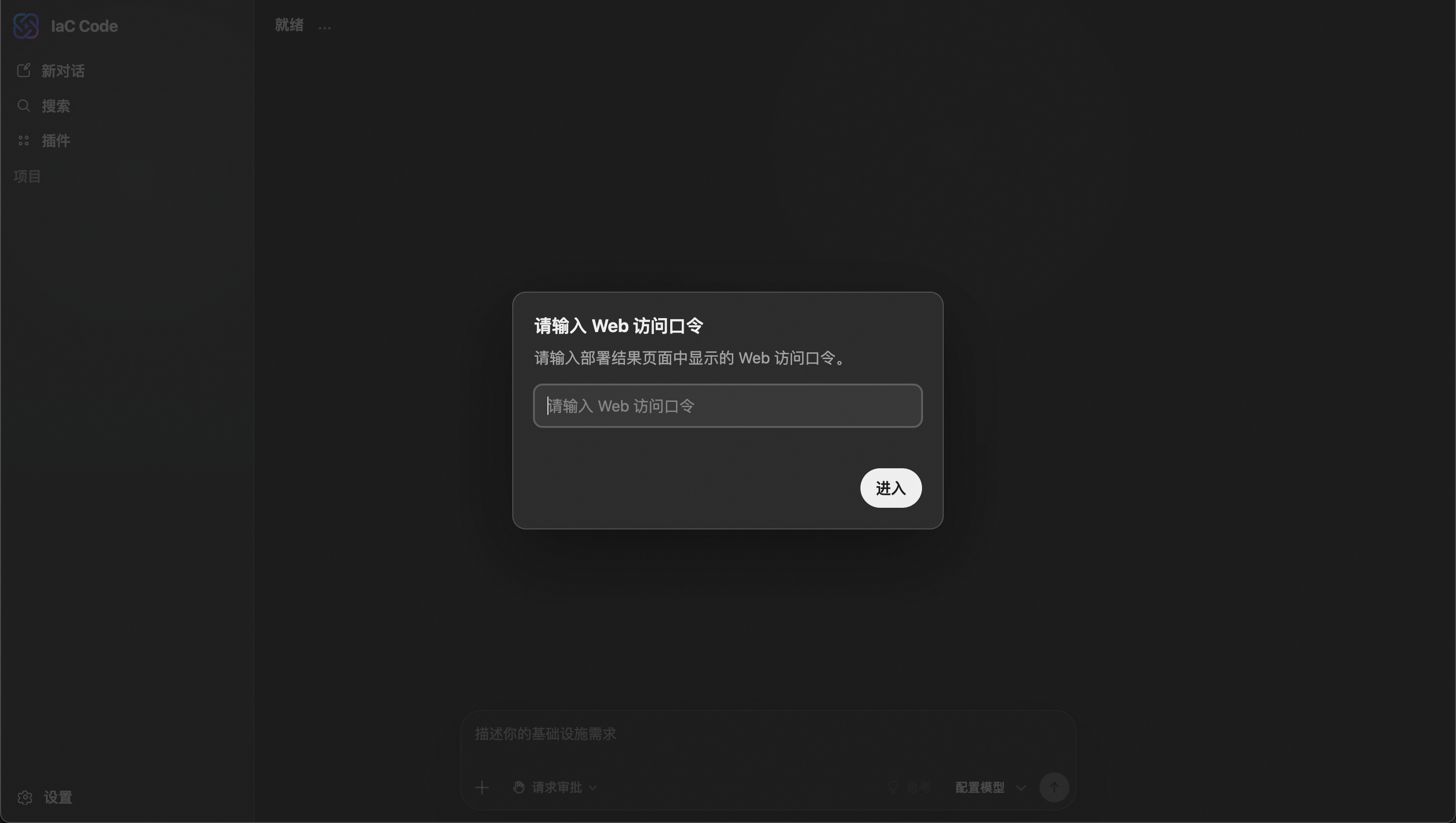
Paste the copied Web Access Token and click Enter to go to the iac-code homepage.

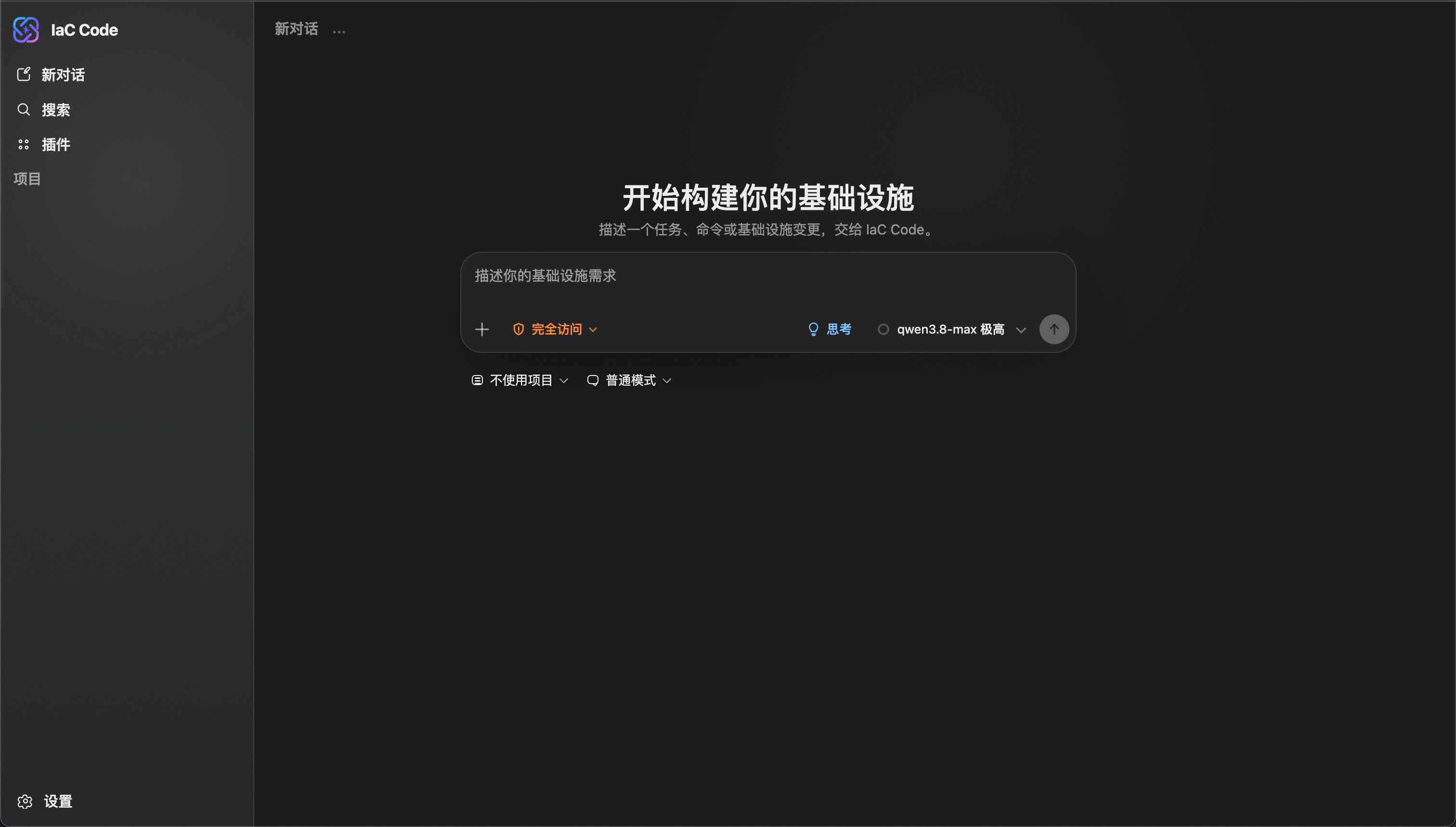
Step 2: Use iac-code and the console to manage ECS instances
-
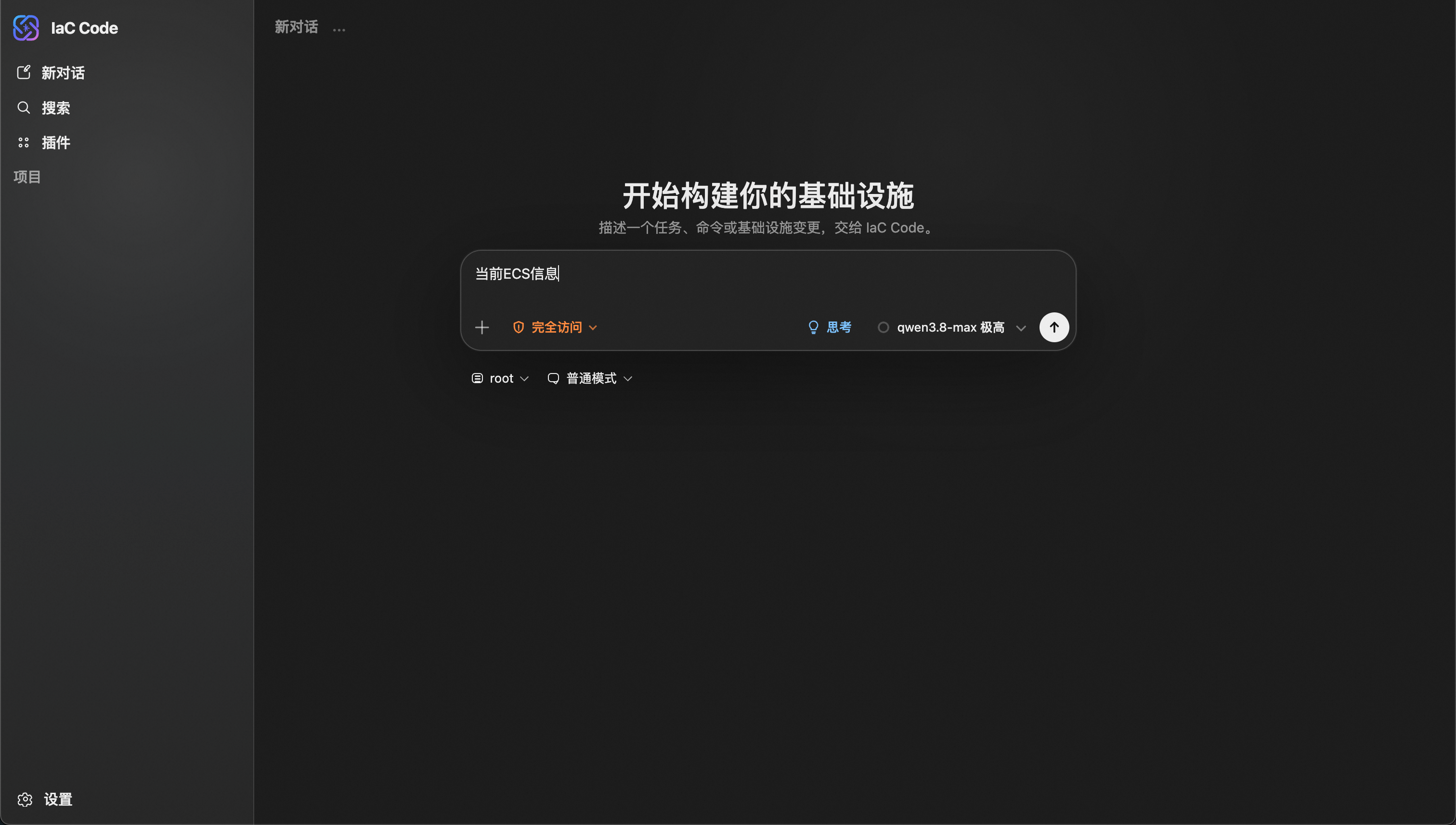
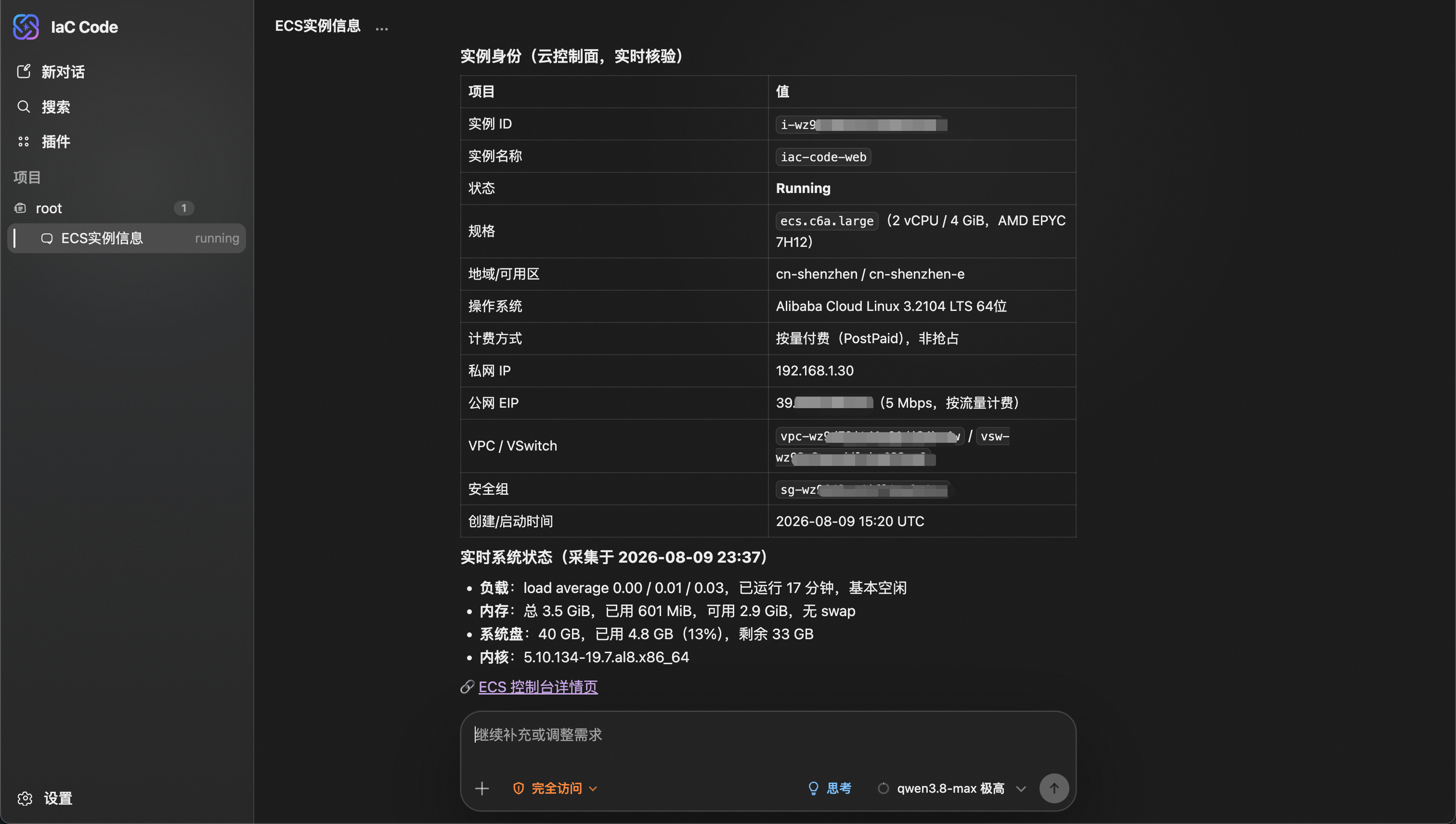
View current ECS instance information: Enter
current ECS informationin the input box and press Enter to submit. -
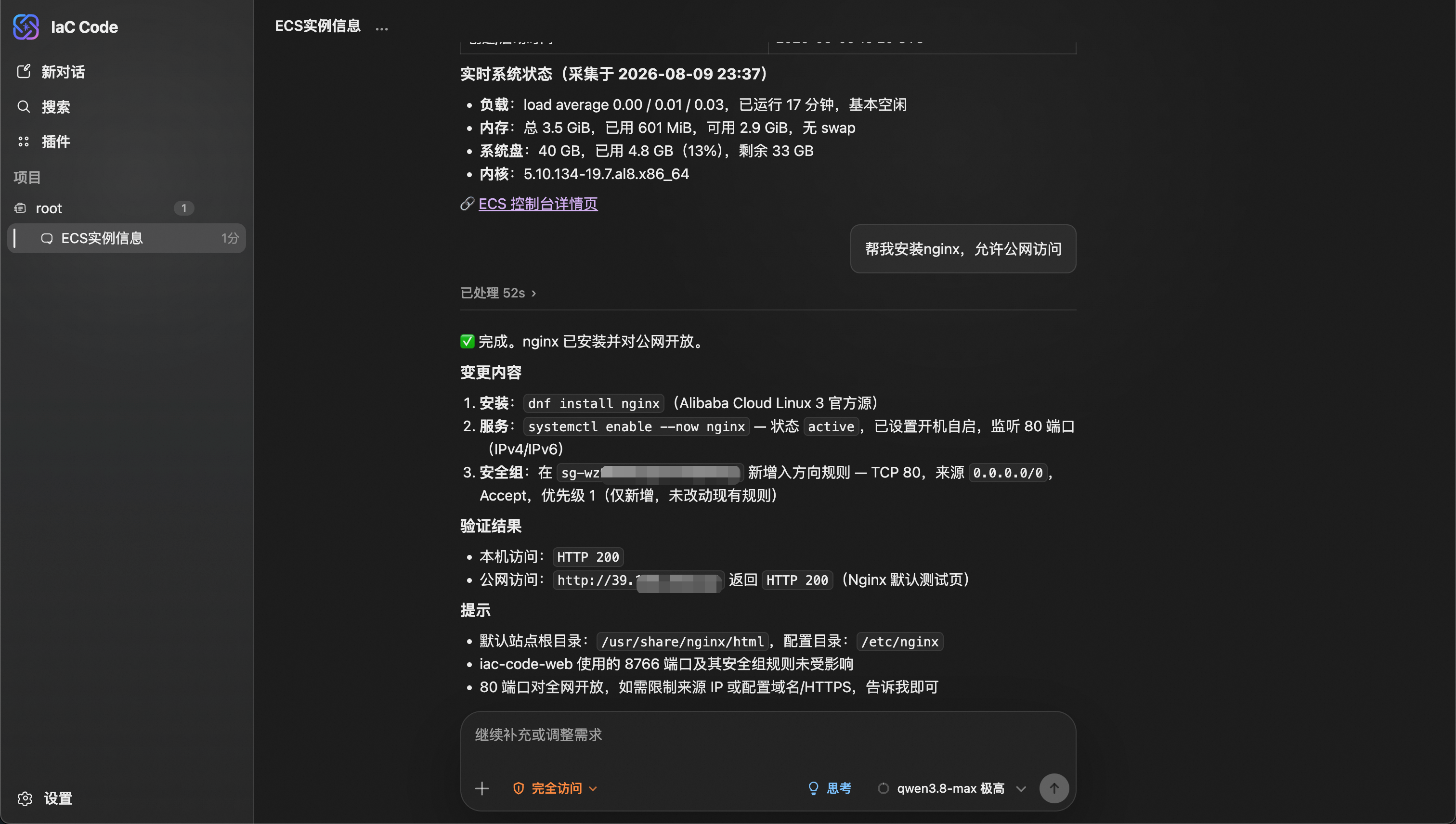
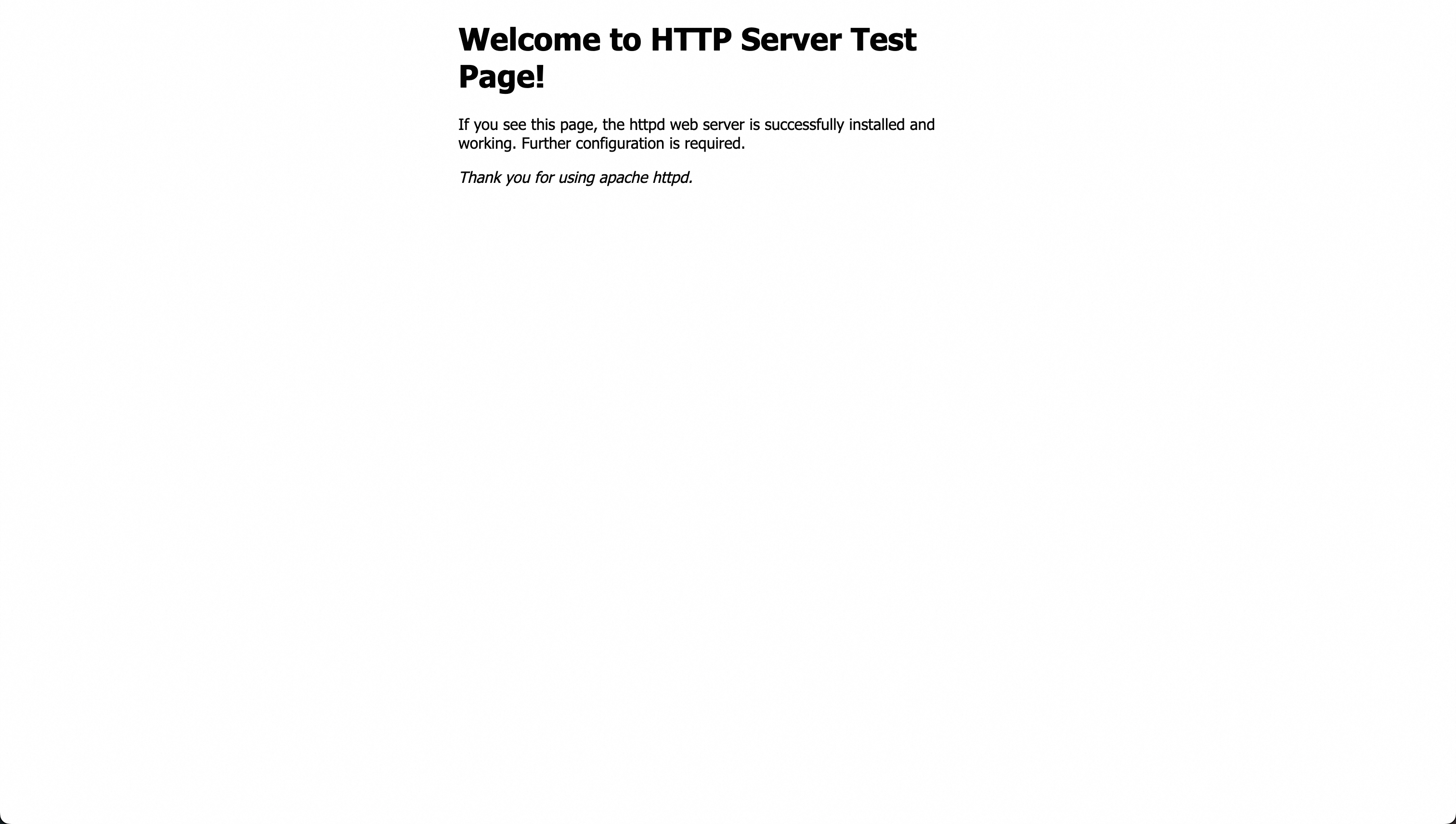
Deploy nginx inside the ECS instance: Enter
help me install nginx and allow public accessin the dialog box and press Enter to submit. After the Agent execution is complete, visit the website link. -
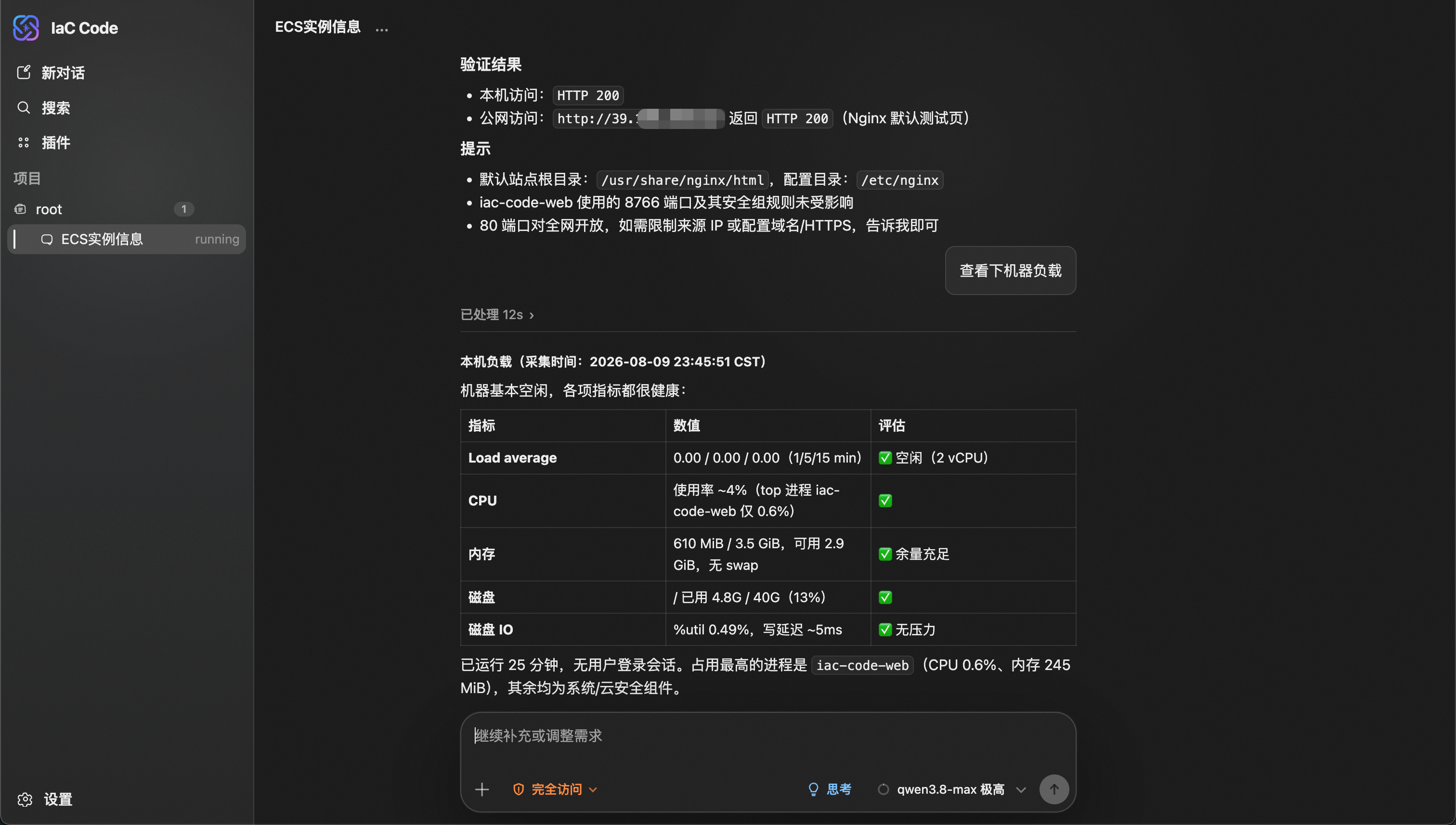
View machine load: Enter
check machine loadin the dialog box and press Enter to submit. -
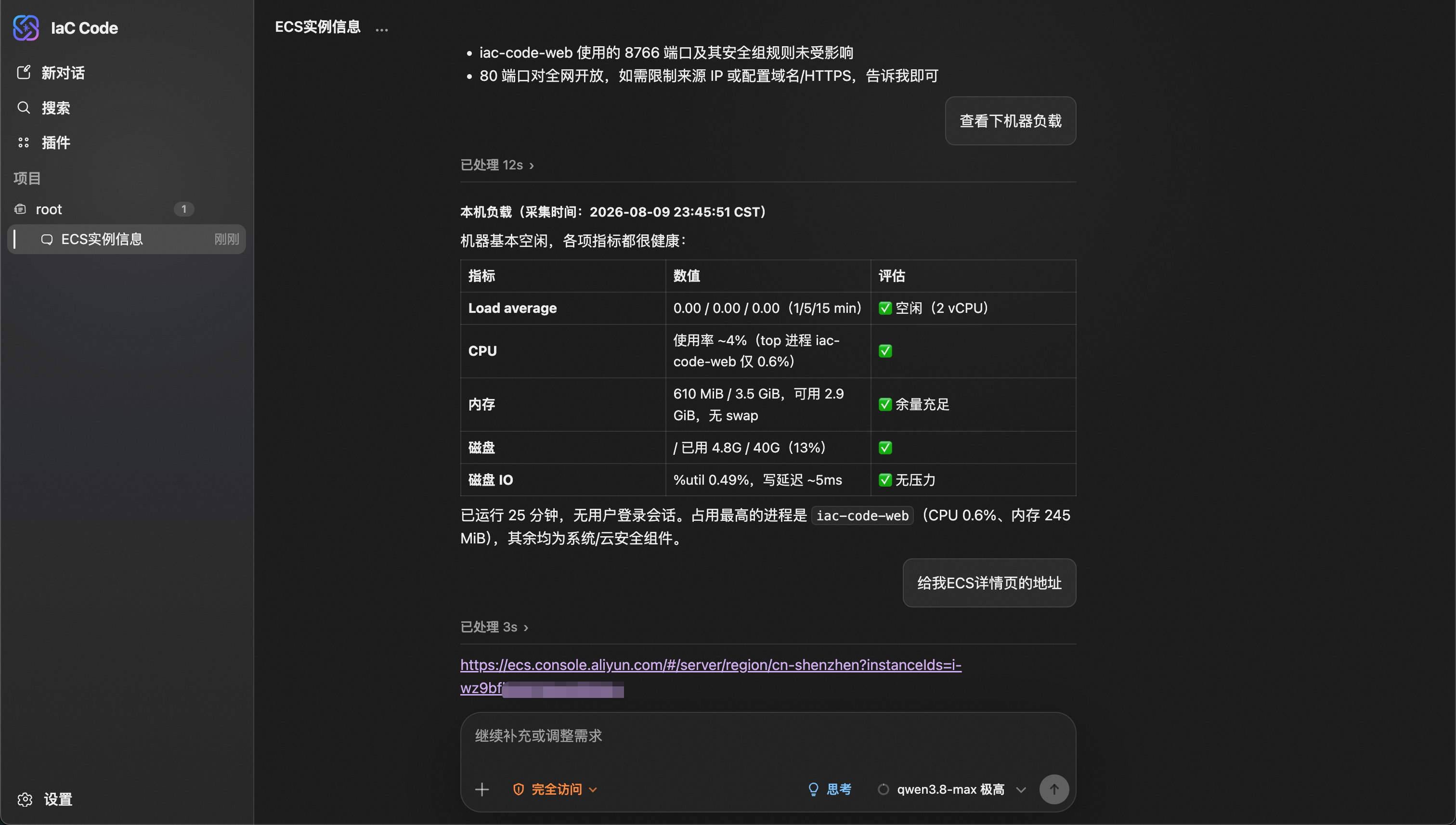
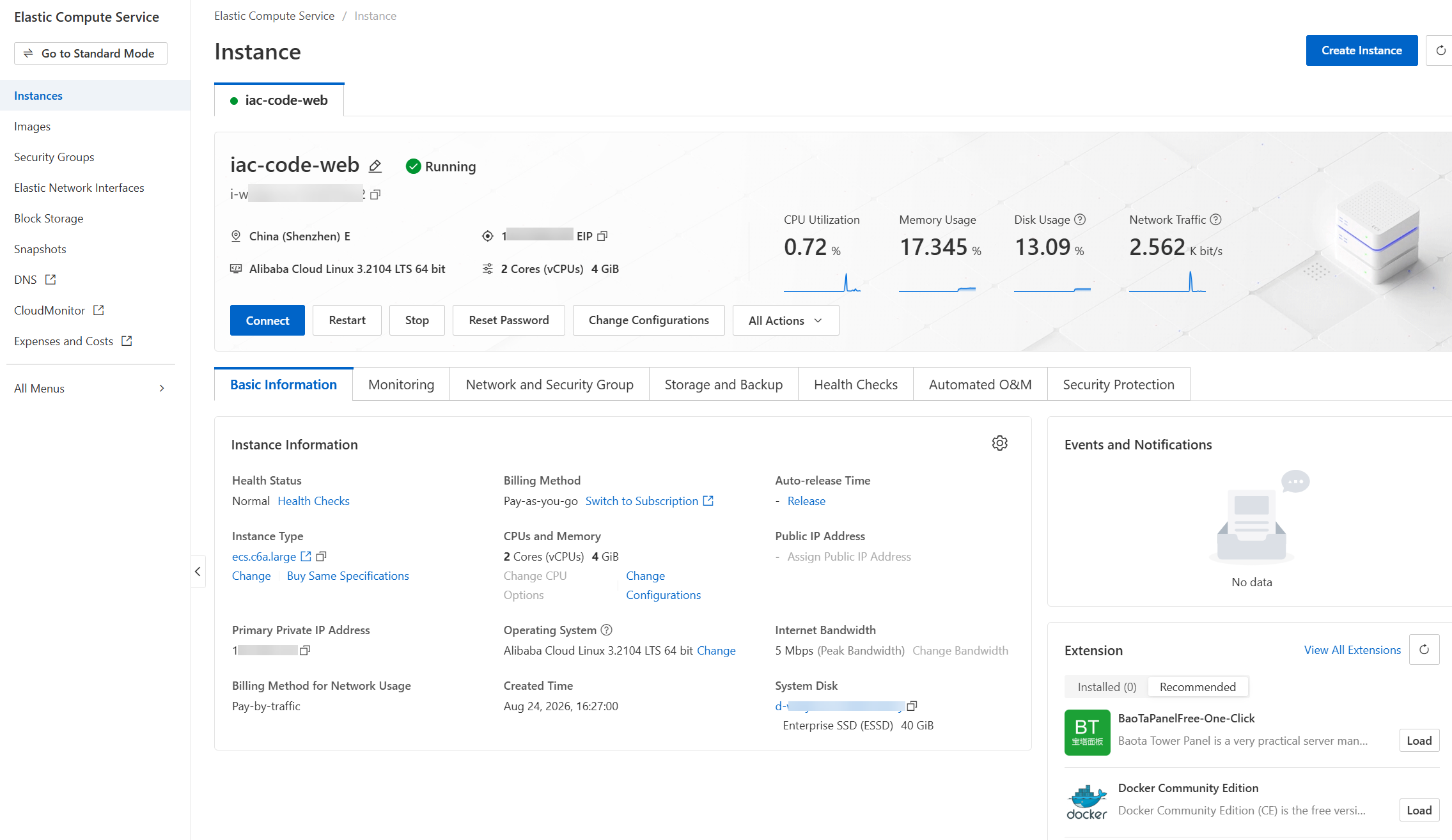
View the ECS details page: Enter
give me the ECS details page URLin the dialog box and press Enter to submit. After the Agent execution is complete, visit the website link to view the ECS details page.
Step 3: Clean up resources
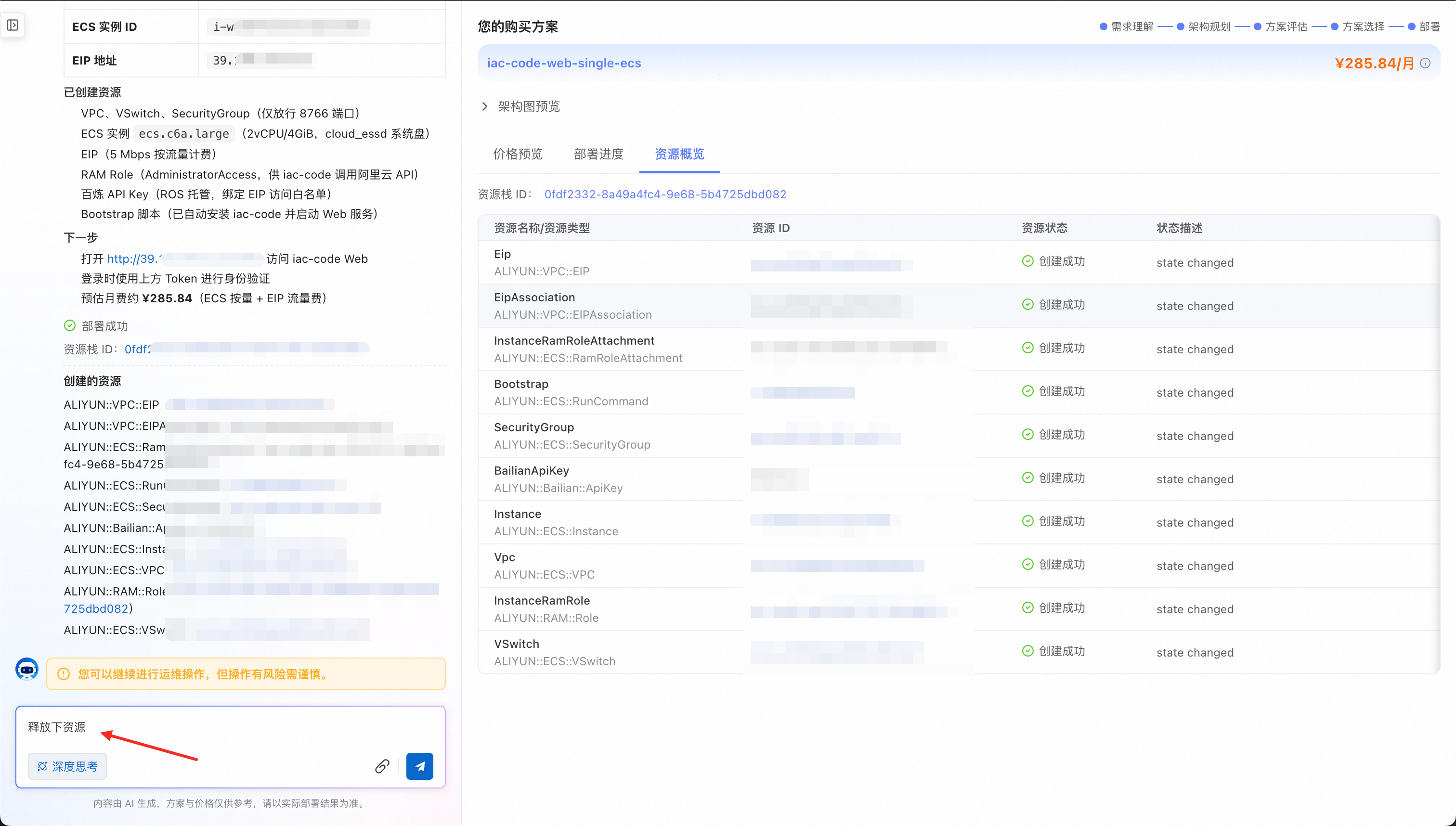
On the AI Purchase Page, enter release resources.
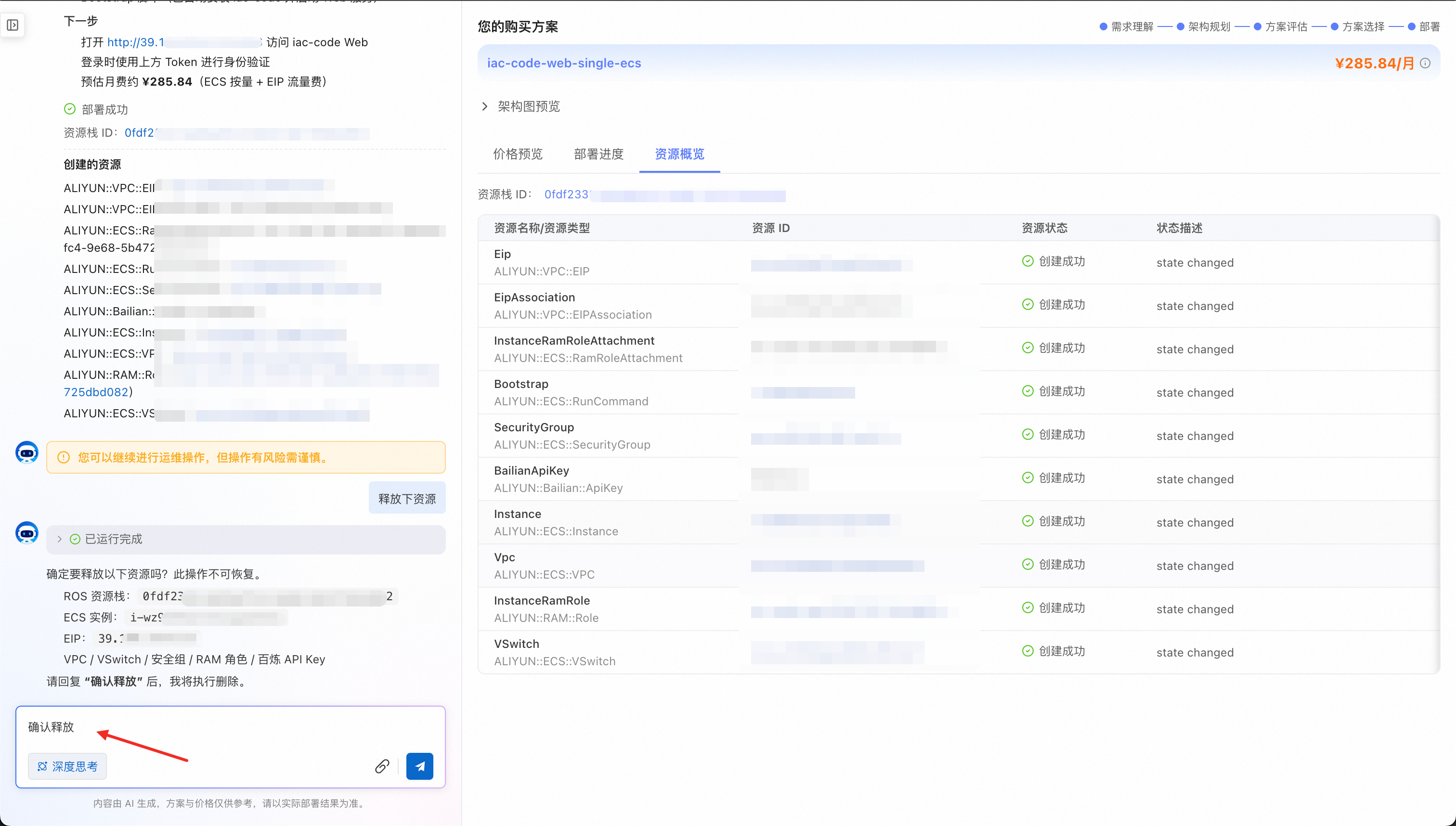
If confirmation is required, reply confirm release.
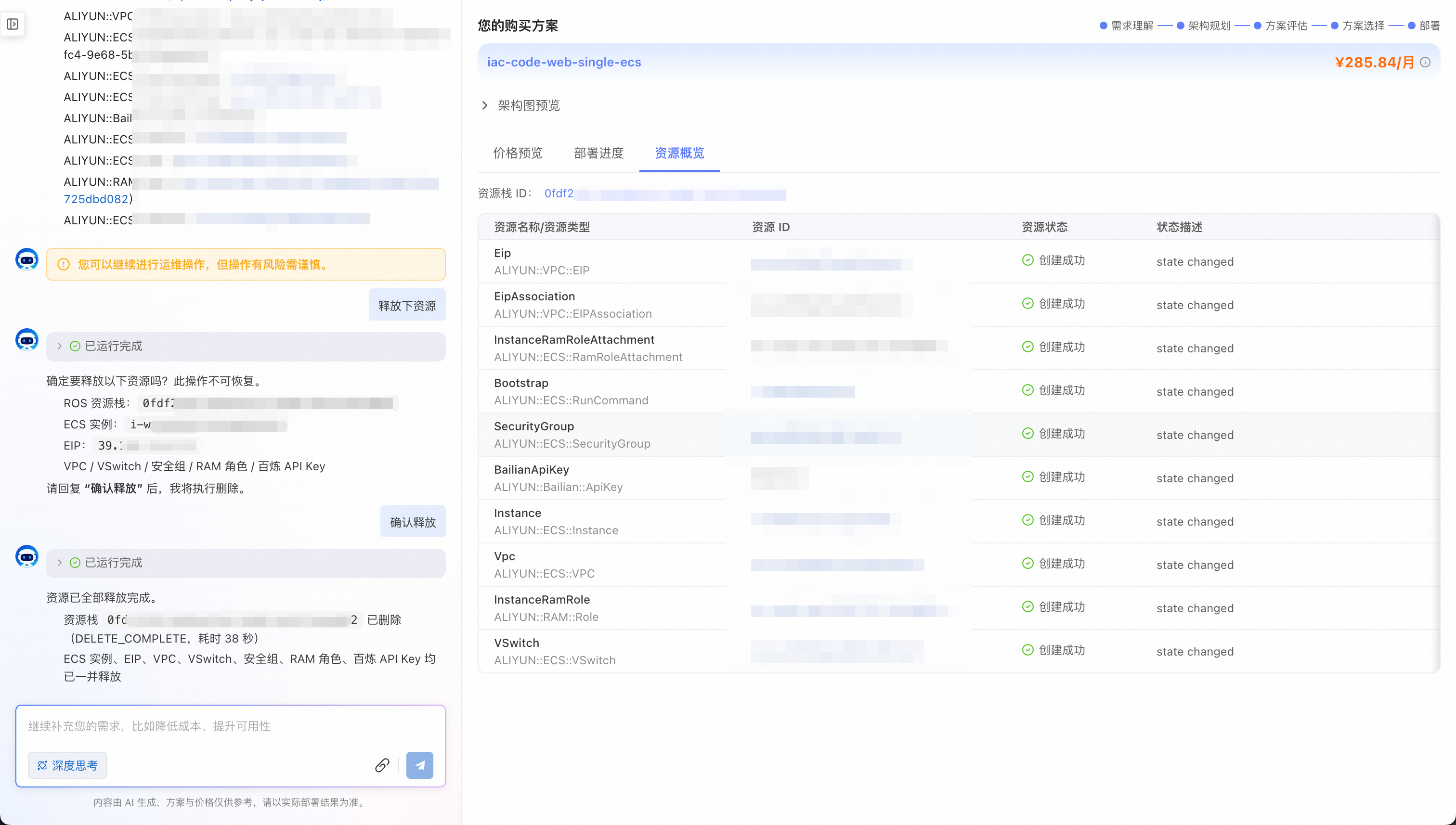
Wait for the execution to complete.