Send event notifications with a DingTalk chatbot
Configure a DingTalk chatbot to push ECS system event notifications to a DingTalk group for faster exception response.
Background
ECS instances generate system events during operation, such as lifecycle status changes and O&M events. See Summary of ECS system events. Some events indicate abnormal instance behavior. If your O&M team uses a DingTalk group, a DingTalk chatbot can automatically forward these notifications to the group for faster response.
This procedure uses a DingTalk chatbot and CloudMonitor alerts:
-
Create a DingTalk chatbot in a DingTalk group.
-
Add the chatbot's webhook URL as the contact method for a CloudMonitor alert contact.
-
Create an event subscription policy that uses an alert contact group containing this alert contact.
After setup, notifications flow automatically:
-
When Alibaba Cloud detects an ECS system event, such as a lifecycle status change or an O&M event, it pushes the event to CloudMonitor Event Center.
-
CloudMonitor sends a notification to the alert contact group per your event subscription policy. The contact group includes the DingTalk chatbot's webhook URL.
-
The DingTalk chatbot receives the notification and posts a message to the group.
Step 1: Create a DingTalk chatbot
A DingTalk chatbot generates a unique webhook URL that you can use to integrate with services such as CloudMonitor for notifications.
See Steps 1, 3, 4, 5, and 6 in Create a DingTalk chatbot.
Since September 1, 2023, custom chatbots can only be created in enterprise DingTalk groups. Existing custom chatbots are not affected.
You must add security keywords when creating the chatbot. For example, add CloudMonitor as a keyword because CloudMonitor event notifications include this word.
Step 2: Associate the DingTalk chatbot with an event subscription
Associate a DingTalk chatbot with an event subscription policy. See Create an alert contact or alert contact group and Manage event subscriptions (Recommended).
-
Log on to the Cloud Monitor console.
-
Create an alert contact.
-
In the left-side navigation pane, choose .
-
Click Create Contact.
-
In the Set Alert Contact panel, configure the contact.
Enter the webhook URL from Step 1: Create a DingTalk chatbot in the DingTalk|Lark|WeCom|Slack Webhook(http|https): field.
-
-
Create an alert contact group.
-
Click the Alert Contact Group tab.
-
Click Create Contact Group.
-
In the Create Contact Group panel, configure the contact group.
Add the alert contact you created to this contact group.
-
-
Create an event subscription.
-
In the left-side navigation pane, choose .
-
Click the Subscription Policy tab.
-
Click Create Subscription Policy.
-
On the Create Subscription Policy page, configure the subscription settings.
Key settings:
-
This example uses an ECS instance status change notification event.
NoteInstance status change events are at the Info level. These events may be pushed at high frequency, resulting in many notifications. Select events based on your needs.
On the Event Subscription page, select System Events and set Event Type to Status Notification.
-
The notification settings must include the alert contact group associated with the DingTalk chatbot:
In the Notification Settings dropdown, select the alert contact group associated with the DingTalk chatbot. Set Custom Notification Method to Default. The default notification method assigns alert levels by channel:
Phone: CRITICAL
SMS: CRITICAL, WARNING
Email, DingTalk, Lark, WeCom, Slack: CRITICAL, WARNING, INFO
All channels use the Default Notification Template.
-
-
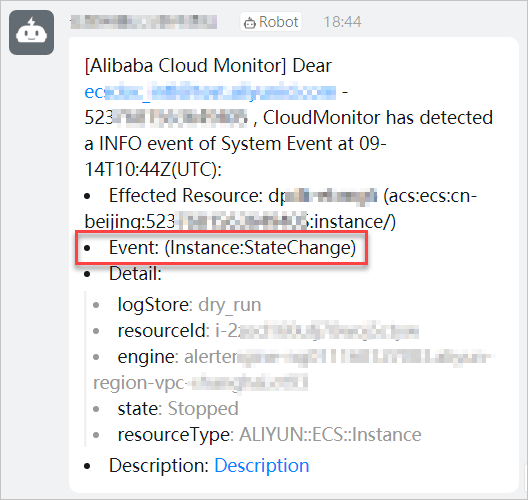
Event notification example
To test the notification, change an instance's status. For example, stop an instance to trigger an event notification like the following: