Security groups
Security groups act as virtual firewalls for ECS instances, using rules to provide fine-grained network isolation and access control.
This example shows how to configure two security group rules: one to allow remote management of an instance only from an authorized IP address, and another to block the instance from accessing high-risk sites on the public network.
Inbound rule: Allows access to the instance over SSH (port 22) from a specific IP address (
121.XX.XX.XX).Outbound rule: Blocks the instance from accessing a known high-risk IP address (
XX.XX.XX.XX).

Configure a security group
Go to the instance purchase page: On the ECS console - Custom Launch page, select the instance configurations.
Create a security group: In the Network and Security Group section, create a basic security group or an enterprise security group and specify a name.
Quickly configure common rules: When you purchase an instance, the console provides a list of common rules. You can select these rules to allow traffic from all IP addresses (
0.0.0.0/0) to access specific ports or protocols on the instance.
You cannot configure fine-grained security group rules during instance creation. You can configure them after you create the instance. If you select remote management ports, such as SSH (22) and RDP (3389), during quick configuration, we recommend that you modify the security group rules after you create the instance to allow access only from trusted IP addresses.
Configure security group rules after creation: After you purchase the instance, refer to Security group rules to configure security group rules.
For more examples of security group rule configurations for various business scenarios, such as restricting instance access and implementing database security policies, see Security group application and use cases.
Associate a security group with an existing instance
When you associate a security group with an ECS instance, the security group is applied to the instance's primary network interface.
Create a security group.
If you don't need to create a new security group, you can go directly to associate a security group with an existing instance.
Console
Navigate to the ECS console - Security Groups page and click Create Security Group.
Set the security group name and specify a Virtual Private Cloud.
Select Basic Security Group or Advanced Security Group as the security group type.
Configure security group rules.
click Add Rule. You can also Modify or Delete existing rules. Security group rules are stateful. You only need to configure inbound rules because the system automatically allows the corresponding outbound response traffic. For information about common ports and recommended sources, see the following table. For complete examples, see Security group application and use cases.
Examples of common port rules
Port
Protocol
Purpose
Source
Reference
22TCP
SSH remote connection (Linux)
Your office network or a fixed public IP address. Long-term use of
0.0.0.0/0is not recommended.3389TCP
RDP remote desktop (Windows)
Your office network or a fixed public IP address. Long-term use of
0.0.0.0/0is not recommended.80TCP
HTTP
You can use
0.0.0.0/0for public websites.443TCP
HTTPS
You can use
0.0.0.0/0for public websites.8888TCP
Used for management panels, such as BT-Panel. The actual port depends on the panel's configuration.
Allow traffic only from administrator IP addresses. Open the port specified during the panel's installation.
-
3306or other portsTCP
Application access to a database within the VPC
In the inbound rules of the database's security group, authorize the source security group. Do not expose this port to the public.
Service port
TCP
Communication between different security groups (for example, on ports 8080 and 3306)
In the inbound rules of the destination security group, authorize the source security group ID.
WarningPrinciple of least privilege: Ports
80/443can be opened to the public as needed. Access over SSH (port 22), RDP (port 3389), and management panel ports must be restricted to trusted IP addresses. Avoid using0.0.0.0/0or::/0.Rule priority: For rules with the same priority, deny rules take precedence. Security groups allow certain types of network traffic by default.
Change management: Avoid directly modifying security groups in the production environment. We recommend that you first clone a security group, verify it in a test environment, and then adjust the production rules.
Click OK.
A new Basic Security Group with no configured rules has default behaviors: all outbound traffic is allowed, and inbound traffic from other ECS instances within the same security group is also allowed. All other inbound traffic is denied.
API
Call CreateSecurityGroup to create a security group.
After you create a security group, call the following API operations to manage its security group rules:
Call AuthorizeSecurityGroup to add an inbound rule.
Call AuthorizeSecurityGroupEgress to add an outbound rule.
Call ModifySecurityGroupRule to modify an inbound rule.
Call ModifySecurityGroupEgressRule to modify an outbound rule.
Call RevokeSecurityGroup to revoke an inbound rule.
Call RevokeSecurityGroupEgress to revoke an outbound rule.
Associate a security group with an existing instance.
Console
On the ECS console - Instances page, click the ID of an instance to open its instance details page.
On the instance details page, go to the Security Group tab. In the security group list, click Change Security Groups to add or remove security groups. When multiple security groups are associated, their rules are combined and applied according to priority.
API
Call ModifyInstanceAttribute to associate multiple security groups with an ECS instance.
Call JoinSecurityGroup to add an ECS instance to a specified security group.
Call LeaveSecurityGroup to remove an ECS instance from a specified security group.
Associate a secondary ENI with a security group
Security groups apply to the elastic network interfaces of an ECS instance. If an instance has multiple elastic network interfaces, you can associate different security groups with each and configure distinct rules for tiered traffic control and service isolation.
Console
Go to the ECS console - Elastic Network Interfaces page and click the ID of the target secondary elastic network interface to open its details page.
Click Change Security Groups, select the security groups to associate, and then click OK.
API
Call JoinSecurityGroup to add an elastic network interface to a specified security group.
Call LeaveSecurityGroup to remove an elastic network interface from a specified security group.
Call ModifyNetworkInterfaceAttribute to associate multiple security groups with an elastic network interface.
Intra-group network communication
By default, ECS instances within the same basic security group can communicate with each other over the internal network. To improve security, you can change the intra-group connectivity policy to internal isolation to prevent internal network communication.
Enterprise security groups do not support changing the internal connectivity policy.
If an instance is associated with multiple security groups, internal network communication is allowed if the intra-group connectivity policy of at least one security group allows communication.
If the intra-group connectivity policy of a security group is set to internal isolation, you can still configure security group rules to allow communication between instances.
Console
Go to the ECS console - Security Groups page, and then click the ID of the target security group to open its details page.
On the Security Group Details page, in the Basic Information section, click Modify Internal Access Control Policy.
Verify that the intra-group connectivity policy of the security group is now Internal Isolation.
API
To modify the intra-group connectivity policy of a basic security group, call the ModifySecurityGroupPolicy operation.
Network access between security groups
When you set another security group as the source for a rule, instances in the source security group can access instances in the current security group over the internal network. For example, if you add an inbound rule to security group A and set security group B as the source, instances in security group B can access instances in security group A.
Rules for an enterprise security group do not support specifying another security group as the source.
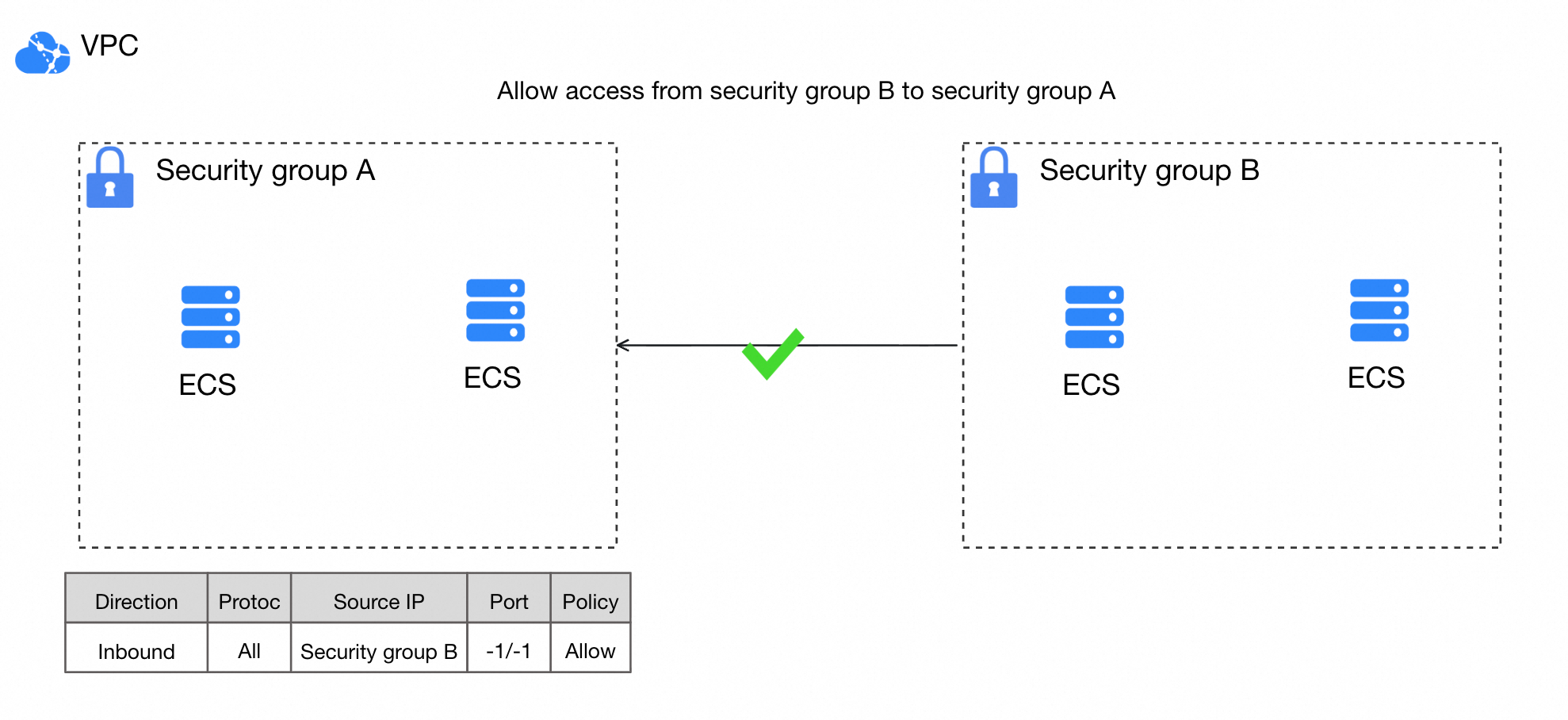
Console
Go to the ECS console - Security Groups page and click a security group ID to open its details page.
On the target Security Group Details page, select a rule direction and click Add Rule.
On the Create Security Group Rule page, set Source to Security Group or Cross-account Security Group.
API
Call AuthorizeSecurityGroup and set the SourceGroupId parameter in an inbound rule to specify the source security group.
Call AuthorizeSecurityGroupEgress and set the DestGroupId parameter in an outbound rule to specify the destination security group.
More operations
Add, modify, or delete security group rules
Security group rules define the conditions that network traffic must meet to be allowed to enter or leave a security group. When you configure a rule, you must specify the traffic direction, destination, and priority. Security group rules are stateful. You only need to configure inbound rules. The security group automatically allows the corresponding outbound response traffic.
Console
Go to the ECS console - Security Groups page. Click the ID of the target security group to go to its details page.
Configure security group rules.
To add a rule: On the product page of the target security group, select a direction and click Add Rule.
Examples of common port rules
Port
Protocol
Purpose
Source
Reference
22TCP
SSH remote connection (Linux)
Your office network or a fixed public IP address. Long-term use of
0.0.0.0/0is not recommended.3389TCP
RDP remote desktop (Windows)
Your office network or a fixed public IP address. Long-term use of
0.0.0.0/0is not recommended.80TCP
HTTP
You can use
0.0.0.0/0for public websites.443TCP
HTTPS
You can use
0.0.0.0/0for public websites.8888TCP
Used for management panels, such as BT-Panel. The actual port depends on the panel's configuration.
Allow traffic only from administrator IP addresses. Open the port specified during the panel's installation.
-
3306or other portsTCP
Application access to a database within the VPC
In the inbound rules of the database's security group, authorize the source security group. Do not expose this port to the public.
Service port
TCP
Communication between different security groups (for example, on ports 8080 and 3306)
In the inbound rules of the destination security group, authorize the source security group ID.
WarningPrinciple of least privilege: Ports
80/443can be opened to the public as needed. Access over SSH (port 22), RDP (port 3389), and management panel ports must be restricted to trusted IP addresses. Avoid using0.0.0.0/0or::/0.Rule priority: For rules with the same priority, deny rules take precedence. Security groups allow certain types of network traffic by default.
Change management: Avoid directly modifying security groups in the production environment. We recommend that you first clone a security group, verify it in a test environment, and then adjust the production rules.
Modify a rule: In the Access Rule area on the details page of the destination security group, find the destination rule and click Edit in the Actions column.
Delete a rule: On the details page of the target security group, in the Access Rule area, find the target rule and click Delete in the Actions column.
API
Call AuthorizeSecurityGroup to add an inbound rule.
Call AuthorizeSecurityGroupEgress to add an outbound rule.
Call ModifySecurityGroupRule to modify an inbound rule.
Call ModifySecurityGroupEgressRule to modify an outbound rule.
Call RevokeSecurityGroup to delete an inbound rule.
Call RevokeSecurityGroupEgress to delete an outbound rule.
If rules have the same priority, deny rules take precedence. For certain types of network traffic, the security group allows traffic by default.
To reduce security threats in your production environment, configure security group rules based on the principle of least privilege (whitelist). Avoid allowing access from all sources (0.0.0.0/0 or ::/0), especially for important scenarios such as logging in to or managing ECS instances.
Do not directly modify security groups in a production environment. You can first clone the security group and test it in a test environment. After you confirm that instance traffic is normal, you can modify the rules of the security group in the production environment.
Prefix lists and port lists
Use prefix lists and port lists to centrally manage permissions for multiple IP address ranges and ports. This simplifies security group rule configuration and improves batch maintenance efficiency.
Console
Create a prefix list or port list:
Go to ECS console - Prefix Lists.
On the relevant tab, click Create Prefix List or Create Port List.
For a security group that references a prefix list or port list, the rule count is based on the maximum number of entries specified for the list.
On the details page of the target security group, add or modify a rule in the Access Rule section:
Set Source to a prefix list and select the target prefix list.
Set Destination (This Instance) to a port list and select the target port list.
API
Prefix lists
Call CreatePrefixList to create a prefix list. After the prefix list is created, you can call DescribePrefixListAttributes to query its details.
Call AuthorizeSecurityGroup and set the
SourcePrefixListIdparameter in an inbound rule to authorize access from the prefix list.Call AuthorizeSecurityGroupEgress and set the
DestPrefixListIdparameter in an outbound rule to authorize access to the prefix list.
Port lists
Call CreatePortRangeList to create a port list.
Call DescribePortRangeLists to view information about the port list. You can then call AuthorizeSecurityGroup or AuthorizeSecurityGroupEgress and set the
PortRangeListIdparameter in a security group rule to authorize the port list.
Redundant rules
The health check feature can identify redundant rules. A rule is redundant if its conditions are fully covered by another rule that has an equal or higher priority. Redundant rules consume the security group rule quota. Remove them periodically to prevent failures when adding new rules due to an exhausted quota.
Go to ECS console - Security Groups. On the details page of the target security group, click the Access Rule tab and then click Health Check.
In the Health Check dialog box, select the redundant rules that you want to delete and click Delete Selected Rules.
Clone security groups
You can clone a security group to quickly create multiple security groups with the same configurations, or to back up a security group by copying it across regions or network types. After cloning, the new security group appears in the security group list of the destination region.
Go to ECS console - Security Groups. In the Operation column of the target security group, click Clone Security Group.
Configure the destination security group. After cloning, the new security group appears in the security group list of the destination region.
VPC ID: The VPC to which the new security group belongs.
Retention Rule: Select this option to retain all rules from the source security group. Rules with a priority higher than 100 are reassigned a priority of 100.
Copy Tags of Current Security Group: Specify whether to copy the tags from the source security group to the new security group.
Import and export rules
You can import and export rules to back up, restore, or migrate them.
Import rules
Imported security group rules must meet the following requirements:
File format: JSON or CSV.
Number of rules: A maximum of 200 rules can be imported at a time.
Rule priority: 1 to 100. Rules with a priority higher than 100 are ignored.
When you import rules across regions, rules that reference other security groups, prefix lists, or port lists are not supported.
Go to ECS console - Security Groups. On the details page of the target security group, click Import Security Group Rule in the Access Rule section.
On the Import Security Group Rule page, click Select a file, select a local JSON or CSV file, and then click OK.
If the import fails, you can hover over the warning icon to view the cause.
Export rules
Go to ECS console - Security Groups. On the details page of the target security group, click Export in the Access Rule section. The exported rule file is named in one of the following formats:
JSON format:
ecs_${region_id}_${groupID}.json.Example: If the region ID is
cn-qingdaoand the security group ID issg-123, the exported file is namedecs_cn-qingdao_sg-123.json.CSV format:
ecs_sgRule_${groupID}_${region_id}_${time}.csv.Example: If the region ID is
cn-qingdao, the security group ID issg-123, and the export date is2020-01-20, the exported file is namedecs_sgRule_sg-123_cn-qingdao_2020-01-20.csv.
Security group snapshots
Security group snapshots can automatically back up security group rules. When a security group rule is changed, the system automatically creates a snapshot. You can use snapshots to restore rules to a specific point in time and prevent rule loss from accidental operations.
The system creates a snapshot 5 minutes after a rule is changed. If multiple changes occur within the 5-minute window, the system creates only one snapshot based on the rules in effect before the first change.
Security group snapshots use Object Storage Service (OSS) to store backup data. OSS is a pay-as-you-go service. If you use security group snapshots, you are charged for OSS storage and requests.
Create a snapshot policy
Go to ECS console - Security Group Snapshots and click Create Security Group Snapshot Policy.
In the Create Snapshot Policy dialog box, configure the following parameters:
Policy Name:: Enter a name for the snapshot policy.
Status: Select Enable or Disable. Snapshots can be created for associated security groups only when the policy is enabled.
Retention Period: Specify the number of days to retain snapshots. Valid values: 1 to 30. Default value: 1. Expired snapshots are automatically deleted.
OSS Storage Configuration: Configure the OSS bucket that you want to use to store snapshot data. If you leave the bucket name empty, the system uses the default bucket.
Click OK.
When you create a snapshot policy for the first time, you are prompted to authorize the service-linked role (SLR)
ALIYUNSECURITYGROUPSNAPSHOTROLEto access your OSS buckets. If the role already exists, you do not need to authorize the role again.
Associate policies with security groups
After you create a snapshot policy, you must associate the policy with a security group to start backing up its rules.
When you associate a security group with a snapshot policy, the system immediately creates a snapshot for the security group.
Go to ECS console - Security Group Snapshots. Find the snapshot policy and click Associated Security Group in the Operation column.
In the Associated Security Group dialog box, select the security groups that you want to associate.
You can associate a snapshot policy with up to 10 security groups. A security group can be associated with multiple snapshot policies that have different settings.
Click OK.
Restore rules from a snapshot
The restore operation takes effect immediately and cannot be undone. The restore operation overwrites all current rules in the security group with the rules from the snapshot.
Go to the ECS console - Security Groups page and click the ID of the target security group.
On the details page of the security group, click the Snapshots tab. Find the snapshot that you want to use for rollback and click Restore Snapshot in the Operation column.
In the Restore Security Group dialog box, confirm the information to be restored.
On the Inbound and Outbound tabs, compare the Current Security Group Rules with the Restored Security Group Rules.
After you confirm the information, click OK.
Delete security groups
Deleting a security group is an irreversible operation and permanently removes all rules in the security group. Before you delete a security group, make sure that you have backed up its configurations.
Console
Go to ECS console - Security Groups. In the Operation column of the target security group, click Delete.
In the Delete Security Group dialog box, confirm the information and click OK.
If a security group is not associated with any ECS instances or elastic network interfaces, and the Delete Security Group dialog box still indicates Undeletable, you can click Force-delete.
API
Call DeleteSecurityGroup to delete a security group.
A security group cannot be deleted in the following scenarios:
The security group is associated with an ECS instance or an elastic network interface. You must disassociate the security group from the instance or elastic network interface before you can delete the security group.
The security group is referenced by a rule in another security group. You must delete the referencing rule first.
Managed security groups are view-only and cannot be deleted.
Deletion protection is enabled for the security group. You must disable deletion protection and then try again. If you cannot disable deletion protection, you cannot delete the security group.
Deletion protection is enabled if calling the DeleteSecurityGroup operation returns the
InvalidOperation.DeletionProtectionerror code, or if the console displays a message about deletion protection.
Production recommendations
Security group planning
Single responsibility: Use separate security groups for different workloads, such as web, database, and cache tiers.
Environment isolation: Keep security groups for production and test environments separate.
Naming convention: Use a consistent format, such as
environment-application-purpose-sg. For example,prod-mysql-db-sg.
Rule configuration
Principle of least privilege: Open only necessary ports to required sources. Avoid opening management ports such as SSH (22) and RDP (3389) to
0.0.0.0/0. Access should always be restricted to trusted, fixed IP addresses.Default deny: Deny all inbound traffic by default. Add inbound rules to allow access from specific sources to specific ports only when necessary.
Rule priority conflicts: If an instance is associated with multiple security groups, a higher-priority deny rule overrides a lower-priority allow rule. To troubleshoot network connectivity issues, check all associated security groups.
Change management
Avoid direct changes to production environments: Modifying security groups in a production environment is a high-risk operation. First, clone a security group and validate the changes in a test environment. After confirming that instance traffic is unaffected, modify the rules of the security group in the production environment.
Billing
Security groups are free of charge.
Limits
Restriction | Basic security group | Enterprise security group |
Maximum security groups per account per region | Quota ID: | Same as basic security groups |
Security groups per ENI | 10 | Same as basic security groups |
Maximum rules (inbound + outbound) across all security groups per ENI | 1,000 | Same as basic security groups |
Rules that use another security group as the authorization object | 20 | 0. Enterprise security groups do not support security group authorization objects, and cannot be used as authorization objects in other security group rules. |
ECS instances per VPC security group | Not fixed; depends on the number of private IP addresses the security group can contain. | No limit |
Maximum private IP addresses per VPC security group per account per region | 6,000. IP address count includes all address types on associated ENIs (primary private IPv4, IPv6, secondary private IPv4, IPv4 prefixes, and IPv6 prefixes). If you need more than 6,000 private IP addresses to communicate over the internal network, distribute ECS instances across multiple security groups and allow inter-group access. View this quota using quota ID | 65,536. IP address count represents the total number of ENIs (primary and secondary) associated with the security group. |
Public port 25 | Restricted by default for security reasons. Use SSL-encrypted port 465 to send emails instead. | Same as basic security groups |