View bills for a burstable instance
After purchasing a burstable instance, you may incur additional fees for overdrawing CPU credits in unlimited mode. This topic shows you how to view the bills for your instance.
Procedure
-
Navigate to the Expenses and Costs console - Bill Details.
-
Find the bills for your burstable instance.
-
On the Bill Details page, set the following parameters, and click Search.
Leave the other parameters at their default settings.
Parameter
Description
Statistic item
Select Billing Item.
Billing cycle
Select the billing cycle that you want to view.
Product Name
Select ECS.
Resource Instance Name/ID
Enter the name or ID of the burstable instance.
-
The bills for the burstable instance appear at the bottom of the page. Line items with the billing item SurplusCredit represent charges for overdrawn CPU credits.

-
-
View the usage details for your CPU credits.
-
Click View Usage Details in the upper-right corner of the page.
-
Set the following parameters, and click Export CSV.
Parameter
Description
Time period
Select a time period based on your needs.
Product
Select Pay-as-you-go ECS Instance or Subscription ECS Instance.
Billing item
Select SurplusCredit.
Specification
Select CpuCredits.
Time Unit
Only Raw is supported.
-
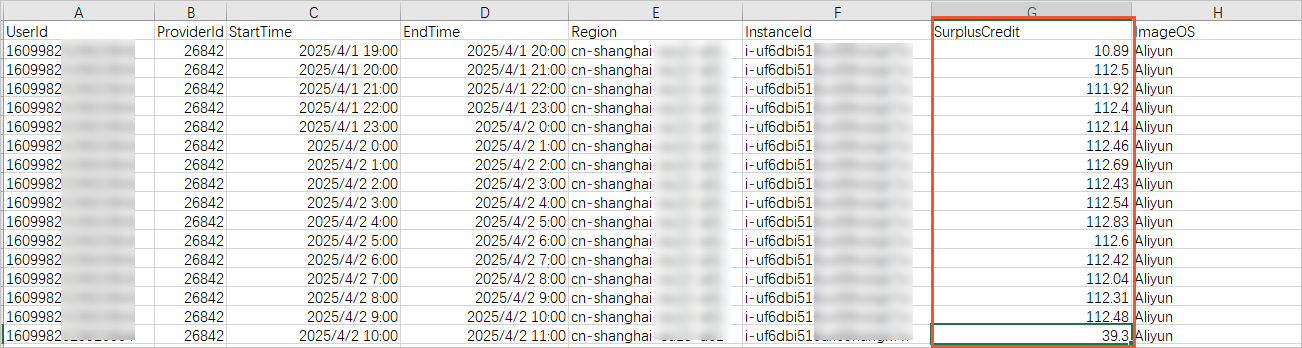
Open the exported CSV file. The SurplusCredit column shows the usage of overdrawn CPU credits.
-