Why can't I log on to a Windows instance using the default port (3389)?
This topic describes possible causes and solutions if you cannot log on to a Windows instance using the default port (3389).
Problem description
You cannot log on to a Windows ECS instance on the default port (3389) using tools such as remote desktop or Workbench.
Cause
This issue can occur if the default Remote Desktop Service port (3389) on the Windows instance has been changed.
The default remote desktop port for Windows instances is 3389. For security reasons, some users change the default port to reduce malicious attacks and scans on their ECS instances.
Solution
Log on to the Windows instance using Virtual Network Computing (VNC).
For more information, see Connect to an instance using VNC.
Choose , enter regedit, and press Enter to open the Registry Editor.
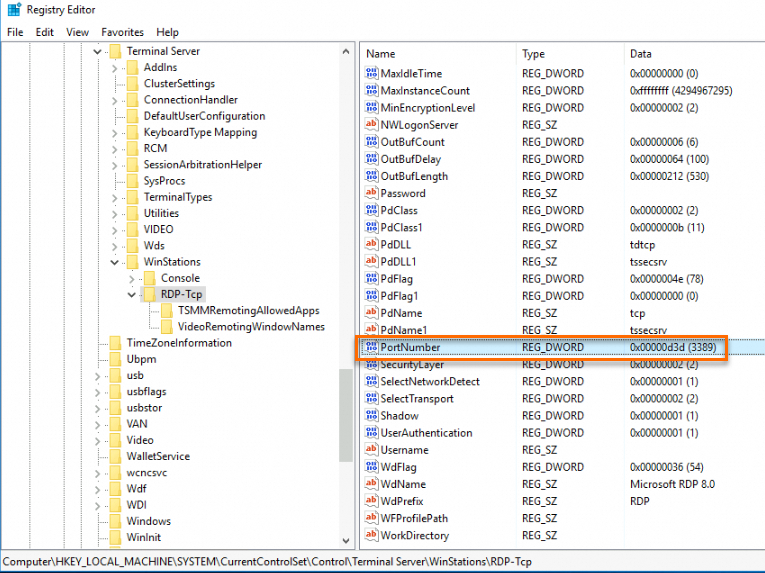
In the address bar of the Registry Editor, enter the path HKEY_LOCAL_MACHINE\SYSTEM\CurrentControlSet\Control\Terminal Server\WinStations\RDP-Tcp, press
Enter, and then find the value of PortNumber.The following figure shows that the value of PortNumber is 3388. This means the Remote Desktop Service port for the ECS instance is 3388.
If you want to use this port, set the logon port to the PortNumber value when you log on to the instance.
If this is not the port that you want to use, continue to step 4.
Change the Remote Desktop Service port.
Right-click PortNumber and click Modify....

In the dialog box that appears, set Base to Decimal and Value data to the port number you want to use, such as 3389.

Click OK.
Restart the instance for the change to take effect.
For more information, see Restart an instance.
Log on to the instance again.
Set the logon port to the port that you configured in step 4. If you can log on successfully, the issue is resolved.