Configure a proxy
Cloud-to-device interconnection supports proxies based on Kubernetes, Secure Shell (SSH), and SOCKS. This topic describes common scenarios for configuring these proxies.
Prerequisites
If you use a Kubernetes proxy, complete the following preparations:
Set up a local Kubectl environment. Ensure that you can access the Kubernetes cluster using Kubectl and a kubeconfig file.
If you use an SSH or SOCKS proxy, complete the following preparations:
Prepare an Elastic Compute Service (ECS) instance that you can access over SSH. This instance is used to establish the channel for cloud-to-device interconnection. For more information, see Create an ECS instance from the console (Quick Start).
ImportantEnsure that the ECS instance and the application are in the same VPC.
The SSH channel requires password-based logon. Key pair logon is not supported.
Configure a Kubernetes proxy
Start IntelliJ IDEA.
In the menu bar, choose .
In the Settings dialog box, choose .
On the Proxy page, click AddProfile to create an empty proxy.
In the Profile Detail section, click Add on the right.
In the Proxy Configuration dialog box, configure the Kubernetes proxy settings and click OK.
Parameter
Description
Proxy type
Select the Kubernetes proxy type.
Configuration file
Select your local kubeconfig file.
Namespace
Select the namespace in the Kubernetes cluster. The default namespace for a Kubernetes cluster is `default`.
When you run your application using cloud-to-device interconnection (in local process or local container mode), the Alibaba Cloud Toolkit plugin creates a temporary proxy container in this namespace. The proxy container requires 64 MB to 128 MB of memory. When you stop the local application, the Alibaba Cloud Toolkit plugin automatically deletes the proxy container.
NoteThe name of a proxy container deployed by the Alibaba Cloud Toolkit plugin starts with `etrans-`.
Configure an SSH or SOCKS proxy
For SSH or SOCKS proxies, you can configure a single SSH proxy as the underlying channel. In complex scenarios, you can also configure cascading SSH or SOCKS proxy nodes. The last proxy in the cascade must be an SSH proxy. The plugin automatically connects the configured proxies in sequence.
Configure a single-level SSH proxy
Start IntelliJ IDEA.
In the menu bar, choose .
In the Settings dialog box, choose .
On the Proxy page, click AddProfile to create an empty proxy.
In the Profile Detail section, click Add on the right.
In the Proxy Configuration dialog box, set the account and password for the SSH proxy, and click OK.
Parameter
Description
Proxy type
Select the SSH proxy type.
Proxy IP address and port
Enter the IP address and port of the proxy server.
Account
Enter the account for the proxy server.
Password
Enter the password for the proxy server.
Configure cascading proxies
For projects with high security requirements, external SSH access may be restricted. In this scenario, you can use the cascading proxy feature to build a connection that meets security and compliance requirements.
When you configure cascading proxies, the last proxy in the chain must be an SSH proxy.
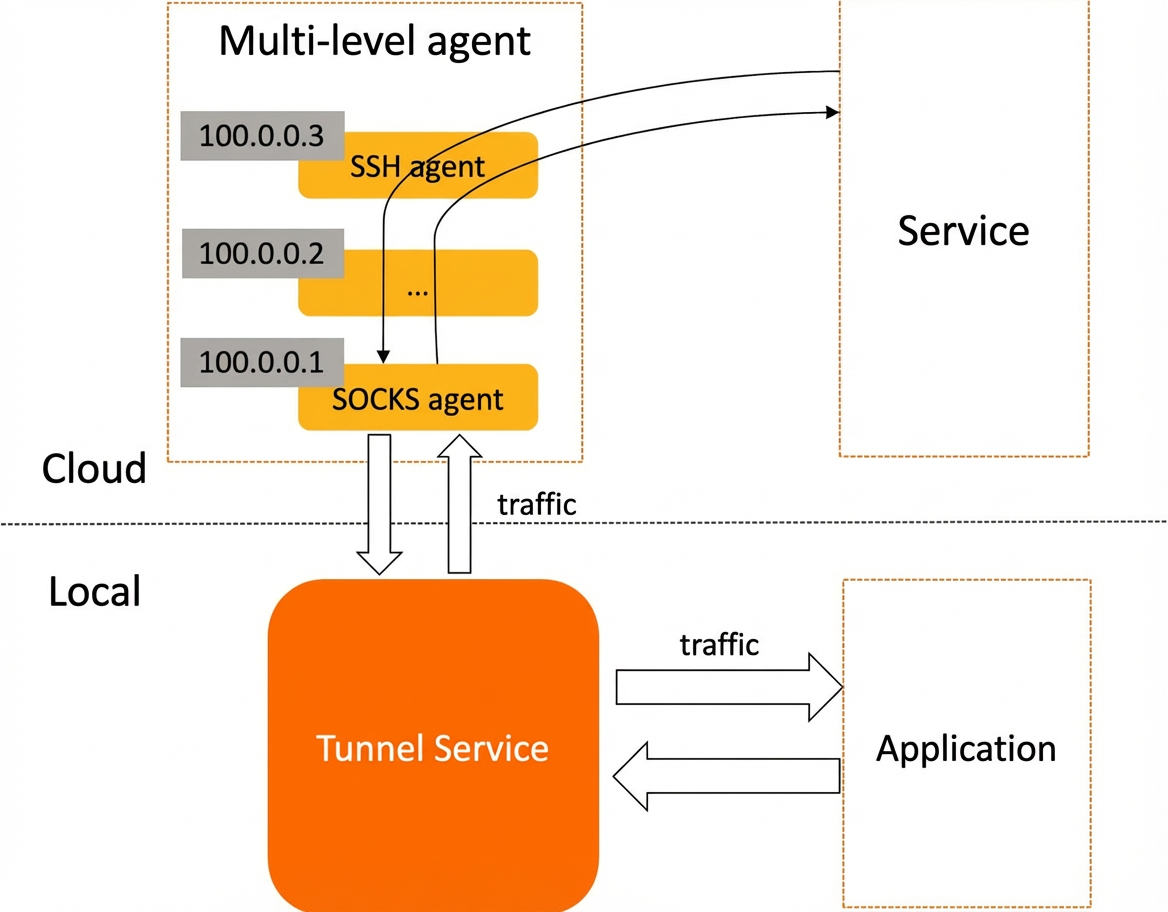
Start IntelliJ IDEA.
In the menu bar, choose .
In the Settings dialog box, choose .
On the Proxy page, click AddProfile to create an empty proxy.
NoteAll proxies in a cascade are configured within the same profile. The configurations for all proxies in a profile are active simultaneously, forming the cascade.
Configure the SSH proxy.
In the Profile Detail section, click Add on the right.
In the Proxy Configuration dialog box, set the account and password for the SSH proxy, and click OK.
Parameter
Description
Proxy type
Select the SSH proxy type.
Proxy IP address and port
Enter the IP address and port of the proxy server.
Account
Enter the account for the proxy server.
Password
Enter the password for the proxy server.
Configure the SOCKS proxy.
In the Profile Detail section, click Add on the right.
In the Proxy Configuration dialog box, set the IP address and port for the SOCKS proxy, and click OK.
Parameter
Description
Proxy type
Select the SOCKS proxy type.
Proxy IP address and port
Enter the IP address and port of the proxy server.
Account
Enter the account for the proxy server. This is optional if the SOCKS proxy does not require authentication.
Password
Enter the password for the proxy server. This is optional if the SOCKS proxy does not require authentication.
Optional: Manually initialize the proxy
Typically, the plugin initializes the proxy for you. This process requires temporary root permissions on the host where the SSH proxy resides. After initialization, you can reuse the proxy account settings without running the process again. The plugin does not save the root key or use it for any other purpose. If you cannot provide root permissions, you can follow these steps to initialize the proxy manually:
Perform these steps on the jump server.
Edit the `/etc/ssh/sshd_config` file.
sudo vi /etc/ssh/sshd_configAdd the following configuration to allow the SSH account to forward requests.
ClientAliveInterval 60     # The SSH proxy host sends a keepalive request to the local client every 60 seconds to maintain the connection. Set this value as needed.
Match User <yourSSHAccount>  # The name of the SSH account.
   GatewayPorts yes
Restart the SSH service.
For Debian or Ubuntu systems:
sudo systemctl restart sshFor CentOS, RHEL, or Fedora systems:
sudo systemctl restart sshd