When you deploy applications on Elastic Compute Service (ECS) instances, you often need to run setup or cleanup tasks at specific lifecycle stages -- for example, pulling configuration before startup or flushing logs after shutdown. Mount scripts in Enterprise Distributed Application Service (EDAS) let you attach custom shell scripts to six lifecycle events. EDAS runs each script automatically when the corresponding event occurs.
Common use cases:
Set up environment variables or host configurations when an instance joins an application
Pull configuration from a config server before the application starts
Register or deregister a service with a service registry during startup or shutdown
Flush logs or clean up temporary files after the application stops
Lifecycle stages and script types
The following diagram shows the execution flow across all lifecycle stages.

EDAS provides six script types, each triggered at a different lifecycle stage:
| Script type | Trigger timing | Frequency | Typical use case |
|---|---|---|---|
| Prepare Instance Script | After an ECS instance is added to an application | Once per instance | Set environment variables, update /etc/hosts |
| Pre-launch Script | Before each application container start (for example, before start.sh launches Tomcat) | Every start | Pull configuration files, validate dependencies |
| Post-launch Script | After each application container start. If a health check URL is configured, runs after the health check passes. If no health check URL is configured, runs after the port opens. | Every start | Register with a service registry, send notifications |
| Pre-stop Script | Before each application container stop | Every stop | Deregister from a service registry, flush in-memory data |
| Post-stop Script | After each application container stop | Every stop | Clean up temporary files, flush logs |
| Destroy Instance Script | After an ECS instance is removed from an application | Once per instance | Remove application-specific configurations |
The Prepare Instance Script provides an application-level trigger point, unlike cloud-init which runs during VM initialization. Use it for application-specific setup that depends on the instance having joined the application.
For the Post-launch Script, do not rely on the port-open trigger. The application container typically opens its port before the application finishes starting, so the script may run before the application is fully ready. Configure a health check URL for a more reliable trigger.
Each script runs in a separate process from the application process. Scripts do not block the lifecycle transition of other instances -- EDAS waits for the script to complete on the current instance before proceeding with that instance's lifecycle.
Limits
| Item | Limit |
|---|---|
| User | Scripts run as the root user |
| Timeout | 600 seconds. Scripts that exceed this limit fail with a timeout error. |
| Size | 8 KB. For larger scripts, upload them to Object Storage Service (OSS) and download them at runtime. See the example below: download and run a large script from OSS. |
| Isolation | Each script runs in a separate process from the application process |
| Execution method | Scripts run through the ECS Send Remote Commands feature using the CoCustomHookScript command |
| Idempotency | Avoid duplicate configuration items in a script to prevent repeated execution |
Error handling
A script succeeds when it returns exit code 0 (Linux/UNIX standard) and fails when it returns a non-zero exit code.
| Failure ignoring setting | Behavior on script failure |
|---|---|
| Enabled | The failed script does not interrupt the application change process. |
| Disabled | The change process pauses. If the health check URL passes, EDAS retries the script repeatedly. |
When failure ignoring is disabled, use one of these methods to resume the change process:
Fix the script and retry the change task.
For Post-launch Script only: click Skip to enable failure ignoring and continue the change process.
Configure a mount script
Before you begin, make sure that you have:
An EDAS application deployed on ECS instances
Access to the EDAS console with permissions to manage the target application
To configure a mount script:
Log on to the EDAS console.
In the left-side navigation pane, choose Application Management > Applications. In the top navigation bar, select a region. In the upper part of the Applications page, select a microservices namespace from the Microservices Namespace drop-down list. Then, click the name of the application that you want to manage.
Open the mount script settings:
At the application level: On the Basic Information tab, click Mount Script in the upper-right corner of the Application Settings section.
At the instance level: Click the Instance Information tab, and select Mount Script from the Group Settings drop-down list.
In the Mount Script dialog box, click the tab for the script type, enter the script content in the text box, and then click Modify.
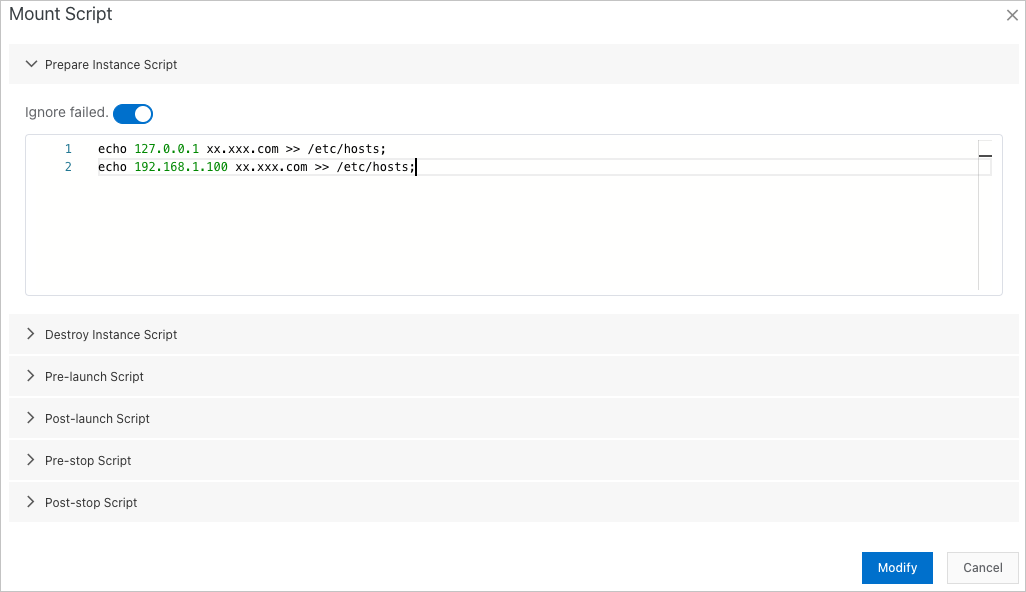
Example: set environment variables with a Prepare Instance Script
#!/bin/bash
# Set application-specific environment variables when an instance joins

# Add environment variables to .bashrc so they persist after application start
echo 'export APP_ENV=production' >> /home/admin/.bashrc
echo 'export LOG_LEVEL=info' >> /home/admin/.bashrc

# Apply the changes
source /home/admin/.bashrc

exit 0To configure environment variables that persist after the application starts, add them to the /home/admin/.bashrc file.
Example: download and run a large script from OSS
If the script exceeds the 8 KB size limit, host it externally and download it at runtime:
#!/bin/bash
# Download and run a script from OSS
curl -o /tmp/setup.sh https://<your-bucket>.<region-id>.aliyuncs.com/scripts/setup.sh
chmod +x /tmp/setup.sh
/tmp/setup.sh

exit $?
Replace the following placeholders with actual values:
| Placeholder | Description | Example |
|---|---|---|
<your-bucket> | OSS bucket name | my-scripts-bucket |
<region-id> | Region of the OSS bucket | cn-hangzhou |
Example: deregister from a service registry with a Pre-stop Script
#!/bin/bash
# Deregister the current instance from the service registry before shutdown

INSTANCE_IP=$(hostname -I | awk '{print $1}')
SERVICE_NAME="my-service"
REGISTRY_URL="http://registry.example.com/api/deregister"

curl -s -X POST "${REGISTRY_URL}" \
  -H "Content-Type: application/json" \
  -d "{\"service\": \"${SERVICE_NAME}\", \"ip\": \"${INSTANCE_IP}\"}"

exit $?
View execution results
After you modify a mount script, view the application changes to check the execution result.
The following figure shows the execution result of a Prepare Instance Script.

Check the InvocationId field in the change logs for the execution status of the remote command.
FAQ
How do I handle scripts larger than 8 KB?
Upload the script to an external storage service such as OSS, then write a short mount script that downloads and runs it. See the example below: download and run a large script from OSS.
What happens when a script fails?
The behavior depends on the failure ignoring setting. When enabled, the change process continues regardless of the script result. When disabled, the change process pauses and EDAS retries the script. See the Error handling section above.
How do I find the cause of a script failure?
View the application changes for the script execution result. The InvocationId field in the change logs links to the remote command execution status.