The EDAS Agent periodically performs health checks on containers and applications and reports the results in the console. This process helps you monitor the health of services in your cluster and helps you troubleshoot and locate issues. This topic describes how to configure port and URL health checks in the EDAS console.
Health check items
Health checks consist of two parts:
Port health check: Checks whether the ports of an application process are open. If a connection to the port is successful, the health check passes. If an application is running normally, its port health check passes. However, a successful port check does not guarantee that the application is fully functional. This is why URL health checks are also necessary.
URL health check: Automatically sends requests to an application, server, or other resource at a fixed interval of 10 seconds. This check verifies whether the resource is reachable, available, and functioning correctly. If the endpoint returns an HTTP status code of 200, the health check is considered successful.
NoteIf you do not configure a URL, URL health checks are not performed.
Health check process
You can configure health checks to monitor endpoints specified by IP addresses or domain names. EDAS health checks automatically send requests to applications, servers, or other resources at fixed intervals to verify whether they are reachable, available, and functioning correctly. You can also configure a health check URL to send requests that simulate user traffic to verify the status of application features.
The following flowchart shows the health check process. This example shows a health check triggered every 10 seconds.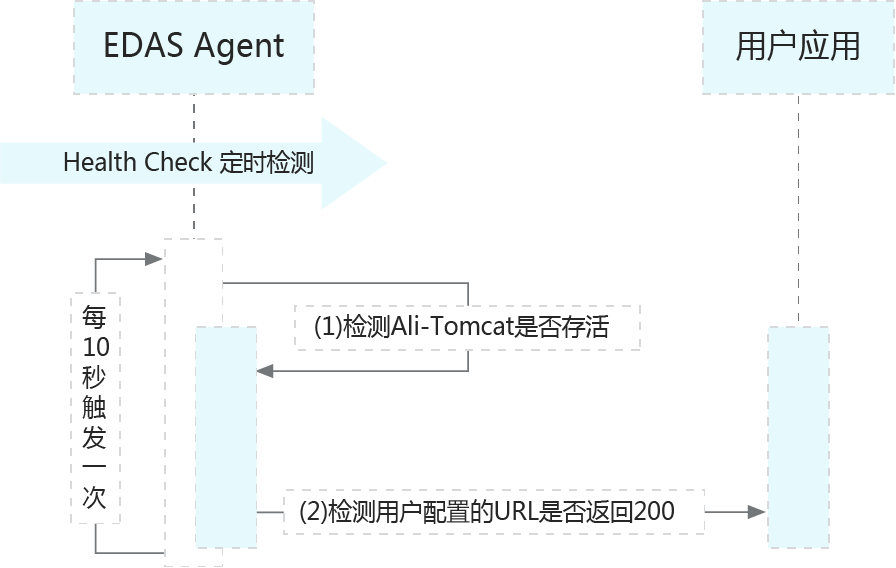
The following describes steps (1) and (2) in the flowchart:
Check whether the Ali-Tomcat container where the application resides is running.
If it is running, proceed to step 2.
If it is not running, the check ends, and the health check fails.
Check whether the configured URL returns a status code of
200.
Health check settings
You can set a health check URL when you create an application in an ECS cluster. You can also add a URL or modify the health check settings in the Application Settings section of the Basic Information page after the application is deployed.
-
Log on to the EDAS consoleEDAS console.
-
In the left-side navigation pane, choose . In the top navigation bar, select a region. In the upper part of the Applications page, select a microservices namespace from the Microservices Namespace drop-down list. Then, click the name of the application that you want to manage.
In the Application Settings section of the Basic Information page, click Modify on the right of Health Check.
NoteThe health check settings are displayed only for applications in ECS clusters.
In the Modify Health Check URL dialog box, set the parameters.
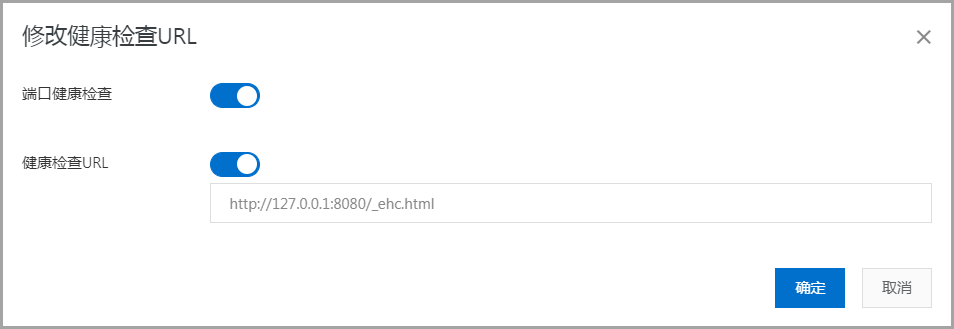
Port Health Check: Enable this feature to check whether the application port can be accessed.
Health Check URL: Enable this feature and configure a health check URL. EDAS monitors whether the configured URL returns a status code of 200. If the URL returns a status code of 200, the service is considered available. The following provides configuration examples:
For an application deployed from a WAR package, the default container is Tomcat and the default application port is
8080. You can set the health check URL tohttp://127.0.0.1:8080/order/healthCheck.html.If the container path for the WAR package application is set to the root path, the port is set to
8081, and the WAR package contains ahealthcheck.htmlfile that indicates the health status, you can set the health check URL tohttp://127.0.0.1:8081/healthcheck.html.
ImportantWhen you set a URL for a health check, note the following points:
The URL must return a status code of 200 when the application is normal and a non-200 status code when it is abnormal.
The URL should not perform operations that affect your business.
The URL should respond as quickly as possible.
The URL should not call other internal interfaces, such as requesting OSS resources. This can cause a high volume of traffic to the OSS resources.
The URL should return a minimal amount of data.
After you configure health checks for an application, different statuses are displayed. On the Basic Information page of the application, click the Instance Information tab to view the health check status of the application in the Running Status column.
Container Exited: During the health check process, if step 1 determines that the Ali-Tomcat process is not running, the status is **Container Exited**.
Application Abnormal: During step 2 of the health check process, the status is set to **Application Abnormal** if the configured URL returns a status code other than 200 within 3 seconds.
Running Normal: This status indicates that both Step 1 and Step 2 of the health check process have passed.
If the EDAS agent does not detect a URL, the Normal state is displayed. In this case, an exclamation point (!) is displayed next to Normal. If you move the pointer over the exclamation point, the following message appears: Configure a health check URL to check the application status accurately.
Agent Abnormal: The agent status is set to **Agent Abnormal** if the EDAS server fails to receive a status report from the Agent within 30 seconds during a health check.
ECS Expired: Indicates that the ECS instance has been released in the ECS console.
What to do next
On the Application Monitoring > Application Details page, click Trace Query to view API call and status information. If the status is abnormal, check the logs to troubleshoot the errors. For more information, see Trace Query.