View log folders
If your application is abnormal, you can troubleshoot the issue by viewing instance-level and application-level logs. EDAS lets you add log folders to your favorites, view logs, and search logs.
Favoriting log folders
The log folder page contains the default log folders for EDAS. You can also add application log folders to your favorites.
When you add a log folder to your favorites, you can also add the folder to Simple Log Service. This lets you view and search the application logs in that folder on the Log Search page.
You can only add log folders to, or remove them from, your favorites.
Log on to the EDAS console.
-
In the left-side navigation pane, click . In the top navigation bar, select a region. In the upper part of the page, select a namespace. Select Container Service or Serverless Kubernetes Cluster from the Cluster Type drop-down list. Then, find the application that you want to deploy and click the application name.
In the navigation pane on the left, click Log Center. Then, on the Log Center page, click the Log Folder (Online View) tab.
In the upper-right corner of the Log Folder (Online View) tab, click Add Online View.
In the Add Online View dialog box, enter the path for the Application Log Folder. Select whether to add the folder to Simple Log Service, and then click Add.
The application log folder path must meet the following requirements:
The full path must contain log or logs.
The path must end with a forward slash (/) to indicate that it is a folder.
View instance logs
After you add an application log folder to your favorites, you can view its instance-level and application-level logs.
On the Log Folder (Online View) page, click the expand icon to the left of a log folder. In the list of log files that is displayed, click View in the Actions column.
NoteFor log files under Files Configured by Logging Framework, you can view log details and modify the log level. The log levels, from lowest to highest, are TRACE, DEBUG, INFO, WARN, and ERROR. After you change the level, the system displays logs of the selected level and higher levels at the bottom of the page.
At the top of the Real-time Log page, click the drop-down arrow next to ECS Instance ID/Name/IP and select an instance to view its detailed logs.
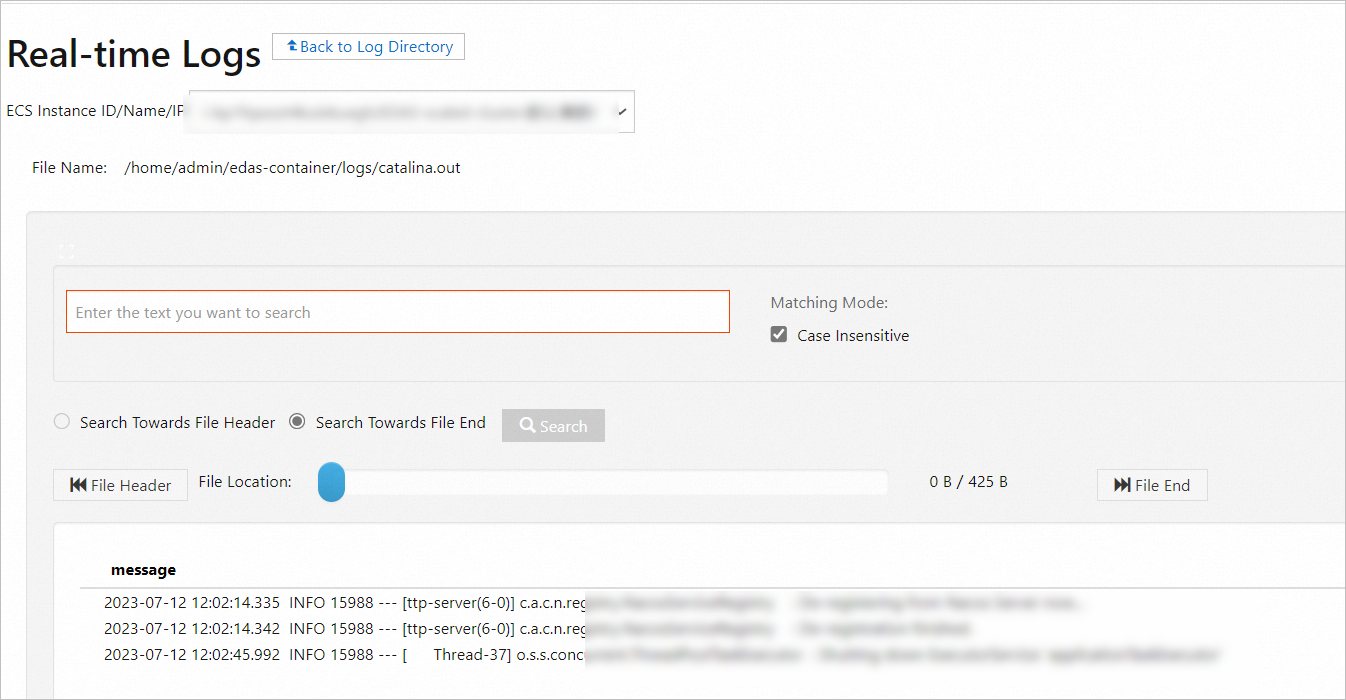
In the lower-right corner of the page, you can click Enable Real-time Append to continuously load the latest content that is appended to the file. This is similar to the effect of the
tailfcommand.
Grant Simple Log Service permissions to a RAM user
If you are a Resource Access Management (RAM) user, an Alibaba Cloud account must grant you permissions in the RAM console before you can use Simple Log Service. These permissions are required for actions such as adding log folders or files to Simple Log Service, viewing application logs, and performing distributed searches. To grant the permissions, perform the following steps:
Use an Alibaba Cloud account to log on to the RAM console.
In the navigation pane on the left, choose . On the Users page, find the RAM user that you want to authorize and click Add Permissions in the Actions column.
On the Add Permissions panel, click the System Policies tab. In the search box, enter log. Click AliyunLogReadOnlyAccess to add the policy to the list on the right and then click OK.
NoteThe Principal is loaded by default and does not need to be set. To grant permissions to multiple RAM users at the same time, you can search for and add them in the text box under Principal.
On the authorization result page, review the RAM user and the granted permissions. After you confirm that the information is correct, click Done.
Remove a log folder from favorites
When you remove a log folder from your favorites, the specified application log folder is removed from the list. After it is removed, the log folder no longer appears on the Log Folder page, and you can no longer view its instance logs. This operation does not delete the actual log folder or its files.
You can also remove default folders from your favorites.
On the Log Folder page, select a log folder and click Remove from Favorites.
In the Remove Log Folder from Favorites dialog box, confirm the log folder that you want to remove. If required, select Also remove from Simple Log Service and then click OK.
When you remove a log folder from your favorites, you can select Also remove from Simple Log Service.
If you do not remove it from Simple Log Service, you can still view the existing application logs in that folder.
If you remove it from Simple Log Service, you can no longer view the application logs in that folder.