Canary release environment (optional)
A canary release environment is an environment in which you can test the routine on one or more points of presence (POPs) before you publish the routine to POPs around the world. This helps minimize the impacts of unknown vulnerabilities on your business.
How it works
The canary release environment helps you minimize the impacts of possible failures when you publish new routines or routine updates. Canary release environments are divided based on regions, and you can control how to roll out your routines.
Select the regions in which canary release environments are deployed. For example, you can select Beijing, Fujian, Hunan, and Guangdong as the canary release environments. After you configure the canary release environments, you can select a canary release environment to publish a version of code or configuration. For example, you can publish the code to the Beijing region. The published code or configuration takes effect only for POPs in the Beijing region and for client requests that are scheduled to POPs in the Beijing region. After the code or configuration is published to the canary release environments in the specified regions, you can monitor the status of your business and feedback from users in the regions. If no issues exist, you can expand the scope of canary release or publish the code or configuration to the production environment.

Isolation model
After you add a POP to the canary release environment, the POP is no longer included in the production environment, as shown in the preceding figure. Each time you publish new code or updated code, you must separately publish the code to the canary release environment.
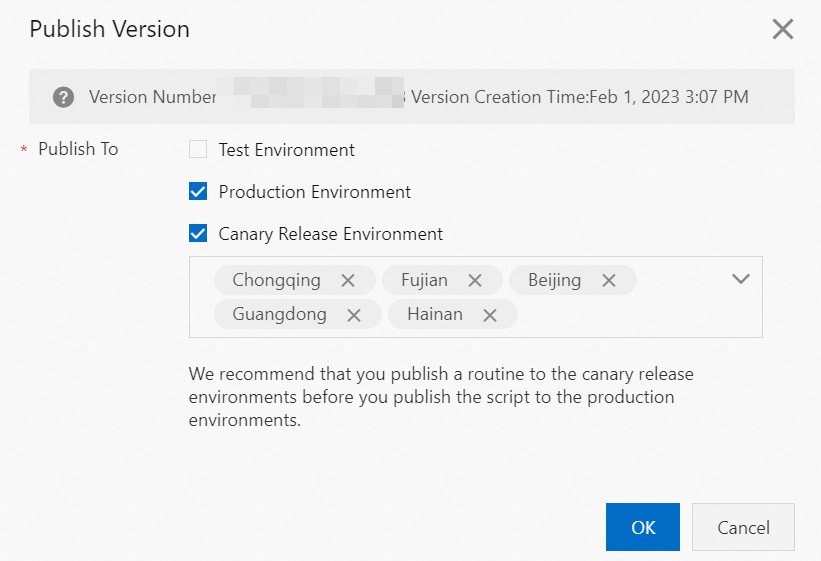
For example, you publish the first version of your code to the production environment, and then you configure Beijing, Fujian, Hunan, and Guangdong as the regions in which canary release environments are deployed. The POPs in these four regions are isolated from the production environment. When you publish the second version of the code to the production environment, the POPs in the four canary release regions still run the first version of the code. You need to separately publish the second version of the code to the Beijing, Fujian, Hunan, and Guangdong regions. This way, all online POPs will run the new code.
Recommended deployment order
To make full use of the canary release environment, publish your code to the staging environment first, then to the canary release environment, and finally to the production environment every time you publish new or updated code.
Configure a canary release environment
-
Log on to the .
NoteA routine requires a domain name to provide services to the client. The domain name can be an Alibaba Cloud CDN-accelerated domain name or a DCDN-accelerated domain name. Log on to the console of the service to which your domain name is added.
-
In the left-side navigation pane, click EdgeRoutine.
-
Select a routine name and click Details. In the Canary Release Environment (Optional) section, click Add Canary Release Environment.
Note-
After you add regions to the canary release environment, the POPs in the regions are isolated from those in the production environment. The configurations of the canary release environment take effect only for the POPs in the selected regions.
-
When a new version of code is published to the production environment, the new version must also be published to all POPs in the canary release environment to ensure that both environments run the same version of the code.
Parameter Description Region Select the region for canary release. Repeat this step to add more regions based on your business requirements. Alibaba Cloud provides 35 regions across the globe, allowing you to select the canary release environment that best fits your business. Routine Specifications The resource allocation tier. Available tiers: CPU Time Slice for Individual Requests: 5 ms, Maximum Real Time: 120s, Memory: 128 MB; CPU Time Slice for Individual Requests: 50 ms, Maximum Real Time: 120s, Memory: 128 MB; CPU Time Slice for Individual Requests: 100 ms, Maximum Real Time: 120s, Memory: 128 MB. The fees vary based on routine specifications. For more information, see Billing rules. Routine Version By default, after you add a canary release environment, the canary release environment runs the same version of the code as the production environment. Domain Name Whitelist The list of domain names that can be associated with the routine. For example, if you set the Domain Name Whitelist parameter to example.com, only requests from example.com can trigger the routine. Requests from other domain names are rejected by the routine. By default, the Domain Name Whitelist parameter is left empty. Requests from all domain names can be associated with the routine. Wildcard domain names are supported. 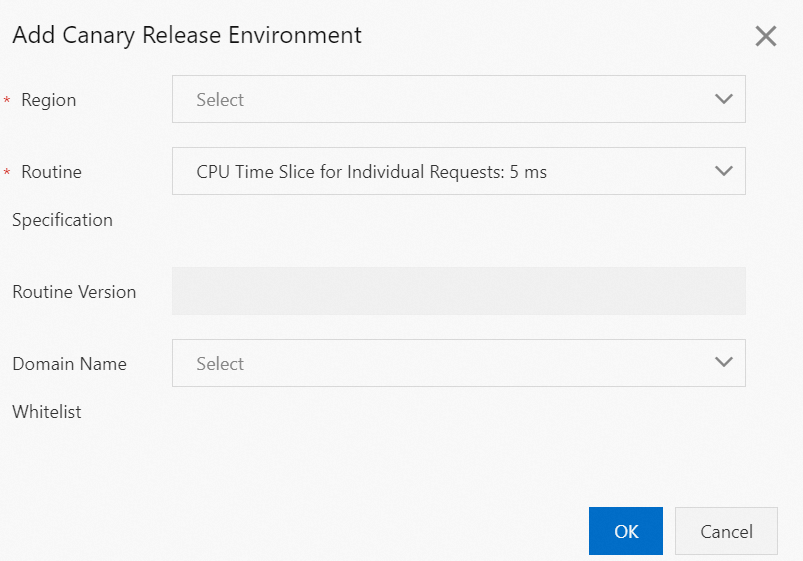
-
-
Click OK.
Use the canary release environment
-
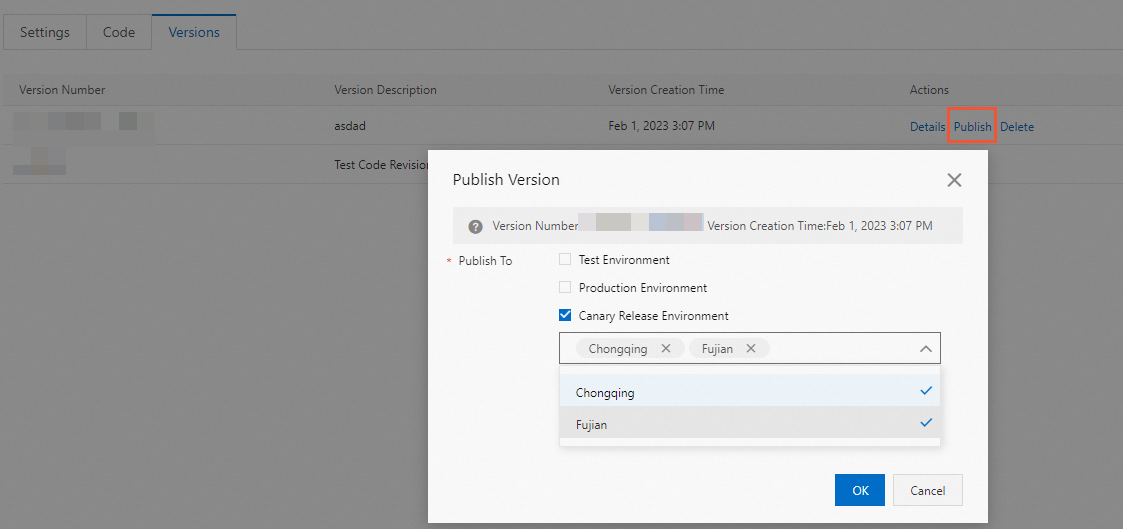
When you publish a version of a routine, you can select the canary release environment that you configured and publish the version to the POPs in the regions of the canary release environment.
NoteIf you publish version 1624328628932318493 of the code to Fujian and Chongqing, the version takes effect only for the POPs in Fujian and Chongqing. Only user requests that are scheduled to the two regions can trigger version 1624328628932318493 of the code.
-
If you want to publish the code to all online POPs after you verify the performance of the code in the canary release environments, you need to select the production environment and all the canary release environments. This way, the code can be published on all online POPs.