EdgeKV
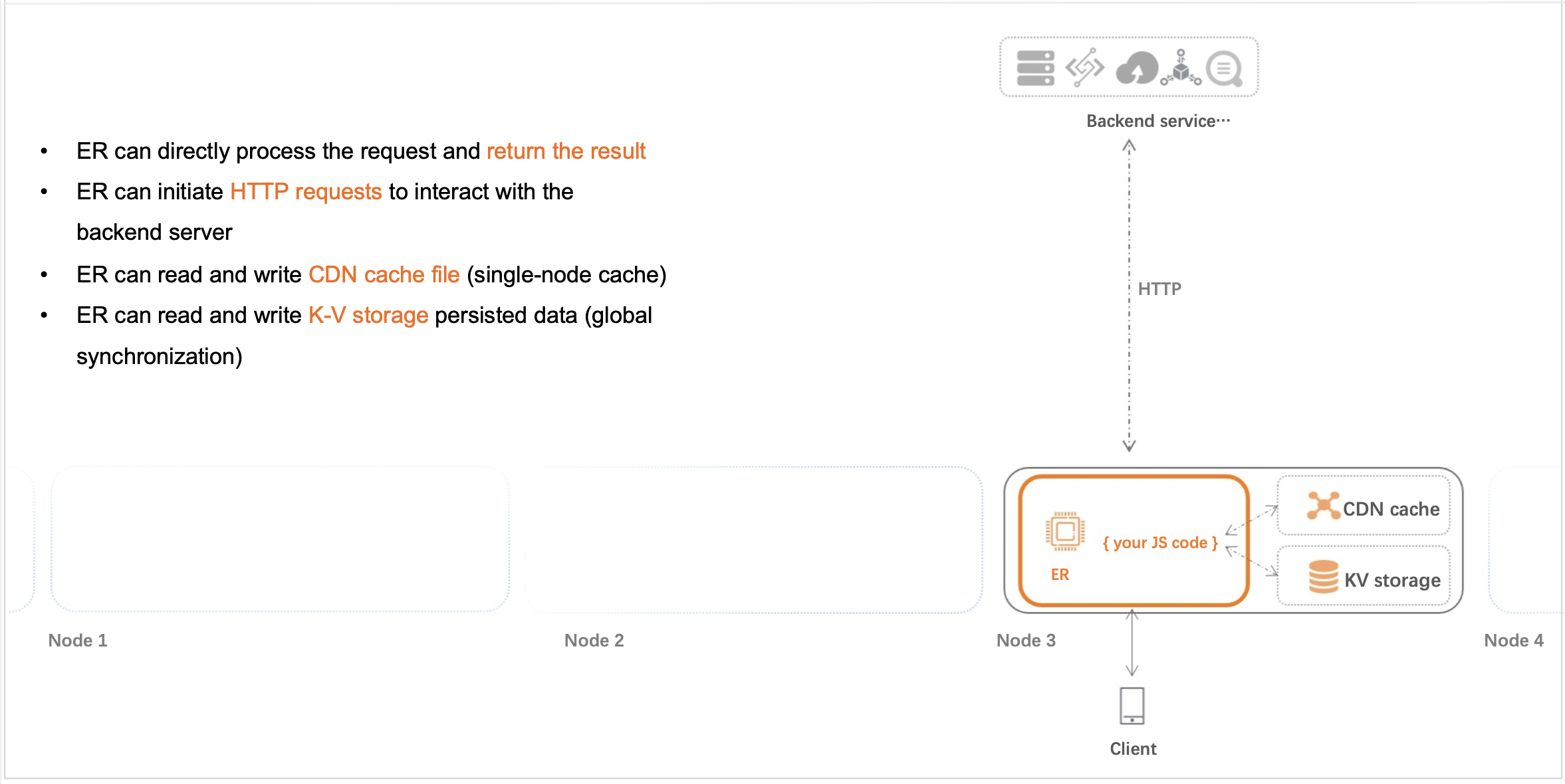
EdgeKV is a key-value edge storage service provided by points of presence (POPs). Data written to EdgeKV is automatically synchronized to POPs worldwide, allowing EdgeRoutine (ER) to read it locally. Together, EdgeKV and ER enable lightweight Blockchain as a Service (BaaS) and API gateway deployments.
Scenarios
EdgeKV is designed for low-frequency write and high-frequency read scenarios. For example, developers write data to EdgeKV in the Dynamic Content Delivery Network (DCDN) console, and ER reads the data at high frequencies through its built-in API operations to process client requests.
Limits
Item | Description |
Storage space |
|
Key-Value |
|
Synchronization time | To ensure data consistency, data is synchronized to POPs around the world in 20 seconds in most cases and in 300 seconds in rare cases. |
Access limit | ER can read and write only EdgeKV data that belongs to the same Alibaba Cloud account. For example, ER in Account A cannot read and write EdgeKV data in Account B. |
Billing
Pricing
The following table describes the pricing for each operation.
Billable item | Billing rule | Billing cycle | Unit price |
Key-value storage | Charges are based on the size and storage duration of key-value pairs. | Pay-by-day: The amount that is due on each day is deducted from your account balance at 00:00 on the next day. | |
Key-value read (GET) | Charges are based on the number of API requests to read data from a namespace. For more information about GET requests, see GetDcdnKv. | 0.7 yuan/million calls | |
Key-value write (PUT) | Charges are based on the number of API requests to write or update data in a namespace. For more information about PUT requests, see PutDcdnKv. | 6.5 yuan/million calls | |
Key-value delete (DELETE) | Charges are based on the number of API requests to delete key-value pairs from a namespace. For more information about DELETE requests, see DeleteDcdnKv. | ||
Key-value list (LIST) | Charges are based on the number of API requests to list all keys in a namespace. For more information about LIST requests, see ListDcdnKv. |
EdgeKV is a value-added service billed separately for namespaces and requests. Other billable items such as routines, traffic, bandwidth, requests, and real-time logs continue to follow your existing billing methods. For more information, see Billing overview.
Billing example

In this example, Routine A uses 1 GB of EdgeKV storage for 1 day, reads key-value data 2 million times, and writes key-value data 1 million times.
Billing cycle: Edge storage fee on January 1, 2021: 0.0139 yuan/GB/hour * 24 + 0.7 yuan/million reads × 2 million + 6.5 yuan/million writes × 1 million = 8.234 yuan.
The fee that was incurred on January 1, 2021 was deducted at 00:00:00 on January 2, 2021.
Use EdgeKV
After activation, you can manage EdgeKV data through the DCDN console or by calling the built-in API operations of ER.

Create a namespace
Create a namespace in the DCDN console.
Namespaces are isolated from each other. You can create up to 10 namespaces.
-
Log on to the DCDN console.
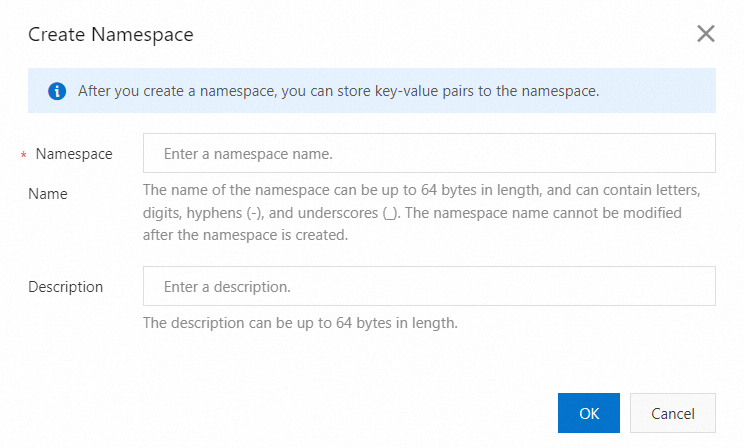
In the left-side navigation pane, choose . On the page that appears, click Create Namespace and follow the on-screen instructions to configure the Namespace Name and Description parameters.
NoteThe Namespace Name parameter corresponds to the namespace parameter in the built-in API operations of ER.
Click OK.
Manage EdgeKV data by using the DCDN console
Add, modify, or delete EdgeKV data in the DCDN console.
-
Log on to the DCDN console.
In the namespace list, find the namespace that you want to manage and click Manage in the Actions column.
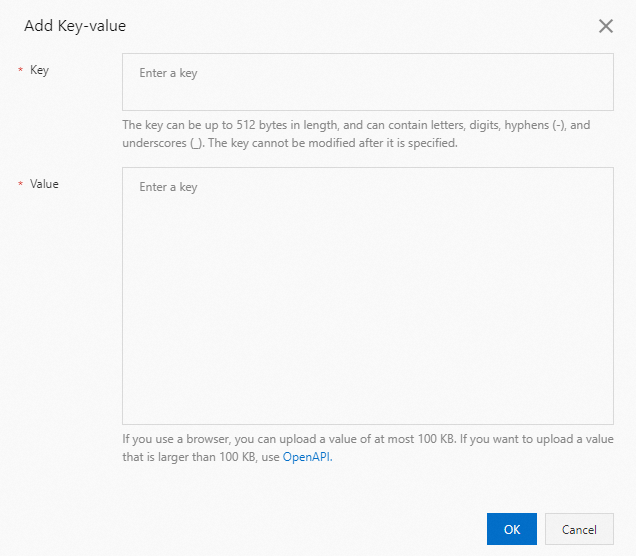
Click Add Key-value and follow the on-screen instructions to configure the Key and Value parameters.
Click OK.
Optional. After you add data, click Modify, View, or Delete to manage the data.
Manage EdgeKV data by calling API operations
Use the built-in API operations of ER to add, modify, query, or delete EdgeKV data.
Before you use API operations to manage data, make sure that a namespace is created in the DCDN console.
For more information about API operations, see EdgeKV API.
Call Constructor to pass the namespace parameter to create a key-value object.
The value of the namespace parameter is the name of the namespace that you created in the DCDN console. You can view the namespace in the namespace list.
const edgeKv = new EdgeKV({ namespace: "ns"});After you create a key-value object, call the following built-in API operations to implement the related features.
API
Description
Reads data from a namespace.
Deletes a specific key and its value from a namespace.